Layout, fonts and animations
Columns and rows
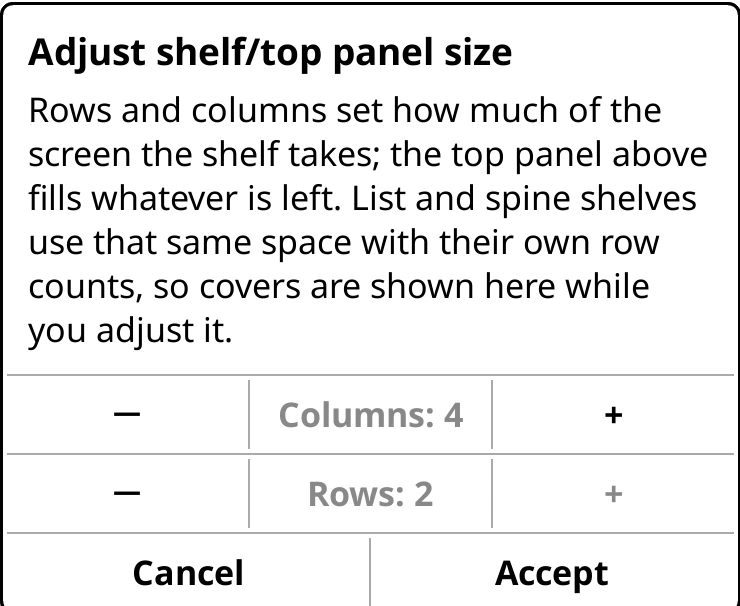
Bookshelf > Adjust shelf/top panel size… sets how many covers fit across (Columns, 2 to 6) and how many rows of them the shelf gets (Rows). The top panel fills the rest. It works in portrait and landscape alike. Pinching the shelf does the same, quicker.
List and spine shelves have their own row counts, in each shelf's Shelf style.
On every cover
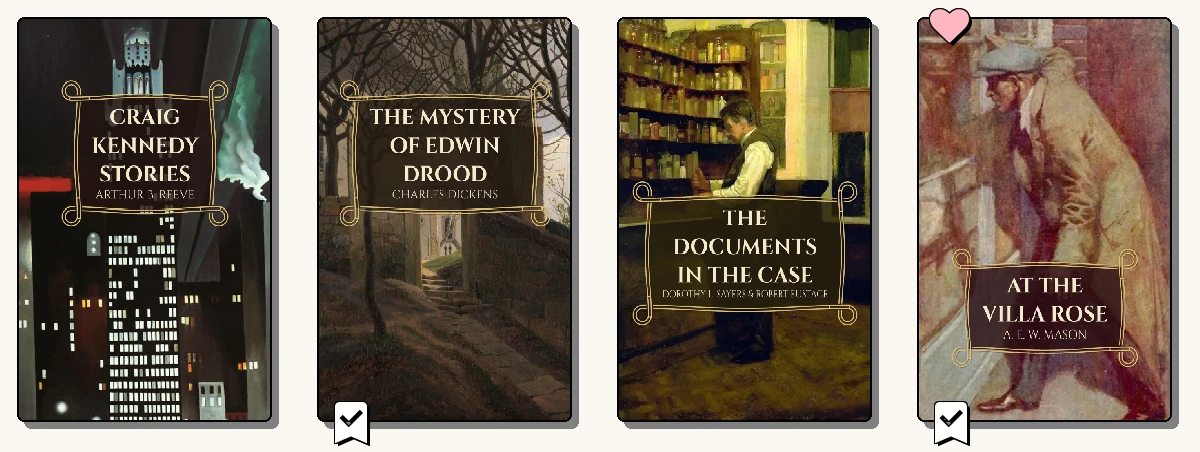
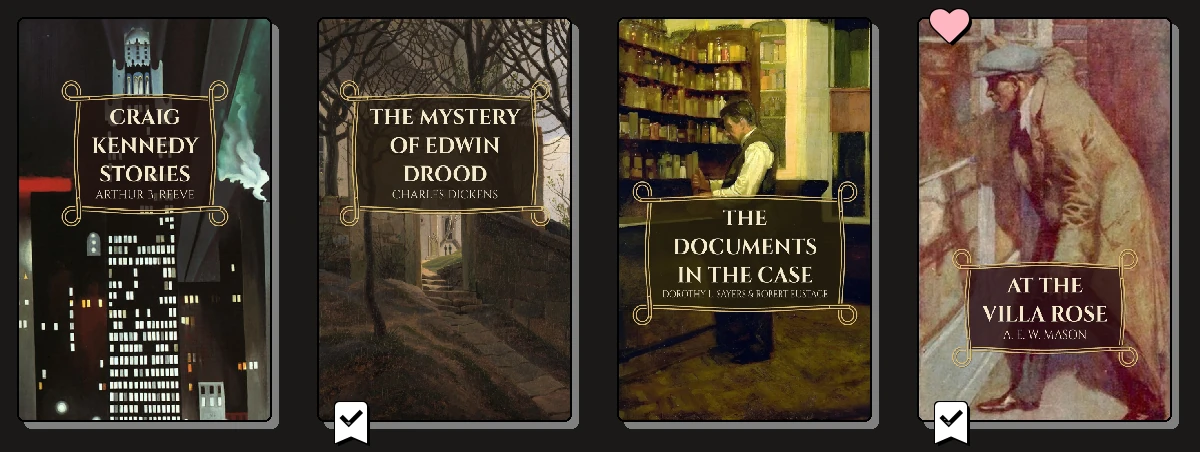
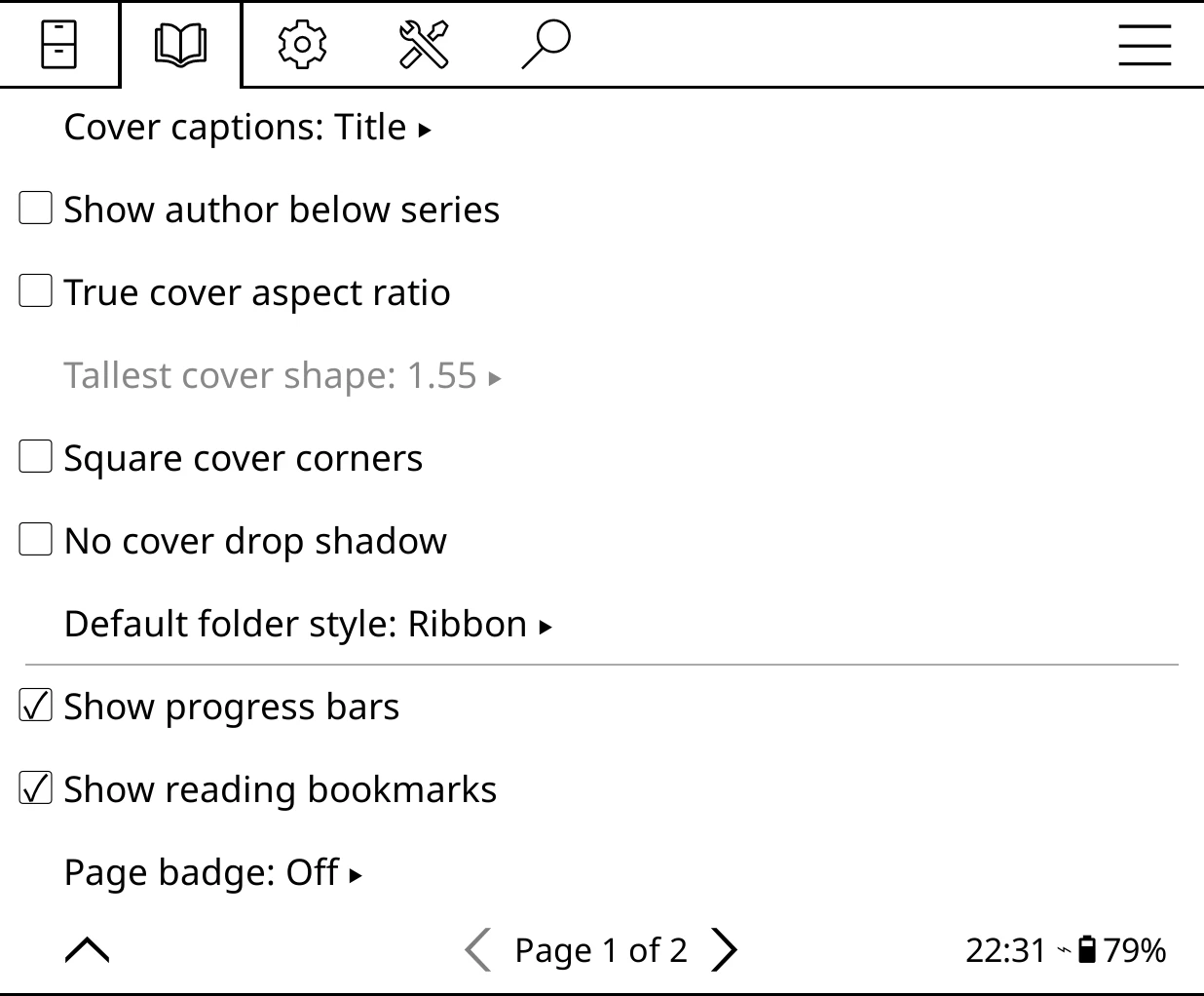
Bookshelf > Settings > Cover display decides what's drawn on and around covers:
| Setting | What it does |
|---|---|
| Cover captions | The line under each cover: Title, Author, Series, Custom… or None. |
| Show author below series | The author under each series stack. |
| True cover aspect ratio | Each cover at its real shape, rather than all the same. Tallest cover shape caps how tall. |
| Square cover corners, No cover drop shadow | Flatter covers. |
| Default folder style | How folders and groups look, on any shelf that hasn't chosen. |
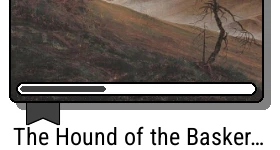
| Show progress bars | A thin bar on books you're reading. |
| Show reading bookmarks | A bookmark on books you're reading. |
| Page badge | Pages, Percent read, both, or Off. |
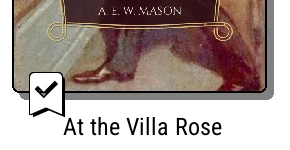
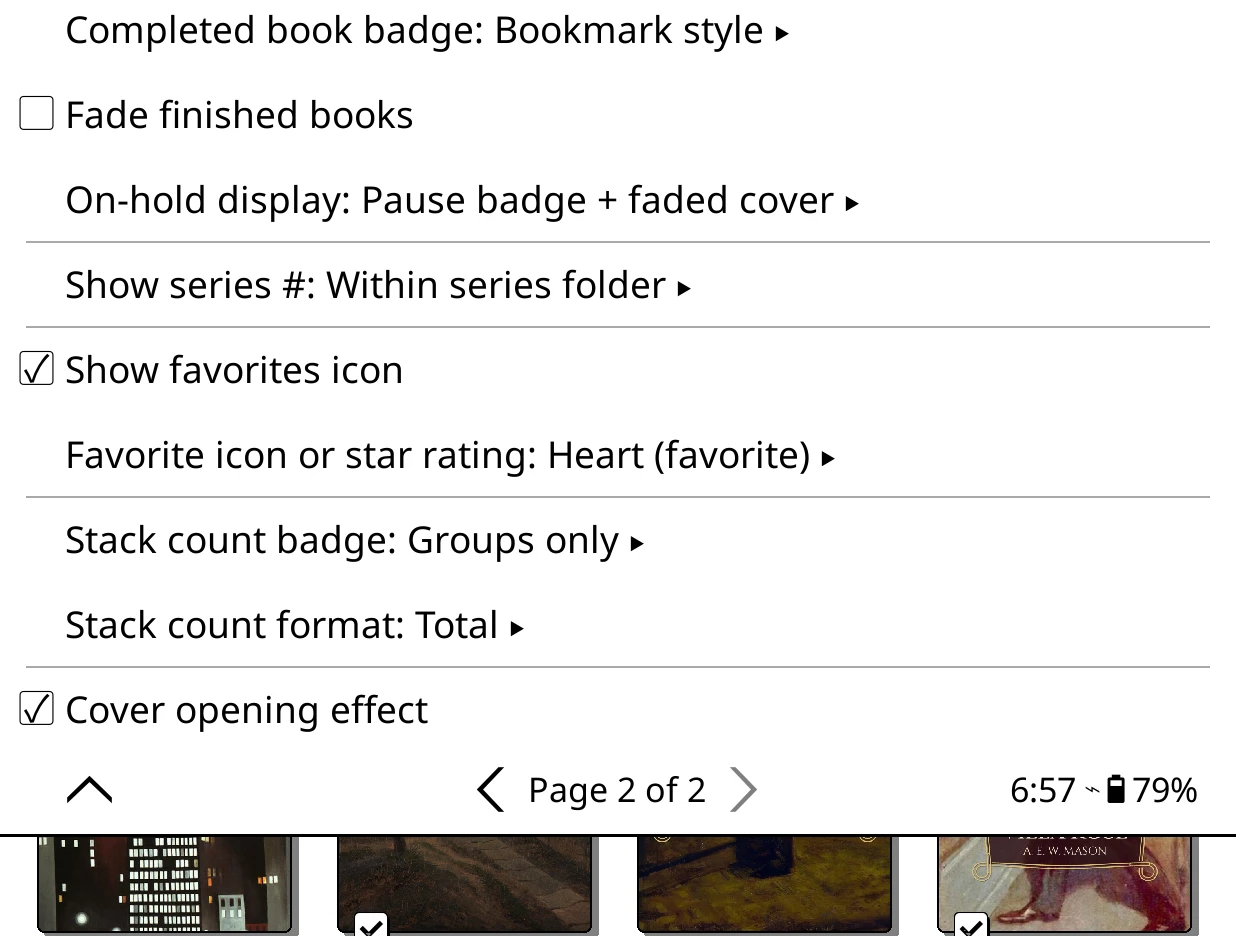
| Completed book badge | Bookmark style, Small tick box or None on finished books. |
| Fade finished books | Finished covers drawn faded. |
| On-hold display | A pause badge, a faded cover, both or neither. |
| Show series # | The #3 badge: Always, Within series folder or Never. |
| Show favorites icon, Favorite icon or star rating | A Heart or Star on favourites, or Stars (rating): your star rating on every rated book. |
| Stack count badge | How many books a stack holds. |
| Cover opening effect | The cover flexes open as a book launches. |
Text sizes
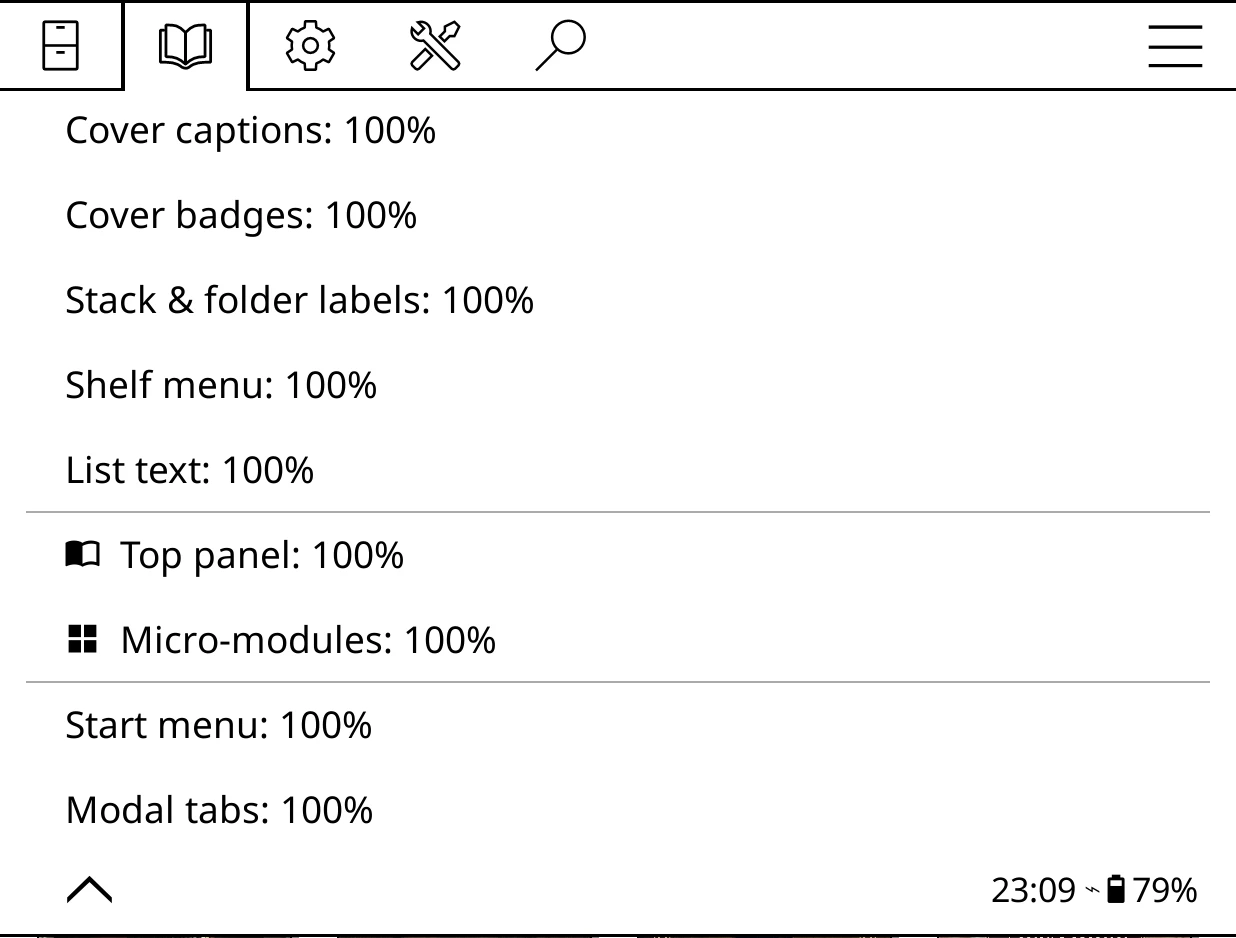
Bookshelf > Settings > Text size scales each part on its own: Cover captions, Cover badges, Stack & folder labels, Shelf menu, List text, Top panel, Micro-modules, Start menu and Modal tabs (the tabs in a book's menu).
Fonts
Bookshelf comes with three fonts: Roboto Condensed for its interface, Inter ExtraBold for the top panel's title and Caveat for the handwritten author line.
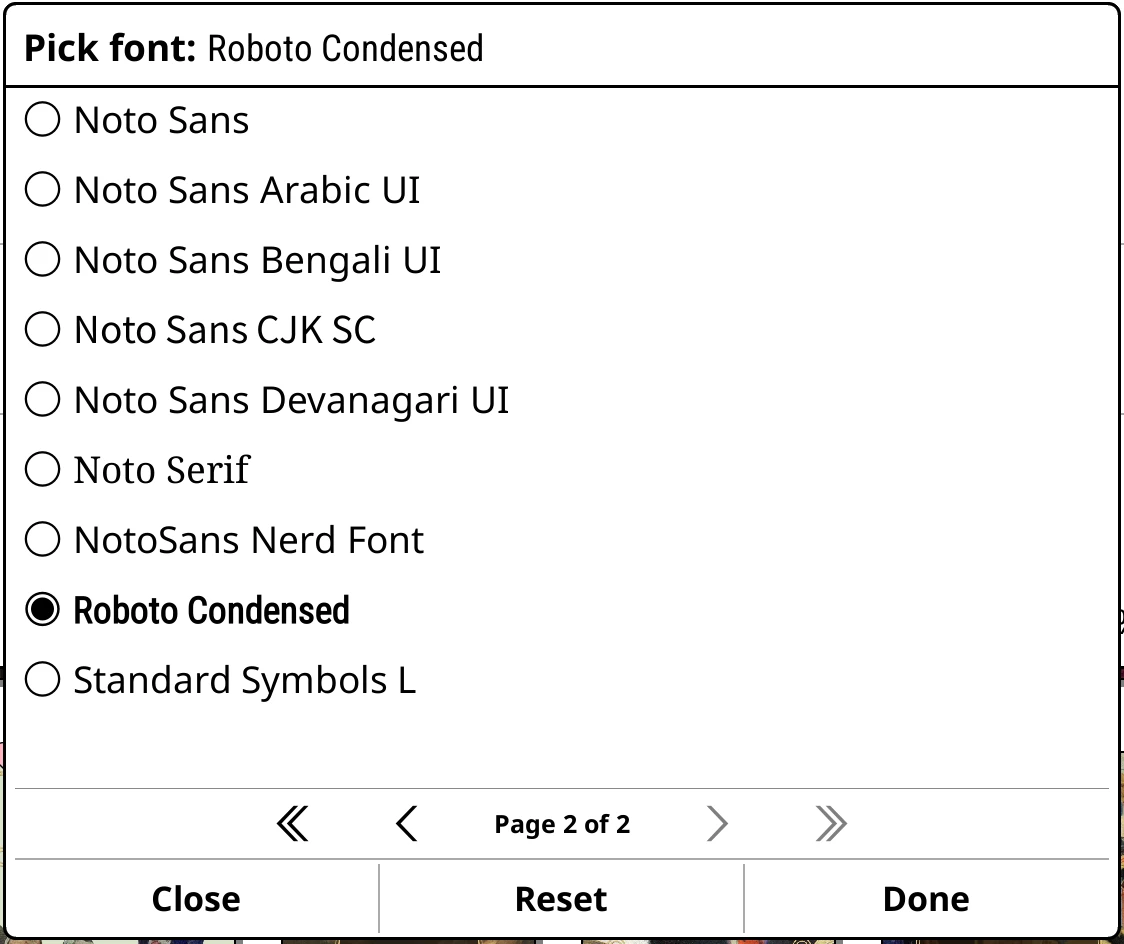
- Bookshelf > Settings > Bookshelf UI font sets the interface font, or Follow KOReader.
- Each top panel and list line has its own font, in its line editor.
Animations
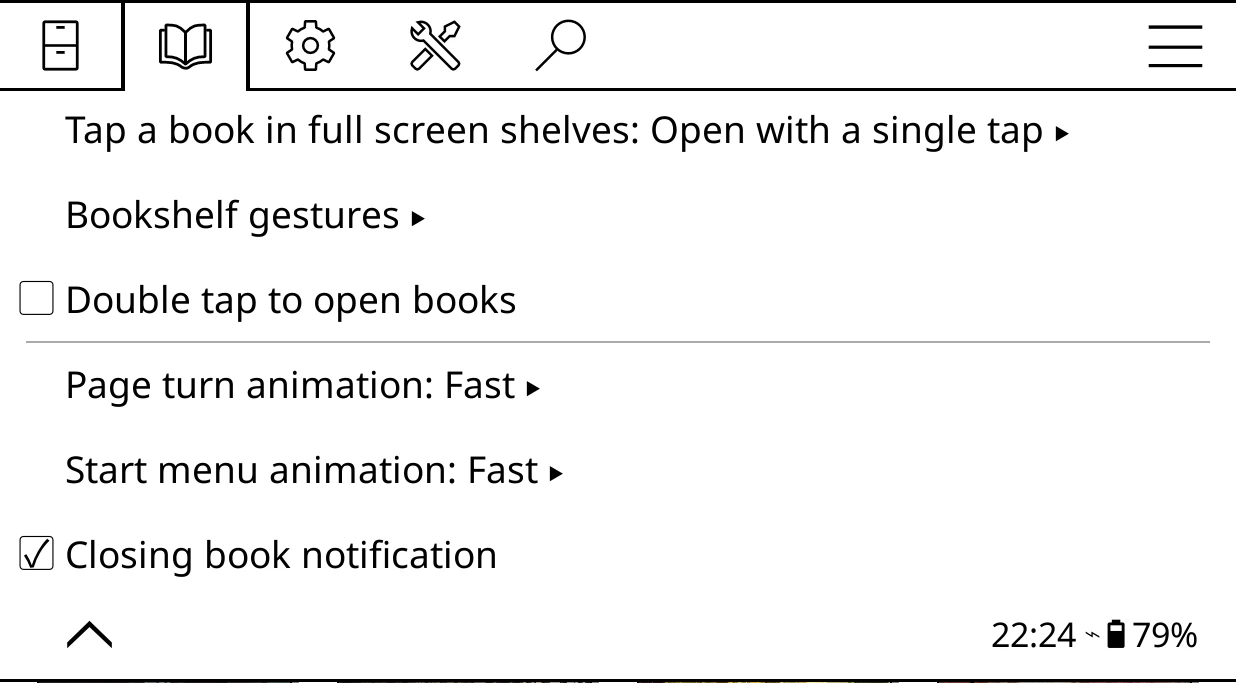
On e-ink, Bookshelf can wipe across the screen as it changes, so a change reads as movement rather than a flash. Under Bookshelf > Settings > Behavior:
- Page turn animation: shelf page turns, and paging the shelf menu.
- Start menu animation: the start menu opening and closing.
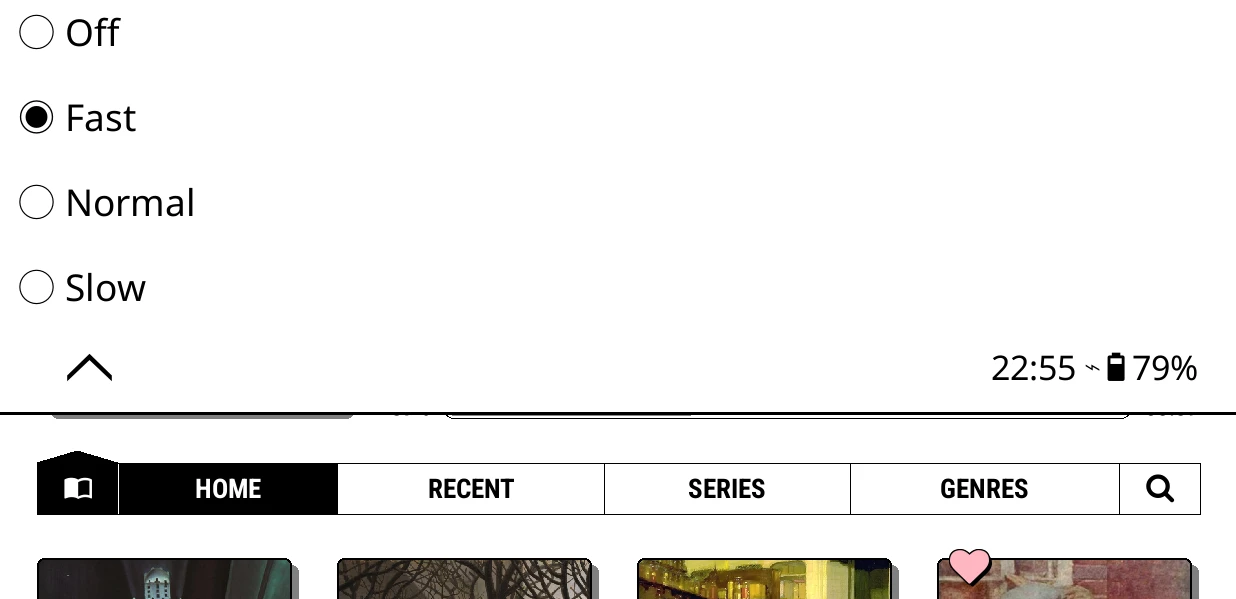
Each can be Off, Fast (the default), Normal or Slow. They only show on e-ink screens.
Spine text
Bookshelf > Settings > Library & search > Spine text direction: Top to bottom, as British and American books are printed, or Bottom to top, as in much of Europe.