The start menu
Tap the menu button in the bottom corner of the shelf. Up comes a launcher, like a Start menu for your e-reader.
A fresh install has your reading streak, the Reading calendar, the Bookmark browser, a Tools folder (screenshot, frontlight, full refresh, battery statistics), Wi-Fi connection and Night mode switches, a divider, and Sleep. Opened over a book, it also has Close book.
Tap an item to run it. A folder flies out to the side. Switches like Wi-Fi show whether they're on.
What the clip shows, step by step:
- The start menu: your shortcuts in one place
- Tap the menu button, bottom left
- Micro-modules, shortcuts, toggles and folders
- Long-press an item to edit the menu
- Rename, move, change the icon, or add something new
- Plugin… adds a shortcut to any plugin
- OPDS catalog, for example
- It joins the menu
- Tap X to close
Add a clock, step by step
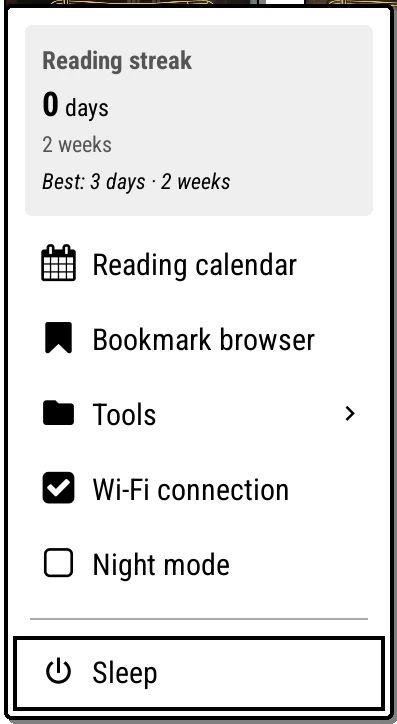
- Open the start menu and long-press any item.
- In the dialog that opens, tap the plus button.
- Choose Bookshelf micro-module…, then Clock.
- It's added. Long-press it and use the arrows to move it where you want.
The same steps, choosing System action… or Plugin…, add any other shortcut.
Making it yours
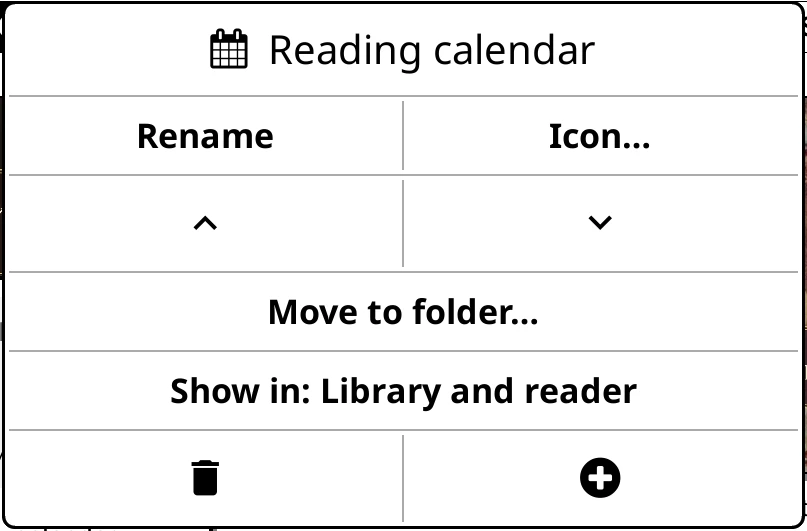
Long-press any item to change it:
- Rename, and Icon… to pick a glyph from the built-in icon library.
- The up and down arrows move it.
- Move to folder… or Move out of folder.
- Show in: Library and reader, Library only or Reader only.
- The bin deletes it, and the plus adds something new.
What you can add
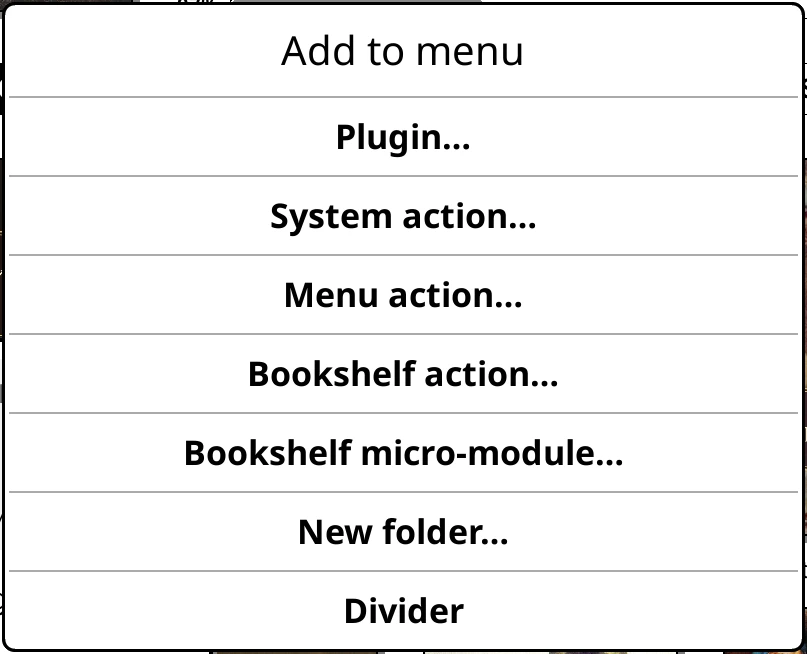
| Add | What it is |
|---|---|
| Plugin… | Open any installed plugin that has a menu entry, games included. |
| System action… | Anything from KOReader's list of actions: night mode, Wi-Fi, sleep, a refresh, the reading calendar and dozens more. |
| Menu action… | Any item from KOReader's own menus. Browse to it, tap it, and it becomes a one-tap shortcut. |
| Bookshelf action… | Bookshelf menu (the whole Bookshelf tab as a popup) or Close bookshelf. |
| Bookshelf micro-module… | A live panel: a clock, your reading goal, a quote from your highlights. See Micro-modules. |
| New folder… | Group items together. |
| Divider | A line between groups. |
Position and size
Under Bookshelf > Settings > Start menu:
- Start menu: Left, Right or Off, for which corner the button sits in.
- Minimum start menu width, if it feels cramped.
Its text size is under Settings > Text size > Start menu, and its open-and-close animation under Settings > Behavior > Start menu animation.
While reading
The same start menu can open over your book. Under Bookshelf > Settings > Advanced > While reading, turn on Show menu button for a small button in the reader's corner. Launcher button position and size… moves it wherever your margins leave room.
Prefer no button? Bind Bookshelf: open start menu to a gesture in KOReader's Gesture manager (gear tab > Taps and gestures). It works in the reader and on the shelf, even with the button turned off.