Your home folder
Bookshelf doesn't keep a separate library. It shows the books in KOReader's home folder, and everything in the folders inside it.
Usually, nothing to do
If you've never set a home folder, Bookshelf uses your device's own book storage:
| Device | Where Bookshelf looks |
|---|---|
| Kindle | the whole USB drive (/mnt/us), which includes documents |
| Kobo | the whole USB drive (/mnt/onboard) |
| PocketBook | the whole USB drive (/mnt/ext1) |
| Android | your device's main storage |
So if your books are already on the device, they'll be on your shelf.
Books bought from Amazon or Kobo
Books from the Kindle or Kobo store are kept by the device's own library, not as ordinary files, and KOReader can't open most of them by itself. Bookshelf can show them on a shelf of their own with the help of another plugin: see Calibre, Kindle and Kobo libraries. Books you add yourself (EPUB, PDF, MOBI, CBZ and so on, copied over USB or downloaded) appear straight away.
When to set one
Set a home folder if:
- your books live in one folder and you'd rather Bookshelf didn't look anywhere else, such as
Booksor a Calibre library folder; - the shelf is empty, because your books are somewhere Bookshelf isn't looking;
- you download from online catalogues. Downloads from an OPDS catalogue need a home folder that you've set yourself.
From an empty shelf
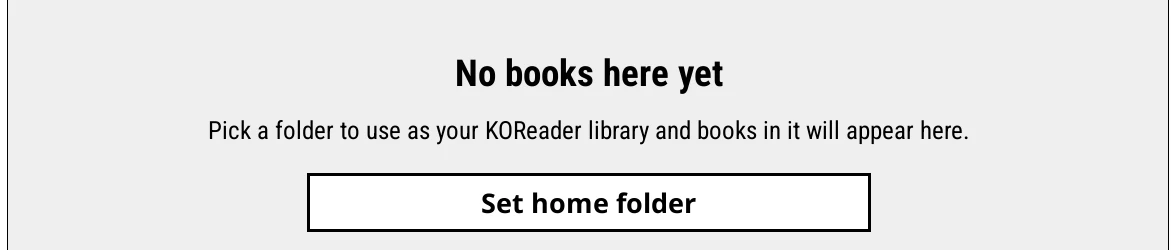
When a Home shelf finds no books, it says No books here yet and offers a Set home folder button. Tap it, pick the folder that holds your books, and they appear.
From KOReader's file browser
- Close the shelf: tap the top of the screen and choose Bookshelf > Close Bookshelf.
- In the file browser, go to the folder that holds your books.
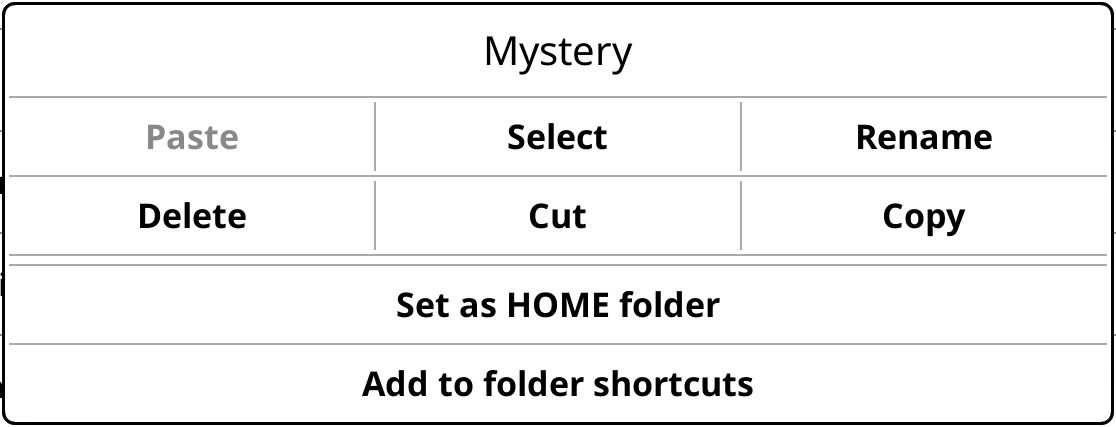
- Long-press the folder and choose Set as HOME folder.
- Open your shelf again with Bookshelf > Open Bookshelf.
The same setting is in the file browser's menu too, under the first tab (the filing cabinet): Settings > Home folder settings > Set home folder.
What the clip shows, step by step:
- Bookshelf shows the books in KOReader's home folder
- To change it, tap the top of the screen for the menu
- Tap "Close Bookshelf" to reach KOReader's file browser
- Go up a level to see the folder that holds your books
- Long-press that folder
- Tap "Set as HOME folder", then confirm
- Back to the shelf: menu > "Open Bookshelf"
- Bookshelf now shows the books in that folder
Folders inside folders
Bookshelf looks inside every folder below the home folder, so Books/Fantasy/Terry Pratchett/... is fine. On the Home shelf, each folder shows as its own section or tile, and grouped shelves like Series and Authors gather books from all of them.
New books
Bookshelf notices new books on its own while it's open. To check straight away, swipe down on the shelf: a Refreshing library notice shows while it looks.
If covers or titles look wrong for books you've just added, see Troubleshooting.