Moving around
Pages
- Swipe left or right on the shelf to turn the page. The footer's arrows do the same.
- Long-press an arrow to skip ten pages.
- The double arrows jump to the first and last page.
On e-ink, a page turn plays as a quick wipe across the screen. Its speed is under Bookshelf > Settings > Behavior > Page turn animation: Off, Fast, Normal or Slow.
Go to a page, a letter or a book
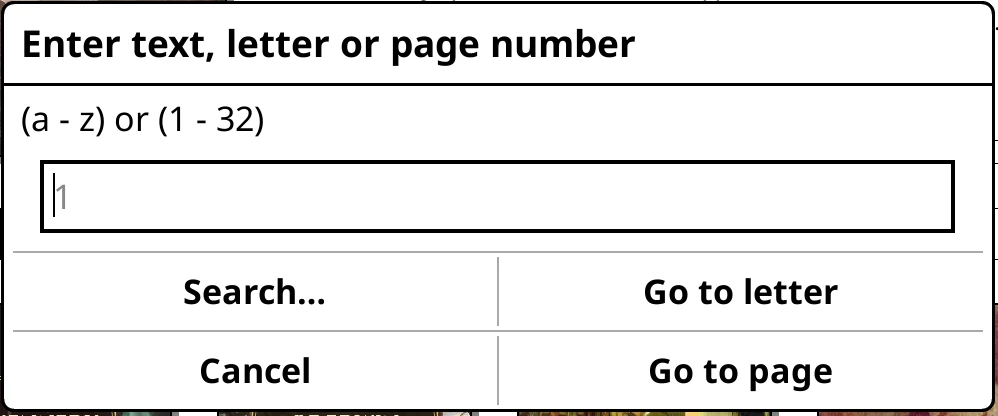
Tap the page counter. A small dialog asks for:
- a page number on a covers or list shelf, or a book number on a spines shelf (spine shelves fit a different number of books per row, so the counter reads as a range like "9-16 of 247");
- a letter, with Go to letter, to jump to that point in the shelf;
- any text, with Search…, to search the library.
Shelves
Tap a tab in the shelf menu to switch shelves. If you have more shelves than fit, swipe the shelf menu sideways, or tap the arrows at its ends.
Swiping past the last page of a shelf wraps round to its first page (and past the first, to the last). To step through shelves with a gesture, set Bookshelf: next shelf and Bookshelf: previous shelf in KOReader's Gesture manager.
Into folders, series and authors
Tap a folder, series, author or genre to open it. The shelf menu turns into a breadcrumb: the shelf, then each level you've opened.

To come back out:
- tap any pill in the breadcrumb to jump to that level;
- swipe right past the first page;
- or press your device's Back button.
What the clip shows, step by step:
- Browse your books by folder
- Long-press the tab to open the shelf's editor
- Set Source / grouping to "Home (folders)"
- Each folder is now a tile. Tap one to open it
- The breadcrumb shows where you are
- Tap HOME in the breadcrumb to go back up
Full screen shelves
What the clip shows, step by step:
- Pinch and swipe to change how much the shelf shows
- Pinch for more columns of smaller covers
- Spread for fewer, bigger covers
- Swipe up to hide the top panel and gain a row
- Swipe down to bring the panel back
- The top panel is back above the grid
- Swipe up anywhere on the shelf: the top panel folds away to a thin status line and more books fit.
- Swipe down, or tap the status line, to bring it back.

The shelf remembers, even after a restart.
On the top panel itself, swipe down for a bigger panel and one shelf row fewer, and swipe up to give the row back.
Bigger, smaller, more, fewer
- Pinch the shelf for more, smaller books.
- Spread for fewer, bigger ones.
On covers this changes the columns. On lists and spines it changes the rows, for that shelf only.
The book you're reading
The book icon at the very start of the shelf menu puts the book you're reading back in the top panel, and leaves full screen. Tap the top panel's cover to carry on reading.
Swipe left or right on the top panel to preview the next or previous book on the shelf, without leaving your place.
Refreshing
Bookshelf picks up new books on its own while it's open. To check straight away, swipe down on the shelf.
With buttons
On devices with page-turn buttons, they turn shelf pages. On D-pad devices the arrow keys move a cursor between the shelf menu, the top panel, the books and the footer, and Press acts on whatever is selected. See Gestures for the keys.