Tokens
Several parts of Bookshelf are built from a short line of text you can edit, called a template. Tokens are the placeholders in it: %title becomes the book's title, %book_pct how far you are through it, %batt your battery level. Anything that isn't a token is printed as typed.
You can use tokens in:
- the status line at the top of the screen: Bookshelf > Settings > Status line
- each top panel section: Bookshelf > Settings > Edit top panel content
- each line of List view: Bookshelf > Settings > List view
- custom cover captions: Bookshelf > Settings > Cover display > Cover captions > Custom…, or per shelf in Shelf style
For what each section of the top panel is for, see The top panel.
The line editor
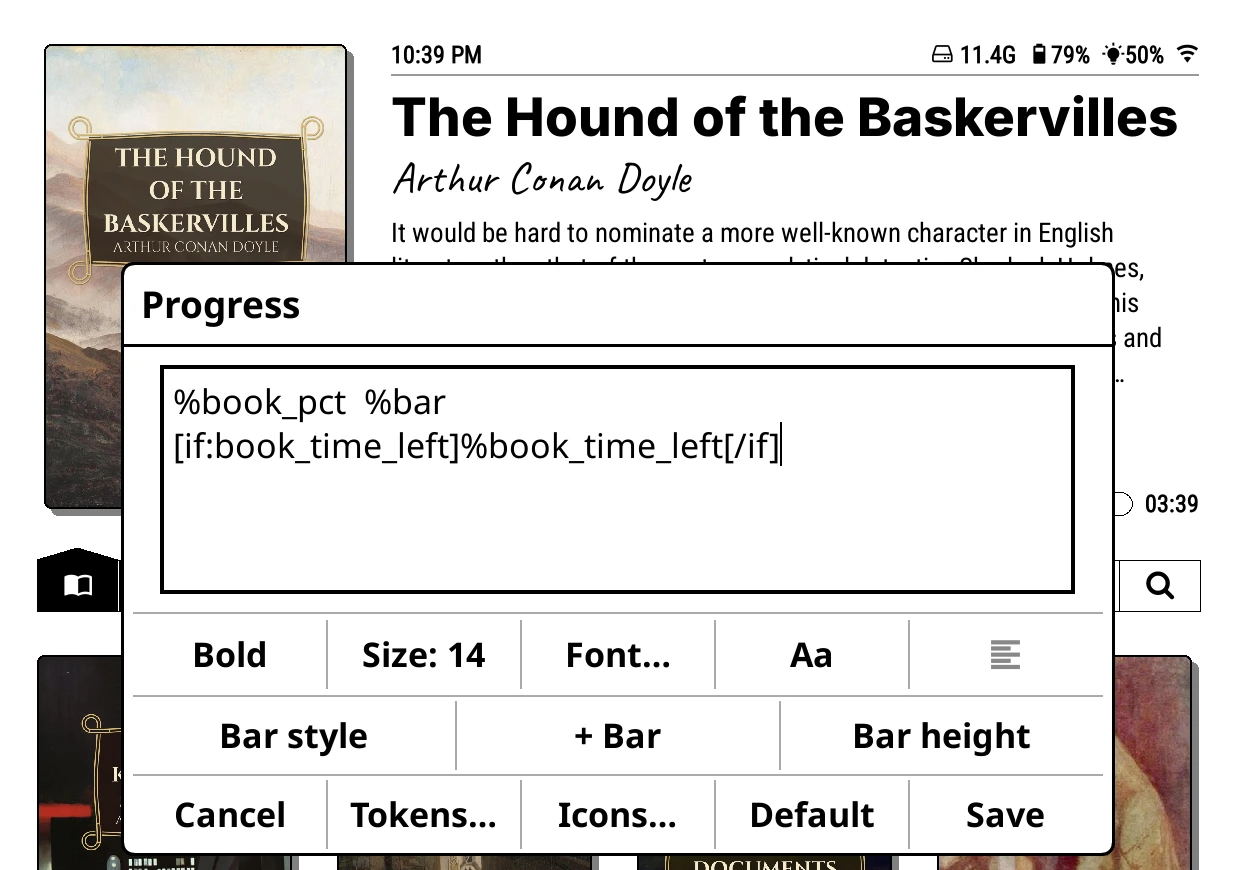
Tapping one of those rows opens the line editor: a text box with your template, and buttons round it. The shelf updates behind the editor as you type, so you can see the result straight away. Nothing is kept until you tap Save; Cancel puts it back as it was.
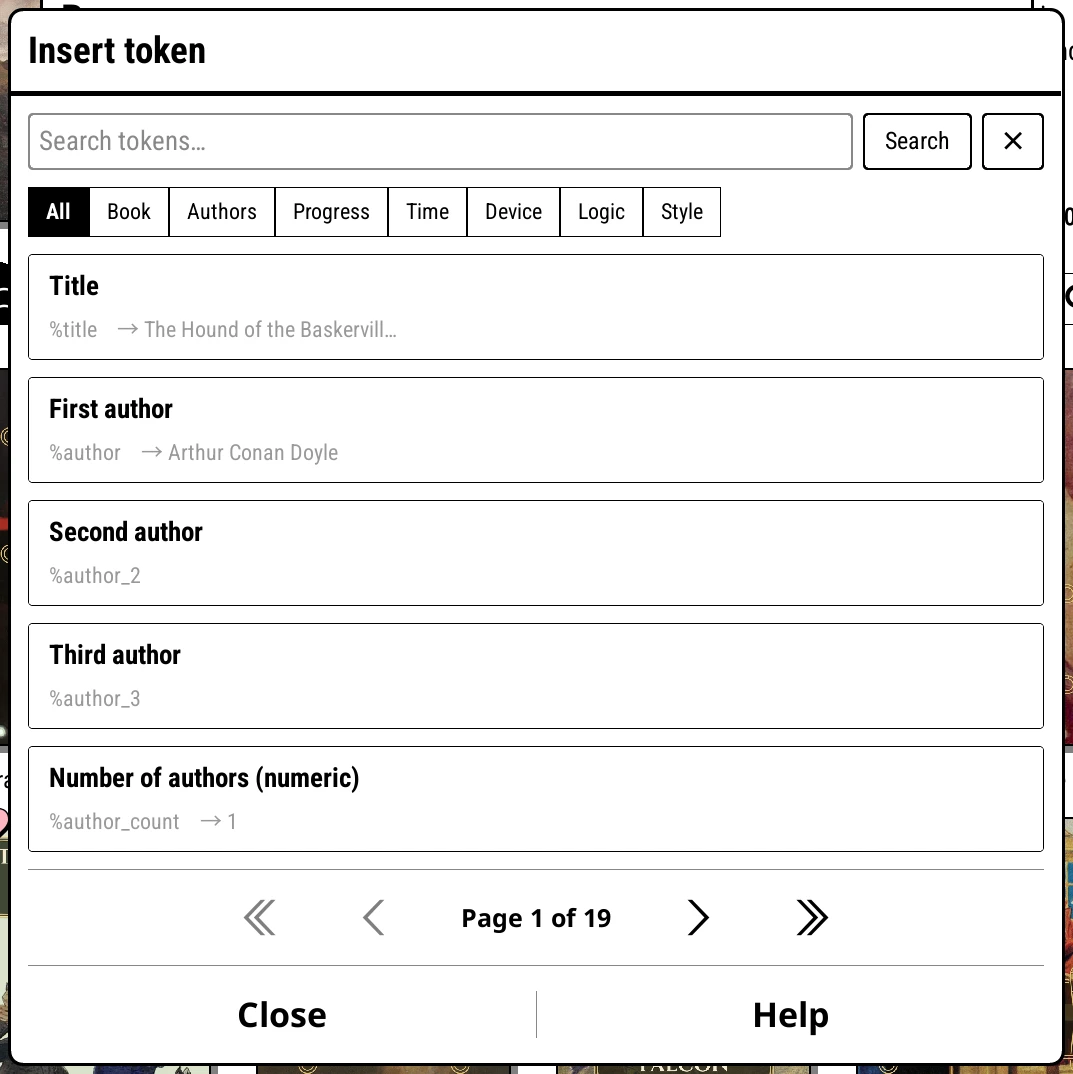
- Tokens…
- Opens Insert token, a list of every token with a short description and a live preview of what it shows for the current book. Search by name, or narrow the list with Book, Authors, Progress, Time, Device, Logic and Style. Tap a token to insert it where the cursor is. For cover captions the list leaves out tokens that can't work under a cover.
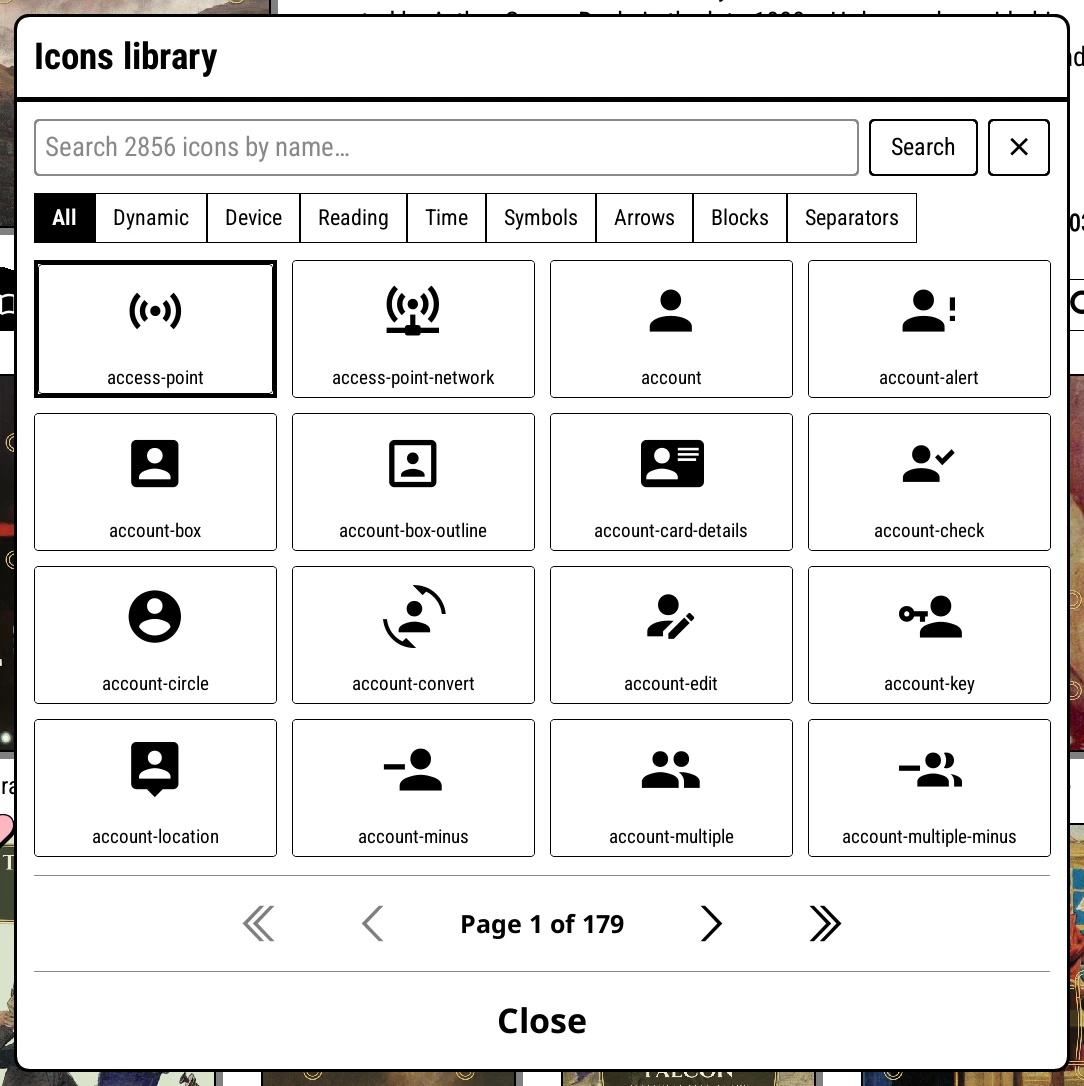
- Icons…
- Opens the Icons library, a searchable grid of symbols to insert: battery, Wi-Fi, books, arrows, separators and more. Entries on the Dynamic tab insert tokens that change with the device, such as
%batt_icon. The SVG icon folder tab lists your own icons dropped intokoreader/icons/. - Weight, size, font, case and alignment
- Apply to the whole line. See the line editor buttons for the full list.
- Bar style, + Bar / - Bar, Bar height
- In the Progress section and List view lines only. They add, remove and style the progress bar.
- Default
- Puts the template and styling back to the built-in default.
Tip
Start from a token's preview in Tokens…. If the preview is empty for the book on screen, that token has nothing to show for it, and the line will skip it.
How templates work
Empty tokens and conditionals
A token with nothing to show (no series, no rating, no statistics yet) becomes empty. To hide the words round it too, wrap them in a conditional:
[if:series]%series_name #%series_num[/if]
This prints "Dune #1" for a book in a series, and nothing at all for one that isn't.
Add [else] for something to show otherwise:
[if:book_time_left]%book_time_left left[else]Not started[/if]
Inside [if:...] you name a token without its %. It counts as true when the token has a value (and that value isn't 0). You can also:
| Write | Meaning |
|---|---|
[if:not series] |
When the token is empty |
[if:batt<20] |
Compare numbers: =, !=, <, >, <=, >= |
[if:status=finished] |
Compare text exactly |
[if:lang!=en] |
Not equal |
[if:series and rating] |
Both must be true |
[if:series or genre] |
Either can be true |
Conditionals can be nested inside each other. and and or are read left to right.
[if:batt<20]LOW BATTERY %batt[/if]
[if:status=finished]Read[else]%book_pct[/if]
[if:not series]Standalone[/if]
Butting text against a token
A token name runs until the next character that isn't a letter, digit or underscore. So %author followed straight away by s is read as %authors. Put the name in angle brackets to mark where it ends:
%<author>s book              Frank Herberts book
%<page_num>/%<page_count>    42/500
Spacing things out: %spacer
%spacer is a stretchy gap that pushes what comes after it to the far edge of the line:
%title %spacer %rating
puts the title on the left and the stars on the right. While a line has a %spacer, the alignment button is greyed out, because the spacer decides the layout.
Progress bars: %bar
%bar draws a progress bar that fills the rest of the line. Use + Bar to add one. With a bar in the line, Bar style steps through six looks:
| Style | Looks like |
|---|---|
| Bordered | An outlined bar that fills in |
| Solid | A plain filled bar on a light track |
| Rounded | A filled bar with round ends |
| Metro | A thin line with a marker |
| Wave | A wavy line |
| Pacman | Exactly what it sounds like |
Bar height sets its thickness, from 30% to 200% of the text height.
%bar{rel} is the same bar, but its length reflects how long the book is, so a short book gets a short bar. It works well in List view, where the bars line up and you can compare books at a glance.
Note
Bar style and height are set in the Progress section and in List view lines. A %bar in any other top panel section uses the default look.
Text styles in List view
List view lines can change style partway through a line. Each tag runs to the end of the line, or until its closing tag:
| Tag | Effect | Ends with |
|---|---|---|
[b] |
Bold | [/b] |
[i] |
Italic | [/i] |
[size=-4] / [size=+4] |
Smaller or larger than the line's own size | [/size] |
[size=12] |
An exact size | [/size] |
[font=NAME] |
Another font, by name | [/font] |
%title [size=-4][i]%series_name #%series_num
In the top panel and status line, [font=NAME] sets the font for the whole section and the other tags are ignored. That makes per-language fonts possible:
[if:lang=ja][font=NAME]%title[/font][else]%title[/if]
Where each token has a value
- Device and time tokens (battery, light, Wi-Fi, clock) only have values in the status line and the top panel. In List view lines and cover captions they are empty.
- Library-wide counts (
%books_read,%books_started,%pages_today,%time_today,%total_read_time) are the same for every book, so they suit the status line and the top panel. - Statistics tokens need KOReader's Reading statistics plugin, and are empty for a book with no reading time recorded yet.
- Page counts for EPUB and other reflowable books appear once the book has been opened or counted with Extract page counts…. See Page counts.
Book
| Token | Shows | Example |
|---|---|---|
%title |
Title | Dune |
%series_name |
Series name | Dune Chronicles |
%series_num |
Number in the series | 1 |
%genres |
All genres, comma-separated | Science Fiction, Classics |
%genre |
First genre | Science Fiction |
%rating |
Your rating as stars, empty when unrated | ★★★★☆ |
%rating_number |
Your rating as a number from 1 to 5 | 4 |
%hardcover_rating |
Cached Hardcover rating | 4.3 |
%hardcover_stars |
Cached Hardcover rating as stars, with halves | |
%status |
Reading status as a fixed word, for conditionals: unread, reading, on_hold or finished |
reading |
%status_label |
Reading status as a label, in your language | Reading |
%favourite |
Your favourite icon (heart or star), empty if not a favourite. %favorite works too. |
♥ |
%filename |
File name | Dune |
%format |
File format | EPUB |
%size |
File size | 2.2 MB |
%added |
Date the file was added | 2026-05-04 |
%lang |
Language | en |
%description |
The blurb, with formatting removed | |
%calibre{name} |
Any Calibre column, including your own. %calibre{pubdate} gives the publication year. Needs BETA: Read calibre metadata.calibre. |
1965 |
%quote |
A random highlight from this book, in quotation marks | "Fear is the mind-killer." |
%quote_source |
The book and author of %quote |
Dune, Frank Herbert |
%quote_page |
Page that highlight is on | 12 |
%quote_chapter |
Chapter that highlight is in | Book One |
%highlights |
Number of highlights | 12 |
%notes |
Number of notes | 3 |
%bookmarks |
Number of bookmarks | 2 |
%annotations |
Highlights, notes and bookmarks added together | 17 |
%avg_page_time |
Average time per page for this book | 42s |
Tip
%quote picks a fresh highlight each time you select the book. Try it in the Description section in place of the blurb.
Authors
| Token | Shows | Example |
|---|---|---|
%author |
First author | Neil Gaiman |
%author_2 |
Second author, if any | Terry Pratchett |
%author_3 |
Third author, if any | |
%authors |
All authors, comma-separated | Neil Gaiman, Terry Pratchett |
%authors_short |
One author, "A and B", or "A, B, et al." for three or more | Neil Gaiman and Terry Pratchett |
%author_count |
Number of authors | 2 |
Names follow Settings > Library & search > Author name formatting.
Progress
| Token | Shows | Example |
|---|---|---|
%book_pct |
How far through the book you are | 19% |
%book_pct_left |
How much is left | 81% |
%book_pct_read |
How much you have actually read, which differs if you skipped ahead | 15% |
%page_num |
Current page | 42 |
%page_count |
Total pages (approximate for EPUB) | 218 |
%pages_left |
Pages left | 176 |
%opened |
Date the book was last opened | 2026-10-12 |
%bar |
A progress bar filling the rest of the line | |
%bar{rel} |
A progress bar sized to the book's length | |
%book_time_left |
Time left to finish (statistics) | 3:45 |
%book_read_time |
Time spent on this book (statistics) | 2:30 |
%book_pages_read |
Pages read (statistics) | 142 |
%days_reading_book |
Days since you first opened it (statistics) | 7 |
%pages_per_day |
Pages per day (statistics) | 12 |
%speed |
Pages per hour (statistics) | 42 |
%books_read |
Books in your whole library marked Finished | 13 |
%books_finished |
The same count, under the name Bookends uses | 13 |
%books_started |
Books with any reading time recorded (statistics) | 40 |
Reading times follow KOReader's own time format, set in KOReader under Settings > Device > Time and date, so they may read 3:45, 3h45' or 3h 45m.
Time
| Token | Shows | Example |
|---|---|---|
%time_12h |
Time, 12-hour | 2:35 PM |
%time_24h |
Time, 24-hour (%time works too) |
14:35 |
%date |
Day and month | 4 May |
%date_long |
Day, month and year | 4 May 2026 |
%date_numeric |
Date in numbers | 04/05/2026 |
%weekday |
Day of the week | Monday |
%weekday_short |
Day of the week, short | Mon |
%datetime{...} |
Your own date format, using strftime codes |
%datetime{%H:%M} gives 14:35 |
%pages_today |
Pages read today, all books (statistics) | 34 |
%time_today |
Time read today, all books (statistics) | 1h 12m |
%total_read_time |
Reading time across every book (statistics) | 142:30 |
Device
Device tokens have values in the status line and the top panel only.
| Token | Shows | Example |
|---|---|---|
%batt |
Battery level | 73% |
%batt_icon |
Battery icon, showing charge and charging | |
%wifi_icon |
Wi-Fi icon: connected or not (%wifi works too) |
|
%nightmode |
Moon in night mode, sun otherwise | |
%light |
Frontlight on the device's own scale, or OFF | 18 |
%light_pct |
Frontlight as a percentage | 75% |
%light_icon |
Frontlight icon, on or off | |
%warmth |
Warmth on the device's own scale (0 to 24 on a Kindle); devices with warm light only | 12 |
%warmth_pct |
Warmth as a percentage | 50% |
%warmth_icon |
Warmth icon: cool, mid or warm | |
%ssh_icon |
An icon while KOReader's SSH server is running, otherwise nothing | |
%disk |
Free storage | 12.3G |
%mem |
System memory in use | 37% |
%sysused |
System memory in use | 512M |
%ram |
Memory KOReader is using | 84M |
%light shows OFF when the light is off, but [if:light] still treats it as off, so you can hide the light reading entirely.
Logic
These only make sense inside [if:...]:
| Condition | True when |
|---|---|
connected |
Wi-Fi is on and connected. [if:connected]%wifi_icon[/if] shows the Wi-Fi icon only while you are online. |
ssh |
KOReader's SSH server is running |
full_width |
The status line is drawn full width: over the micro-module grid or the full-screen micro-modules, not beside a cover |
status=finished |
Compare status with unread, reading, on_hold or finished |
lang=ja |
The book's language code matches |
full_width lets the status line show more when it has room:
%time_12h[if:full_width] · %date[/if]
Examples
The default status line on a fresh install:
%time_12h %spacer %disk[if:batt] %batt_icon%batt[/if][if:light] %light_icon%light_pct[/if] %wifi_icon
(There is also a drive icon just before %disk, inserted from Icons….)
A Progress section with time left only when there is some:
%book_pct %bar [if:book_time_left]%book_time_left[/if]
A List view line with a bar sized to the book, and the page count only when it is known:
%bar{rel}[if:page_count]%spacer[if:book_pct]%book_pct of [/if]%page_count pages[else]%book_pct[/if]
A cover caption with the series number for series books and the author for the rest:
[if:series]#%series_num %series_name[else]%author[/if]
Bookends
Templates use the same syntax as the Bookends plugin, so a line written for one usually works in the other. A few tokens, such as %ssh_icon, are Bookshelf's own.