Your first five minutes
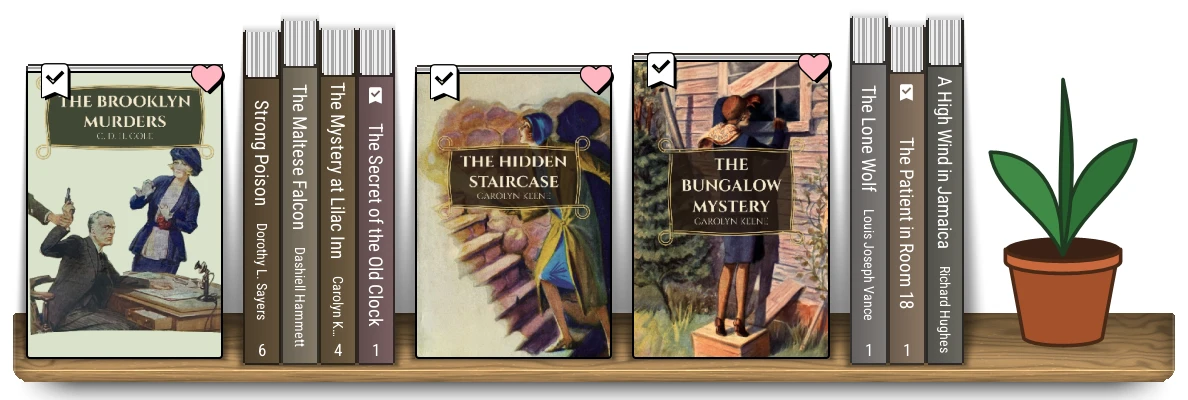
Here's your shelf, with Home switched to a grid of covers. What you're looking at, and the few gestures that get you everywhere.
The top panel
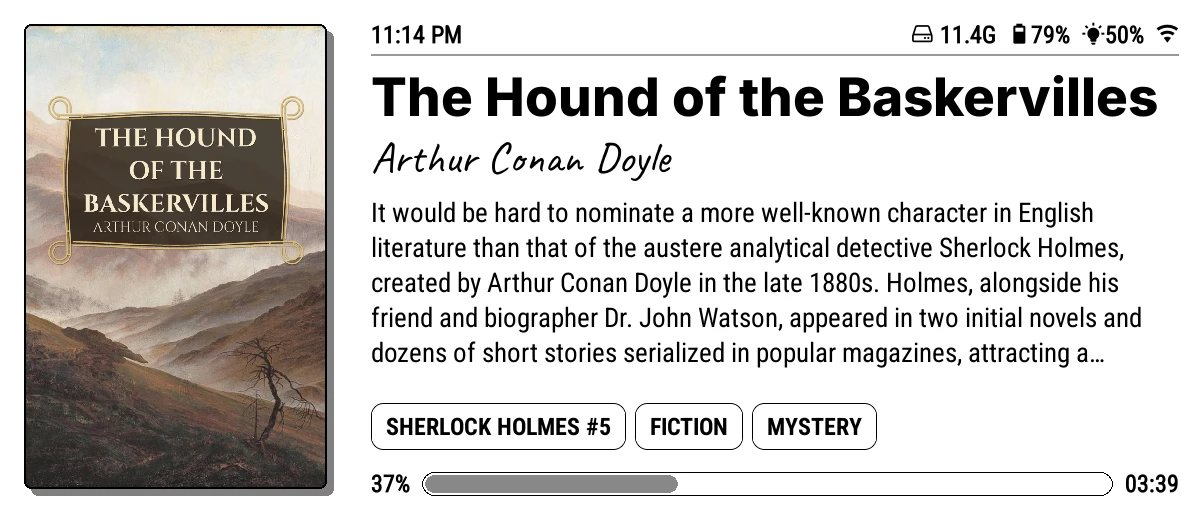
The big card at the top shows the book you're reading: its cover, title, author, blurb, a progress bar and the time left. Tap the cover to carry on reading. Tap the blurb to read all of it.
The shelf menu

The row of tabs below it is the shelf menu. Each tab is a shelf, a different view of the same library:
- Home: all your books. A fresh install shows them as spines on a wooden shelf: long-press the page counter once for a grid of covers, as in the videos here.
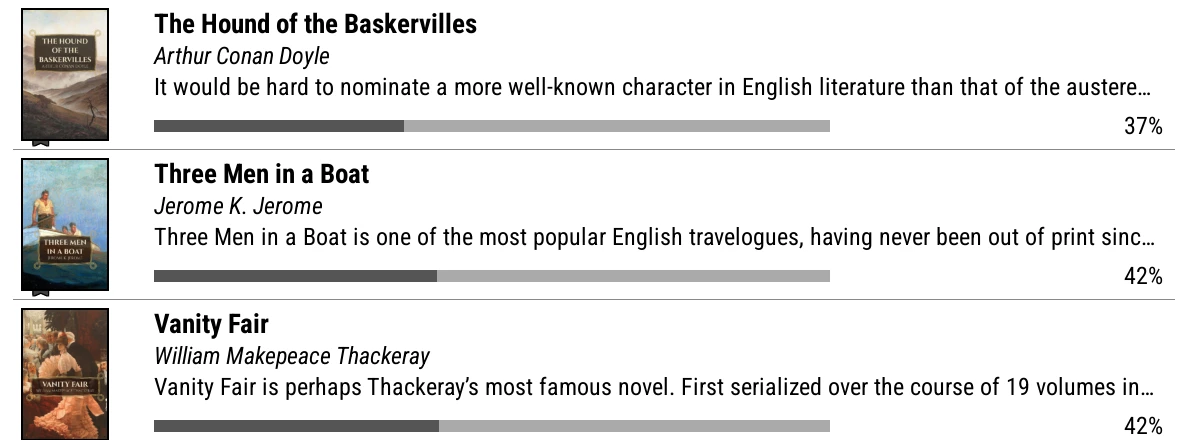
- Recent: what you've opened lately, as a list.
- Series: one stack per series.
- Genres: one stack per genre.
The book icon at the start of the row brings the book you're reading back to the top panel. The magnifier at the end is search.
The shelf
Your books. Tap a book and it shows in the top panel. Tap it again to open it.
The footer

Arrows turn pages, and the counter in the middle says where you are. The menu button on the left is your start menu, a launcher you can fill with shortcuts.
What the clip shows, step by step:
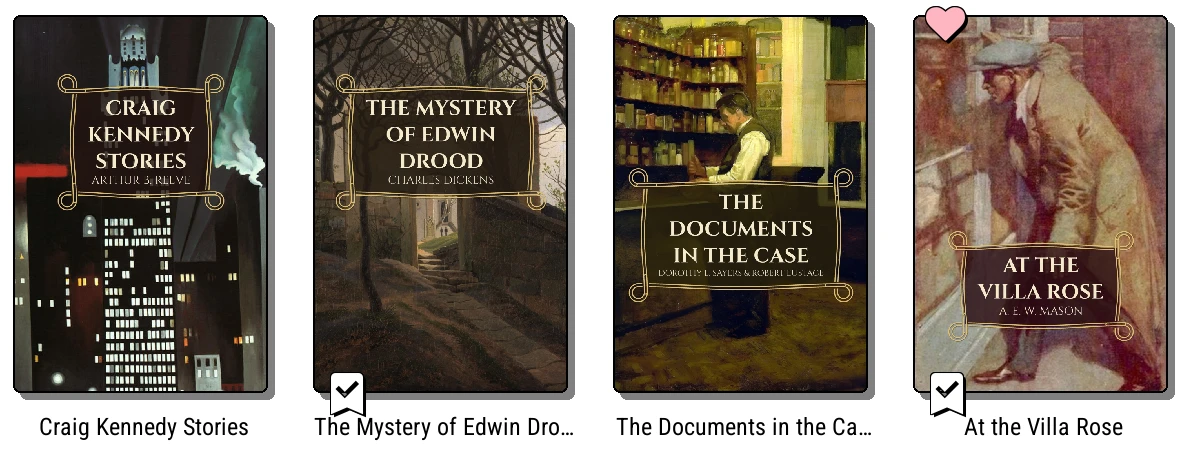
- Bookshelf: your library as a grid of covers
- Tap a book to see it in the top panel
- Recent: what you've been reading, in two columns
- Tap a book there too
- Series: each series together. Open one
- Then tap a book inside it
- The book button brings back what you're reading
- Back to Home
- Long-press the page counter for a list, then spines
- Swipe up for a full screen shelf
- Pinch for smaller books, more to a screen
- Spread for bigger ones



Five gestures worth knowing
| Do this | Where | And |
|---|---|---|
| Swipe left or right | the shelf | turn the page |
| Long-press | a book | its book menu: favourite, finished, collections, cover |
| Long-press | a shelf tab | edit that shelf: its style, source, filters and sort |
| Long-press | the page counter | switch between spines, covers and a list |
| Swipe up, then down | the shelf | full screen shelves, then the top panel back |
There's a full list in Gestures.
Two settings to try first
Covers or spines? Home starts as spines. Long-press the page counter in the footer to switch it to a grid of covers, then a list, then back. See Covers, lists and spines.
Folder tiles. Shelves show folders as Divider card tiles in Covers view: a cardboard tab with the folder's name on it. If your covers have a title band of their own, that can look busy. Ribbon puts the name on a band across the first book's cover instead, which often looks cleaner.
What the clip shows, step by step:
- Change how folders look on a covers shelf
- Folders show as divider cards by default
- Open the top menu, then Settings
- Cover display
- Tap "Default folder style"
- Choose Ribbon
- Close the menu
- Every shelf's folders now show a ribbon
- One shelf can differ: long-press its tab > Shelf style
- "Folder tiles" overrides the default here
- Ribbon folders on the Home shelf
- Tap the top of the screen to open KOReader's menu, and pick the Bookshelf tab (the open-book icon, second from the left).
- Go to Settings > Cover display > Default folder style.
- Pick Ribbon. The shelf behind the menu changes as you tap, so try a few.
Each shelf can choose its own folder style too: long-press its tab, open Shelf style and tap Folder tiles. This is covered in Covers, lists and spines.
Where next
-
Make it look right
Change shelf styles, turn books face out, try a theme.
-
Make it find the right books
Add shelves for your series, authors or reading pile.
-
Make it yours
Themes, wallpaper, colours and your own top panel.