Every menu option
This page lists every Bookshelf menu and dialog, organised by where you find it. Each option has its exact label in bold (labels on screen use American spelling, such as Color, Favorites and Behavior), what it does, and its default on a fresh install. (A few defaults are different if you upgraded from an older version; those say so.)
Most of Bookshelf's settings live in KOReader's top menu: tap the top edge of the screen (or swipe down from it) while the shelf is showing, then pick the Bookshelf tab, the open-book icon second from the left. That tab only appears in the file browser and on the shelf, not while a book is open.
Paths are written like Bookshelf > Settings > Behavior.
Where is it?
| I want to... | Go to |
|---|---|
| Open Bookshelf when KOReader starts | KOReader file browser menu, first (filing-cabinet) tab > Start with > bookshelf |
| Change how many covers fit across and down | Bookshelf > Adjust shelf/top panel size…, or pinch and spread on the shelf |
| Change the order of the shelf tabs | Long-press a tab, then the ‹ and › arrows beside Edit label |
| Add or hide shelves | Bookshelf > Edit shelves… |
| Change a shelf's source, filters or sort | Long-press the shelf button to open the shelf editor |
| Switch a shelf between Covers, List and Spines | Shelf editor > Shelf style > Show as, or long-press the page number in the footer |
| Change the theme, wallpaper, plank or colours | Bookshelf > Theme |
| Change what the top panel shows | Bookshelf > Settings > Edit top panel content and Status line |
| Change the lines in List view | Bookshelf > Settings > List view |
| Change the text under covers | Bookshelf > Settings > Cover display > Cover captions |
| Make text bigger or smaller | Bookshelf > Settings > Text size |
| Turn off a Bookshelf gesture | Bookshelf > Settings > Behavior > Bookshelf gestures |
| Put micro-modules on the home screen | Bookshelf > Settings > Micro modules |
| Edit the start menu | Long-press any entry in the start menu |
| Update the plugin | Bookshelf > Updates > Check for updates |
| Show page counts or percent read on covers | Bookshelf > Settings > Cover display > Page badge |
| Fit more rows on a list shelf | Shelf editor > Shelf style > List rows, or pinch the list |
| Put a clock in the start menu | Long-press any start menu entry > plus > Bookshelf micro-module… > Clock |
| Fetch author photos | Bookshelf > Settings > Library & search > Find author images online… |
| Give a folder or series a picture | Long-press it > Set folder image… (or series, author…) |
| Fill in page counts | Bookshelf > Settings > Library & search > Extract page counts… |
| Make every book face out | Shelf editor > Shelf style > Face out > All books (Spines only) |
| Back up or remove Bookshelf | See Files, backup and removing |
| Start again with the default shelves | Bookshelf > Settings > Advanced > Reset shelf menu to defaults |
The Bookshelf tab
The rows of KOReader's Bookshelf tab, top to bottom.
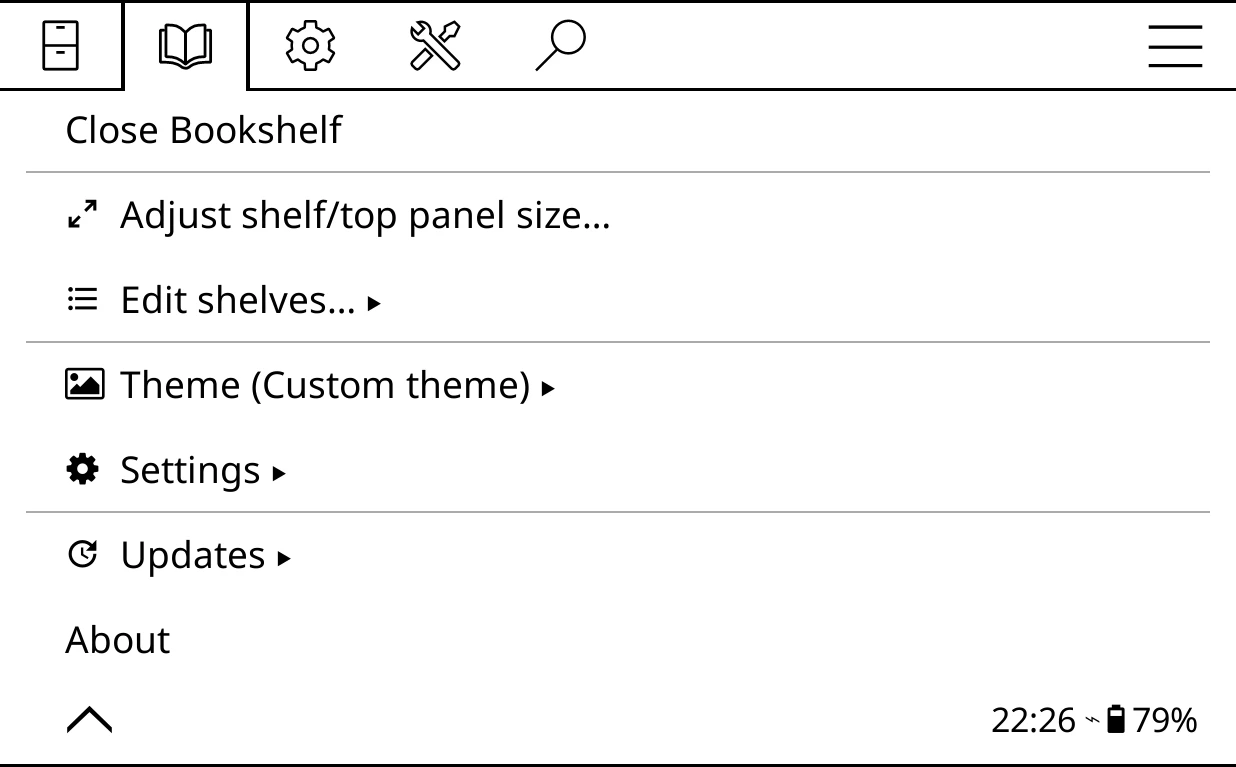
- Open Bookshelf / Close Bookshelf
- Opens the shelf over KOReader's file browser, or closes it again. The label changes to Close while the shelf is on screen.
- Adjust shelf/top panel size…
-
Opens a live overlay for the cover grid. The shelf shows as covers while it is open, whatever its style, so you can see the grid you are changing. Greyed out unless the shelf is on screen.
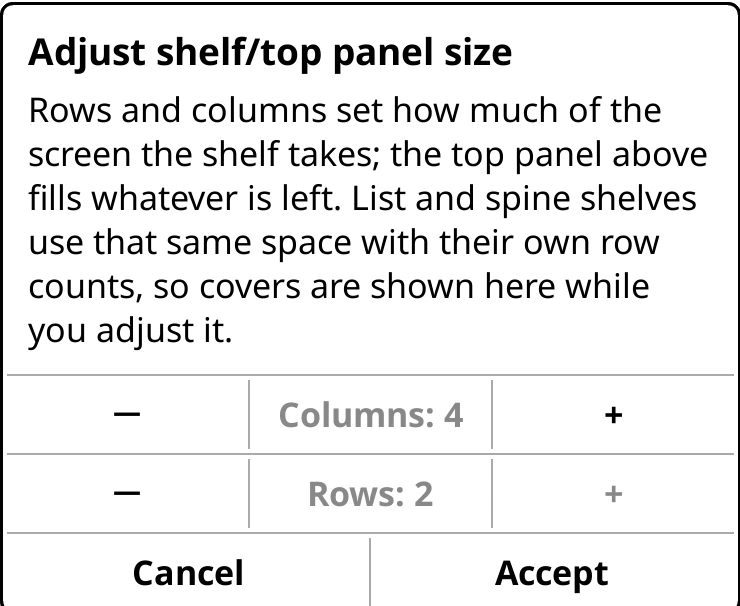
Adjust shelf/top panel size - Columns (minus and plus): covers across, from 2 to 6. Fewer columns means bigger covers. Default: 4.
- Rows (minus and plus): rows of covers. Default: enough to leave the top panel about 30% of the screen.
- Cancel puts the old values back; Accept keeps the new ones.
The top panel takes whatever height is left. List and Spines shelves use the same space with their own row counts. This setting is shared by every shelf.
- Edit shelves…
- The list of your shelves. See Edit shelves.
- Theme (name)
- Themes, wallpaper, plank, ornaments and colours. Named after the theme the shelf on screen wears. See Theme.
- Hardcover enrichment
- Only there while KOReader's Hardcover plugin is installed and enabled. See Hardcover enrichment.
- Settings
- Everything else. See Settings.
- Updates
- Reads Update available: vX once a check has found a newer release. See Updates.
- About
-
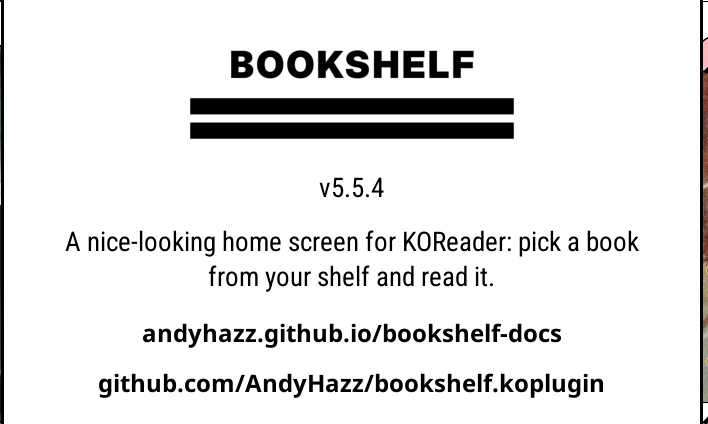
A popup with the version, a link to this guide and a link to the project page. If it finds another copy of Bookshelf installed, such as an old folder left beside the current one, it lists where: KOReader loads every copy it finds, so the extra one should be removed.
About
Start with
This is KOReader's own setting, not a Bookshelf one. In KOReader's file browser, open the top menu, go to the first (filing-cabinet) tab, then the last row, Start with, and choose bookshelf. The row then reads Start with: bookshelf and the shelf opens at once. Choosing any other Start with option while the shelf is showing closes it. See also Open on startup.
Edit shelves
Bookshelf > Edit shelves…
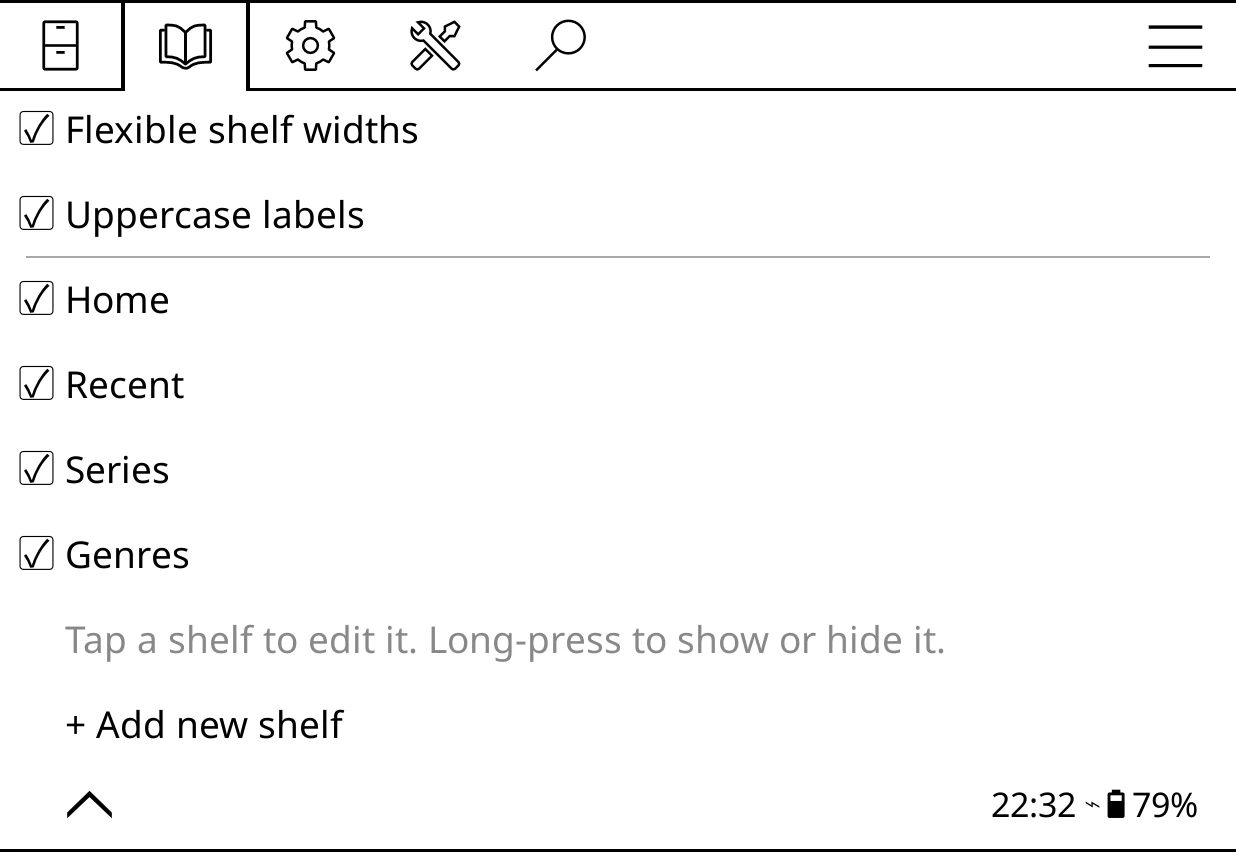
- Flexible shelf widths
- Sizes each shelf button to fit its label, so icon-only shelves stay narrow. Off gives every button the same width. Default: on (off if you upgraded from a version before this setting).
- Uppercase labels
- Shows shelf names and the breadcrumb in capitals. Off shows them exactly as typed. Default: on.
- One row per shelf
- Each of your top-level shelves, with a tick when it is shown. Tap a row to open that shelf's shelf editor. Long-press it to show or hide the shelf. This is the only place to hide a shelf. Shelves inside a shelf of shelves are not listed.
- + Add new shelf
- Makes a shelf called "New shelf" and opens its editor on the source picker. If you back out without picking a source, the new shelf is removed.
A fresh install starts with four shelves: Home (your home folder, shown as Spines), Recent (books you have opened, shown as List), Series and Genres. Latest, Authors, Favorites and the rest can be added from the source picker.
Theme
Bookshelf > Theme (name). Long-press the row for a short explanation of themes. For a guided tour, see Themes.
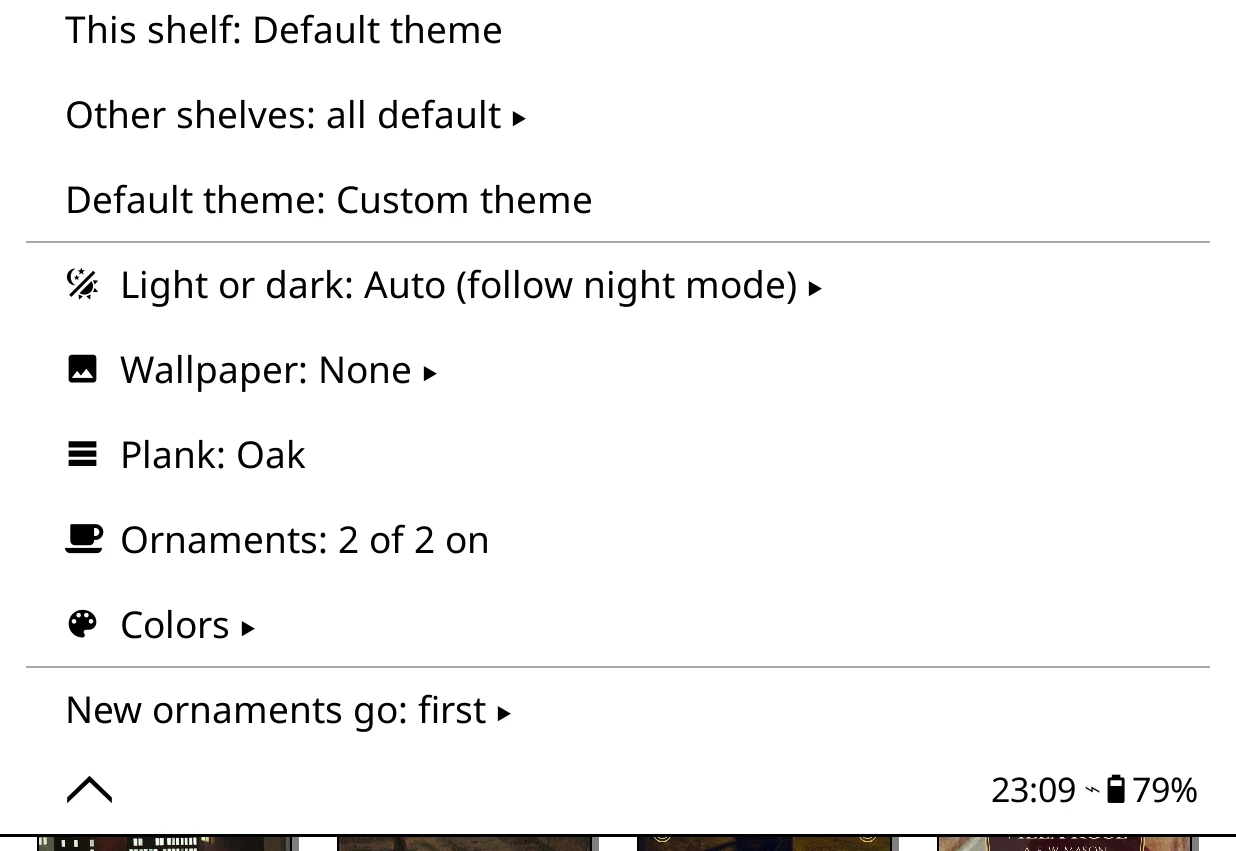
- This shelf: theme
- Opens the Theme library for the shelf on screen. Reads Default theme while the shelf follows the default, or Same as shelf for a shelf inside a shelf of shelves that follows its parent.
- Other shelves: all default / Other shelves: N with own themes
- A row for each other shown shelf, reading shelf: theme. Tap one to switch to that shelf and open its Theme library.
- Default theme: theme
- The theme every shelf without its own wears. Default: Custom theme.
- Light or dark: choice
- Auto (follow night mode), Light or Dark. Sets the shelf's light or dark colours separately from KOReader's night mode. Part of the theme. Default: Auto (follow night mode).
- Wallpaper: name
- The wallpaper submenu (below). Long-press it to see which folders pictures load from.
- Plank: name
- Opens the plank browser. Long-press to reset the plank colour. Default: Oak.
- Ornaments: N of M on
- Opens the ornament browser. Long-press to see the ornaments folder.
- Colors
- The colour list (below).
- New ornaments go: first/last
- Where newly added ornaments join each shelf's ornament order: First, so you see them or Last, so your shelf stays put. This belongs to your ornament collection, not to a theme. Default: first.
Wallpaper
Bookshelf > Theme > Wallpaper
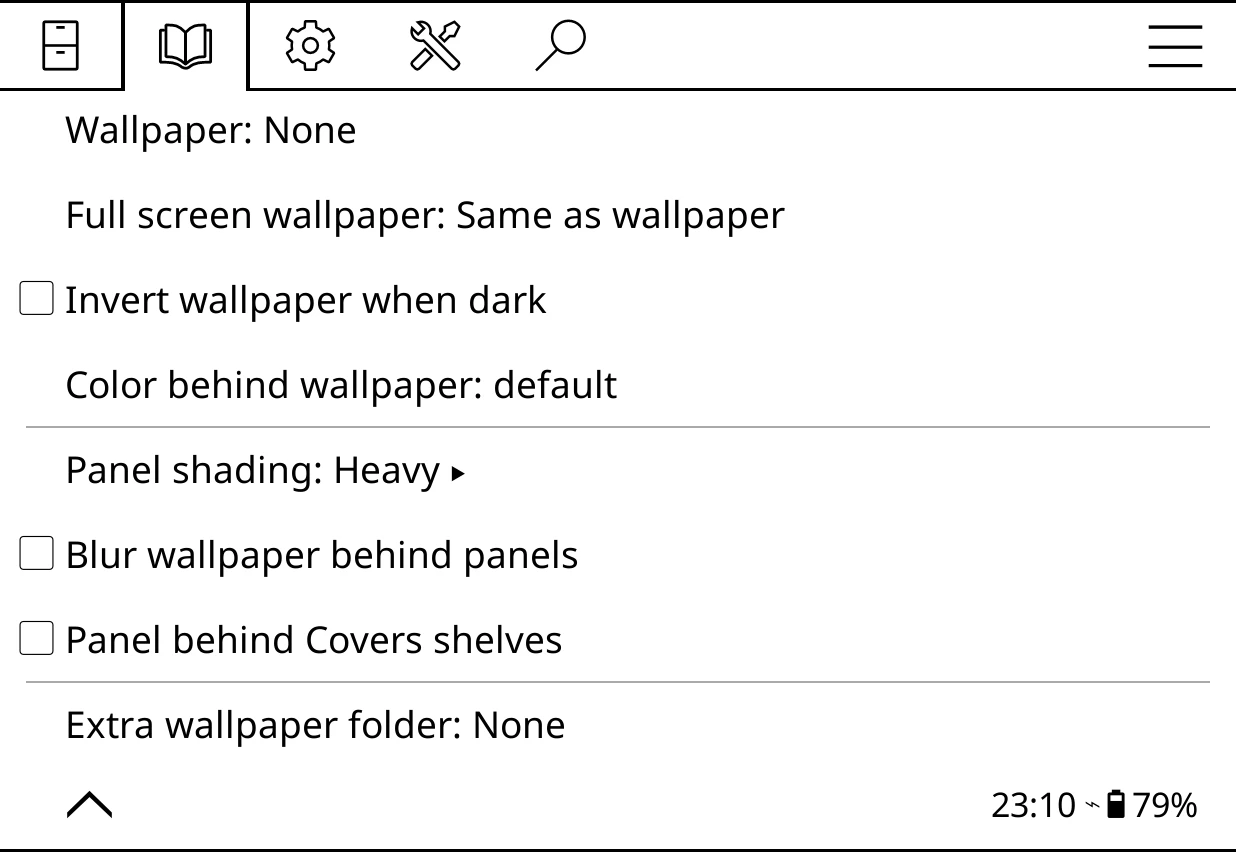
- Wallpaper: name
- Opens the wallpaper browser. Default: None. (A "Leafy wallpaper" is copied into your wallpapers folder but not chosen.)
- Full screen wallpaper: name
- A different picture for full screen shelves, or Same as wallpaper. Default: Same as wallpaper.
- Invert wallpaper when dark
- Shows the wallpaper as its negative when the shelf is dark. A pack's own dark wallpaper is never inverted. Default: off.
- Color behind wallpaper: value
- The colour that shows round the picture. Long-press to reset. Default: white.
- Panel shading: level
- How strongly the top panel and footer are shaded over the wallpaper: Transparent, Low, Moderate, Heavy or Solid. Default: Heavy.
- Blur wallpaper behind panels
- Blurs the picture behind the top panel and footer before shading it. Greyed out at Transparent and Solid. Default: off.
- Panel behind Covers shelves
- On Covers shelves, draws one panel behind the top panel, covers and footer instead of a plate under each title. Default: off.
- Extra wallpaper folder: folder
- Another folder to load wallpapers from. Long-press to stop using it. Not part of any theme. Default: None.
Colors
Bookshelf > Theme > Colors. Each row shows its current value. Tap a row to open the colour picker; long-press it to reset just that colour. The defaults below are for a light shelf on a greyscale screen, as % black.
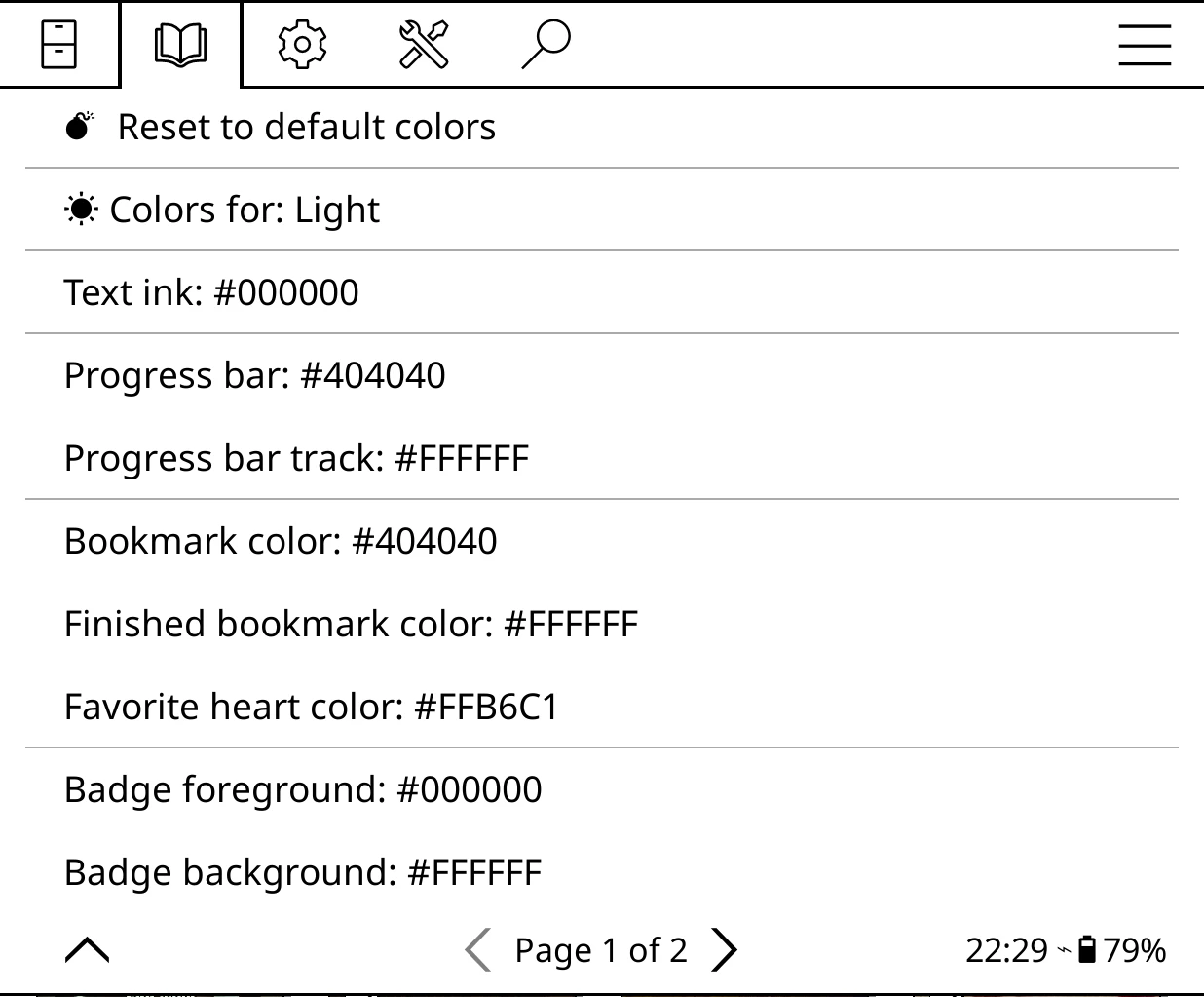
The full Colors list
- Reset to default colors
- Clears every colour in this list, light and dark, for the theme on screen.
- Colors for: Light / Colors for: Dark
- Switches which set the rows below edit. It does not change the shelf or night mode. Starts on the set the shelf is using.
- Text ink
- The shelf's own text. Default: 100% (black on a light shelf, white on a dark one).
- Progress bar / Progress bar track
- The filled and unfilled parts of the bar on covers. Defaults: 75% and 0% (white).
- Bookmark color / Finished bookmark color
- The in-progress bookmark and the finished mark. Defaults: 75% and 0%.
- Favorite heart color (or Favorite star color)
- Follows the favourite icon chosen in Cover display. Default: light pink for the heart, gold for the star (about 20% on a greyscale screen).
- Badge foreground / Badge background
- Text and fill of the series number and page badges. Defaults: 100% and 0%.
- Micro-module background / Micro-module border
- The card behind each micro-module and the line round it. Defaults: about 7% (a very light grey); the border follows the text colour.
- Border color
- Cover frames, badge borders and folder card edges. Default: 100%.
- Selection outline color
- The ring round the selected or currently reading book. Default: 100%.
- Cover shadow color
- The drop shadow behind covers and folder cards. Default: mid grey, darker in night mode.
- Folder overlay background / Folder text color
- The card fill behind folder and stack tiles, and their label text. Defaults: 20% and 100%.
- Shelf menu background
- The bar behind the shelf buttons. Its picker has an extra Transparent choice. Default: white by day, black at night.
- Selected shelf background / Selected shelf text
- The selected shelf button. Defaults: inverted (100%) and paper white (0%).
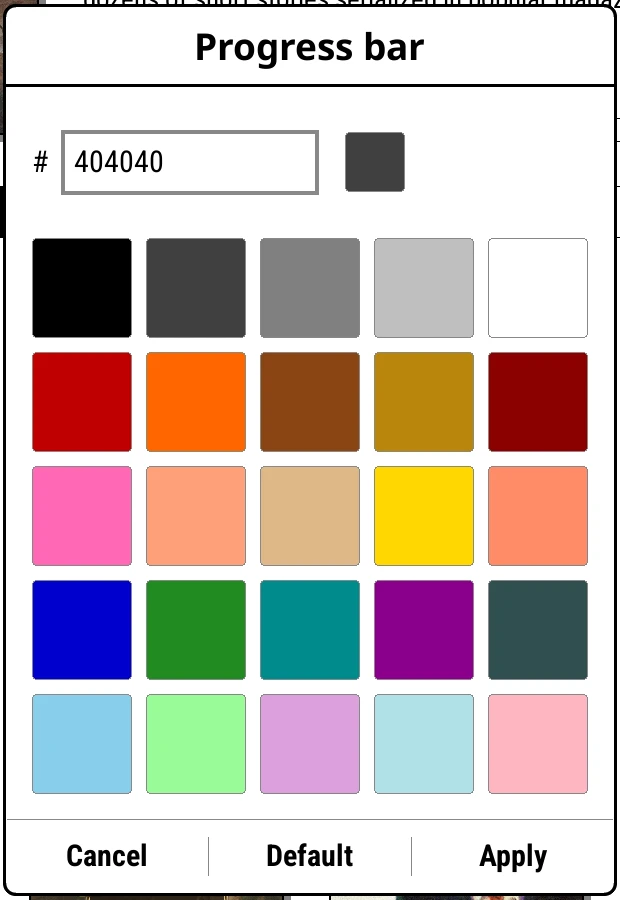
- The colour picker
- On a colour screen: 25 swatches and a
#field for a hex colour, with Cancel, Default and Apply. On a greyscale screen: a dialog with -10, -1, the value, +1, +10, then Cancel, Default and Apply.
Theme library
Opened from This shelf, a shelf under Other shelves, Default theme, or Shelf style > Theme in the shelf editor. Titled Theme: shelf or Default theme.
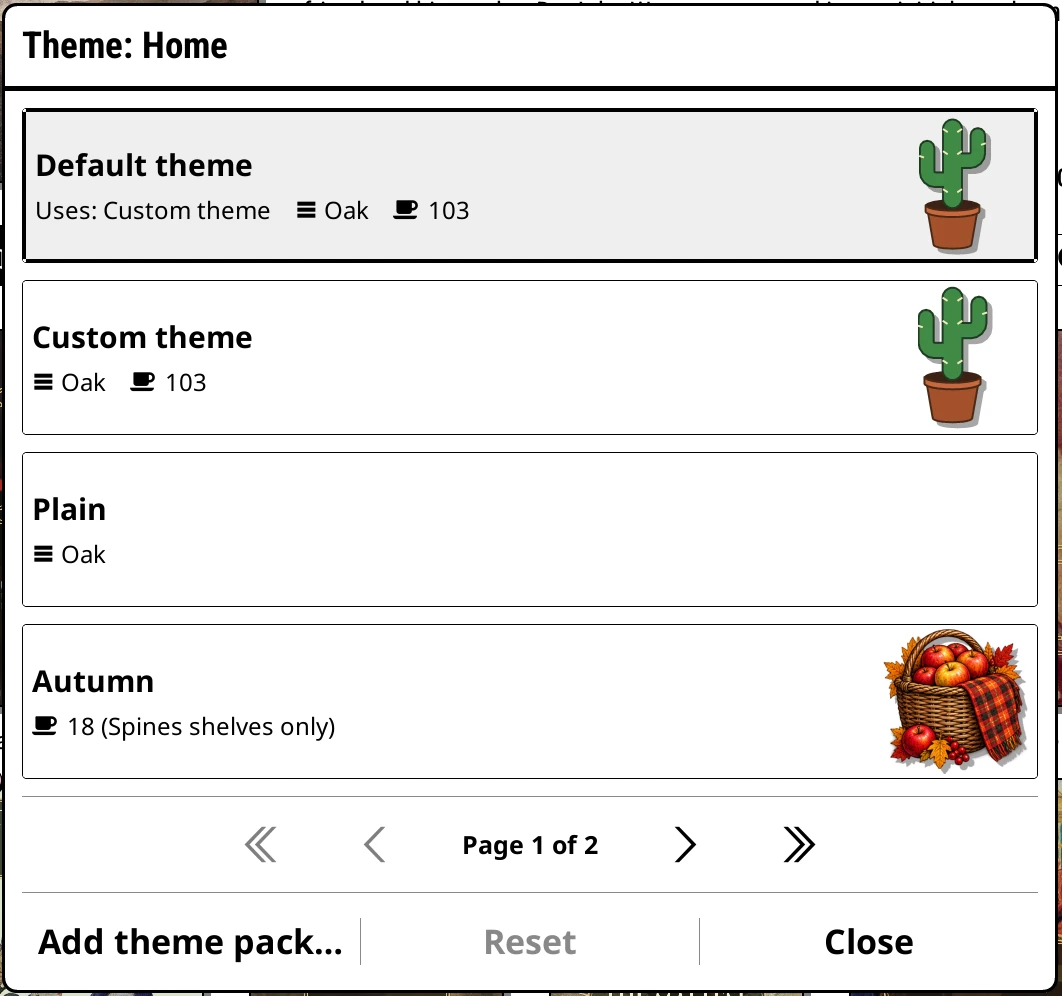
- Four cards a page: Default theme (for a shelf), Custom theme, Plain, then every theme pack by name. Each card sums up what the theme brings and says Edited if you have changed it.
- Tap a card to use it. The shelf behind redraws and the library stays open.
- Long-press a pack or Plain for Reset to original, which throws away your changes to it.
- Footer: Add theme pack… (tells you where to copy a pack folder), Reset (resets the marked theme after asking), Close.
Wallpaper, plank and ornament browsers
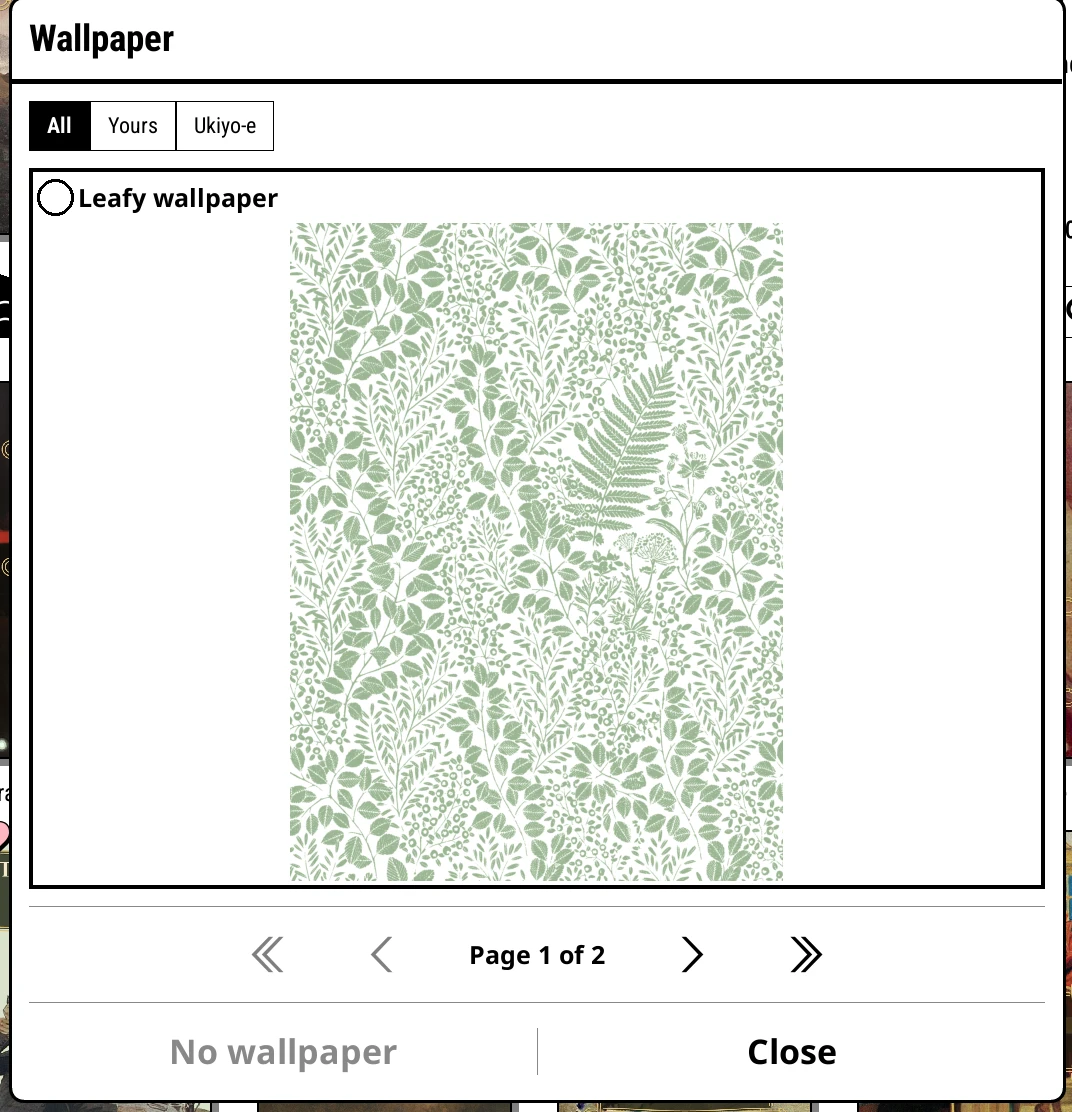
- Wallpaper browser
- Tabs All, Yours, then one per pack with a wallpaper. Tap a picture to use it straight away. Footer: Same as wallpaper (full screen browser only), No wallpaper, Close.
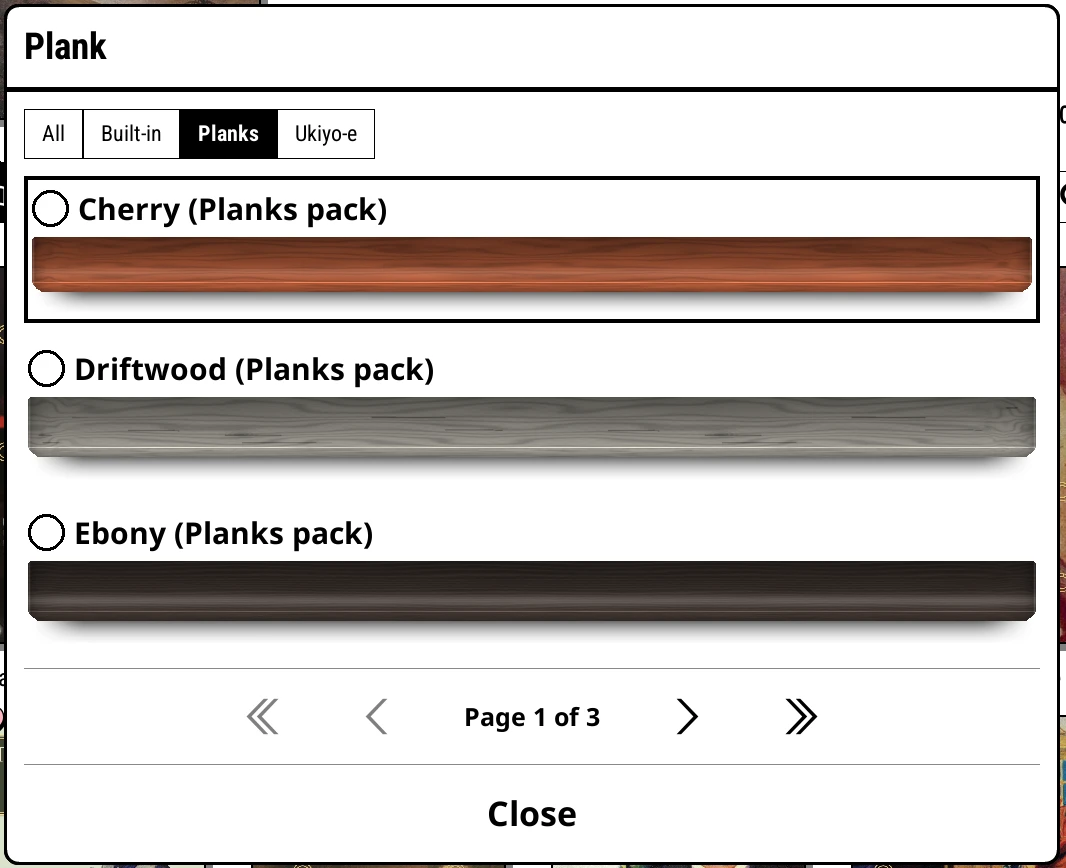
- Plank browser
- Tabs All, Built-in, then one per pack with planks. Entries are Plain color, Oak, then pack planks. Plain color asks for a colour, then brings you back. Footer: Close.
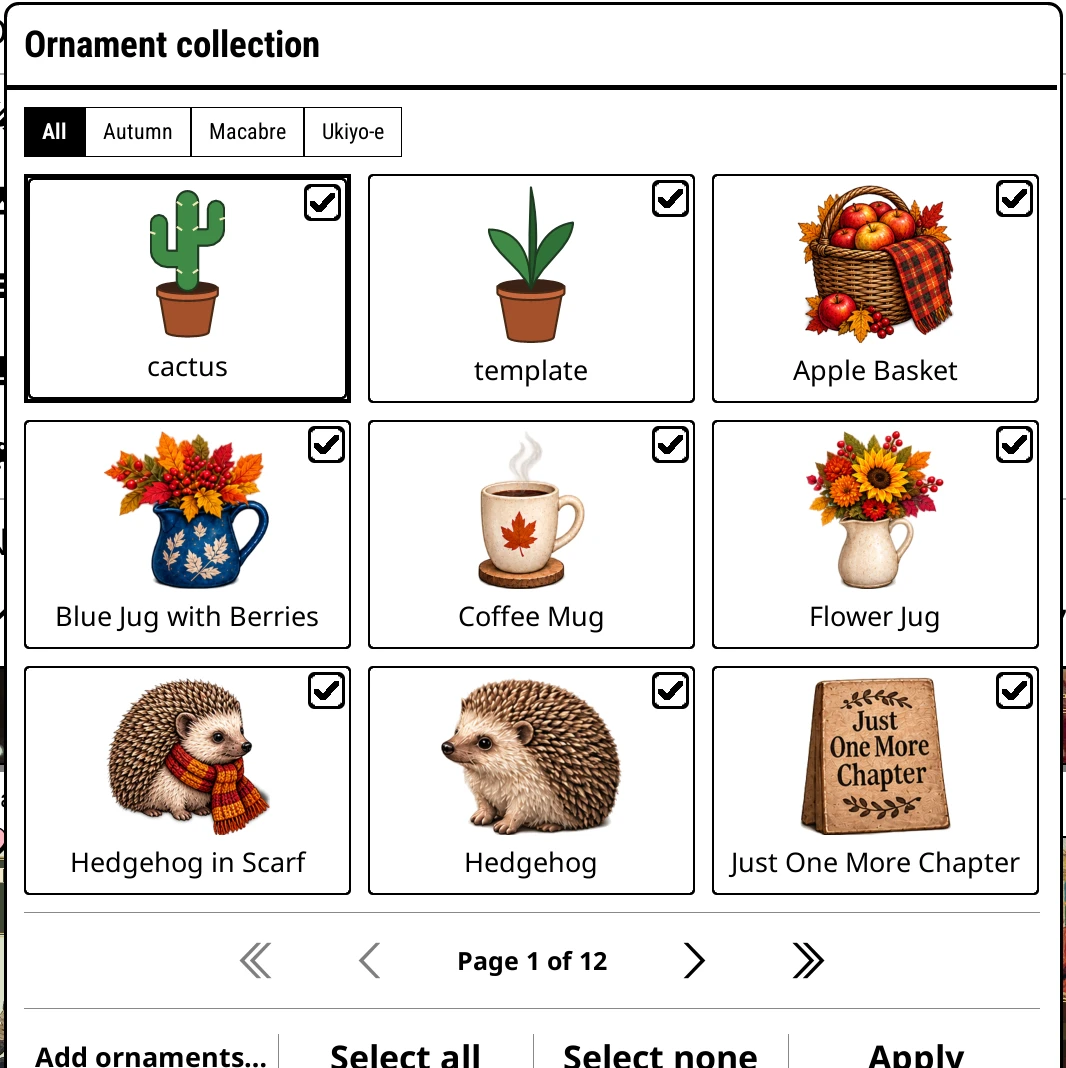
- Ornament collection
- Tabs All, then one per pack (marked (off) when the pack is off). Tap an ornament to switch it on or off for the theme on screen. Long-press for Switch on / Switch off and Delete…, which removes the file. Footer: Add ornaments… (where to put files), Select all, Select none, Apply. See Ornaments.
Hardcover enrichment
Bookshelf > Hardcover enrichment. Only present while the Hardcover plugin is installed and enabled. See Hardcover.
- Cached Hardcover ratings: rated/linked · last fetch
- A greyed status row.
- Auto-link all books
- Links every unlinked book. Choose Exact match (ISBN / Hardcover id) or Best guess (title & author). Tap the progress to cancel. Ends with a report.
- Show Hardcover ratings
- The top panel's rating row shows the cached Hardcover rating instead of yours, and the rating row is turned on. Default: off.
- Use Hardcover rating if no user rating
- Books you haven't rated yourself use their Hardcover rating instead: in star ratings on covers, the Rating sort and the Ratings shelf. Linked books only, from ratings already fetched. Default: off.
- Use Hardcover metadata
- Linked books show Hardcover's title, author, series and genres in place of their own. Default: off.
- Download covers from Hardcover
- Linking a book also downloads its Hardcover cover and uses it. Default: off.
- Hardcover genres used: N
- How many of a linked book's genres to use, 0 to 20. Needs Use Hardcover metadata. Default: 5.
- Manage Hardcover data
- Refresh ratings only; Refresh linked book details (one request per book, cancellable); Clear cache (keeps links); Remove downloaded covers (puts the originals back, keeps links); Remove all Hardcover data (unlinks everything and cannot be undone).
Settings
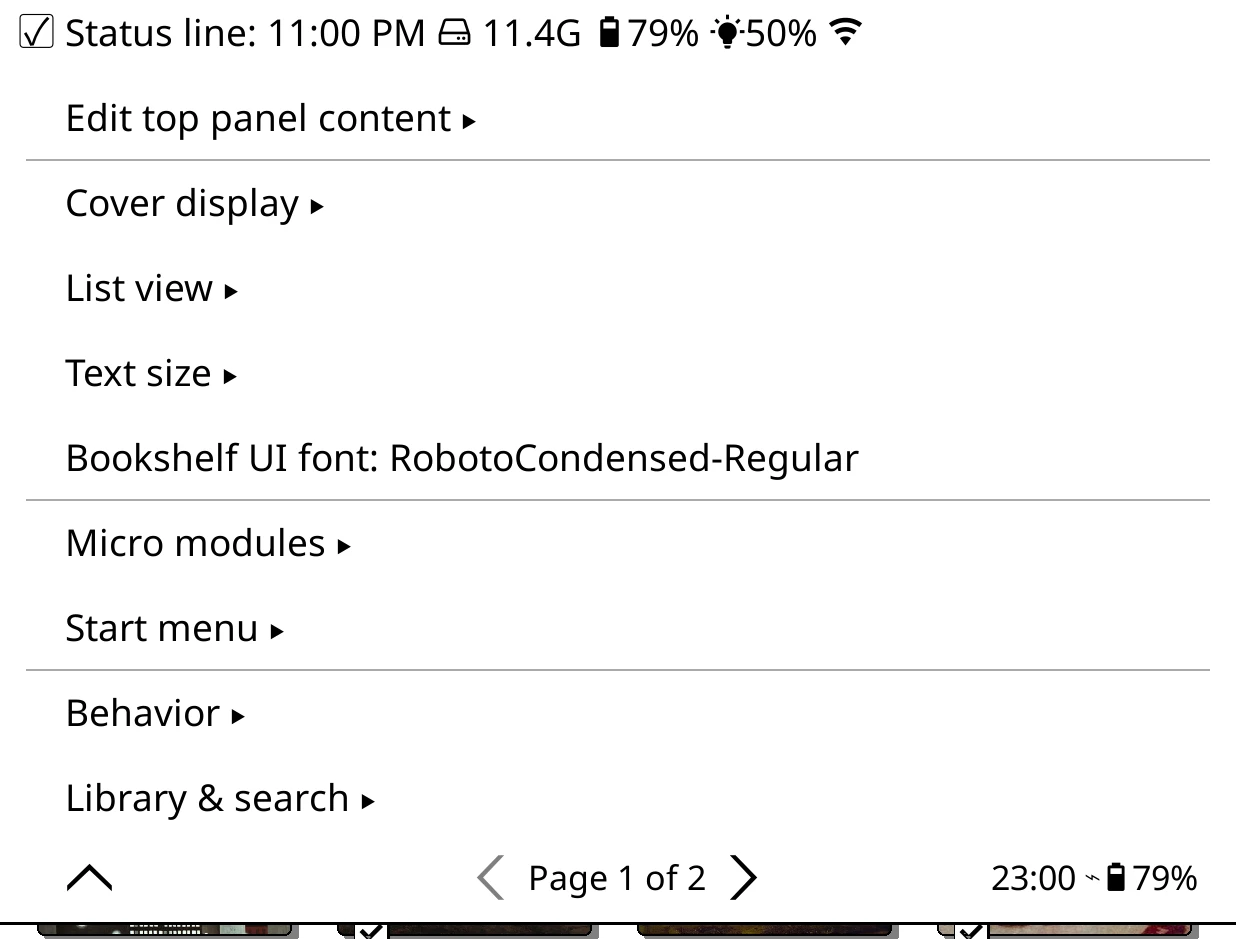
Bookshelf > Settings. Rows that change the top panel are greyed out unless the shelf is on screen. In order: Status line, Edit top panel content, Cover display, List view, Text size, Bookshelf UI font, Micro modules, Start menu, Behavior, Library & search, Advanced.
Status line

- Status line: preview
- The strip of device and reading details at the very top of the top panel, also shown on full screen shelves. The row shows a live preview. Tap to open the line editor; long-press to turn it on or off. Default: on, showing the time, free storage, battery, frontlight and Wi-Fi.
Edit top panel content
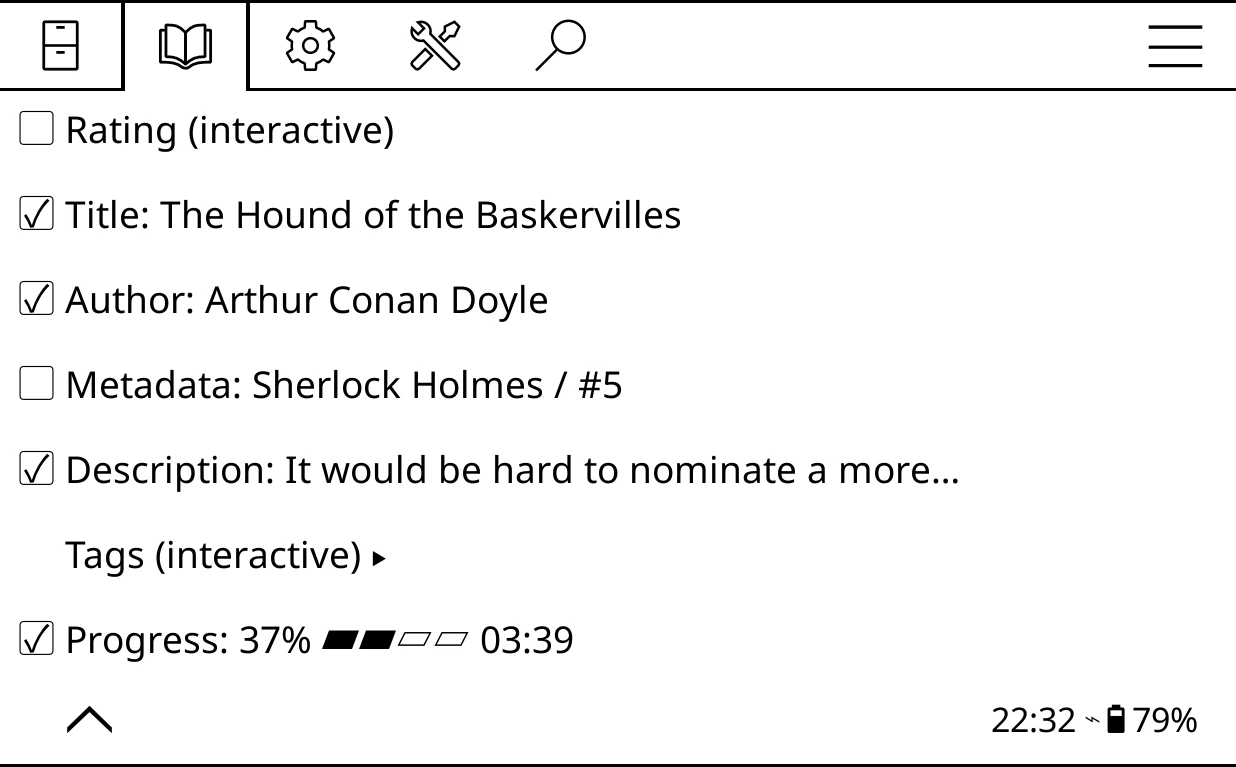
Bookshelf > Settings > Edit top panel content. One row per section of the top panel, each with a live preview. Tap a row to open its line editor; long-press to turn the section on or off. See The top panel.
| Section | What it shows by default | On by default |
|---|---|---|
| Rating (interactive) | Five stars you can tap. Tapping the row just turns it on or off. | No |
| Title | The title, large | Yes |
| Author | The author, or "A and B", or "A, B, et al." | Yes |
| Metadata | The series and number | No |
| Description | Your rating, then the book's blurb | Yes |
| Tags (interactive) | Tappable pills for series and genres | Yes, one row |
| Progress | Percent read, a progress bar and time left | Yes |
If you upgraded from an older version and never edited the top panel, you have the older layout instead (Metadata on, Tags off); Advanced > Reset top panel content to defaults switches to the one above.
Tags (interactive) has its own submenu instead of a line editor:
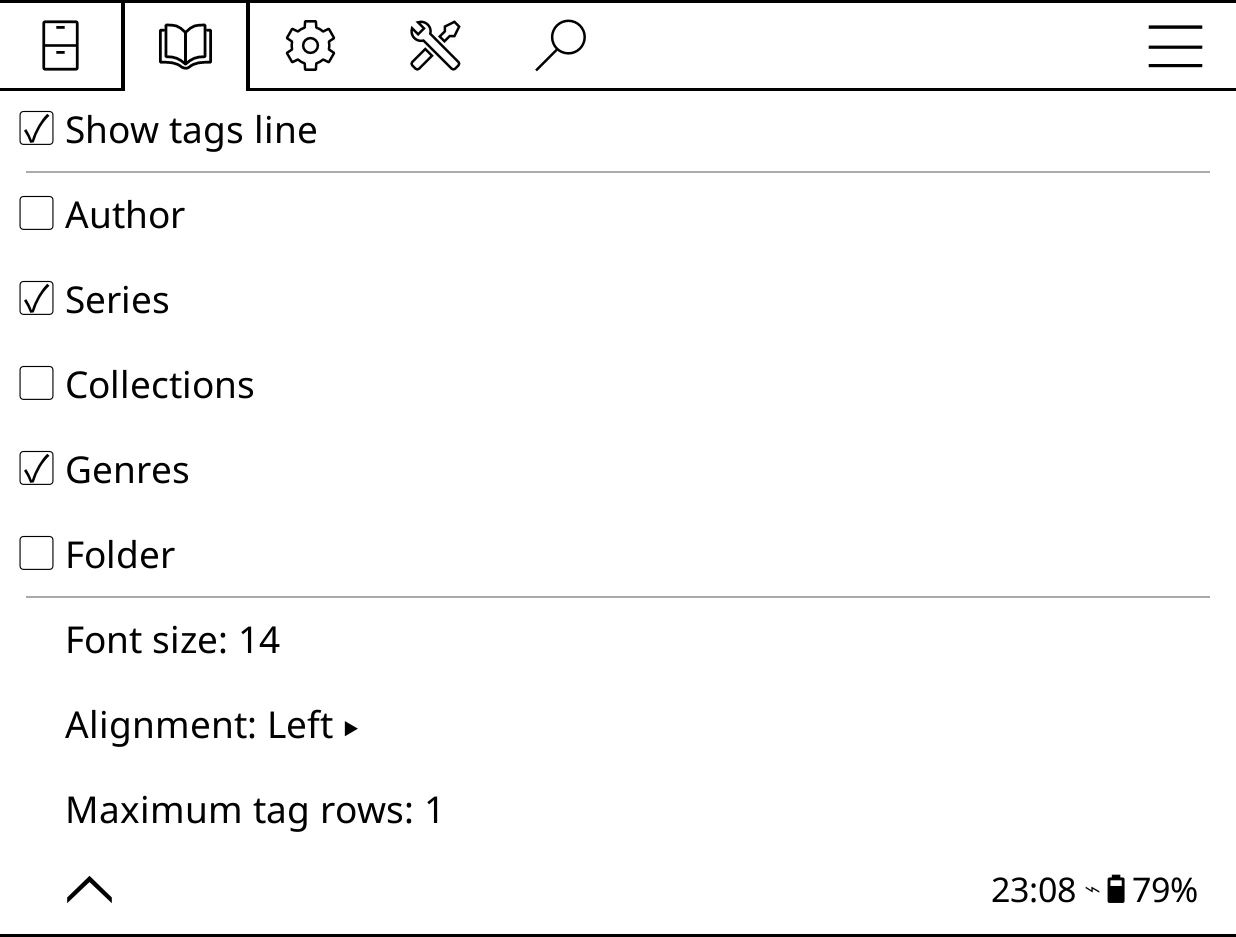
- Show tags line
- Turns the pills on or off.
- Author, Series, Collections, Genres, Folder
- Which kinds of pill to show. Default: Series and Genres (all five if you upgraded from an older version).
- Font size: N
- 8 to 48. Default: 14.
- Alignment: choice
- Left, Center or Right. Default: Left.
- Maximum tag rows: N
- 1 to 5. Extra pills fold into a "+N" button. Default: 1 (2 if you upgraded from an older version).
The line editor
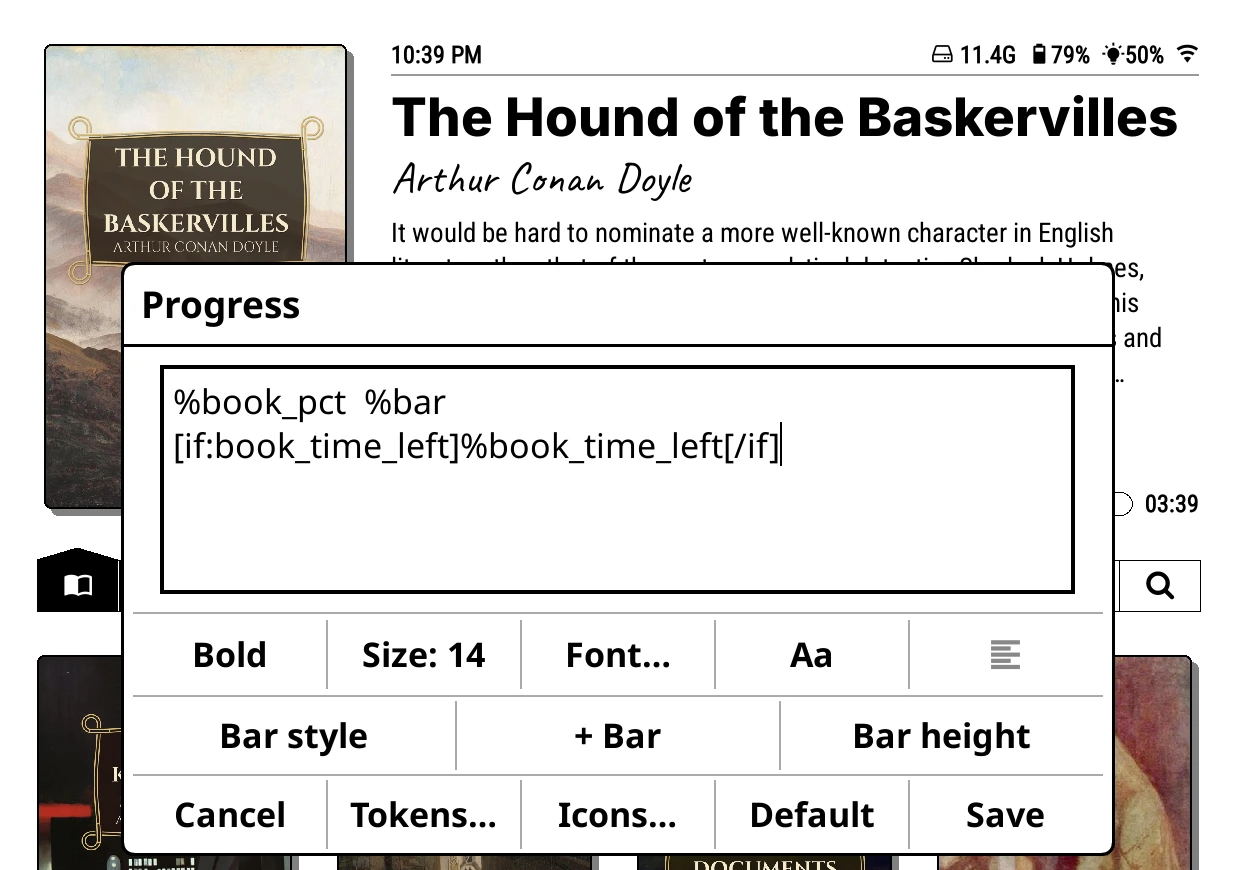
Used by the status line, each top panel section, each List view line and custom cover captions. You type a template in the box, and the top panel or list updates behind it as you type. The Tokens page explains templates in full.
Line editor buttons
- Regular / Bold / Italic / Bold italic
- One button that steps through the four weights. (Cover captions have a plain Bold toggle instead.)
- Size: N
- Font size, 8 to 48, with -5, -1, +1 and +5 buttons, Default and Close.
- Font…
- Pick a font, each shown in its own typeface. Reads Font ✓ once one is chosen. Reset goes back to the default.
- Aa / AA
- Uppercase on or off. Not shown for Description.
- Alignment button
- Steps through left, centre and right. Greyed out when the line contains
%spaceror%bar. - Bar style / Bar: style
- Progress section and List view lines only. Steps through Bordered, Solid, Rounded, Metro, Wave and Pacman. Greyed out until the line has a
%bar. - + Bar / - Bar
- Adds or removes the progress bar.
- Bar height / Height: N%
- 30% to 200% of the text height. Default: 100%.
- Cancel
- Puts the line back as it was and closes.
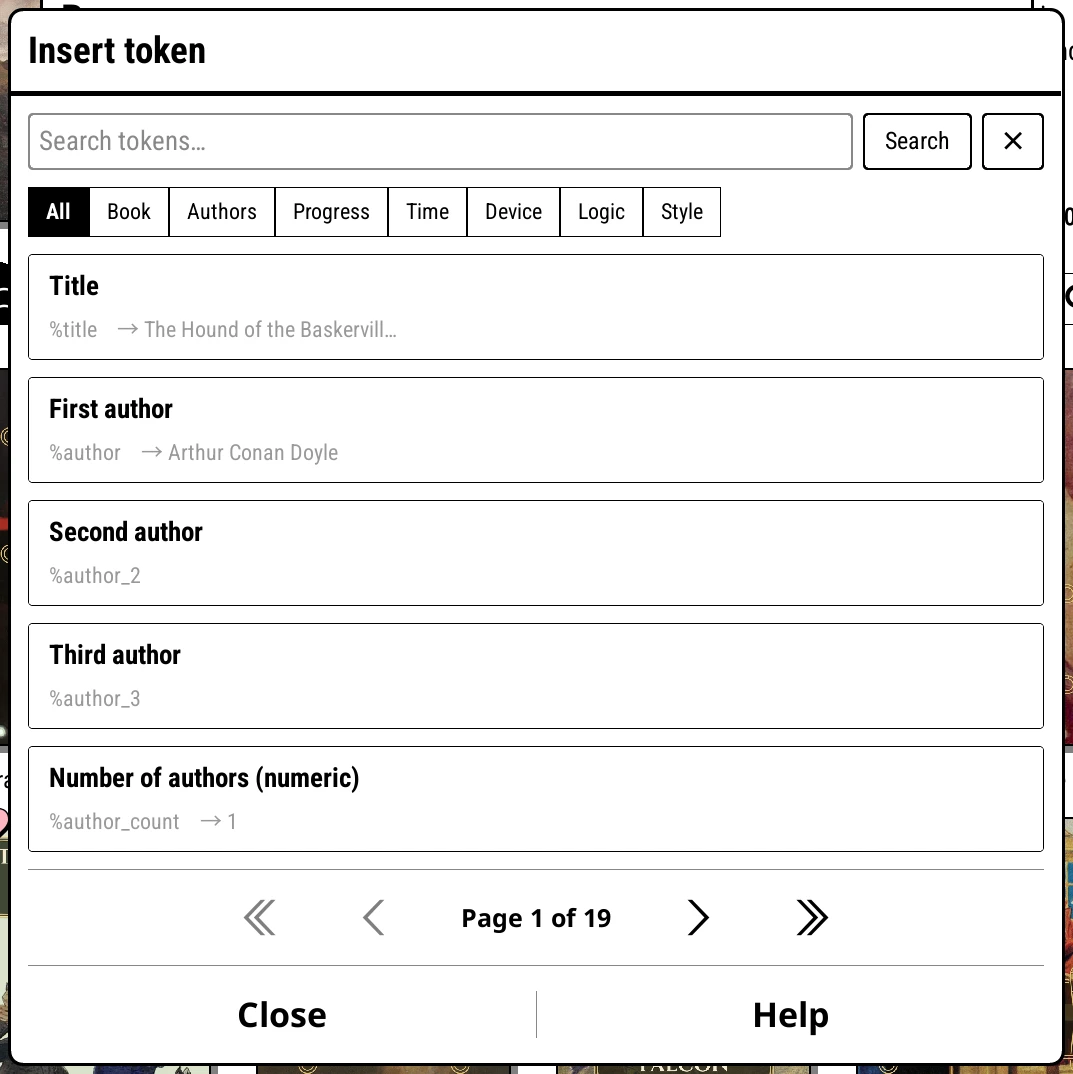
- Tokens…
- Opens Insert token: a searchable list of tokens with a live preview of each, sorted into All, Book, Authors, Progress, Time, Device, Logic and Style.
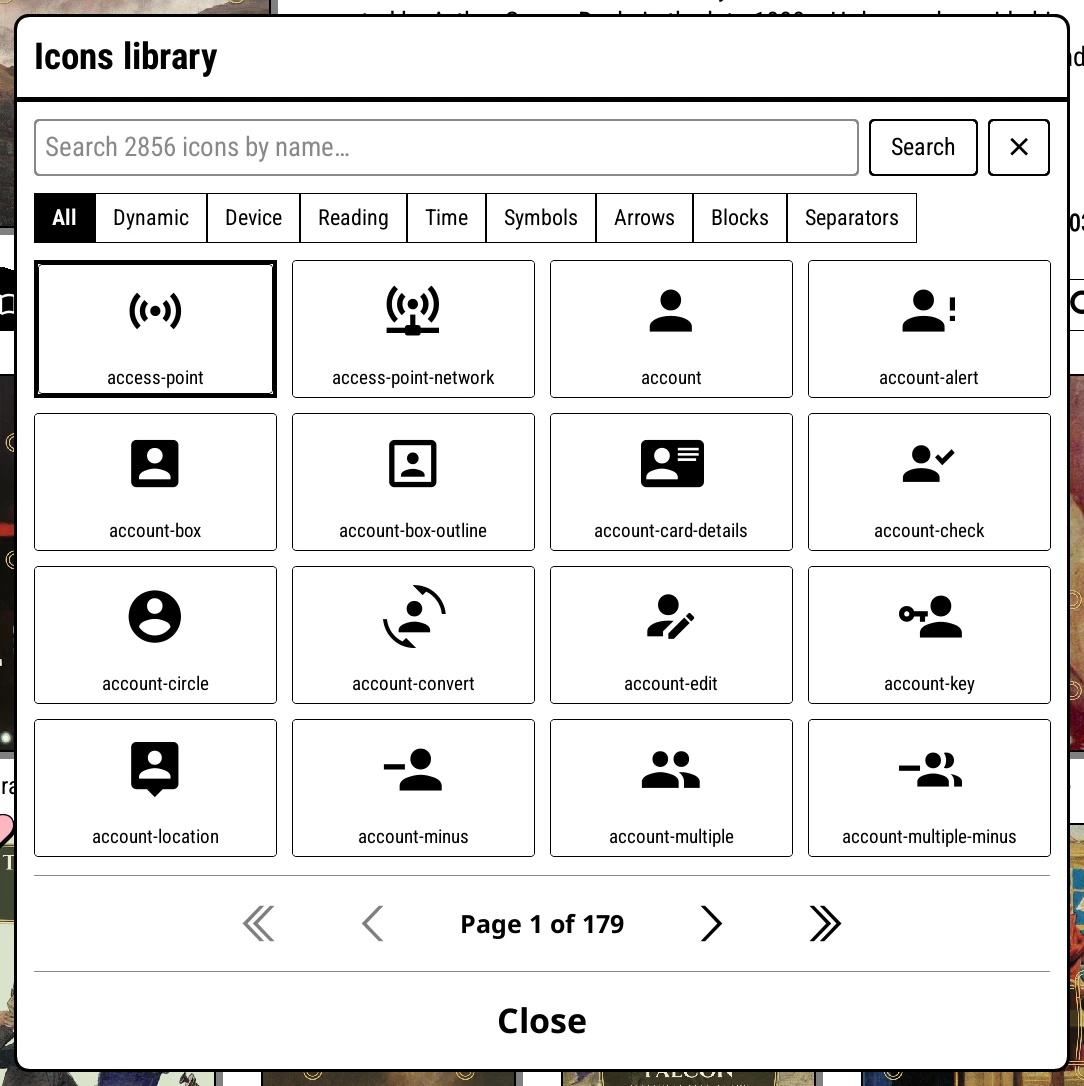
- Icons…
- Opens the Icons library: a searchable grid of glyphs, with tabs All, Dynamic, Device, Reading, Time, Symbols, Arrows, Blocks, Separators and SVG icon folder.
- Default
- Resets the text and styling to the built-in default.
- Save
- Keeps your changes and closes.
Cover display
Bookshelf > Settings > Cover display. Changes show on the shelf behind the menu.
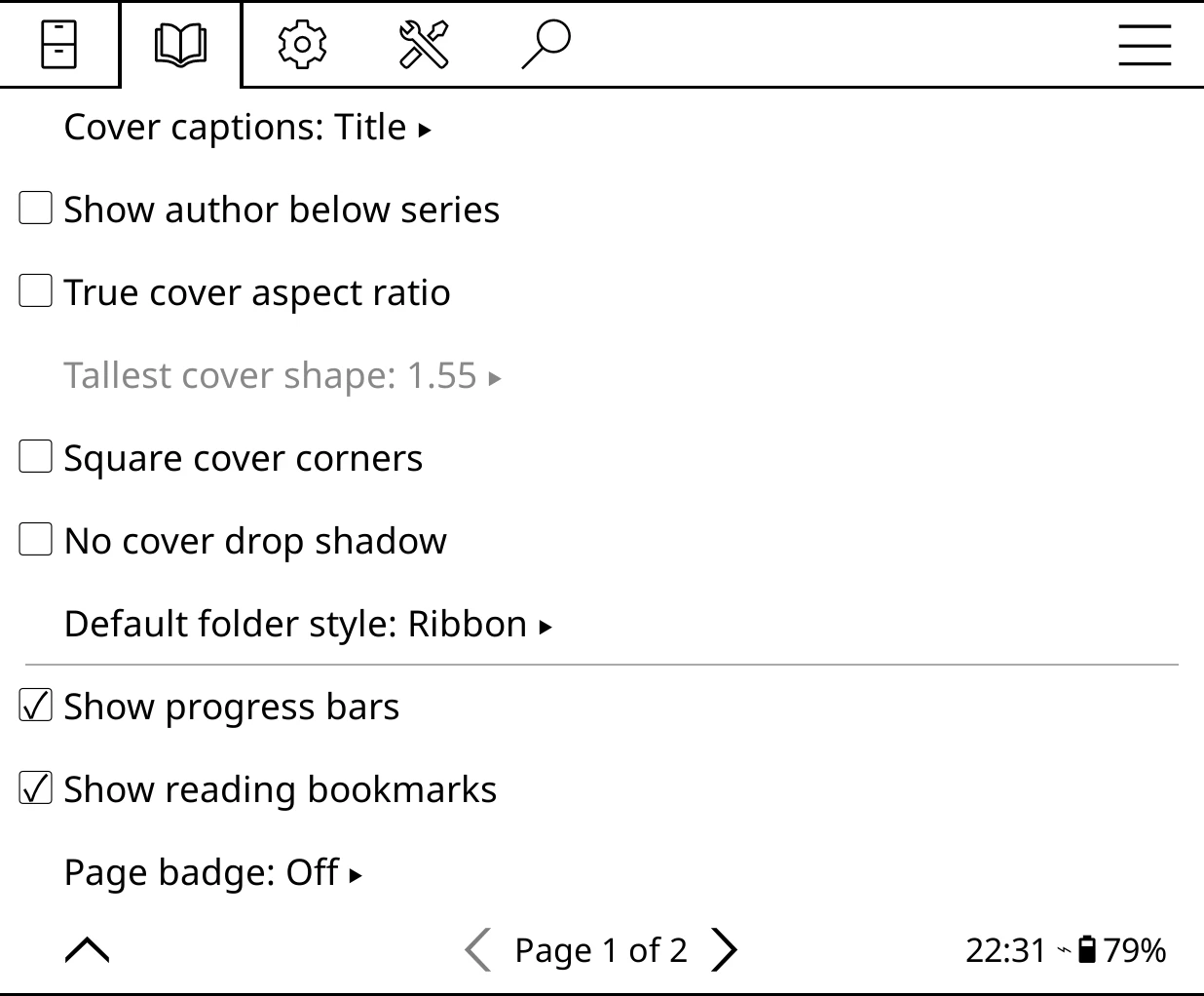
- Cover captions: choice
- The line under each cover: Title, Author, Series, Custom… or None. Custom opens a small line editor (Bold, Aa/AA, Tokens…, Icons…, Default, Save). A shelf can override this in its Shelf style. Default: Title.
- Show author below series
- Prints the author under each series stack. Default: off.
- True cover aspect ratio
- Draws each cover at its real shape instead of a uniform rectangle. Default: off.
- Tallest cover shape: N
- How tall a cover may be for its width before it is trimmed: 1.4, 1.5, 1.55 (default), 1.65 or 1.8. Needs True cover aspect ratio.
- Square cover corners
- Square instead of rounded corners. Default: off.
- No cover drop shadow
- Flat covers with no shadow. Default: off.
- Default folder style: style
- How folders and stacks look across the library: Divider card, Ribbon, Book stack, Collage, Text or None. Each shelf can override this. Default: Divider card.
- Show progress bars
- A thin bar on books you are reading. Default: on.
- Show reading bookmarks
- A bookmark on books you are partway through. Default: on.
- Page badge: choice
- The pill in the bottom corner: Off, Pages, Percent read (books you are reading or have on hold) or Percent read and pages. Also in this submenu: Number only (drops the "p"), Count: your reading settings (default) or Count: printed pages first, and Extract page counts…. Default: Off.
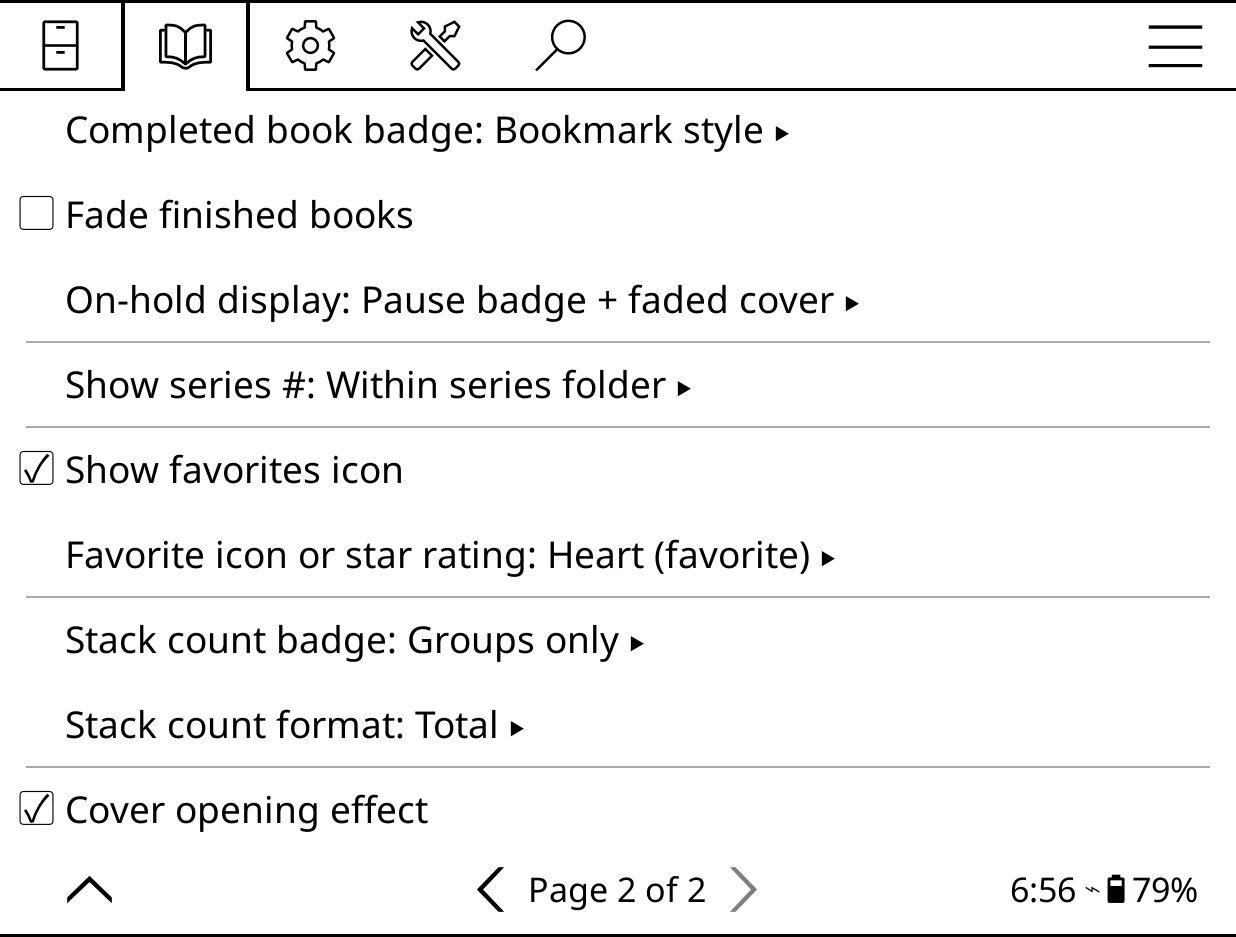
- Completed book badge: choice
- None, Bookmark style or Small tick box. Default: Bookmark style.
- Fade finished books
- Draws finished covers faded. Default: off.
- On-hold display: choice
- None, Pause badge, Faded cover or Both. Default: Both.
- Show series #: choice
- The "#3" badge: Always, Within series folder or Never. Default: Within series folder (Always if you upgraded from an older version).
- Show favorites icon
- A mark in the cover's corner: on your favourites, or your star rating (see the next row). Default: on.
- Favorite icon or star rating: choice
- Heart (favorite) or Star (favorite) on favourites, or Stars (rating): every rated book shows its rating as a row of stars, closing up to fit on narrow covers. Default: Heart (favorite).
- Stack count badge: choice
- A book count on stack tiles: Off, Folders only, Groups only or All stacks. Default: Groups only.
- Stack count format: choice
- Total, or Finished / Total. Default: Total.
- Cover opening effect
- A short cover animation when you open a book. Default: on.
List view
Bookshelf > Settings > List view. The lines that make up every row on List shelves. All List shelves share one layout; rows and columns are set per shelf in Shelf style.
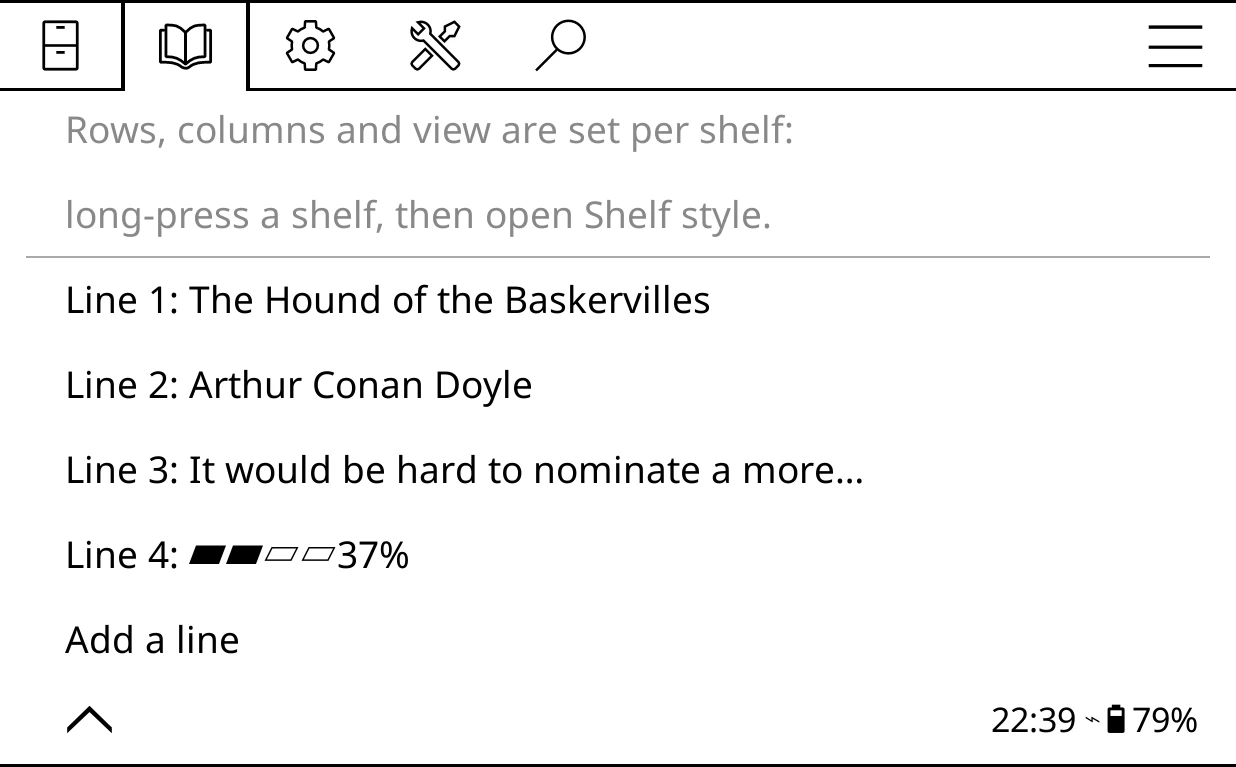
- Line 1: preview ... Line N: preview
- Tap to open the line editor. Long-press for Move up, Move down, Delete and Cancel. Default: four lines (title with rating and favourite mark; author; description; a progress bar with percent read and page count).
- Add a line
- Adds a line at the end, up to six.
Text size
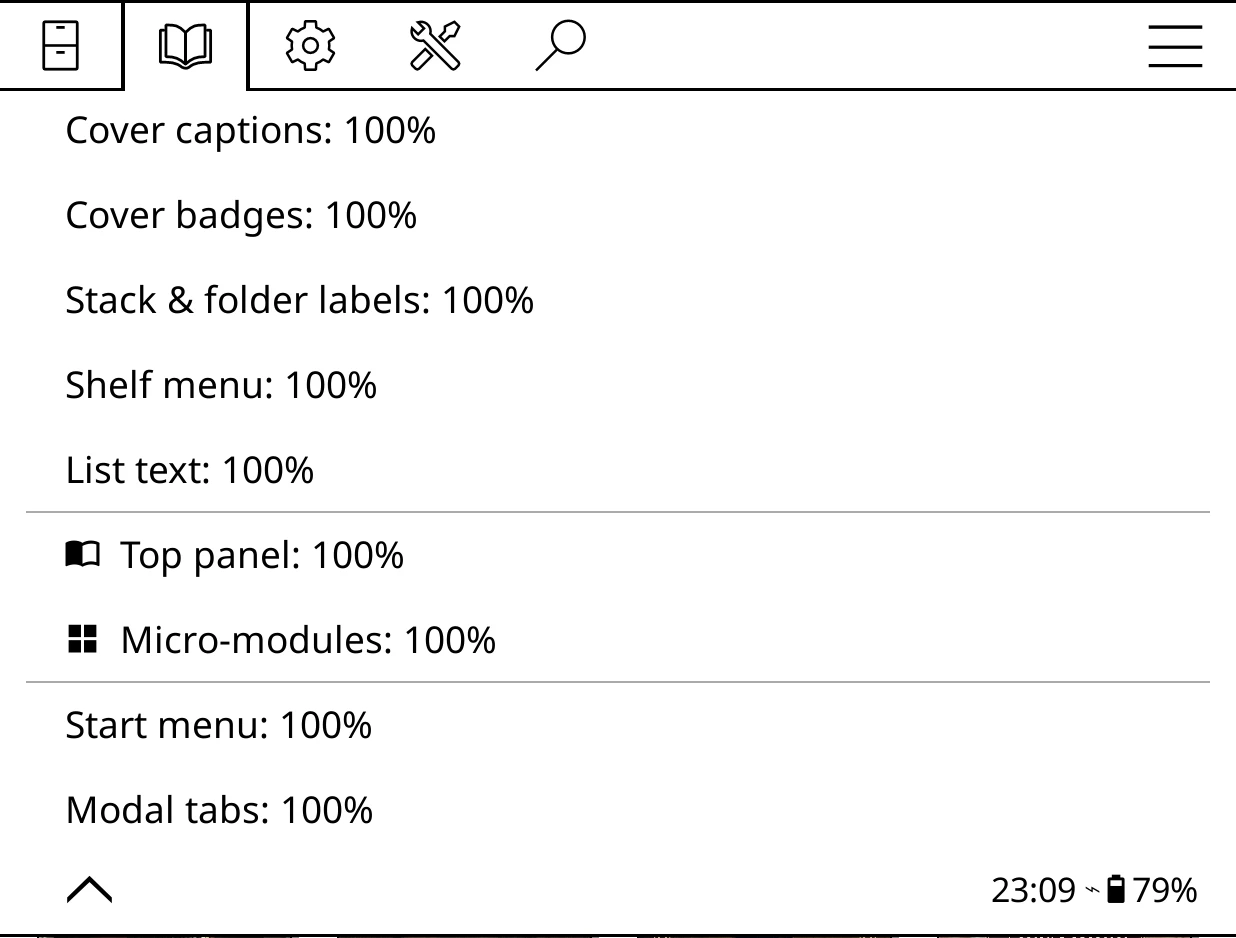
Bookshelf > Settings > Text size. Each row opens a dialog with coarse and fine steps, Cancel, Default (100%) and Apply. Every size starts at 100% and can go as low as 50%.
| Row | What it scales | Maximum |
|---|---|---|
| Cover captions | Text under covers | 300% |
| Cover badges | Series number and page badges | 200% |
| Stack & folder labels | Labels on stack and folder tiles | 300% |
| Shelf menu | Shelf button labels | 300% |
| List text | List view rows | 300% |
| Top panel | All top panel text | 200% |
| Micro-modules | Micro-module text | 200% |
| Start menu | Start menu entries | 200% |
| Modal tabs | Tab labels in the book menu | 200% |
Bookshelf UI font
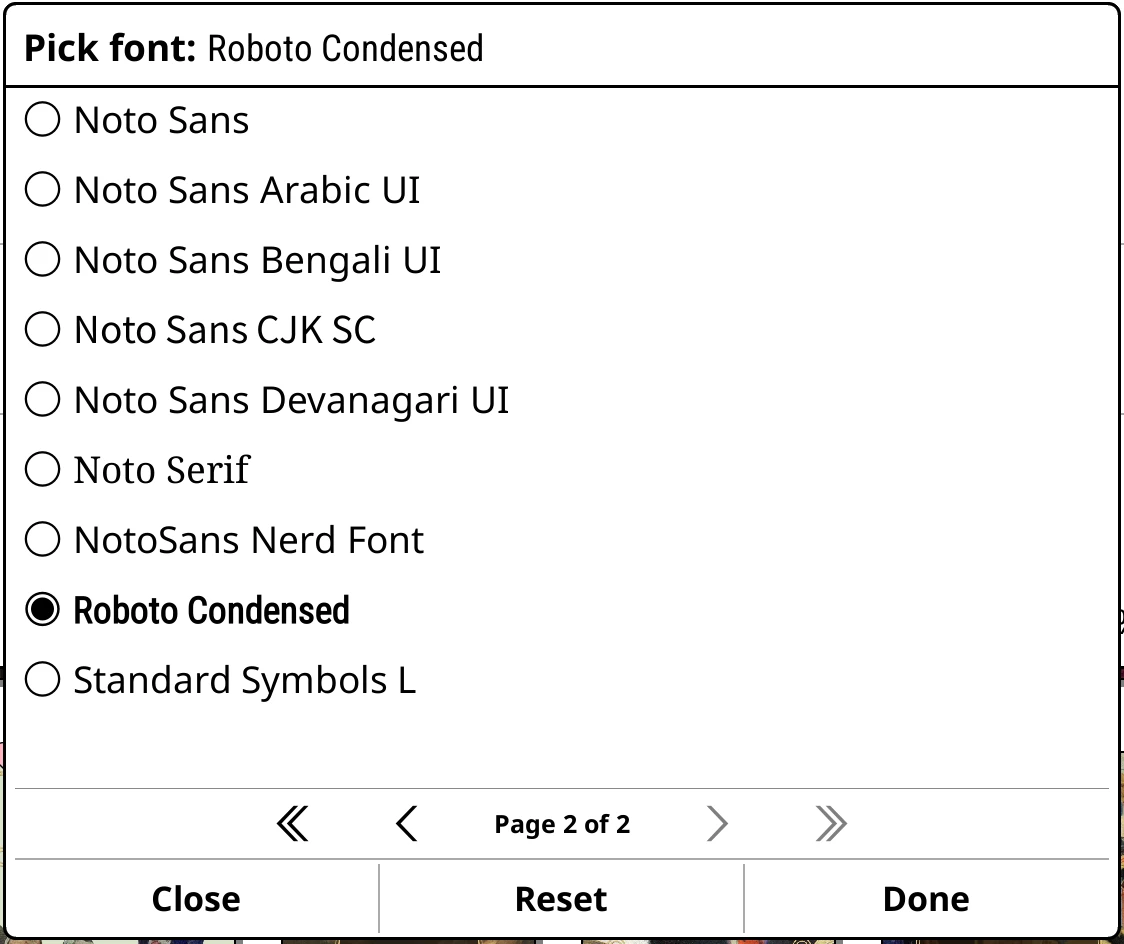
- Bookshelf UI font: font
- The font for Bookshelf's own menus and labels. Reset in the picker follows KOReader's UI font. Default: Roboto Condensed (Follow KOReader if you upgraded from an older version).
Micro modules
Bookshelf > Settings > Micro modules. Where micro-modules can appear. Turn all three off to switch micro-modules off entirely; the row then reads Micro modules: Off. See Micro-modules.
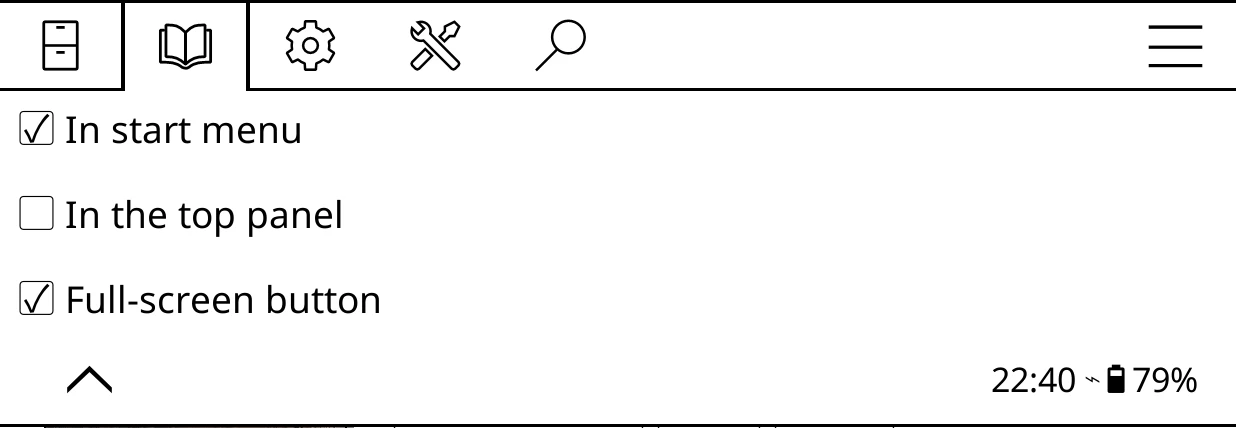
- In start menu
- Module cards in the start menu. Default: on.
- In the top panel
- Adds a grid button to the shelf menu that swaps the top panel for a grid of modules. Default: off (on if you upgraded from an older version).
- Full-screen button
- A footer button that opens all your modules full screen. Default: on (off if you upgraded from an older version).
Start menu
Bookshelf > Settings > Start menu
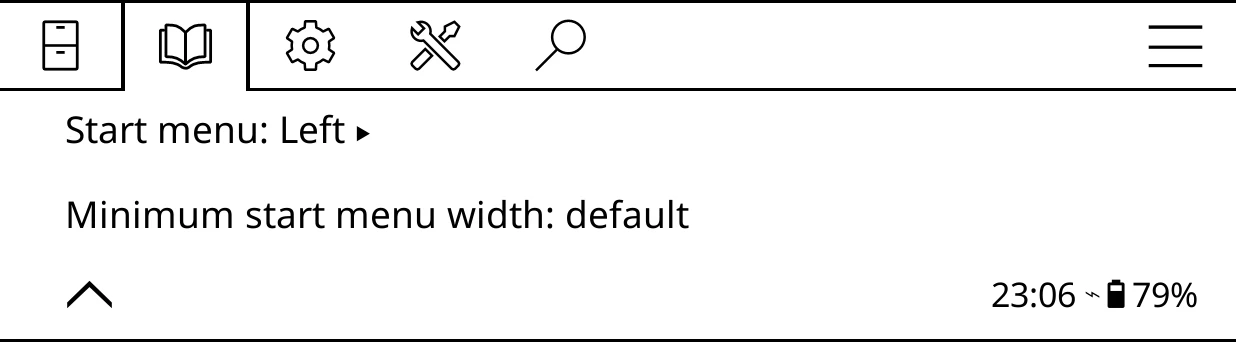
- Start menu: Left/Right/Off
- Which footer corner the start menu button sits in, or Off to hide it. Default: Left.
- Minimum start menu width
- 120 to 600, with the start menu open as a preview. Default: 180.
The buttons that open the start menu while reading are under Advanced > While reading.
Behavior
Bookshelf > Settings > Behavior
- Top panel starts with: choice
- Currently reading or Micro modules. Only shown while Micro modules > In the top panel is on. Default: Currently reading.
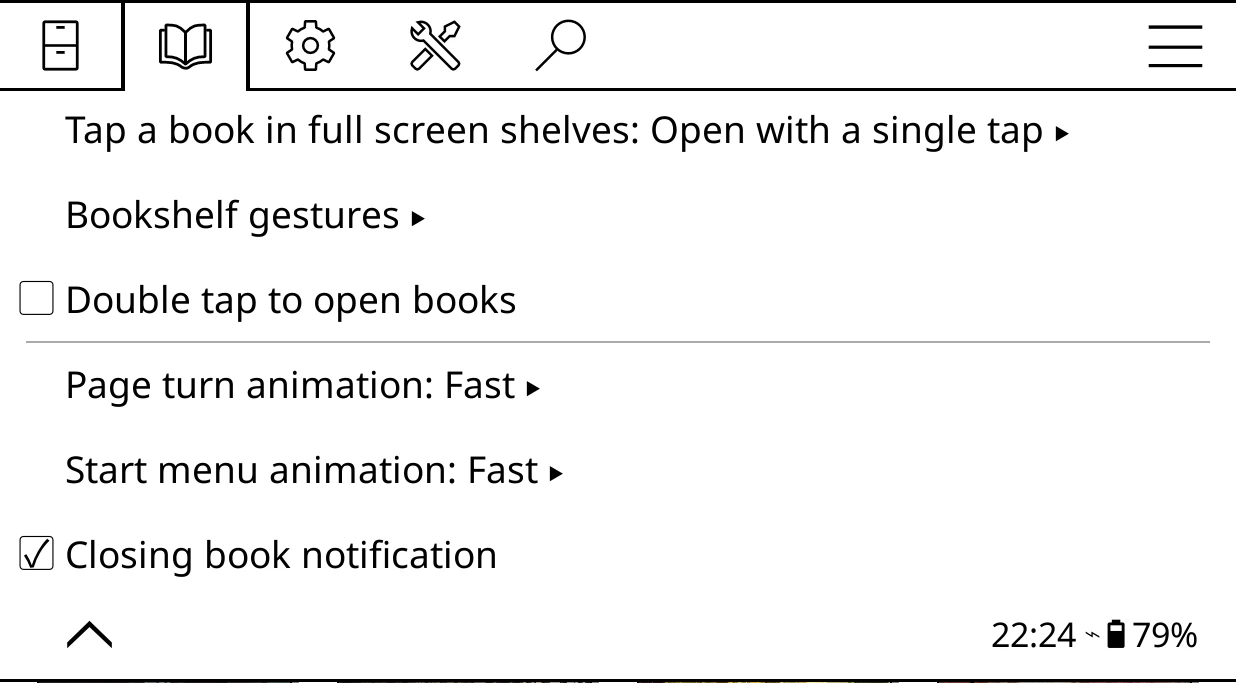
- Tap a book in full screen shelves: choice
- Show the book's details, Open with a single tap or Open with a double tap. Default: Open with a single tap.
- Bookshelf gestures
- Switches for each of Bookshelf's own gestures, with All gestures at the top. A gesture you switch off does nothing, so a KOReader gesture can use it instead. All on by default. The full list is on the Gestures page.
- Double tap to open books
- Opening a book from the top panel, or from a cover on a full screen shelf, takes two taps; the first selects it. Default: off.
- Page turn animation: speed
- A wipe when you turn shelf pages (e-ink only): Off, Fast, Normal or Slow. Default: Fast.
- Start menu animation: speed
- The same for the start menu opening and closing. Default: Fast.
- Closing book notification
- Shows "Closing book…" while a book closes. Default: on.
Library & search
Bookshelf > Settings > Library & search
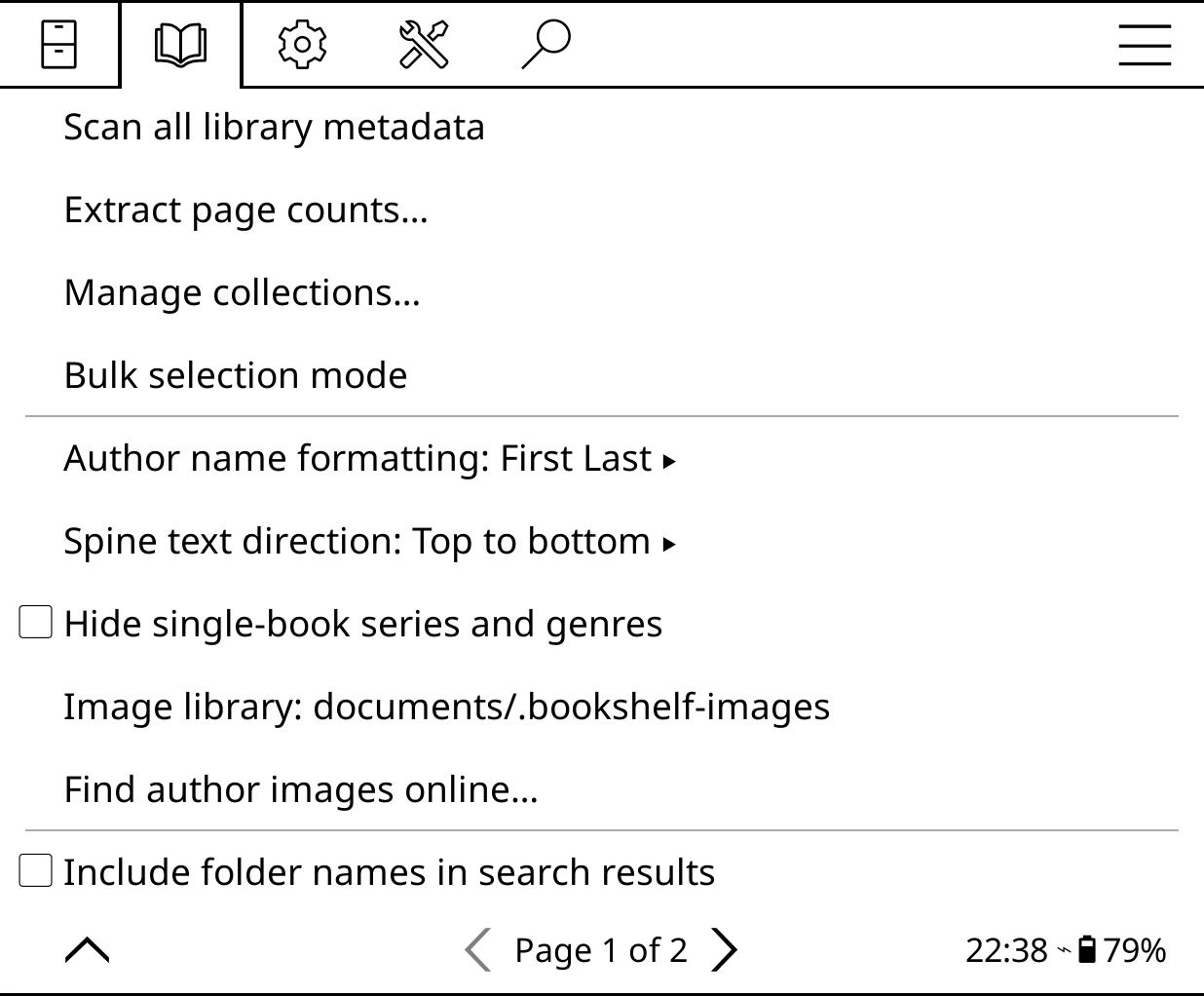
- Scan all library metadata
- Reads covers and details for every book under your home folder.
- Extract page counts…
-
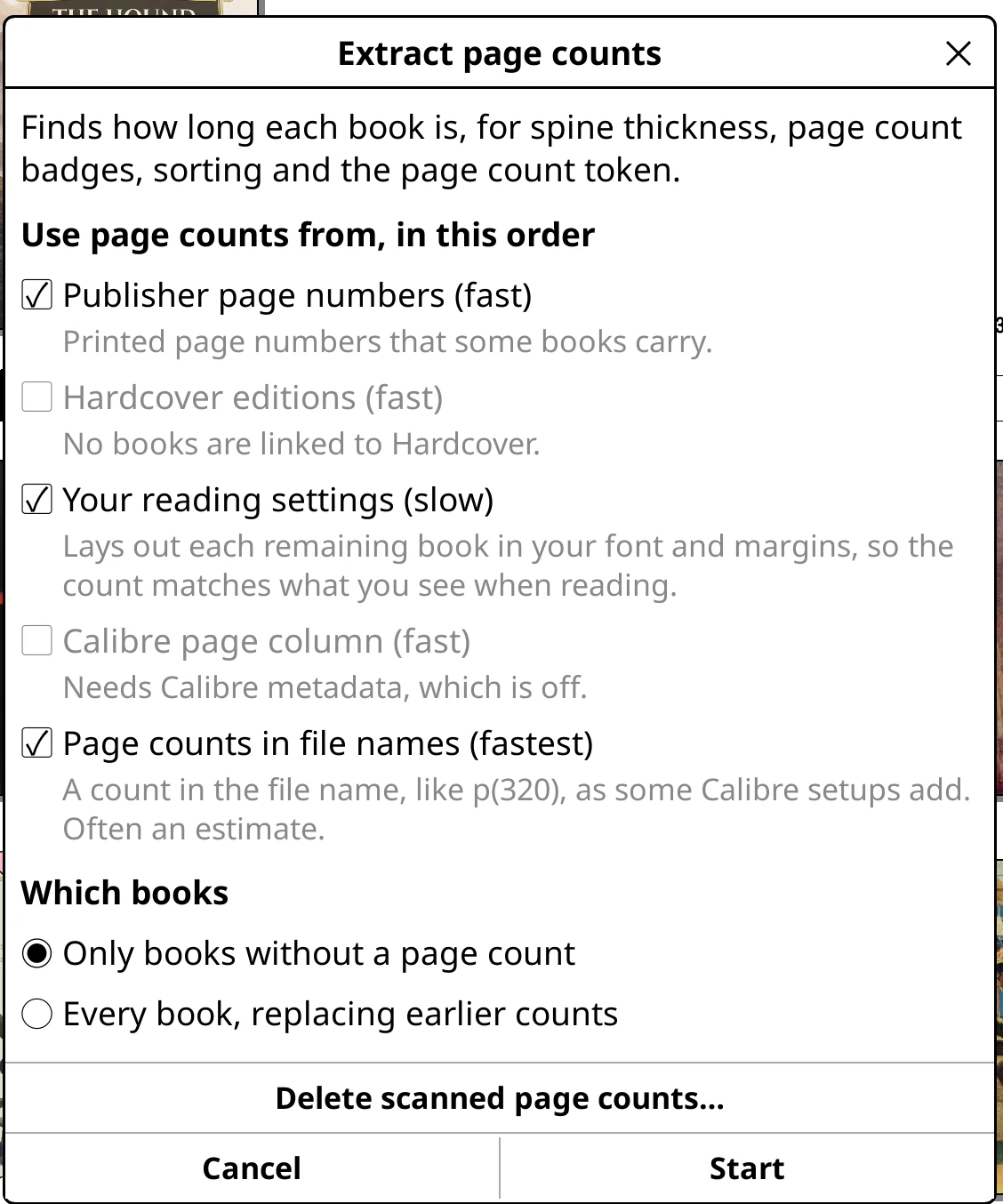
Opens the page count dialog. Under Use page counts from, in this order: Publisher page numbers (fast), Hardcover editions (fast), Your reading settings (slow), Calibre page column (fast) and Page counts in file names (fastest), all ticked by default. Under Which books: Only books without a page count (default) or Every book, replacing earlier counts. Buttons: Delete scanned page counts…, Cancel, Start. See Page counts.
Extract page counts - Manage collections…
-
Tap a collection for Rename, Pin to shelf menu and Delete (Favorites can only be pinned). Footer: + New collection, Close.
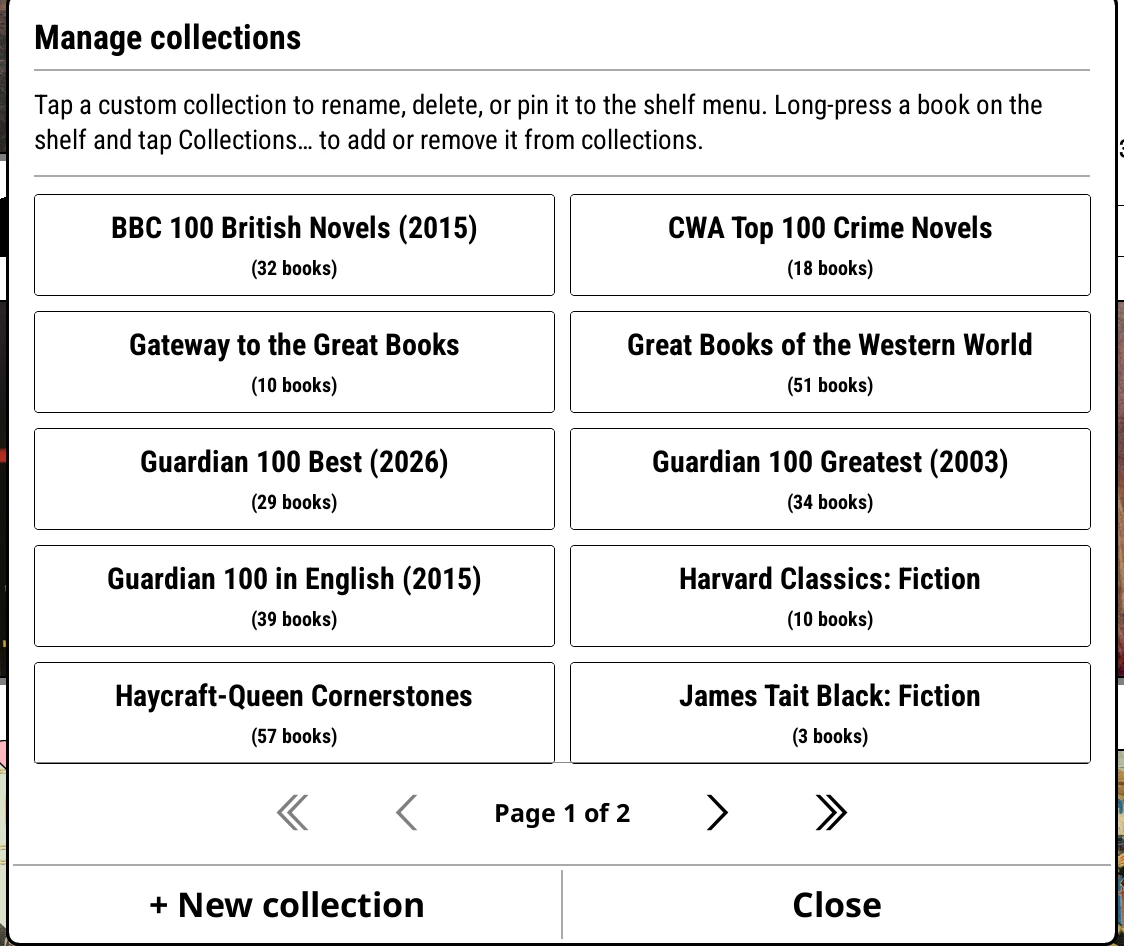
Manage collections - Bulk selection mode
- Closes the menu and starts bulk selection.
- Author name formatting: choice
- Auto, First Last or Last, First. Different spellings of the same author are merged either way. Default: First Last (Auto if you upgraded from an older version).
- Spine text direction: choice
- Top to bottom or Bottom to top. Default: Top to bottom.
- Hide single-book series and genres
- Leaves series and genres with only one book out of those stacks. Default: off.
- Image library: folder
- Where custom images for folders, series, authors and so on are kept. Default:
.bookshelf-imagesin your home folder. - Find author images online…
- Looks up a photo for every author without one (Open Library, then Wikipedia). Progress and a Stop button show in the status line.
- Include folder names in search results
- Default: off.
- Include genres and tags in search results
- Default: on.
- Ignore The, A, An when sorting
- Sorts titles by the word after a leading article. Default: on.
- Sort Chinese text by pinyin
- Default: off.
Advanced
Bookshelf > Settings > Advanced
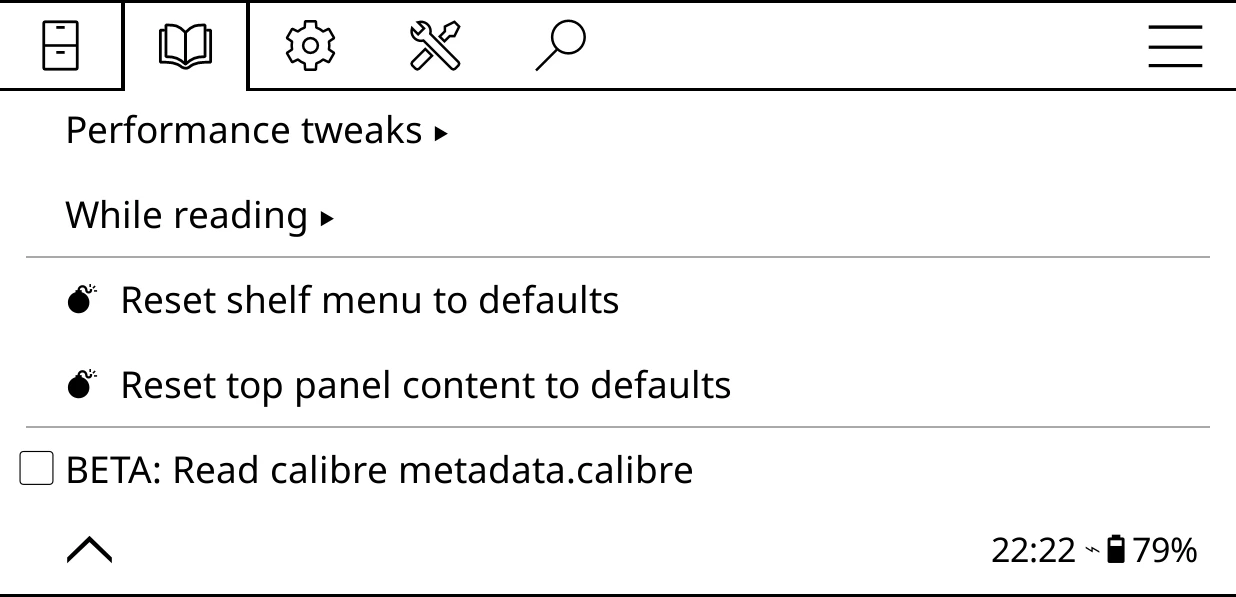
- Performance tweaks
-
A submenu:
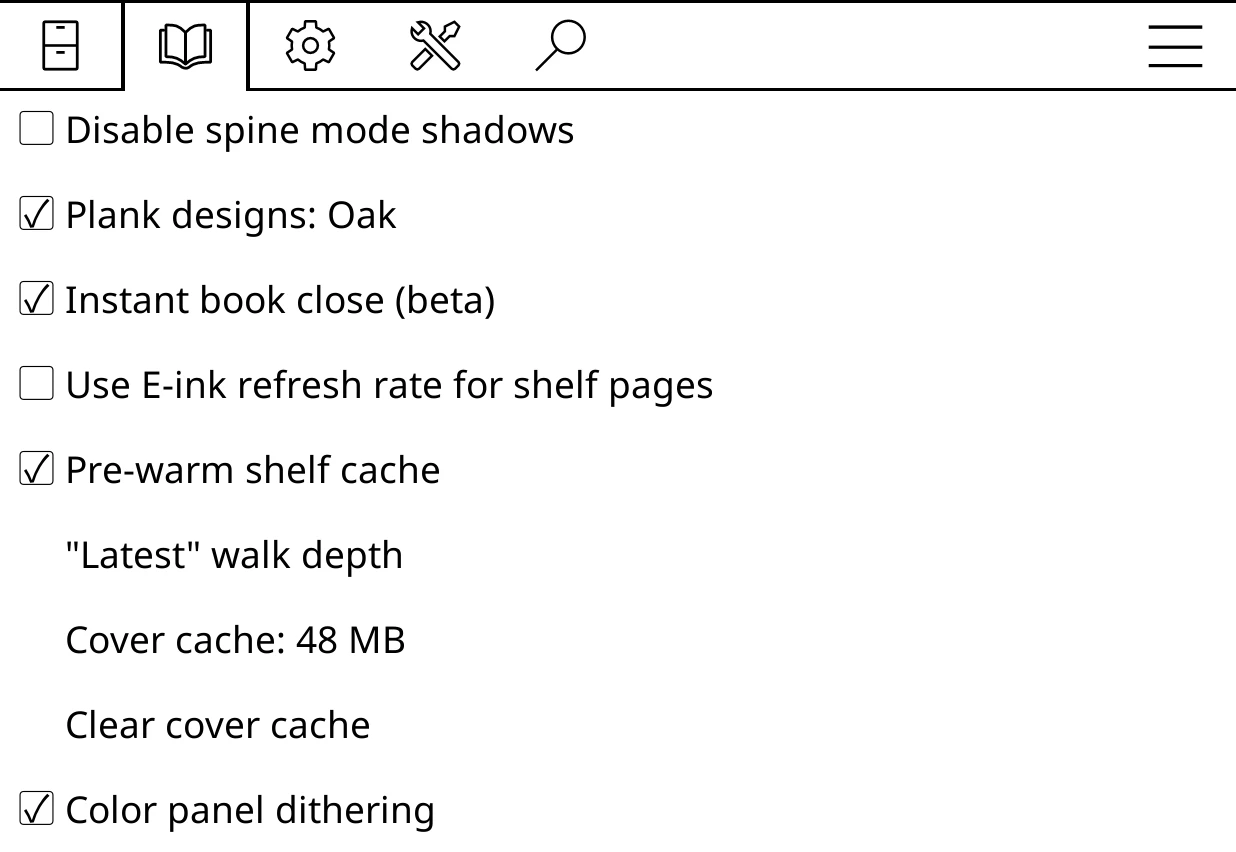
Advanced > Performance tweaks - Disable spine mode shadows: flat spines with no shadows. Default: off.
- Plank designs: plank: off draws a plain plank colour instead of the plank picture. Default: on.
- Instant book close (beta): shows the shelf at once when you leave a book and finishes closing it later. Default: on.
- Use E-ink refresh rate for shelf pages: shelf page turns flash clean as often as KOReader's own Full refresh rate (Screen > E-ink settings), to clear ghosting. A page that flashes skips its animation. E-ink only. Default: off.
- Pre-warm shelf cache: gets each shelf ready in the background after launch. Default: on.
- "Latest" walk depth: how many folders deep the Latest source looks, 1 to 99. Default: 3.
- Cover cache: N MB: memory for scaled covers, 8 to 128 MB. Default: set from your device's memory.
- Clear cover cache: empties the cover cache, and samples every spine's colour from its cover again.
- Color panel dithering: colour e-ink only; keeps covers saturated. Default: on.
- While reading
-
What Bookshelf draws inside the reader:
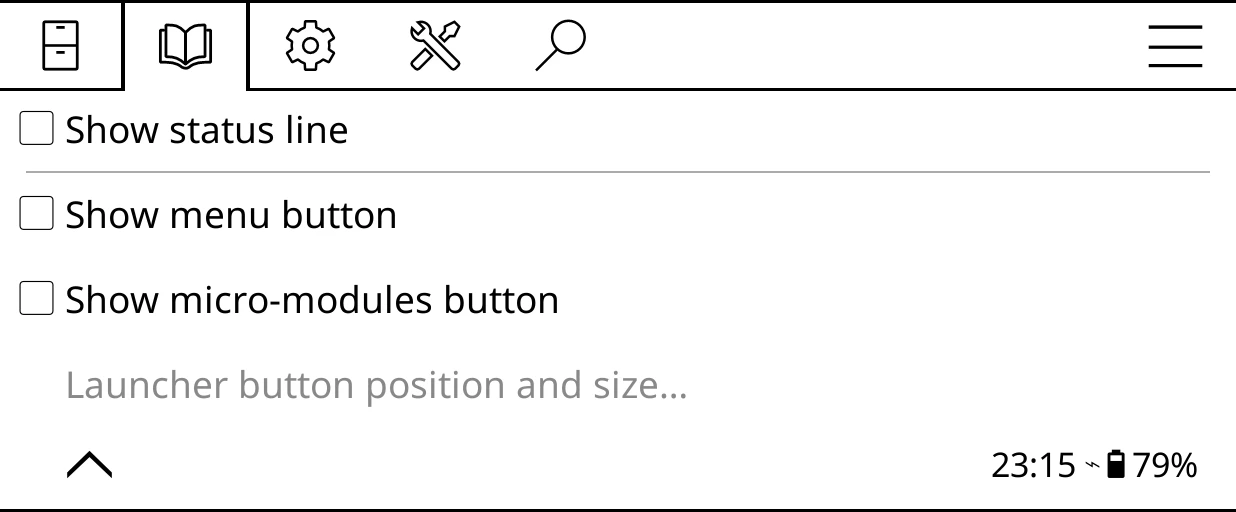
Advanced > While reading - Show status line: Bookshelf's status line across the top of the book. Default: off.
- Show menu button: a start menu button in the reader. Default: off.
- Show micro-modules button: a full-screen micro-modules button in the opposite corner. Default: off.
- Launcher button position and size…: edge and side offsets, size (50% to 150%), Side: left/right and Edge: bottom/top. Greyed out unless a button is on.
- Reset shelf menu to defaults
- After asking, puts back the fresh-install shelves and returns to Home.
- Reset top panel content to defaults
- After asking, puts back the fresh-install top panel layout and fonts.
- BETA: Read calibre metadata.calibre
- Reads Calibre's
metadata.calibrefile from your home folder or the folder above it. Default: off. See Calibre, Kindle and Kobo libraries.
The shelf editor
Long-press a shelf button (or open a shelf from Edit shelves…). Every change applies and saves straight away, with the shelf redrawing behind; there is no Save button. For a walkthrough, see Shelves and Sources, filters and sorting.
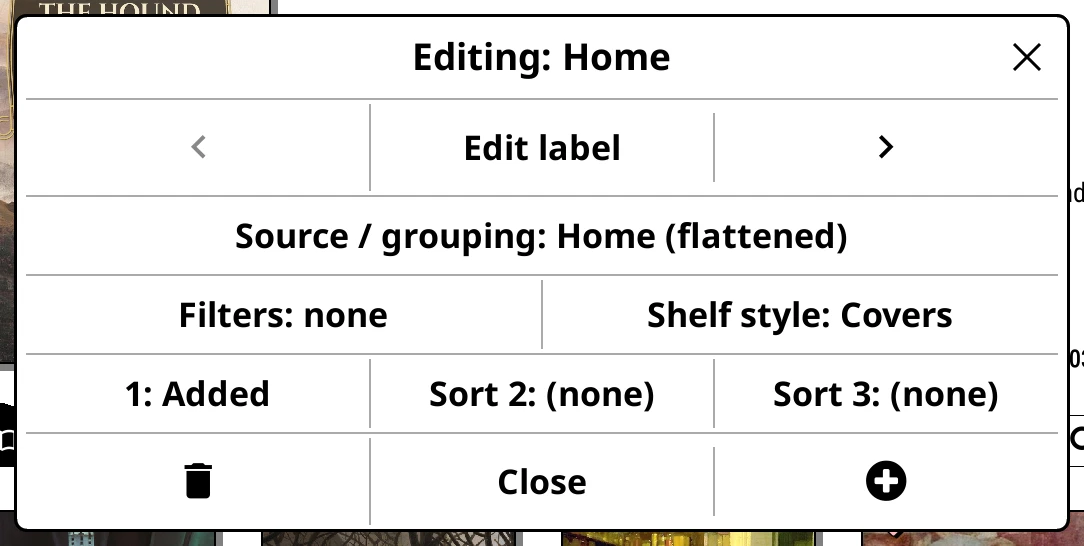
- < / Edit label / >
- The arrows move the shelf one place left or right. Edit label opens the Shelf label box with Cancel, Insert icon… (the way to give a shelf an icon) and OK.
- Source / grouping: source
- Opens the source picker. Changing the source resets the sort to that source's default.
- Filters: none/N active
- Opens Filters. On an online catalogue shelf this button is Catalog settings instead. On a shelf of shelves it is Show + Add shelf (default: shown).
- Shelf style: style
- Opens Shelf style.
- 1: key / Sort 2: (none) / Sort 3: (none)
- The three sort levels. Each opens the sort picker. A ↑ means that level runs the opposite way to usual. Catalogue shelves show Server order; a shelf of shelves shows Shelves stand in the order you arrange them.
- Footer
- Bin icon: Delete the shelf after asking (any shelf can be deleted; deleting a shelf of shelves deletes the shelves inside it). Close. Plus icon: add a new shelf right after this one and open it on the source picker.
Source picker
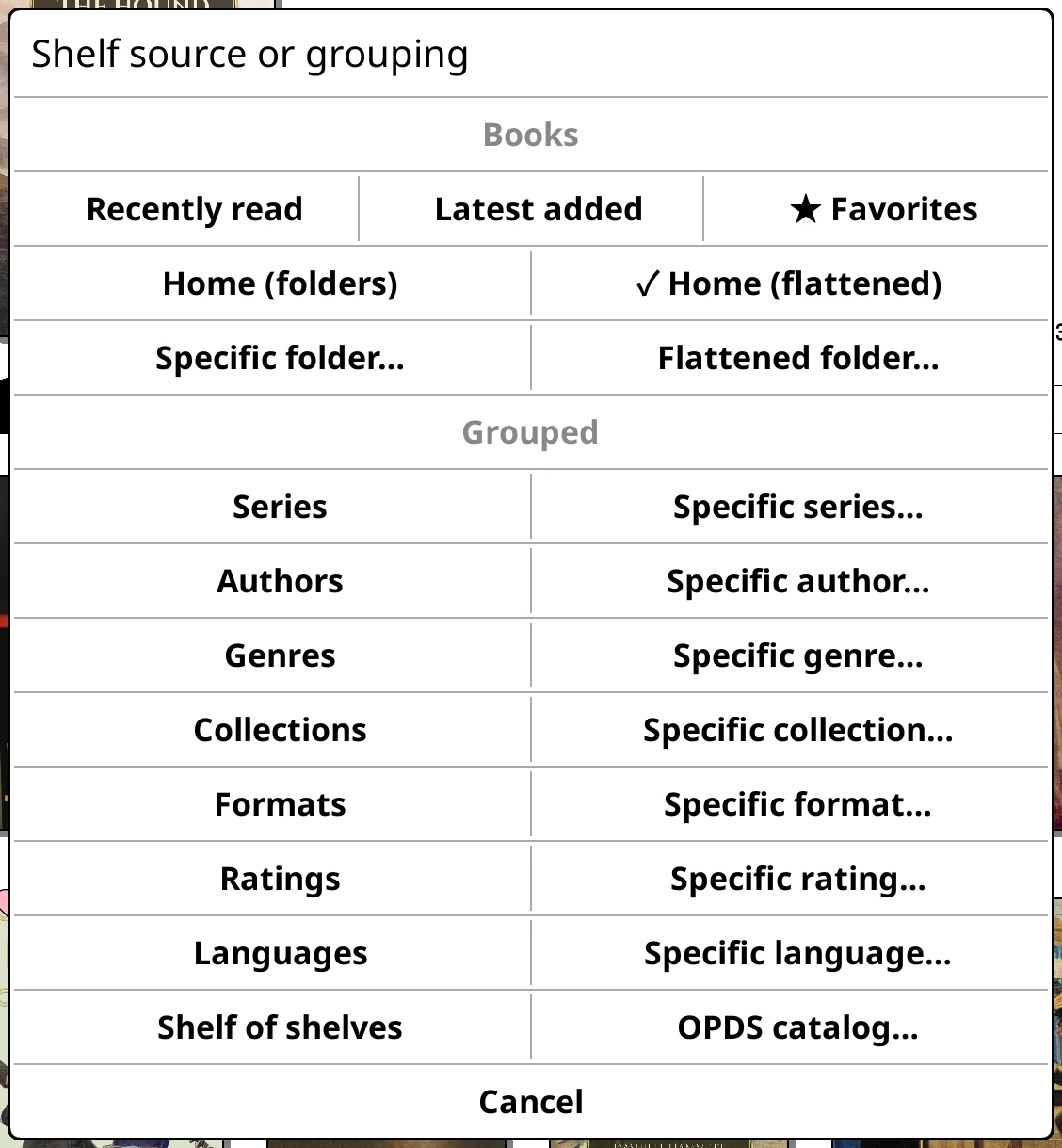
Titled Shelf source or grouping. The current source is ticked.
| Source | What the shelf shows | Default sort |
|---|---|---|
| Recently read | Books you have opened, latest first | Opened |
| Latest added | Files on disk, newest first | Added |
| ★ Favorites | KOReader's Favorites collection | Opened |
| Home (folders) | Your home folder as a folder tree | Filename |
| Home (flattened) | Every book under your home folder in one list | Surname, Series, Series # |
| Specific folder… | One folder as a tree | Filename |
| Flattened folder… | Every book under one folder, no folder tiles | Surname, Series, Series # |
| Series / Specific series… | A stack per series, or one series | Opened then Series #, or Series # |
| Authors / Specific author… | A stack per author, or one author | Surname, Series, Series #, or Series, Series #, Title |
| Genres / Specific genre… | A stack per genre, or one genre | Books, or Surname |
| Collections / Specific collection… | A stack per collection, or one collection | Books, or Collection order |
| Formats / Specific format… | A stack per file format, or one format | Books, or Opened |
| Ratings / Specific rating… | A stack per star rating, or one rating (or Unrated) | Rating, or Series, Series #, Title |
| Languages / Specific language… | A stack per language, or one language | Books, or Surname |
| Shelf of shelves | A shelf that holds other shelves | None |
| OPDS catalog… | An online catalogue | Server order |
| Kindle Virtual Library | The Kindle's own library (Kindle, with its plugin) | Title |
| Kobo library | Kobo store books (Kobo, with its plugin) | Title |
Sources from other plugins are listed at the end. The "Specific…" choices open a searchable grid of cards titled Choose kind.
- Folder picker
- Choose folder within home folder lists every folder in your home folder that holds a book. Browse device… opens KOReader's own folder chooser so you can pick any folder.
- Catalogue picker
- Choose OPDS catalog lists your catalogues (shared with KOReader's own OPDS list). Add catalog… opens a form with Catalog name, Catalog URL, Username (optional), Password (optional), Use server filenames and Sync catalog (both off). Long-press a catalogue for Edit or Delete.
Filters
Each filter row shows its current value, or "any". Within one filter any pick can match; across filters, all must match. Each choice shows how many books it would leave. No filters by default.
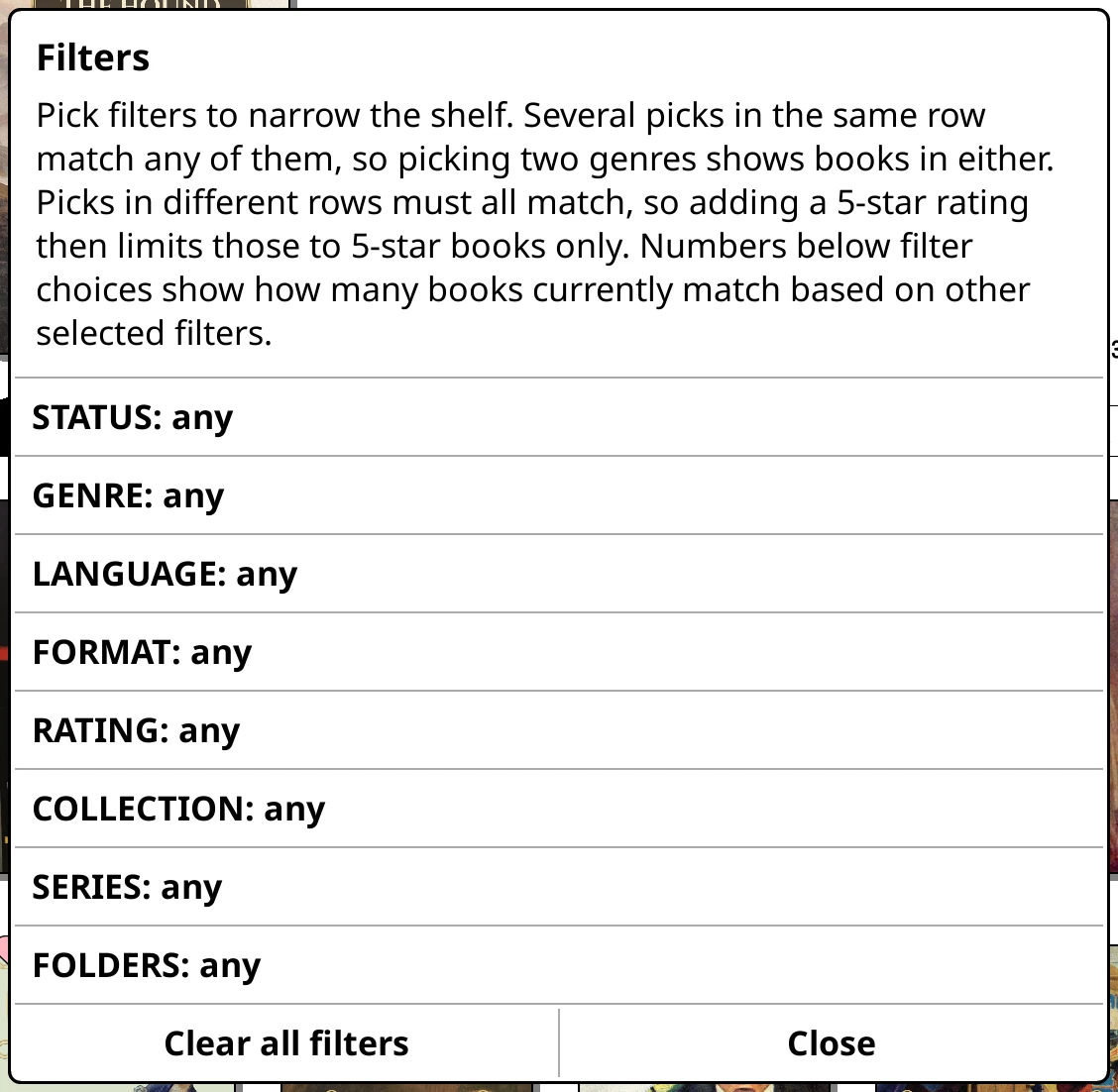
- STATUS
- Unread, Reading, On hold, Finished.
- GENRE, LANGUAGE, FORMAT, COLLECTION
- Pick any number from a searchable grid. Clear and Back in the footer.
- RATING
- 5 stars to 1 star, or Unrated.
- SERIES
- Standalone and books in series, Only standalone books or Only books in series.
- FOLDERS
- Add folder to include and Add folder to exclude. Tap an entry to remove it. Excludes win over includes, and both cover sub-folders.
- Clear all filters / Close
- Empty every filter, or apply them and close.
Sort picker
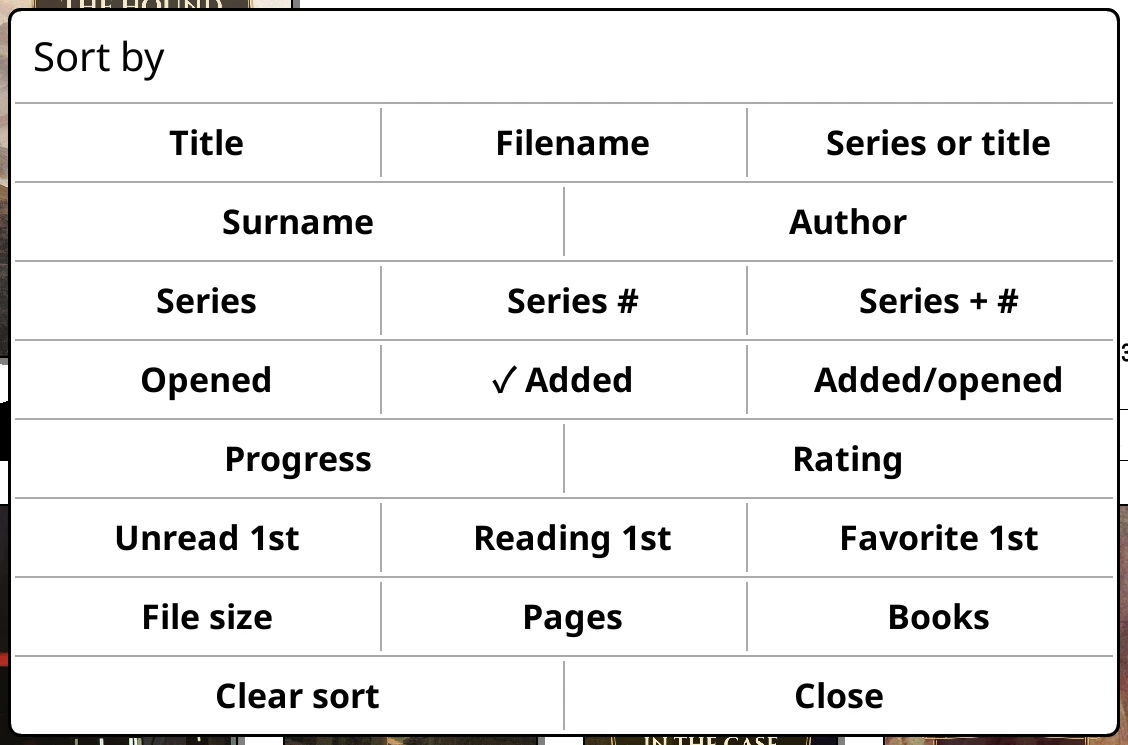
Titled Sort by or Then by (on a grouped shelf, Sort groups by and Within each group, then by). Tap the ticked key again to reverse it. Clear sort empties the level.
Every sort key
| Button | Sorts by | Usual direction |
|---|---|---|
| Title | Title | A to Z |
| Filename | File name | A to Z |
| Series or title | Series name for series books, title for the rest | A to Z |
| Surname | Author's surname | A to Z |
| Author | Author's first name | A to Z |
| Series | Series name | A to Z |
| Series # | Number in the series | Lowest first |
| Series + # | Series name, then number | A to Z |
| Opened | Last opened | Newest first |
| Added | Date added | Newest first |
| Added/opened | Whichever is later | Newest first |
| Progress | Percent read | Most first |
| Rating | Your rating | Highest first |
| Unread 1st | Unread, then reading, then finished | |
| Reading 1st | Reading, then unread, then finished | |
| Favorite 1st | Favourites first | |
| File size | File size | |
| Pages | Page count | |
| Books | Number of books in a stack | Most first |
The first level of a grouped shelf offers Name (Full name for authors), Surname, Book count, Most recently read, Most recently added and Added/opened. A Specific collection shelf adds Collection order and Edit collection order.
Shelf style
The options shown depend on the style.
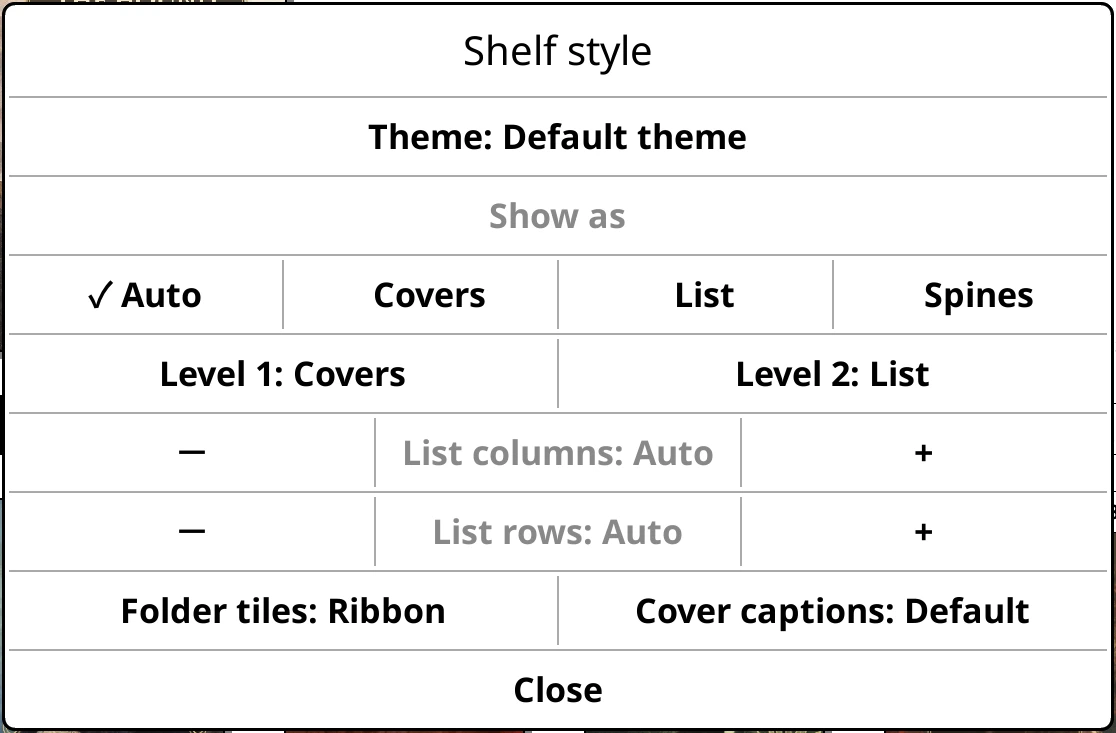
- Theme: theme
- Opens the Theme library for this shelf. Default: follows the Default theme (or the parent shelf).
- Show as
- Auto, Covers, List or Spines. Default: Covers for a new shelf. Auto adds Level 1 and Level 2, each stepping through Covers, List and Spines; Level 1 is the shelf itself and Level 2 anything you open from it (default Covers, then List). Catalogue shelves have no Spines; a shelf of shelves has no Auto.
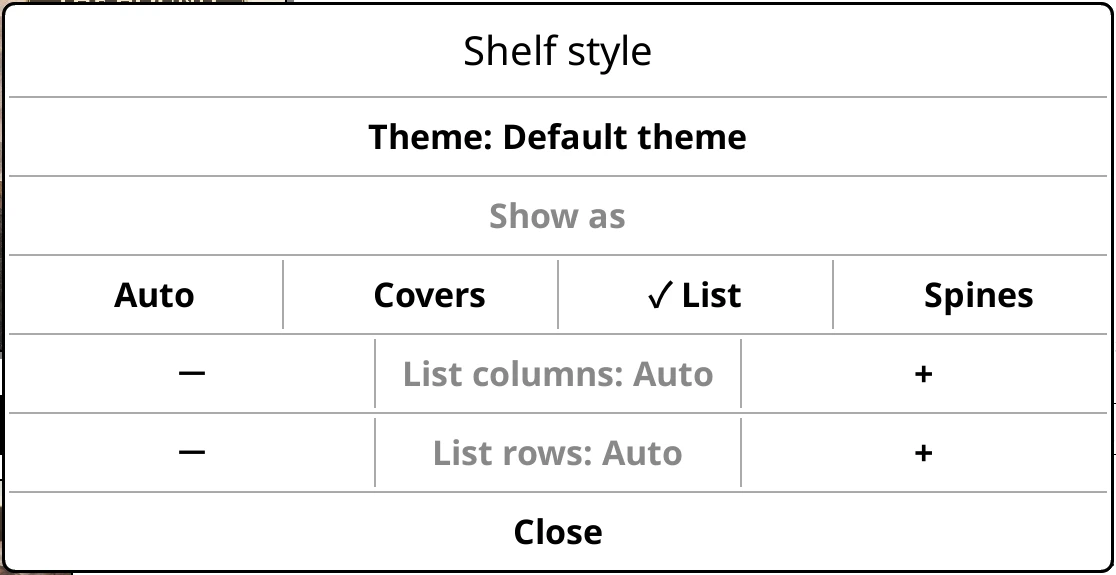
- List columns / List rows (List)
- 1 to 3 columns and 1 to 12 rows, or Auto. Default: Auto.
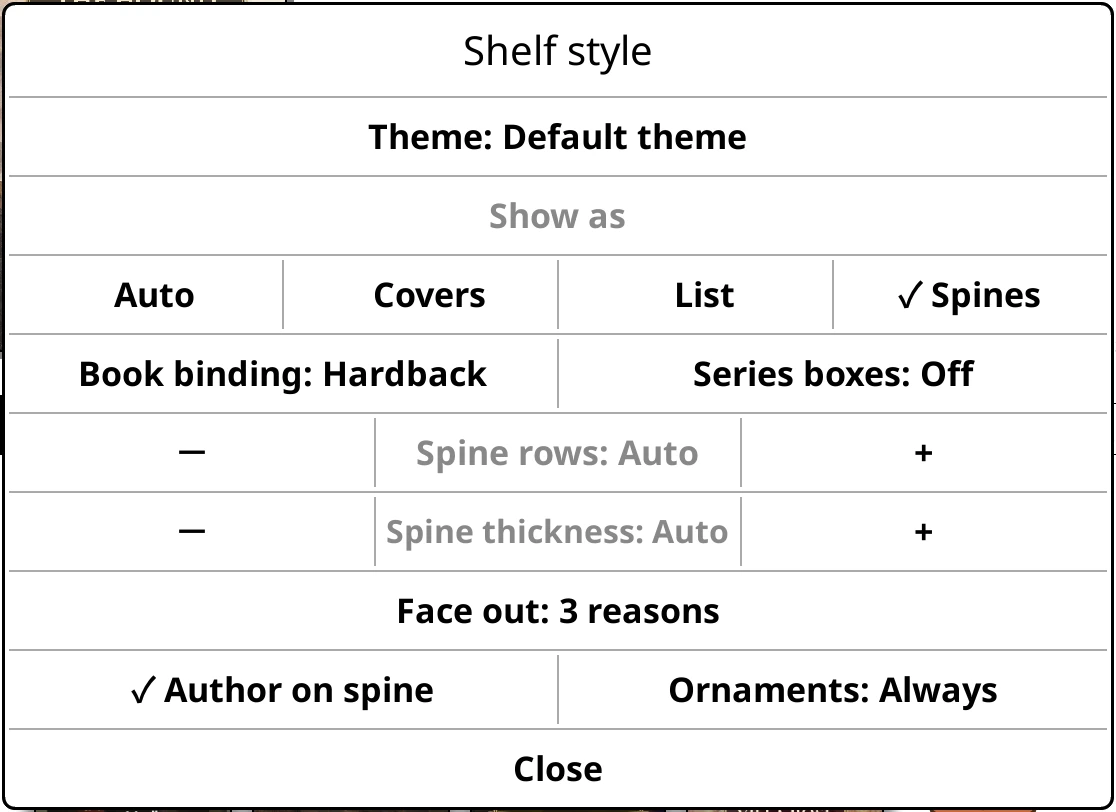
- Book binding: Hardback/Paperback (Spines)
- How the books are drawn: Hardback, the classic look, or Paperback, with thin flush covers, softer shading and lighter page edges. A series can have its own from its long-press menu. Default: Hardback.
- Series boxes: On/Off (Spines)
- Each series stands in an open slipcase. Default: Off.
- Spine rows / Spine thickness (Spines)
- 1 to 6 rows; 60% to 200% thickness. Default: Auto for both.
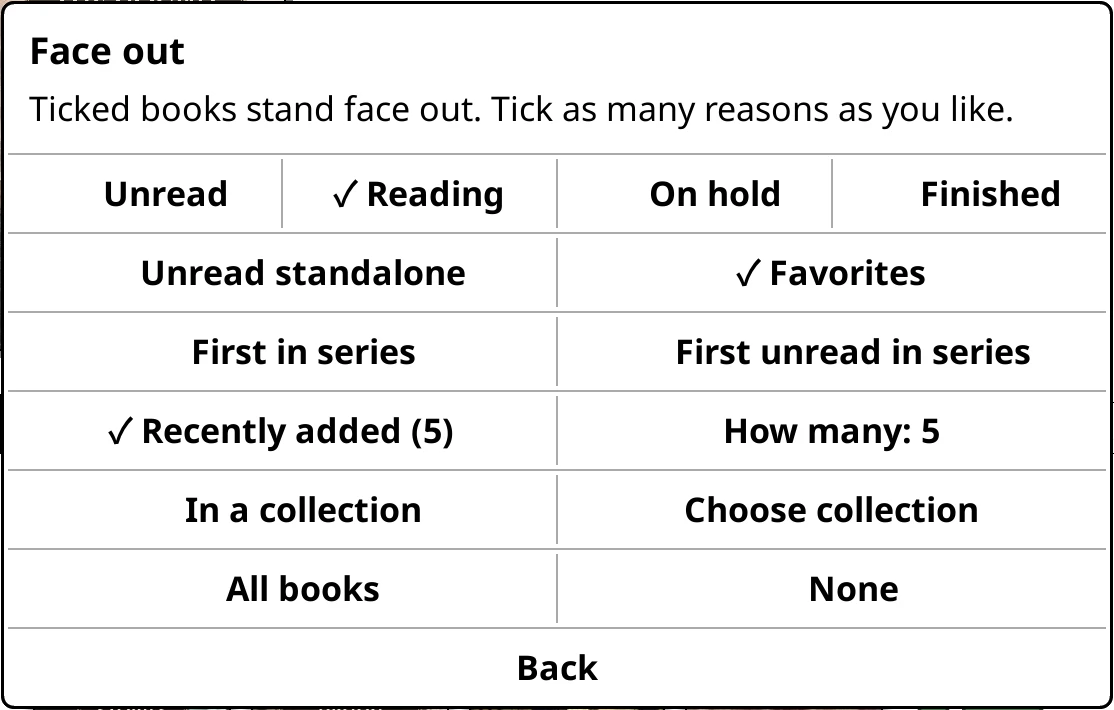
- Face out: summary (Spines)
-
Which books stand face out. Tick any of Unread, Reading, On hold, Finished, Unread standalone, Favorites, First in series, First unread in series, Recently added (with How many: 1, 3, 5, 10 or 20; default 5), In a collection (with Choose collection), or All books / None. Default: Favorites (Home ships with Favorites, Reading and the newest 5).
Face out - Author on spine (Spines)
- Default: on.
- Ornaments: frequency (Spines)
- Steps through None, Rarely, Often and Always. Default: Often (Home ships with Always).
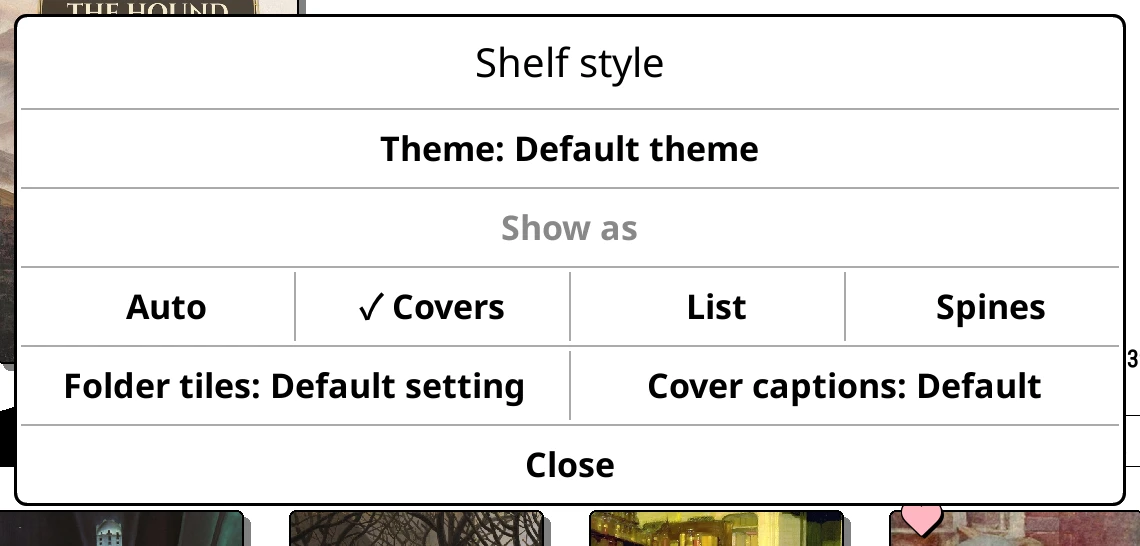
- Folder tiles: style (Covers)
- Steps through Default setting, Divider card, Ribbon, Book stack, Collage, Text and None. Default: Default setting (follows Cover display); the shipped Series shelf uses Collage and Genres uses Ribbon.
- Cover captions: choice (Covers)
- Default, None, Title, Author, Series or Custom…. Default: Default.
Catalog settings
For online catalogue (OPDS) shelves, in place of Filters. See Online catalogues.
- Starts at: folder
- Where the shelf opens in the catalogue. Set it by long-pressing a category tile and choosing Start this shelf at "name". Tap this row to go back to the top.
- Saves to: folder
- Choose folder… or KOReader's download folder (default).
- Refresh: choice
- Only when I swipe down (default), If it's over 5 minutes old, If it's over an hour old, If it's over a day old, If it's over a week old or Every time I open it.
On the shelf
The book menu
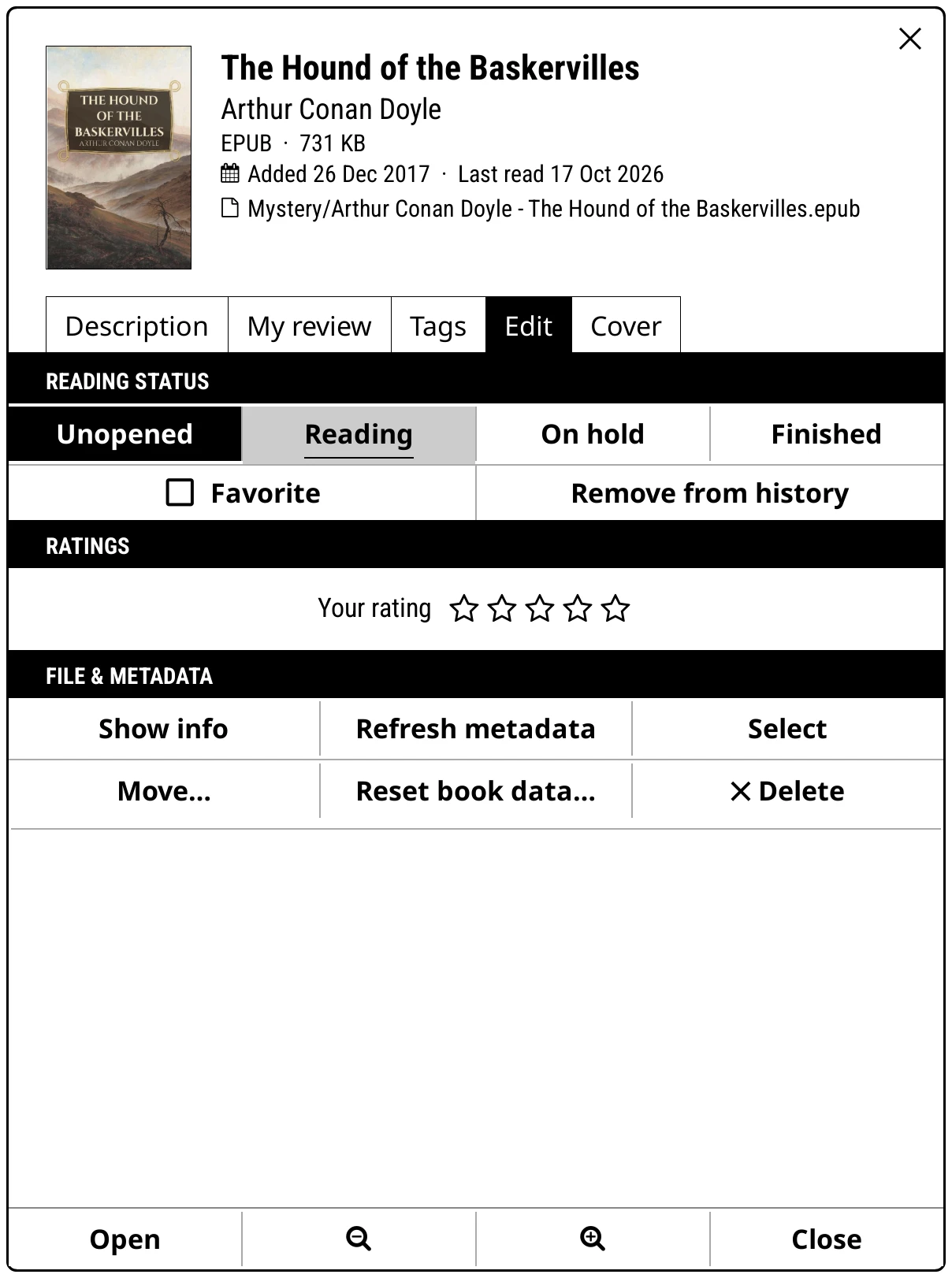
Long-press a book (cover or spine) or long-press the top panel. It opens on the Edit tab. See Opening and managing books.
- Description
- The blurb. If both the book and Hardcover have one, switch between Embedded and Hardcover.
- My review / Reviews
- Your own review (Write… or Edit), plus Hardcover reviews for linked books.
- Tags
- Pills for Author(s), Series, Collections, Genres and Folder; tap one to go there. Each section has an Edit button. Long-press a genre for Rename, Pin to shelf menu and Delete.
- Edit
- Reading status (Unopened, Reading, On hold, Finished), Favorite, Remove from history, Your rating, then Show info, Refresh metadata, Select, Move…, Reset book data… and Delete. Also a Hardcover row (Link… / Edit) when the Hardcover plugin is on, and buttons other plugins add.
- Cover
- Covers to choose from. Choose from device or Search online….
- Footer
- Open, zoom out and zoom in (long-press either to reset the size), Close.
Group menu
Long-press a stack or folder (series, author, genre, collection, format, rating, language, folder, or a series box).
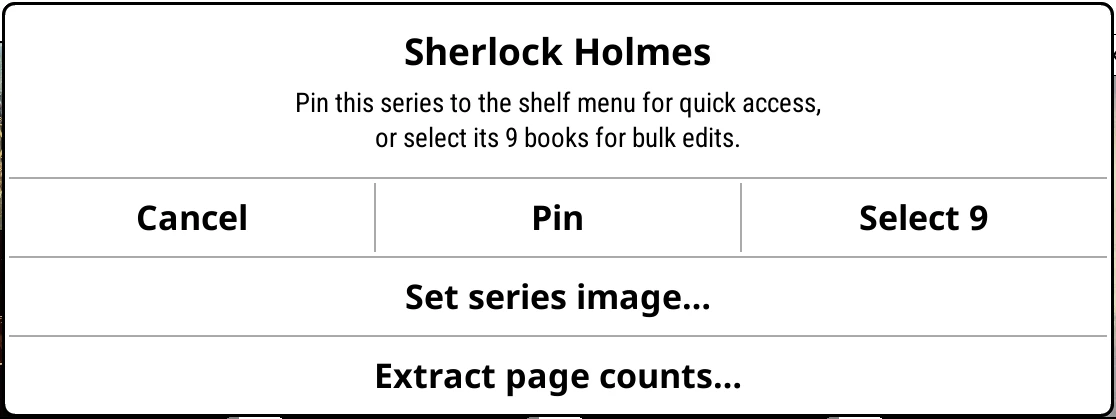
- Pin: adds it to the shelf menu as its own shelf.
- Select N / Add N more / Remove N: bulk selection.
- Folders: Set folder image…, Clear folder image, Move folder…, Rename folder….
- Series, authors, genres, collections: Set kind image… and Clear kind image; authors also get Find author image online.
- Extract page counts… for just these books.
Bulk selection
Start it from a book's Select, a group's Select N, or Settings > Library & search > Bulk selection mode. Tap covers to select them. The footer shows an X to leave and a bucket with the count. Tap the bucket for Edit selected (N):
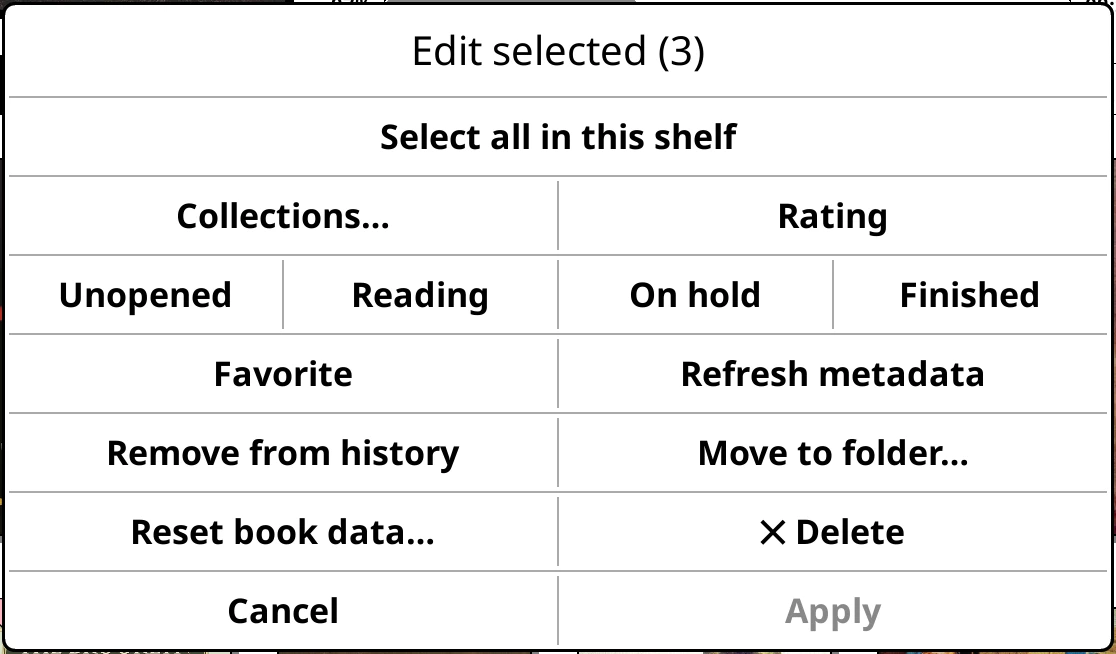
- Select all in this shelf
- Collections…, Rating
- Unopened, Reading, On hold, Finished
- Favorite, Refresh metadata
- Remove from history, Move to folder…
- Reset book data…, Delete
- Cancel, Apply (nothing changes until you apply)
Footer

- Chevrons
- First, previous, next and last page. Long-press previous or next to skip ten pages.
- Page counter
-
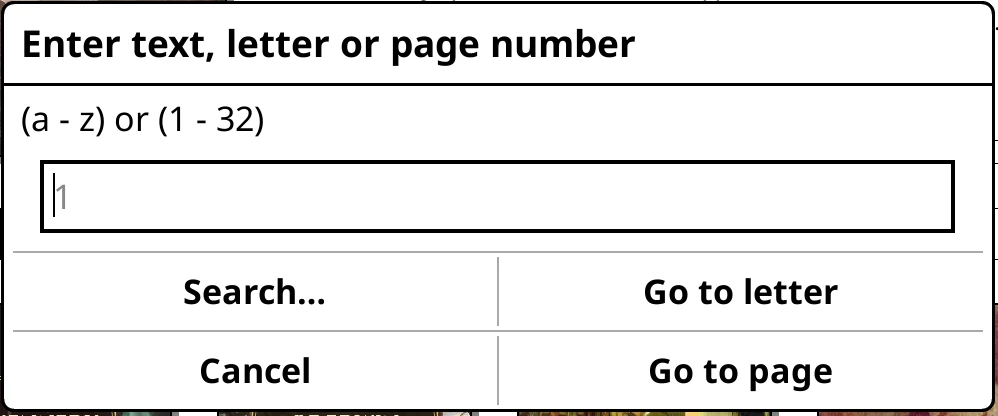
Tap for Enter text, letter or page number: Search…, Go to letter, Cancel, Go to page. Long-press to switch the shelf to the next style (Covers, List, Spines).
Tap the page counter - Start menu button
- Opens the start menu. Its corner is set in Settings > Start menu.
- Micro-modules button
- Opens your micro-modules full screen. Shown when Settings > Micro modules > Full-screen button is on.
Top panel and shelf menu
- Top panel
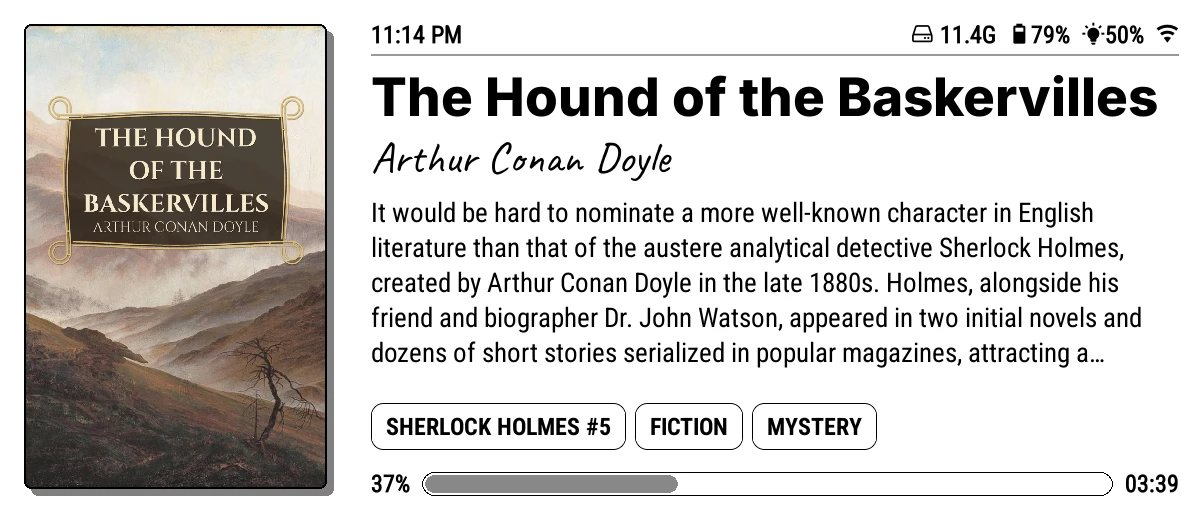
- Tap the cover to open the book. Tap the description to read all of it, the stars to rate, a tag pill to go there. Long-press for the book menu. Swipes are on the Gestures page.
- Shelf menu
-
The book icon at the left shows the book you are reading. Tap a shelf to switch, long-press to edit it. The magnifier opens Search library. Long-press the Search results pill for Show search results as (Covers, List, Spines, Auto).

The shelf menu - Micro-modules grid button
- Only with In the top panel on. Tap to swap the top panel for the module grid. Long-press for Reset modules to default and Remove micro-modules (re-enable in settings).
Start menu
Long-press an entry to edit it. See The start menu.
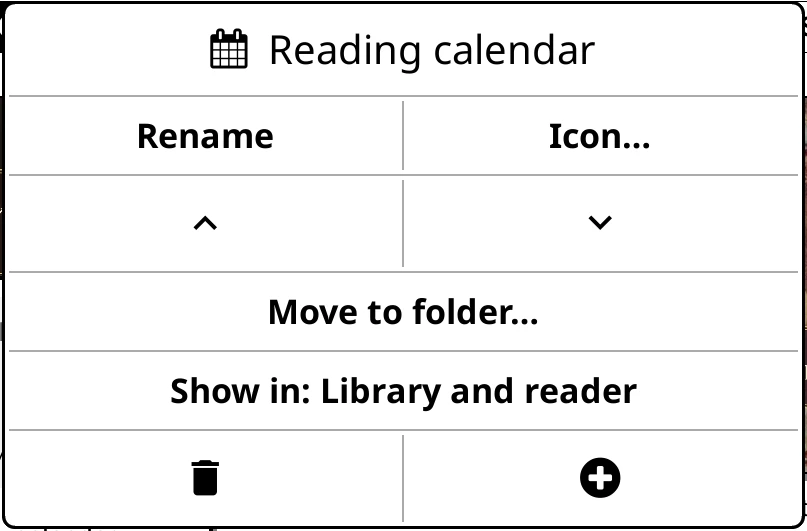
- Rename, Icon… (Choose icon…, Remove icon)
- Module settings… for micro-modules
- Up and down arrows to move it
- Move to folder… / Move out of folder
- Show in: choice: Library and reader (default), Library only or Reader only. Menu shortcuts also have Auto.
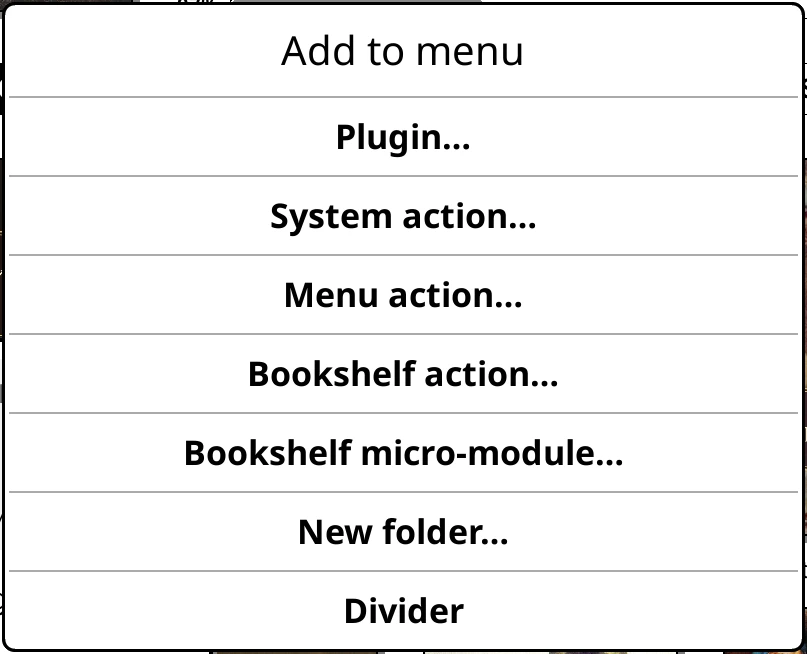
- Delete icon, and add icon, which opens Add to menu: Plugin…, System action…, Menu action…, Bookshelf action… (Close bookshelf, Bookshelf menu), Bookshelf micro-module…, New folder… and Divider.
Micro-modules
Long-press a module in the top panel grid or the full-screen view:
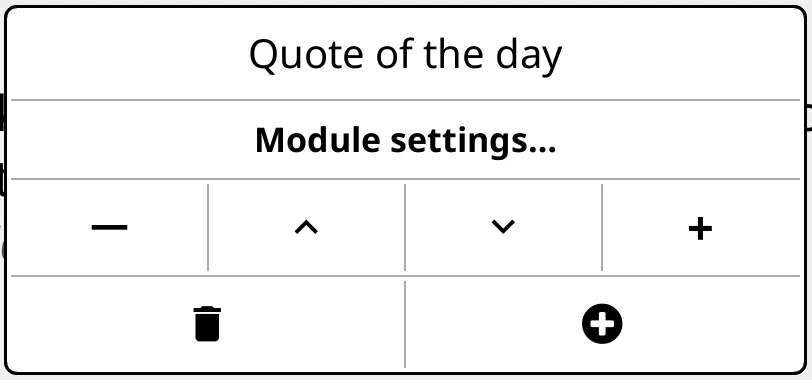
- Pg. 1 to Pg. 4: move it to a page of the grid (top panel only)
- Module settings…
- Minus and plus to make it narrower or wider; up and down arrows to move it
- Delete icon, and add icon to pick another module
The modules and their settings are listed on the Micro-modules page.
Ornament adjust
Long-press an ornament on a Spines shelf. The shelf redraws behind the dialog.
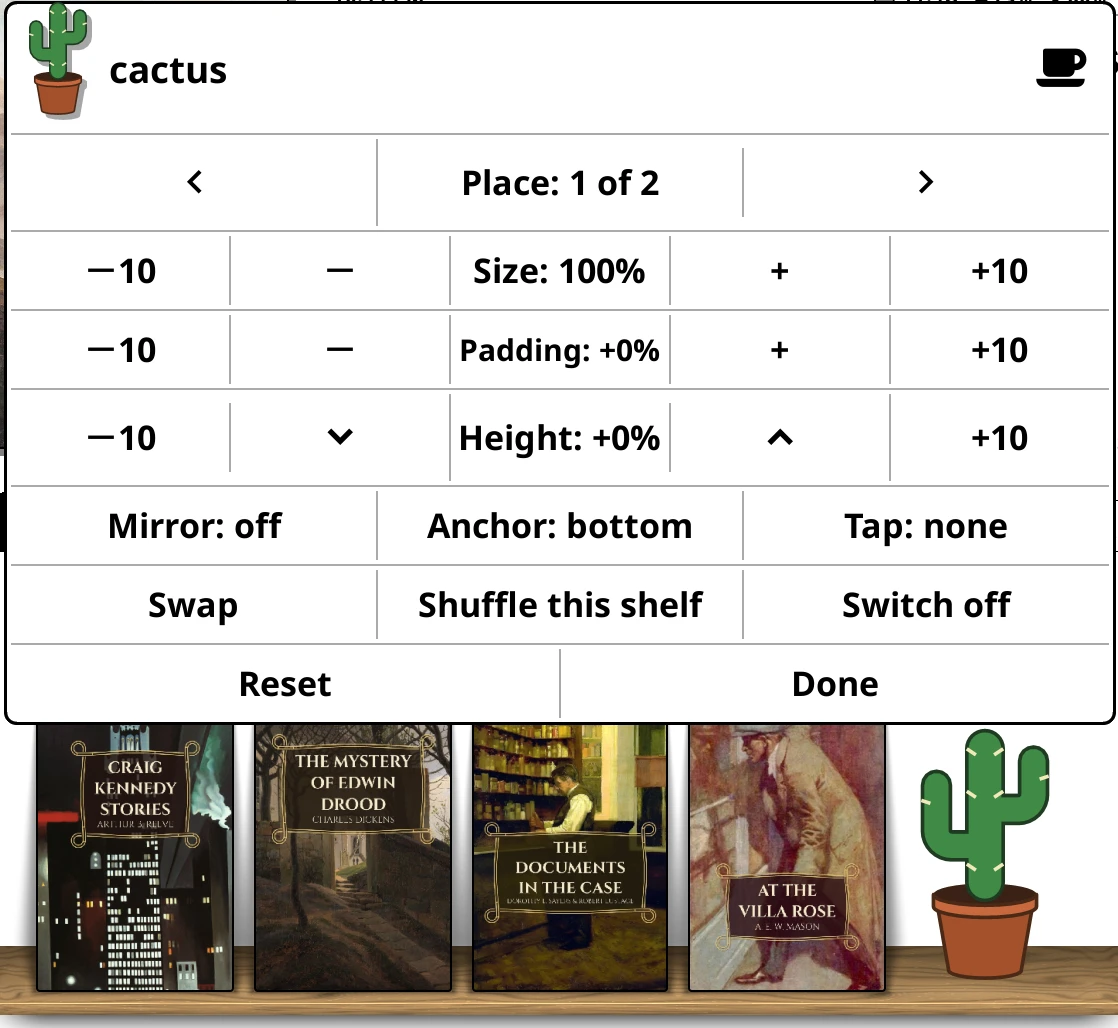
- Place: N of M, with arrows to move it along this shelf's order
- Size, Padding and Height, each with minus and plus (tap the value to reset)
- Mirror: off/always/alternate, Anchor: bottom/top, Tap: action (No action, Zoom, or any action the start menu can run)
- Swap, Shuffle this shelf, Switch off
- Reset, Done
Updates
Bookshelf > Updates. See Updating.
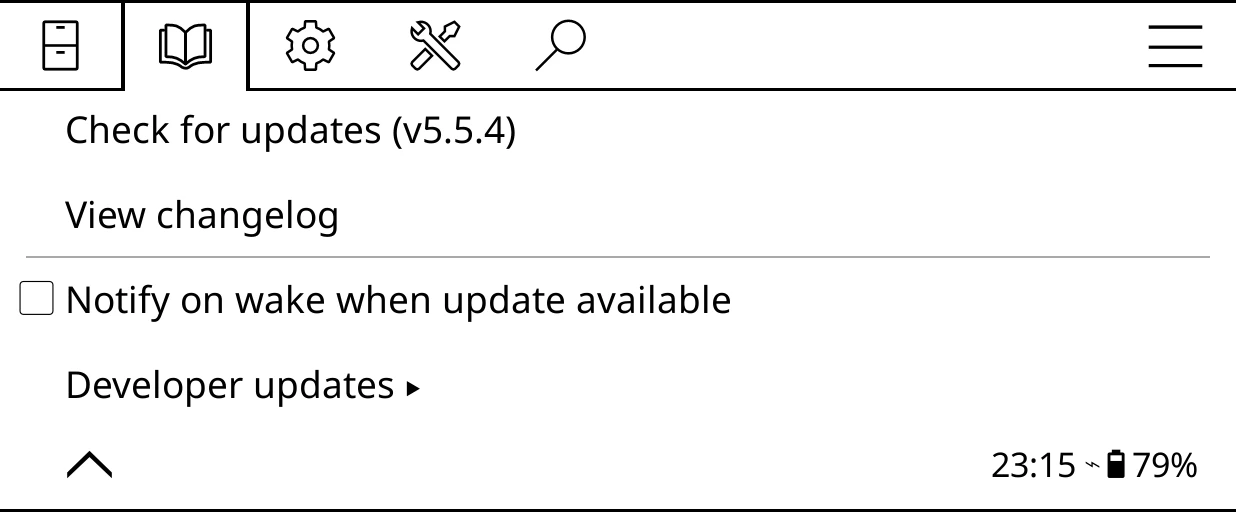
- Check for updates (vX)
- Checks GitHub for a new release, offering to turn Wi-Fi on first. If there is one, you see the notes with Update and restart. Once a check has found one, the row names both versions.
- View changelog
- Release notes, with ‹ Older, Newer ›, Refresh and Close. Kept for reading offline.
- Notify on wake when update available
- When the device wakes with Wi-Fi on, checks at most once an hour. Default: off.
- Developer updates
-
For testing fixes before release:
- Development branch: type a branch name, or leave it empty for stable.
- Install branch: name: downloads and installs that branch.
- Reset to latest stable release: clears the branch and installs the latest release.
- Installed: vX (release): what you have now.
- Pack editor…: for people making ornament packs.