Opening and managing books
Opening a book
- Tap a book to preview it in the top panel. Tap it again, or tap the top panel's cover, to open it.
- On a full screen shelf, one tap opens it. (You can change this under Bookshelf > Settings > Behavior > Tap a book in full screen shelves.)
When you're done reading, go back to KOReader's file browser in the usual way (the folder icon in the reader's top menu) and you land on your shelf, straight away.
What the clip shows, step by step:
- Tap a cover to show the book in the top panel
- Tap it again to open it
- To go back, tap the top of the screen for the menu
- Tap the file browser tab: it takes you to your shelf
- Back on the shelf, with your book in the top panel
The book menu
Long-press any book, on the shelf or in the top panel, for its menu. It opens on the Edit tab. Across the top are the cover, title and author, and a link to the book's bookmarks if it has any. Along the bottom: Open, two buttons for text size, and Close.
The tabs:
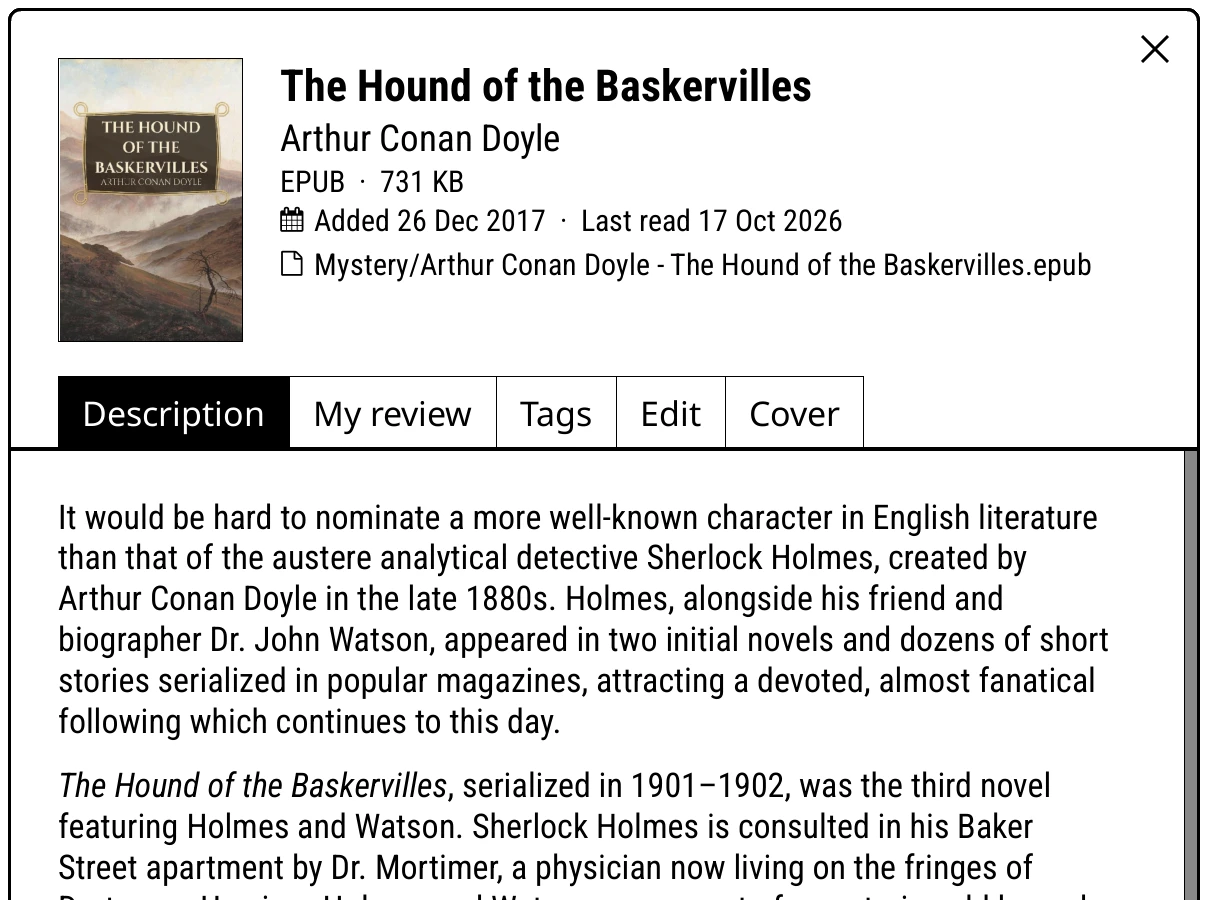
- Description
- The blurb.
- My review
- Your own review of the book, the same one KOReader's book status page keeps. With Hardcover linked, this tab is Reviews and shows spoiler-free reviews too.
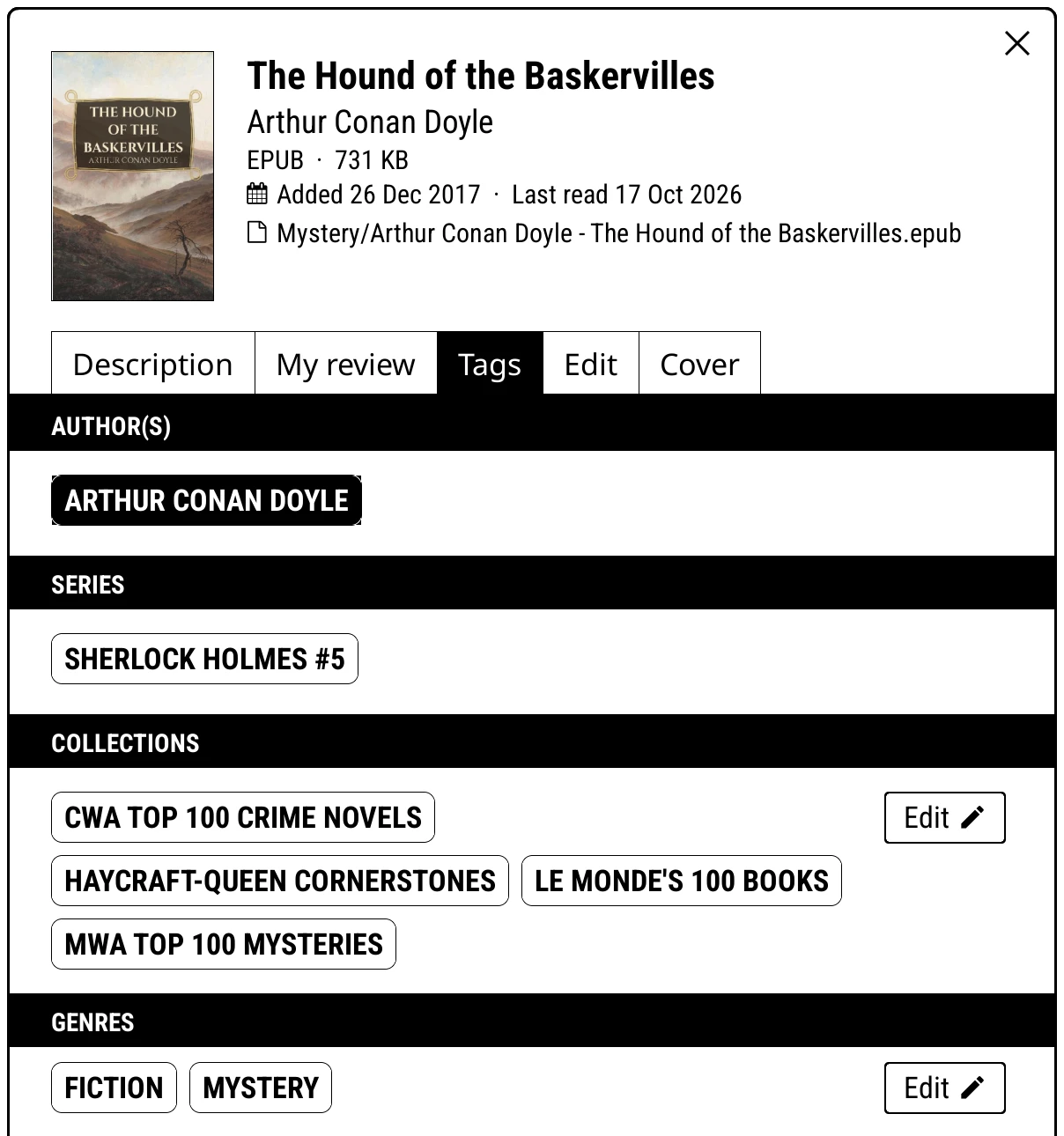
- Tags
- The book's author, series, collections, genres and folder, as pills. Tap a pill to open that shelf. Each section has Edit, which is where you add the book to collections or change its genres.
- Edit
- What you can do with the book (below).
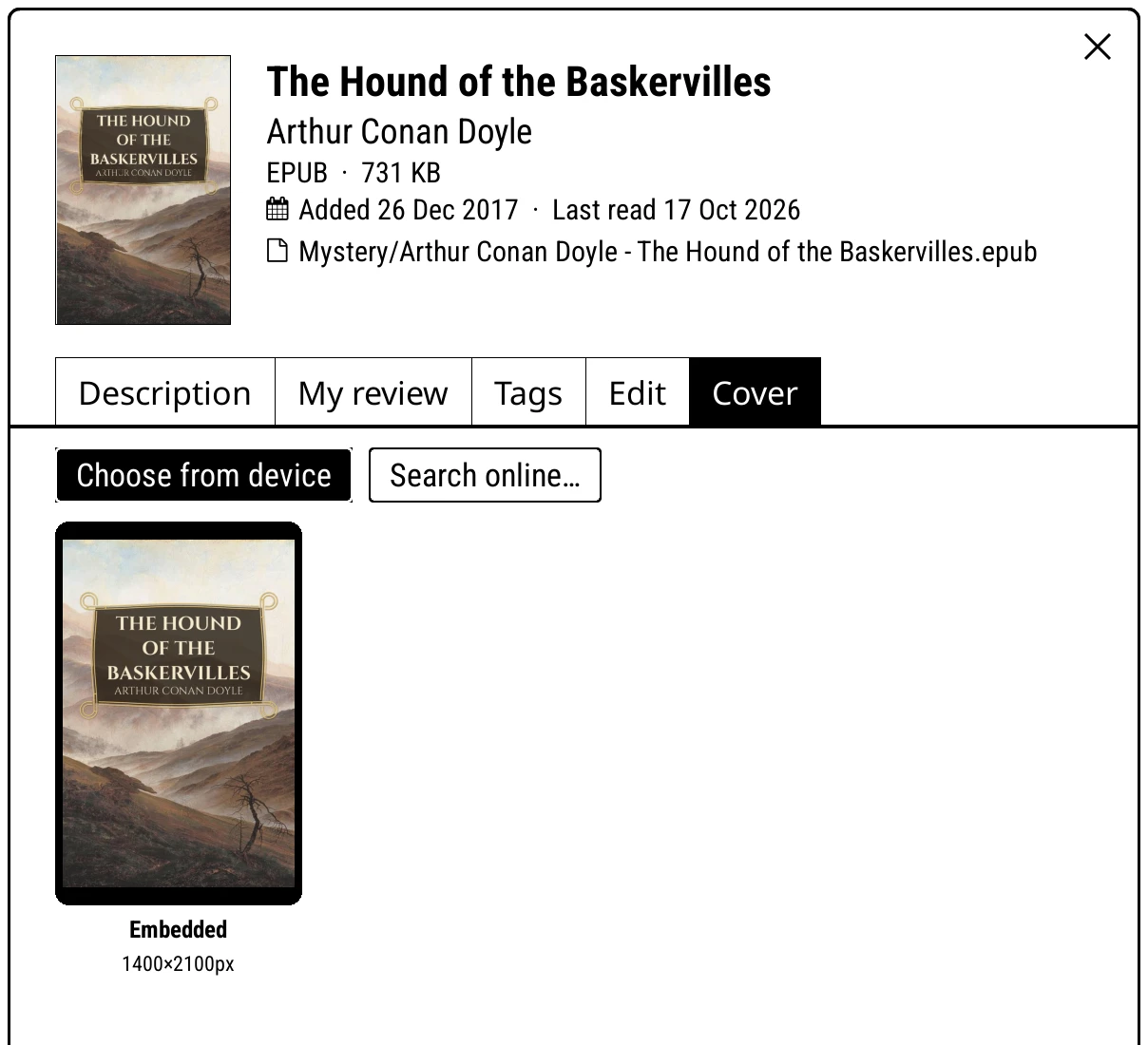
- Cover
- Choose a different cover: one already stored, an image from your device (Choose from device), or an online search (Search online…). Tapping the book's own cover puts it back.
What the clip shows, step by step:
- Long-press any book for its menu
- Tick Favorite
- Set its reading status
- Tags lists its author, series, collections and genres
- Edit next to Collections adds it to one
- Pick a collection, then Save
- Close the menu
- A heart for a favourite, a tick for finished
The Edit tab
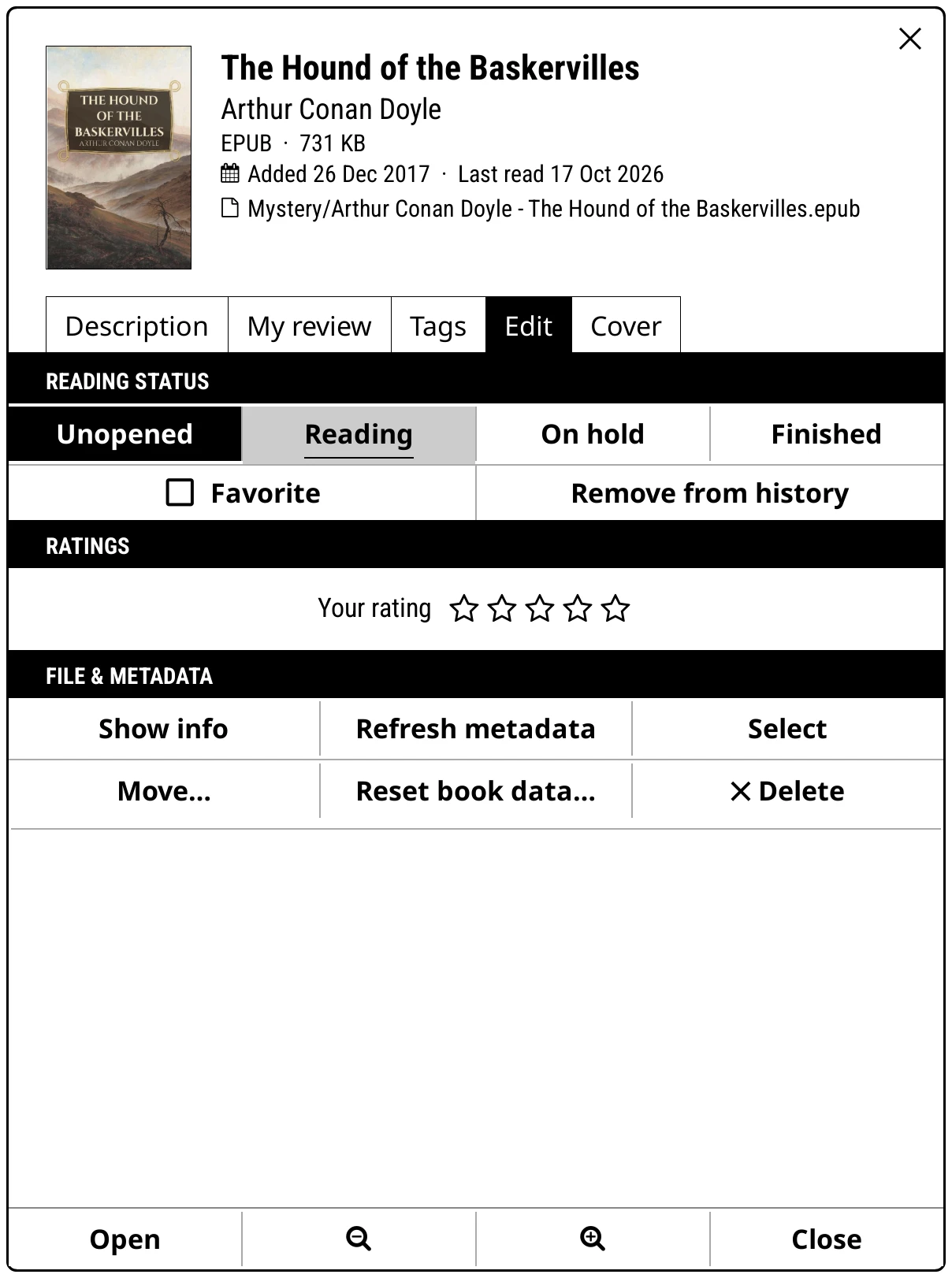
| Row | What it does |
|---|---|
| Unopened, Reading, On hold, Finished | The reading status. Unopened clears progress and drops the book from Recent, without touching highlights or bookmarks. |
| Favorite | In or out of your favourites. |
| Remove from history | Off the Recent shelf, nothing else changed. |
| Your rating | One to five stars, or clear. |
| Show info | KOReader's book information. |
| Refresh metadata | Re-read the cover and details from the file, after editing them elsewhere. |
| Select | Start a selection with this book in it. |
| Move… | Move the file to another folder. Progress, highlights, bookmarks and covers go with it. |
| Reset book data… | Clear progress, bookmarks, highlights and so on, with a tick box for each. |
| Delete | Delete the file, after asking. |
Other plugins that add entries to KOReader's file menu, like Open Incognito, show their buttons here too.
Folders, series and authors
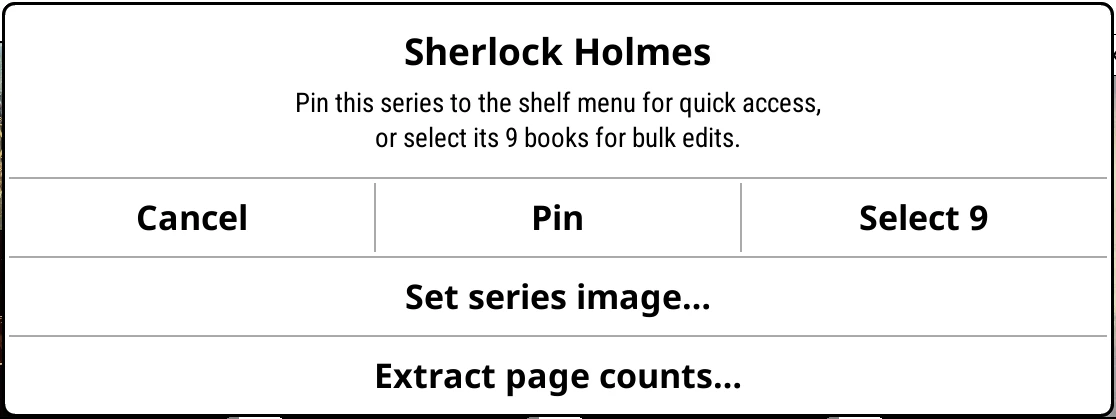
Long-press a folder, series, author, genre or collection for its menu:
- Pin: make it a shelf of its own in the shelf menu. The quickest way to make a shelf.
- Select N: select all its books, for the batch actions below (Add N more or Remove N once some are selected).
- Set … image…: give it a picture of your own. See Folders.
- Find author image online, for an author.
- Move folder… and Rename folder…, for a real folder. Every book's progress and covers follow.
- Extract page counts… for just these books.
- Book binding, for a series on a spines shelf: tap to step through Follow shelf, Hardback and Paperback. Follow shelf uses the shelf's own Book binding.
Many books at once
Select books, then act on them all:
- Start a selection: Select in a book's Edit tab, Select N in a folder or series menu, or Bookshelf > Settings > Library & search > Bulk selection mode.
-
Tap books to add or remove them. The footer shows an X to stop, and a basket with the count.

The footer while selecting -
Tap the basket for Edit selected: collections, rating, status, favourite, refresh metadata, remove from history, move, reset or delete.
- Changes wait until you tap Apply.
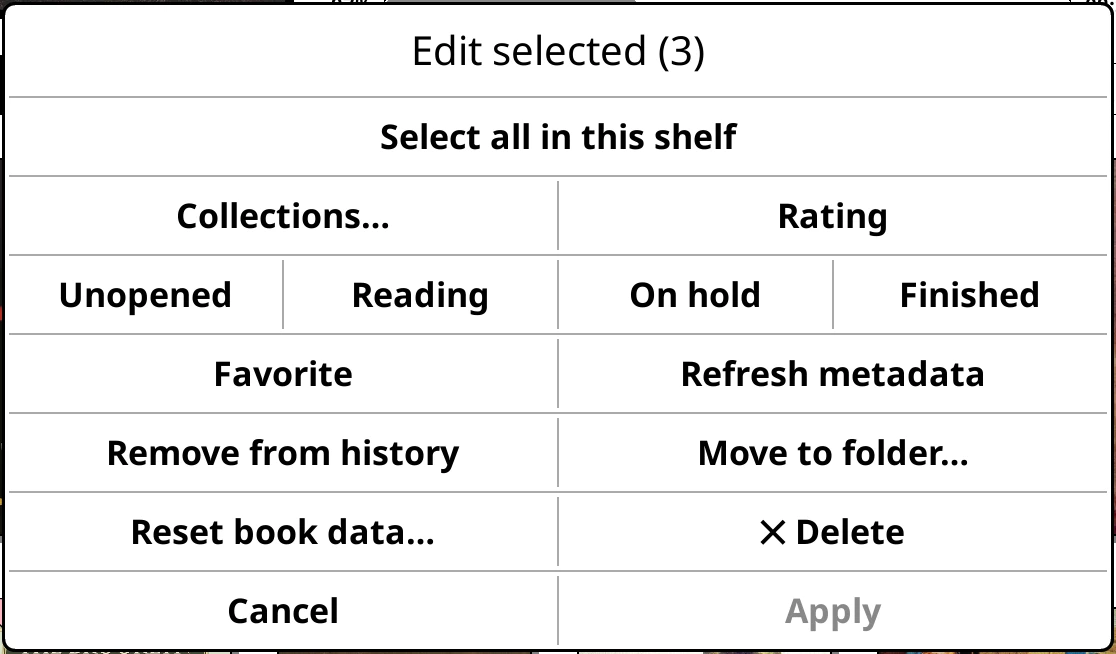
Select all in this shelf takes every book on the shelf, across all its pages: the way to select a shelf built from filters.