Folders
The Home shelf shows your home folder as it is on disk. On spines, each folder is a section of the shelf with a label at its edge. On covers and lists, each folder is a tile: tap it to go in.
To see a single folder as a shelf of its own, add a shelf with Specific folder… as its source. Flattened folder… shows every book under it, sub-folders included, with no folder tiles.
Moving and renaming
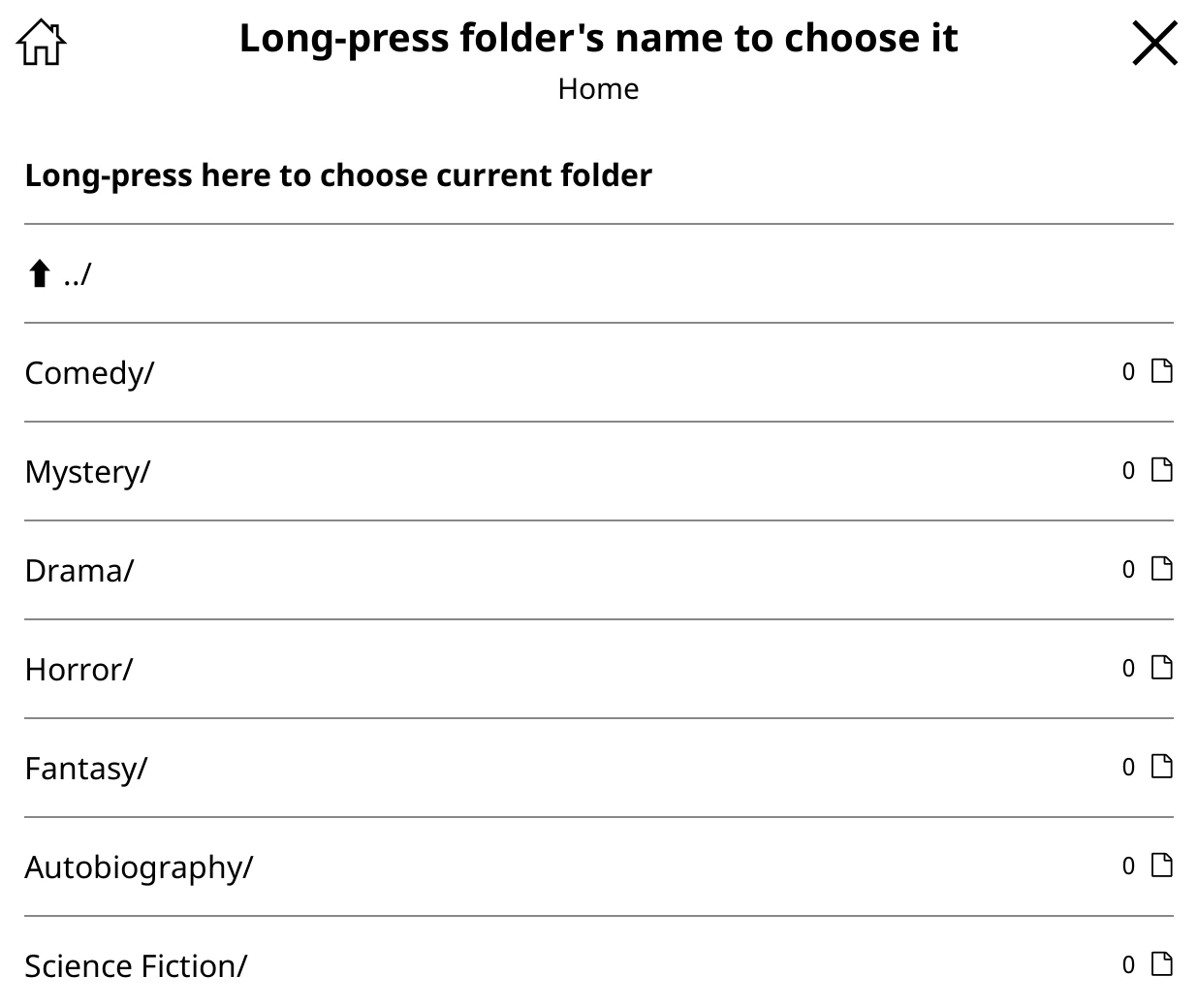
Long-press a folder for Move folder… and Rename folder…. They change the folder on disk, and every book's progress, highlights and covers go with it.
To move single books, use Move… in a book's Edit tab, or select several and use Move to folder….
Pictures for folders and stacks
Give any folder, series, author, genre or collection a picture of its own. Three ways:
- From the shelf
- Long-press it and choose Set folder image… (or Set author image…, and so on), then pick an image file. Clear … image puts the default back.
- Inside the folder
- Put an image called
cover.jpg,cover.png,folder.jpgorfolder.pngin the folder. Start the name with a dot (.cover.jpg) to keep it out of the file list. - In the image library
- For authors, series, genres and collections, drop images into the image library, a folder called
.bookshelf-imagesin your home folder, with sub-foldersauthors,series,genresandcollections. Name each file after the stack:authors/Isaac Asimov.jpg, or a simplified form likeisaac-asimov.jpg. Choose a different library folder under Bookshelf > Settings > Library & search > Image library.
How folders look
On a covers shelf, folders follow the Folder tiles style: long-press the shelf's tab, then Shelf style > Folder tiles. The library-wide default is Bookshelf > Settings > Cover display > Default folder style.
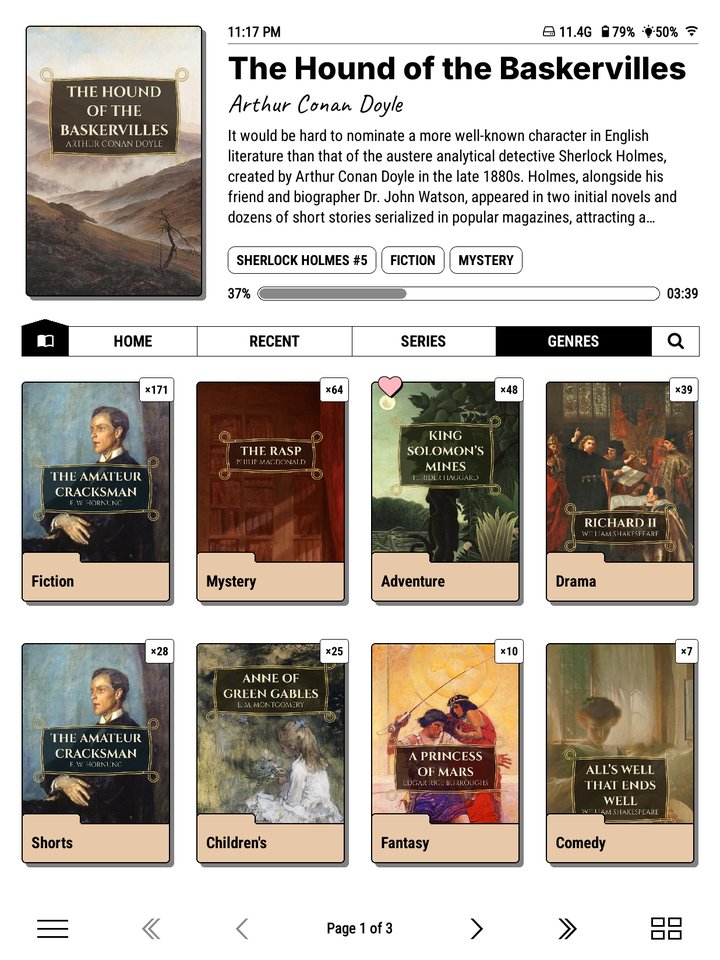
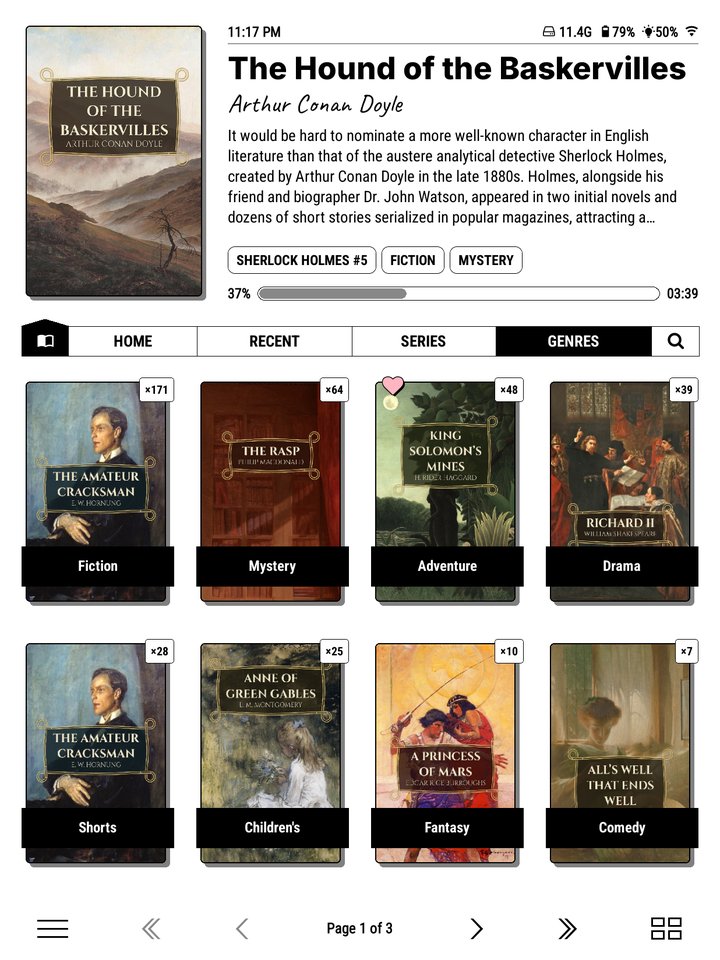
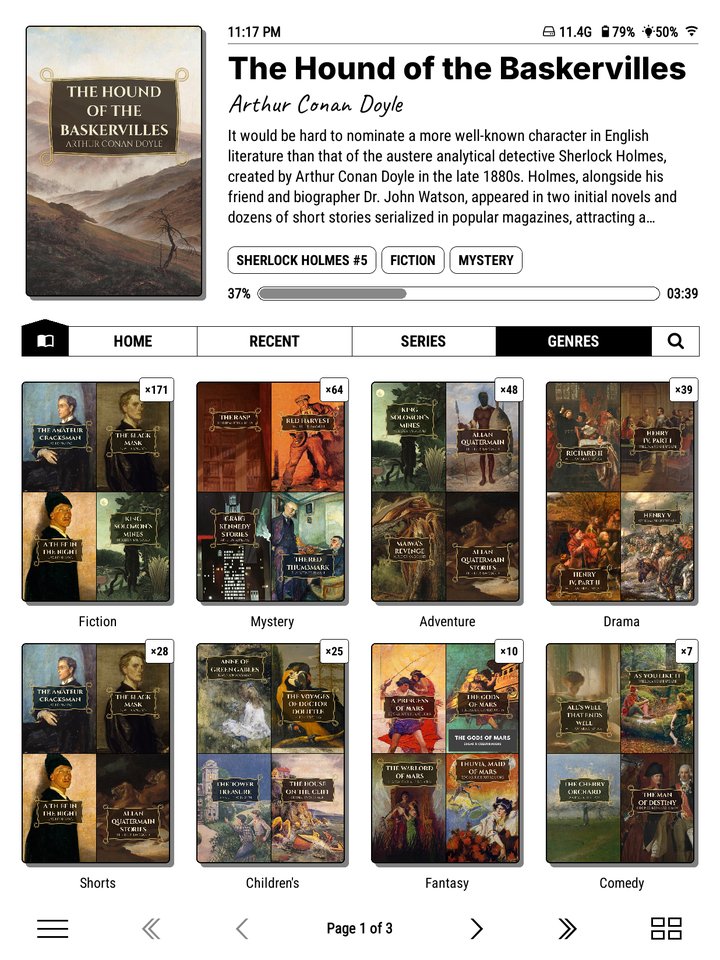
The others are Book stack (a small pile of covers), Text (the name alone) and None (the first cover, plain).


When a folder shortcut is used
If a KOReader folder shortcut, a "go home" gesture or another plugin sends the file browser to a folder while the shelf is open, Bookshelf follows into that folder, and the breadcrumb lets you swipe back.