Covers, lists and spines
Every shelf can be drawn three ways, and each shelf remembers its own.
The quick way
Long-press the page counter in the footer. Each long-press moves the shelf on screen to the next style: Covers, then List, then Spines, then back to Covers.
It changes only the shelf you're looking at. Home can be a grid of covers while Recent is a list.
A fresh install starts on spines
On a new install the Home shelf shows spines. If you'd rather a grid of covers, long-press the page counter once. The videos on this site mostly show Home as covers.
What the clip shows, step by step:
- Long-press the page counter to change the shelf's style
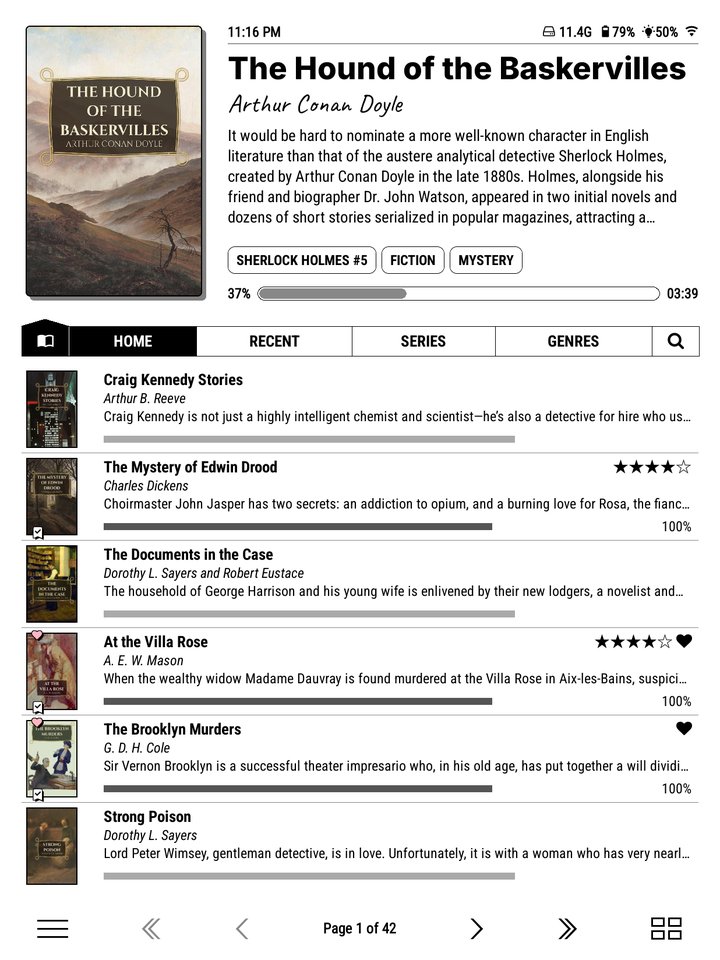
- List: title, author, blurb and progress in rows
- Long-press again for Spines
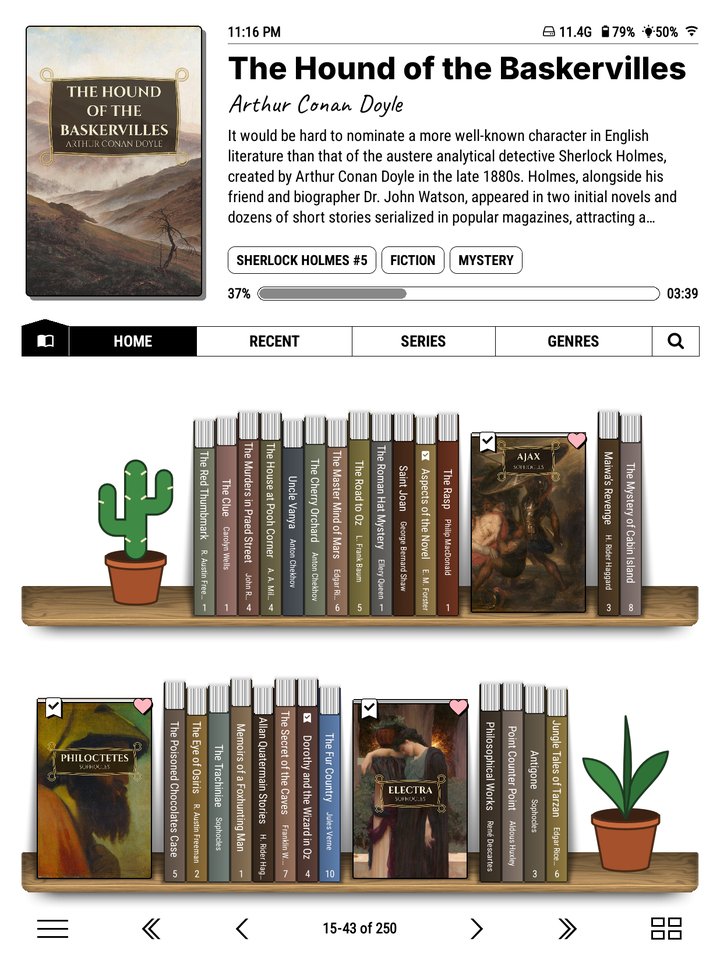
- Spines: books on a shelf, some standing face out
- Once more, back to Covers
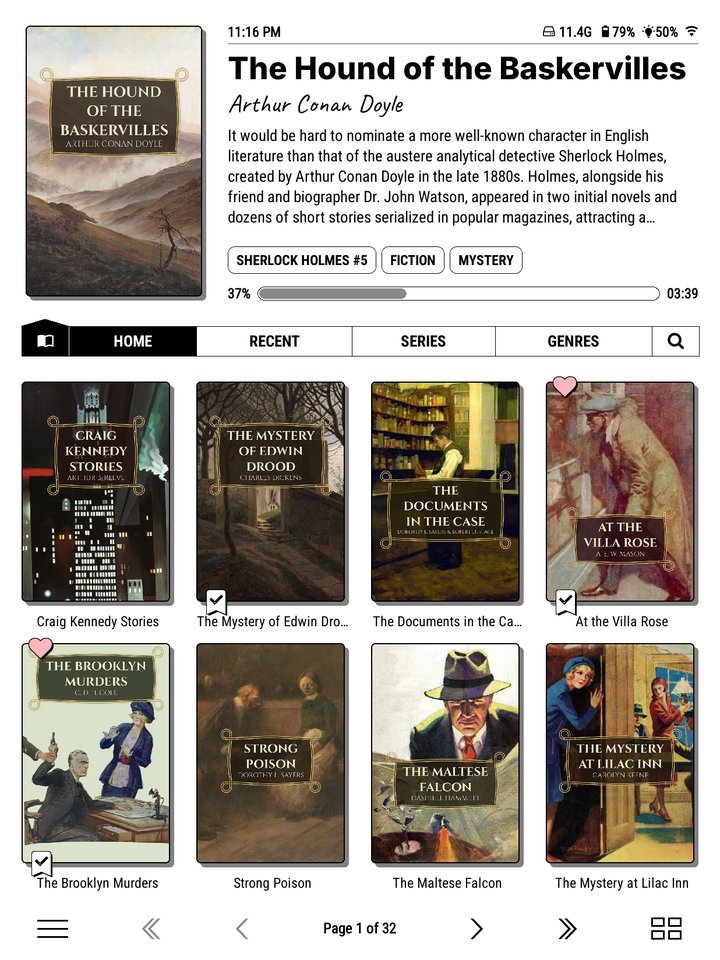
- Covers: a grid of cover art
The full set of options
What the clip shows, step by step:
- Each shelf has its own style. Long-press HOME
- Tap "Shelf style"
- Covers offers folder tiles and cover captions
- Tap "Cover captions" and pick Author
- Each cover is now captioned with its author
- Spines and List bring options of their own
- Close the dialog and the editor
- For more or fewer columns, pinch or spread the grid
- Covers, captioned by author
Long-press a shelf's tab to open its editor, then tap Shelf style. The dialog has:
- Theme: the theme this shelf wears.
- Show as: Auto, Covers, List or Spines.
- The settings for the style you picked, below. They change with it.
Everything applies as you tap, and the shelf redraws behind the dialog. Close when you're happy.
The editor's button names the style the shelf is pinned to: Shelf style: List, say. A shelf left on the default Covers names its folder tiles instead, so the Genres shelf reads Shelf style: Ribbon.
Covers
The grid most people settle on. Each cover can carry small badges: a heart for favourites, the number in its series, a bookmark while you're reading, a mark once finished, and a progress bar. Choose which under Bookshelf > Settings > Cover display (see Layout).
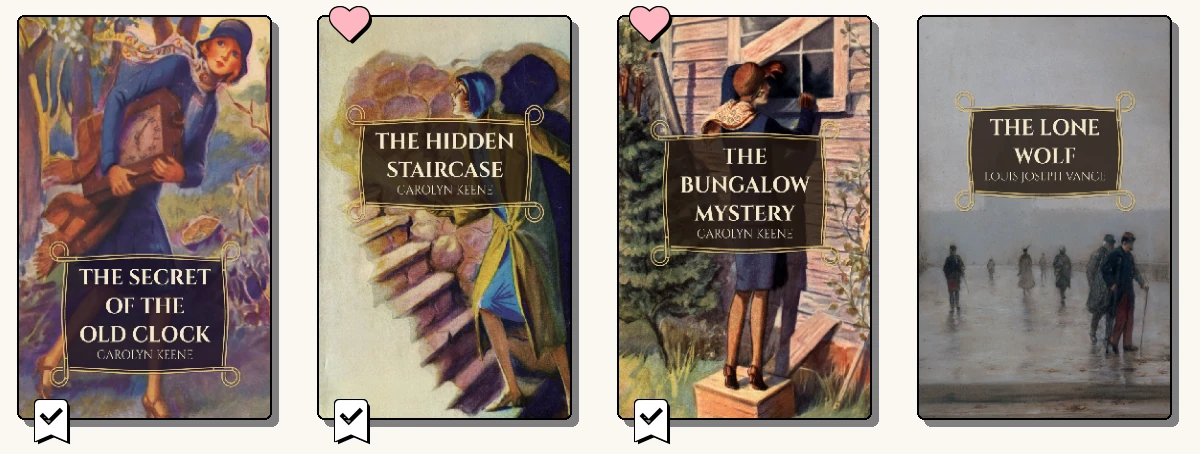
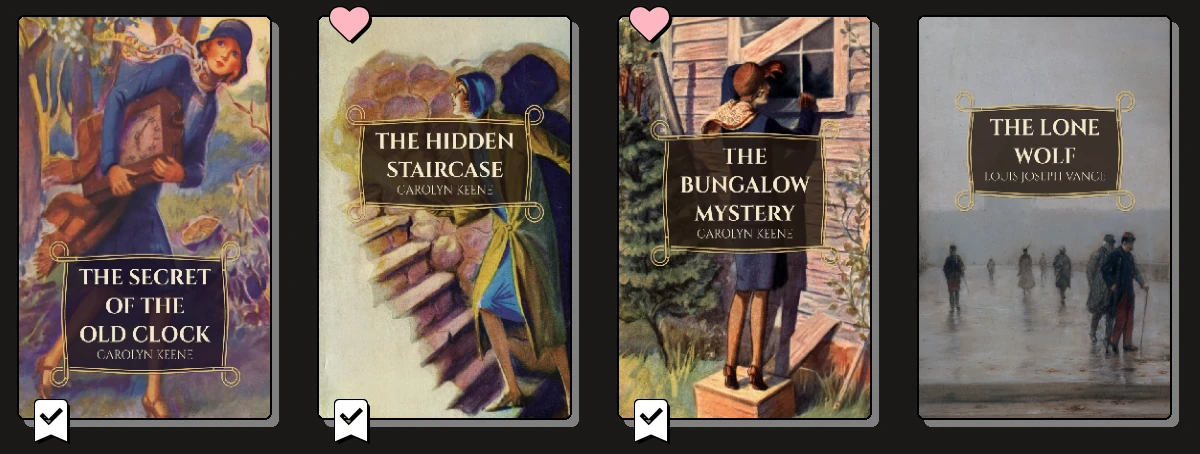
How big. The number of columns sets the size: pinch the shelf for more, smaller covers, spread for fewer, bigger ones. Or use Bookshelf > Adjust shelf/top panel size… for exact numbers.
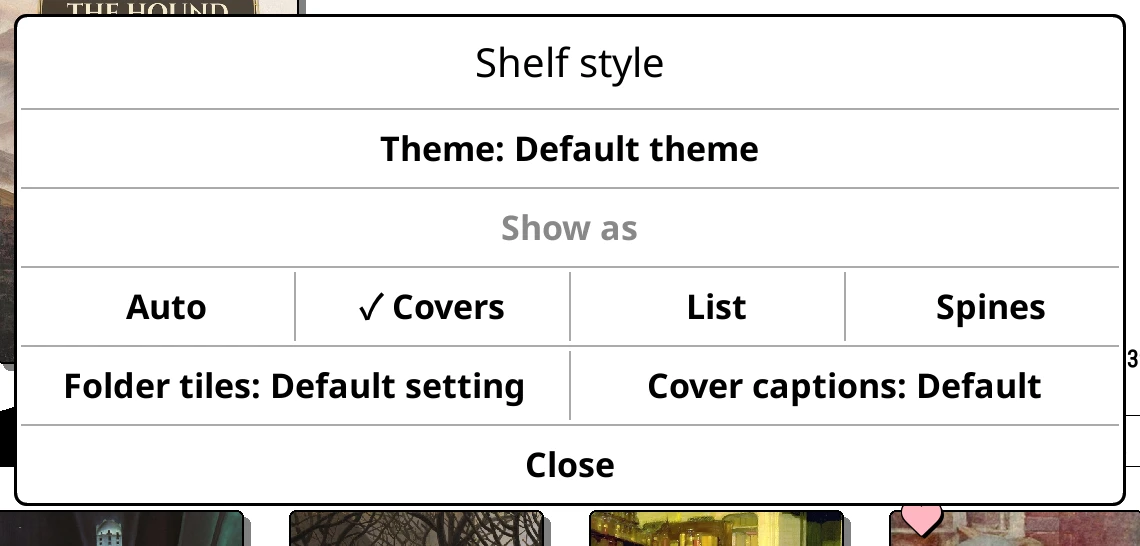
In Shelf style:
| Setting | What it does |
|---|---|
| Folder tiles | How folders, series and authors look: Divider card, Ribbon, Book stack, Collage, Text or None. Default setting follows the library-wide choice in Bookshelf > Settings > Cover display > Default folder style. |
| Cover captions | The line under each cover: Title, Author, Series, None or Custom…, built from tokens. |
What the clip shows, step by step:
- Change how folders look on a covers shelf
- Folders show as divider cards by default
- Open the top menu, then Settings
- Cover display
- Tap "Default folder style"
- Choose Ribbon
- Close the menu
- Every shelf's folders now show a ribbon
- One shelf can differ: long-press its tab > Shelf style
- "Folder tiles" overrides the default here
- Ribbon folders on the Home shelf
List
What the clip shows, step by step:
- The Recent shelf shows your books as a list
- Each row: cover, title, author, blurb and progress
- To change the layout, long-press RECENT
- Tap "Shelf style"
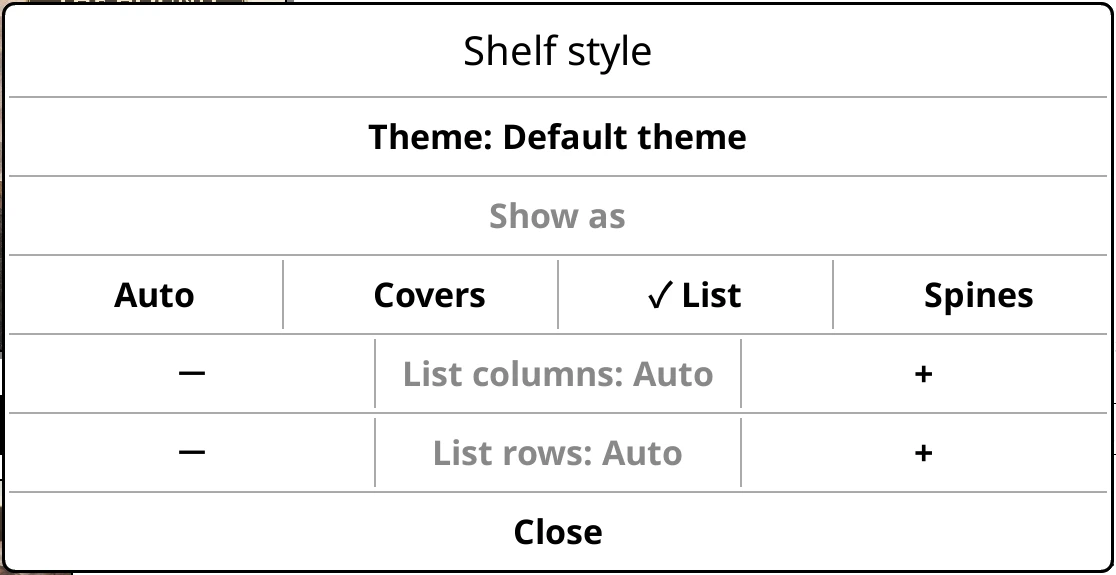
- Tap + beside "List columns" for two columns
- "List rows" sets how many rows fit a page
- Close the dialog and the editor
- Recent as two columns, more books to a page
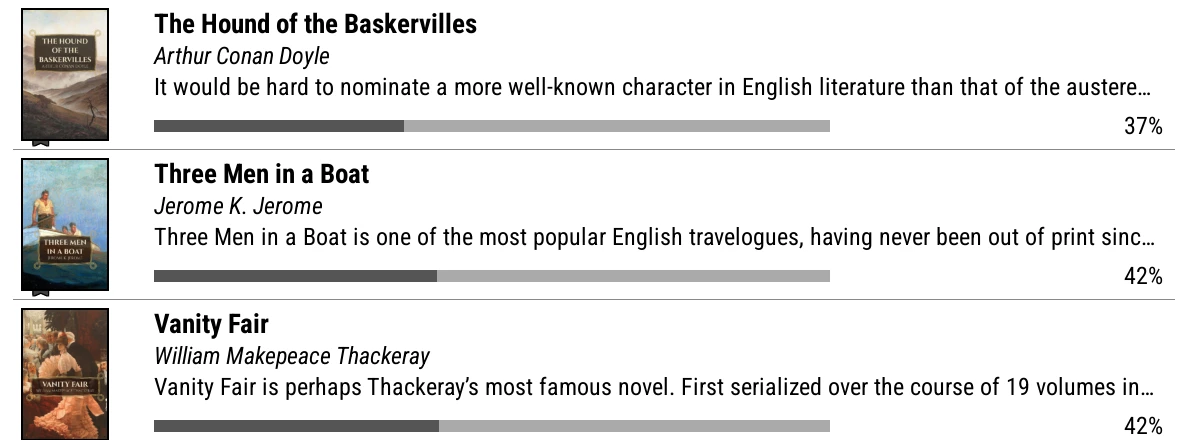
Each row shows a cover thumbnail beside up to six lines of text: by default the title with rating and favourite, the author, the start of the blurb, and a progress bar with pages.
| Setting | What it does |
|---|---|
| List columns | 1 to 3 columns side by side, or Auto. |
| List rows | 1 to 12 rows a page, or Auto to fit the screen. |
Pinching a list fits one more or one fewer row. To change what the lines say, see Bookshelf > Settings > List view, which works like the top panel line editor. All list shelves share one layout.
Spines
Books stand edge-on on a plank, like a real bookcase, so lots fit at once. Some people love it; if it's not for you, the other two styles do everything it does. Each book is drawn from what Bookshelf knows about it:
- Width from the page count, so a doorstop is fatter than a novella. Until a book has a page count it gets an average width: see Page counts.
- Height from the cover's shape.
- Colour from the cover art, darkened so the title stays readable.
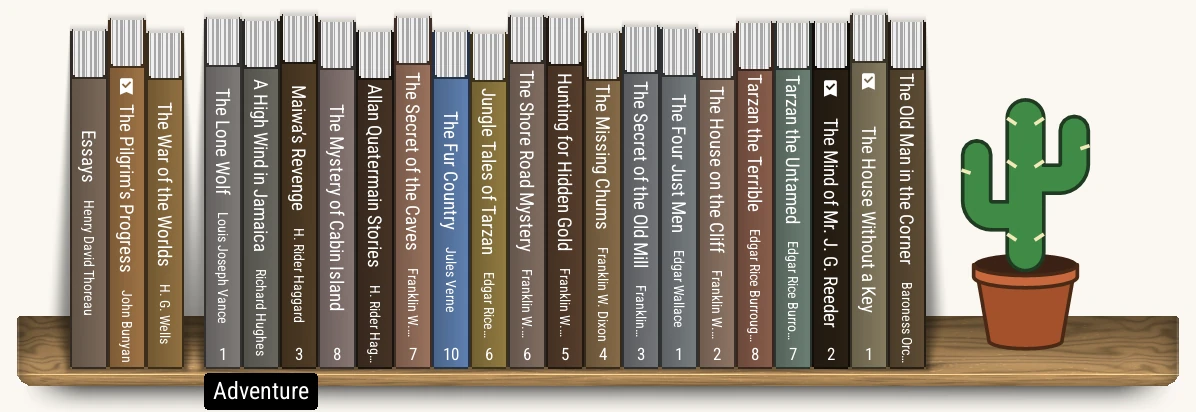
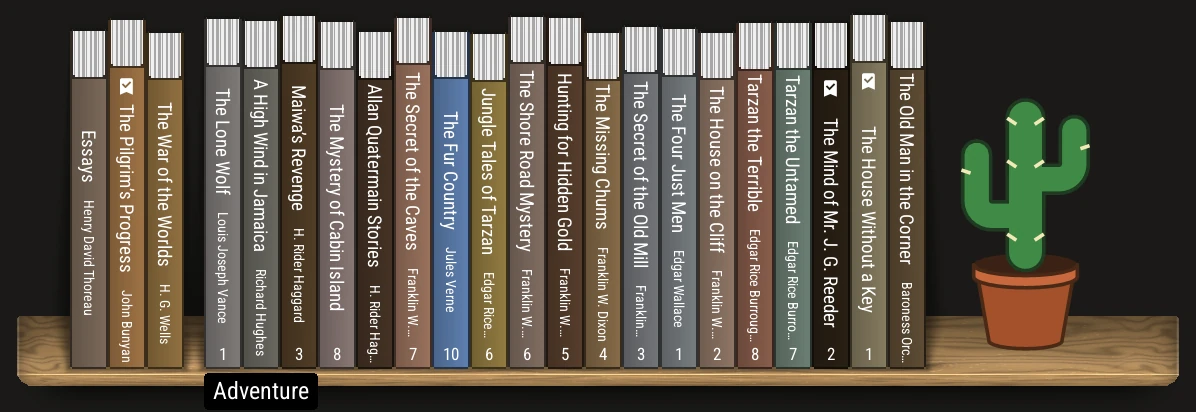
Tap a spine and the book lifts off the shelf into the top panel. Tap it again to open it, or tap empty space to put it back.
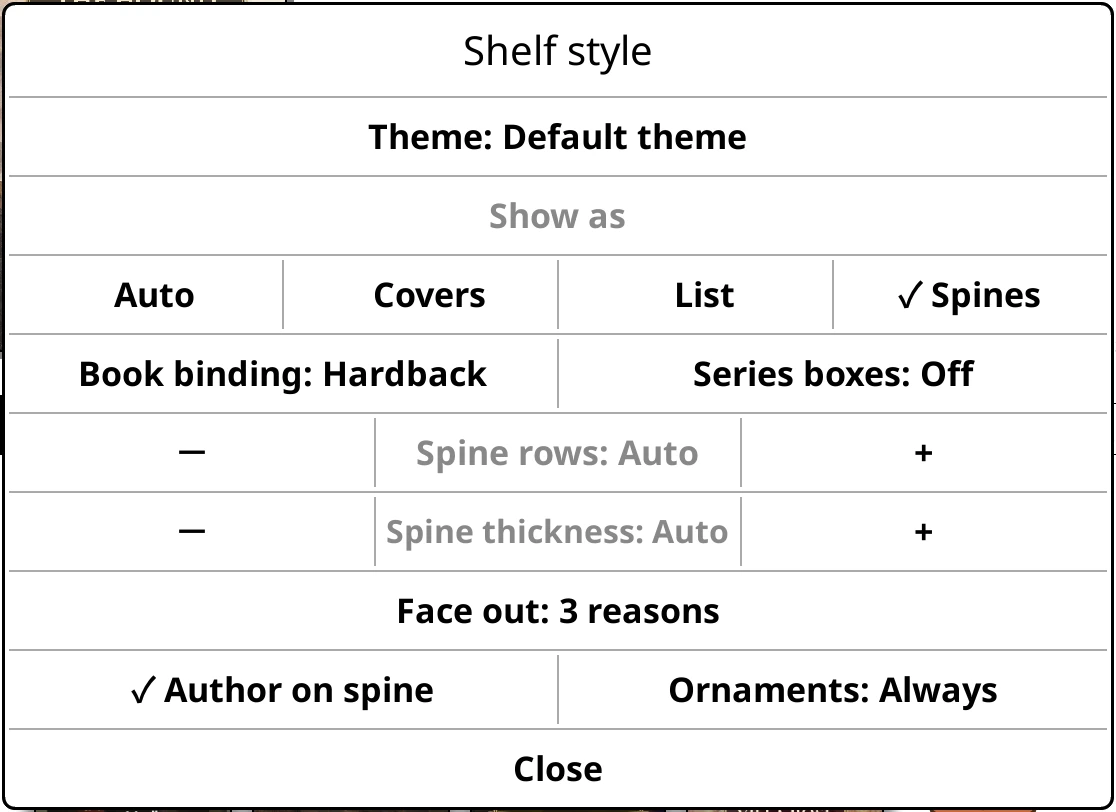
| Setting | What it does |
|---|---|
| Book binding | Hardback or Paperback: thin flush covers, softer shading and lighter page edges. A series can have its own from its long-press menu. |
| Series boxes | Each series stands as an open slipcase holding its books, with the first cover as a sticker and a read count. Tap one to open the series. |
| Spine rows | How many shelves fit on the screen. Auto fits the space. |
| Spine thickness | Fatter or thinner spines across the board, 60% to 200%. |
| Face out | Which books turn to show their cover. See below. |
| Author on spine | Print the author under the title. |
| Ornaments | How often ornaments stand in the gaps: None, Rarely, Often or Always. |
The plank and ornaments come from the shelf's theme, and theme packs bring more.
Face out
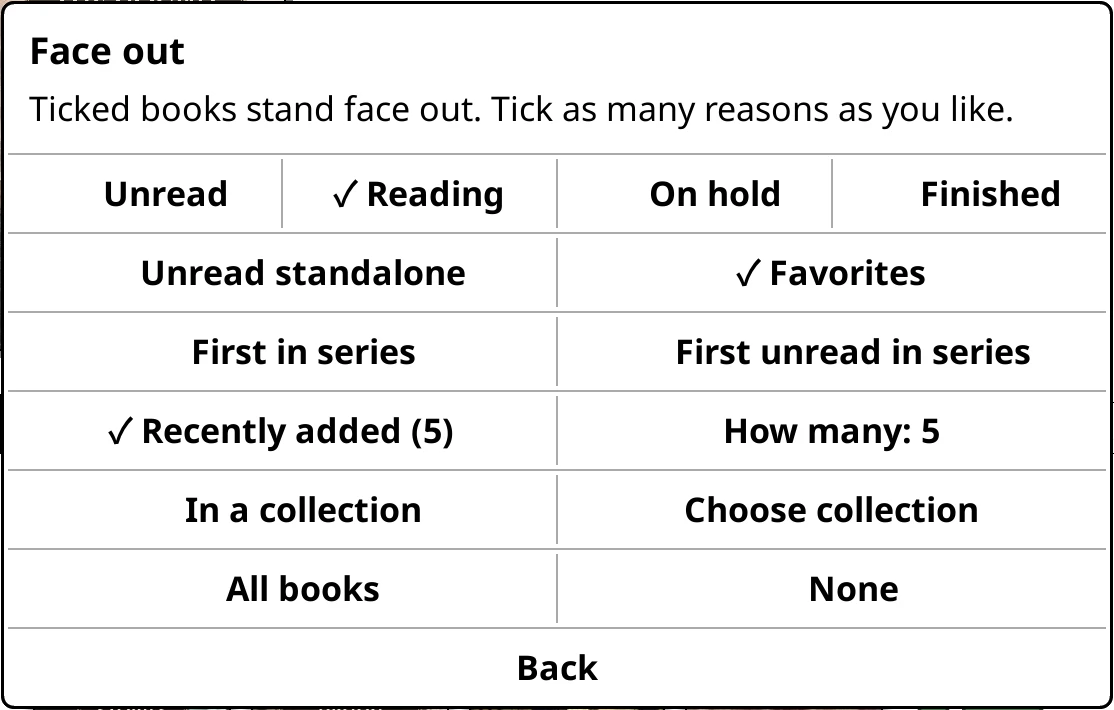
Like a bookshop dressing a shelf, some books can turn to show their cover. Face out lets you tick as many reasons as you like:
- Unread, Reading, On hold, Finished
- Unread standalone: unread books that aren't in a series
- Favorites
- First in series or First unread in series
- Recently added, with How many (1, 3, 5, 10 or 20)
- In a collection, then choose which one: a To read pile, say
- All books, or None
The Home shelf ships with Favorites, Reading and the five newest. A new shelf starts with Favorites.
What the clip shows, step by step:
- Stand every book cover forward on a spine shelf
- Long-press the HOME tab, then tap "Shelf style"
- Face out is a Spines option. Tap Spines
- Tap "Face out"
- Ticked reasons stand face out. Tap "All books"
- Back, then close the dialog and the editor
- Every book now shows its cover, on the shelf
Auto: a style per level
What the clip shows, step by step:
- Auto shows each level of a shelf its own way
- Open GENRES, long-press its tab, tap "Shelf style"
- Choose Auto
- Level 1 is this shelf, Level 2 a genre you open
- Tap Level 1 to show the genres as a list
- Tap Level 2 until it says Covers
- Close the dialog and the editor
- The genres, as a list
- Open a genre: its books show as covers
- A list at the top, covers inside
Auto picks a style for each level of a shelf:
- Level 1 is the shelf itself.
- Level 2 is anything you open from it: a series, an author, a folder.
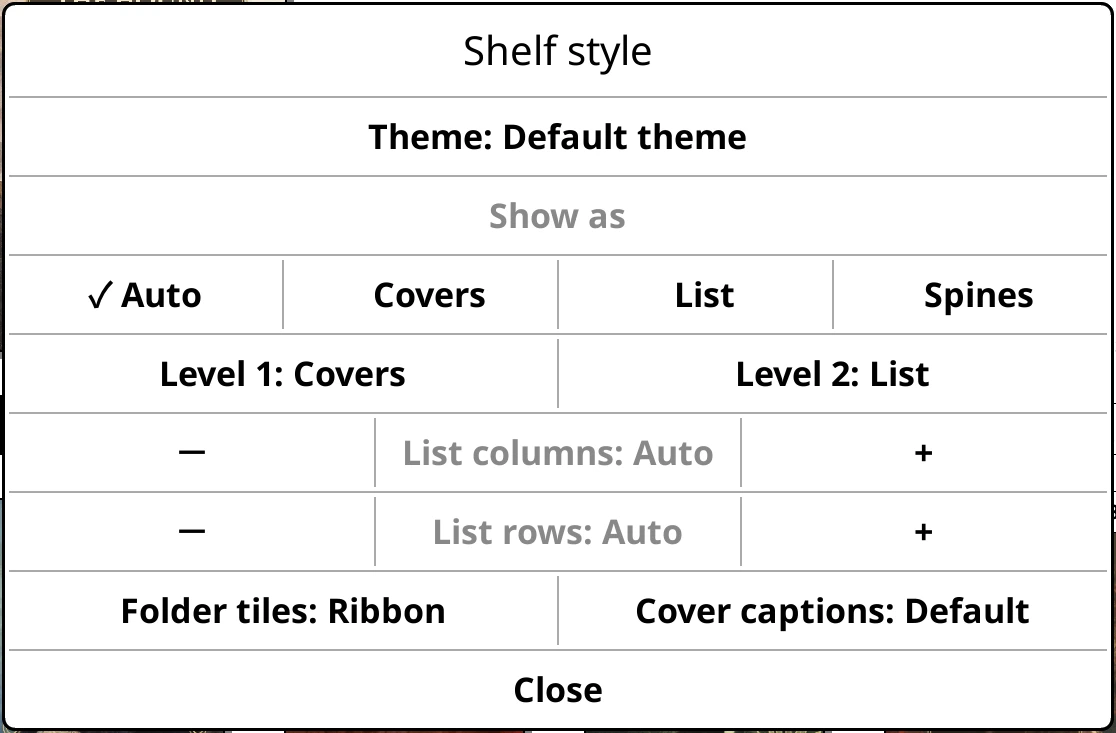
Tap either to step through Covers, List and Spines. So a Genres shelf can list its genres and open each genre as a grid of covers. When both levels are lists, each gets its own rows and columns.
Search results
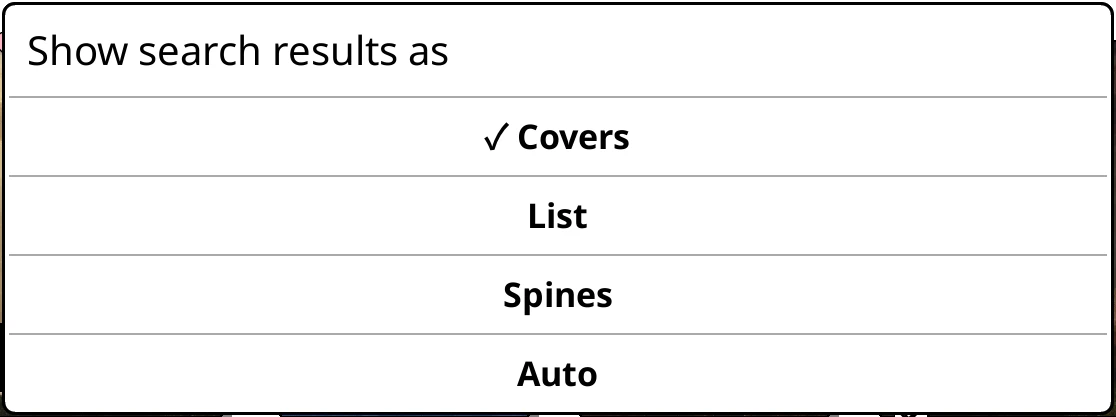
Search results have their own style, separate from any shelf. Long-press the Search results pill in the shelf menu and choose Covers, List, Spines or Auto.