Shelves
A fresh install has four shelves: Home (all your books, as spines), Recent (a list of what you've opened), Series and Genres. Change any of them, delete them, or add your own.
Add a shelf
- Long-press any shelf's tab to open the shelf editor.
- Tap the plus icon at the bottom right.
- Pick a source: what the new shelf shows. See Sources, filters and sorting.
- The shelf is named after its source. Tap Edit label to rename it.
- Close.
The new shelf sits just after the one you long-pressed.
You can also add one from Bookshelf > Edit shelves… > + Add new shelf.
The quickest shelf of all
Open a series, author, genre or collection, long-press it and choose Pin. It becomes a shelf of its own.
What the clip shows, step by step:
- Add a shelf of your own to the shelf menu
- Long-press any shelf's tab to open its editor
- Tap + to add a new shelf
- Choose its source: Authors, one stack per author
- Give it a name with Edit label
- Tap Close. Changes are saved as you go
- Your new shelf has its own tab
The shelf editor
Long-press a shelf's tab for its editor. Everything applies as you tap: there's no Save.
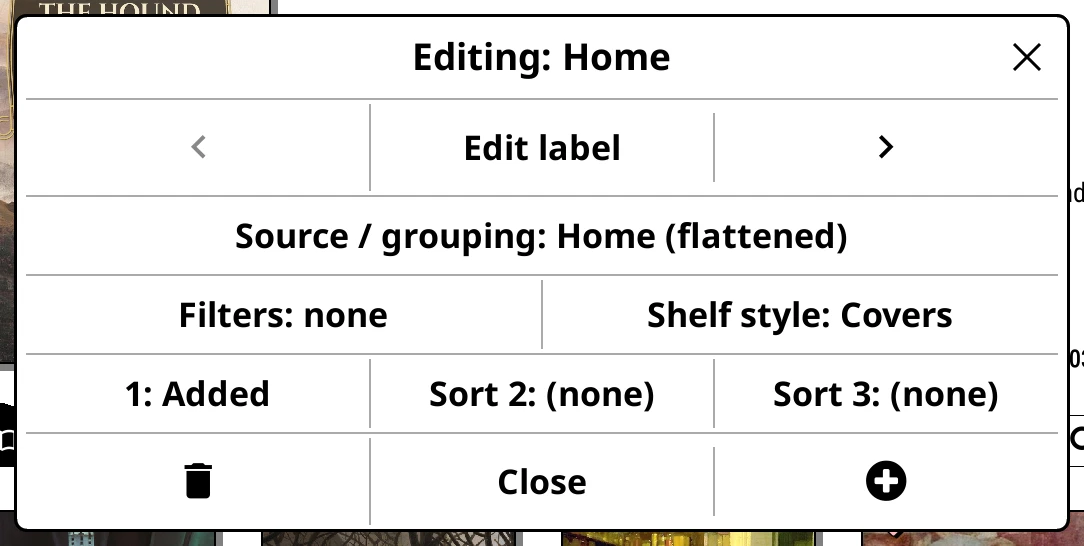
| Row | What it does |
|---|---|
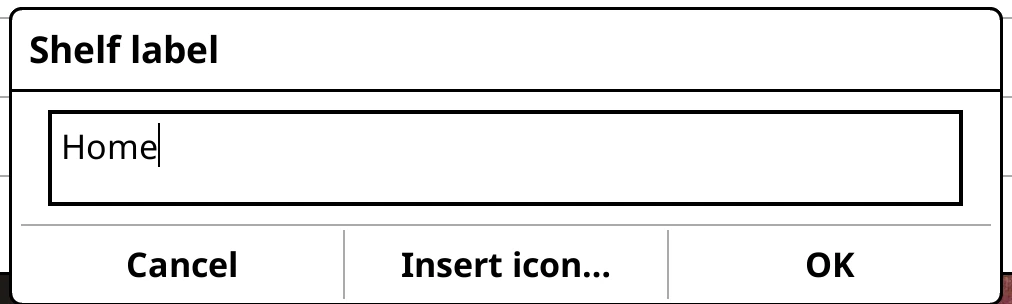
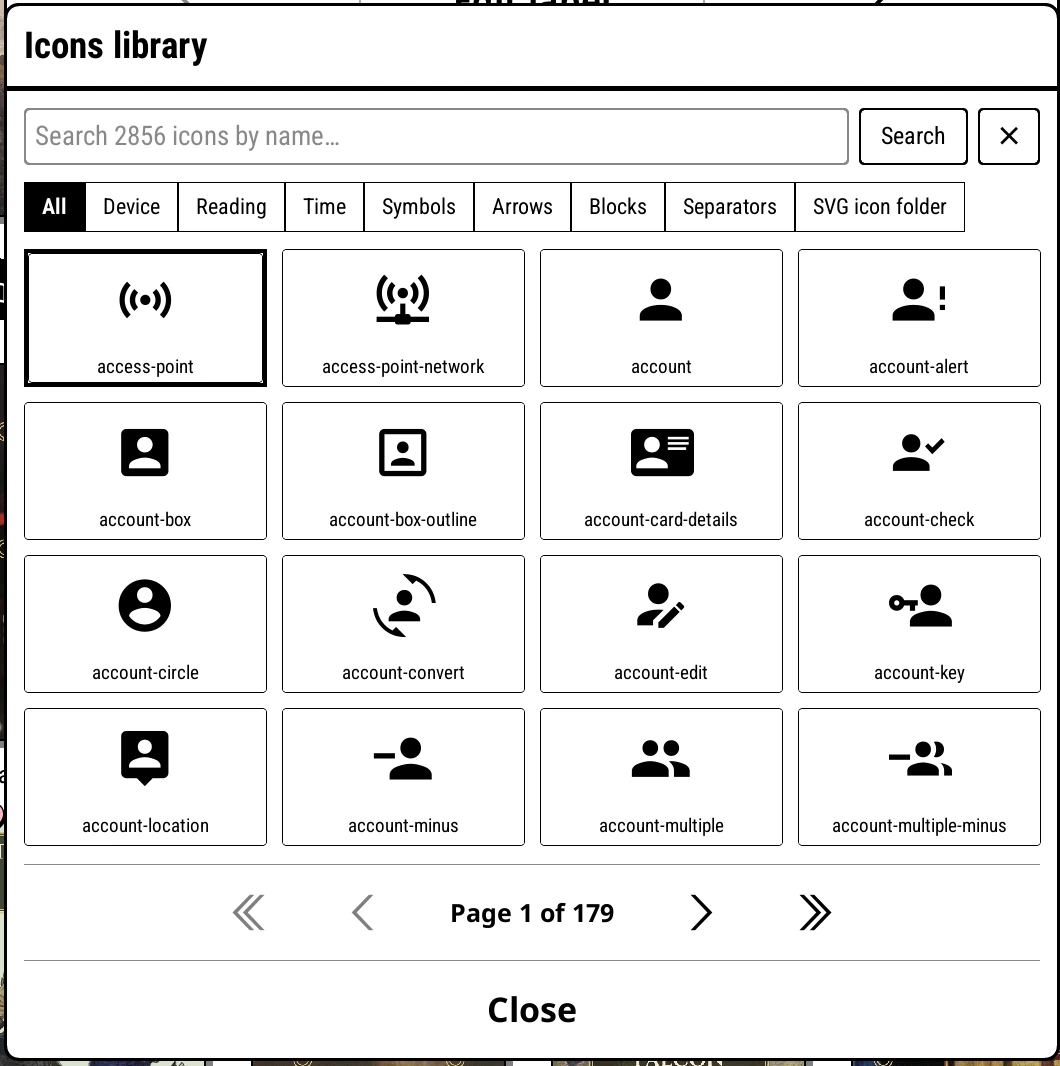
| ‹ Edit label › | Rename the shelf. Insert icon… puts a glyph in the label. The arrows either side move the shelf left or right. |
| Source / grouping | What the shelf shows. |
| Filters | What it leaves out. |
| Shelf style | How it looks: theme, covers, list or spines. See Covers, lists and spines. |
| 1: 2: 3: | Up to three levels of sort. |
| Bin icon | Delete the shelf, after asking. |
| Close | Done. |
| Plus icon | Add a new shelf after this one. |
Reorder, hide and rename
What the clip shows, step by step:
- Hide, rename and reorder your shelves
- Open the top menu, then Edit shelves…
- Long-press a shelf to hide it: untick Recent
- Tap a shelf to edit it
- Edit label renames it
- The arrows move it along the shelf menu
- Tap Close to see the result
- Recent is hidden, Subjects comes before Series
Change the order of the tabs
- Long-press the shelf's tab to open its editor.
- Tap ‹ to move it one place left, or › to move it one place right. The arrows sit either side of Edit label, and the tabs move as you tap.
- Close when it's where you want it.
Hide, show and rename
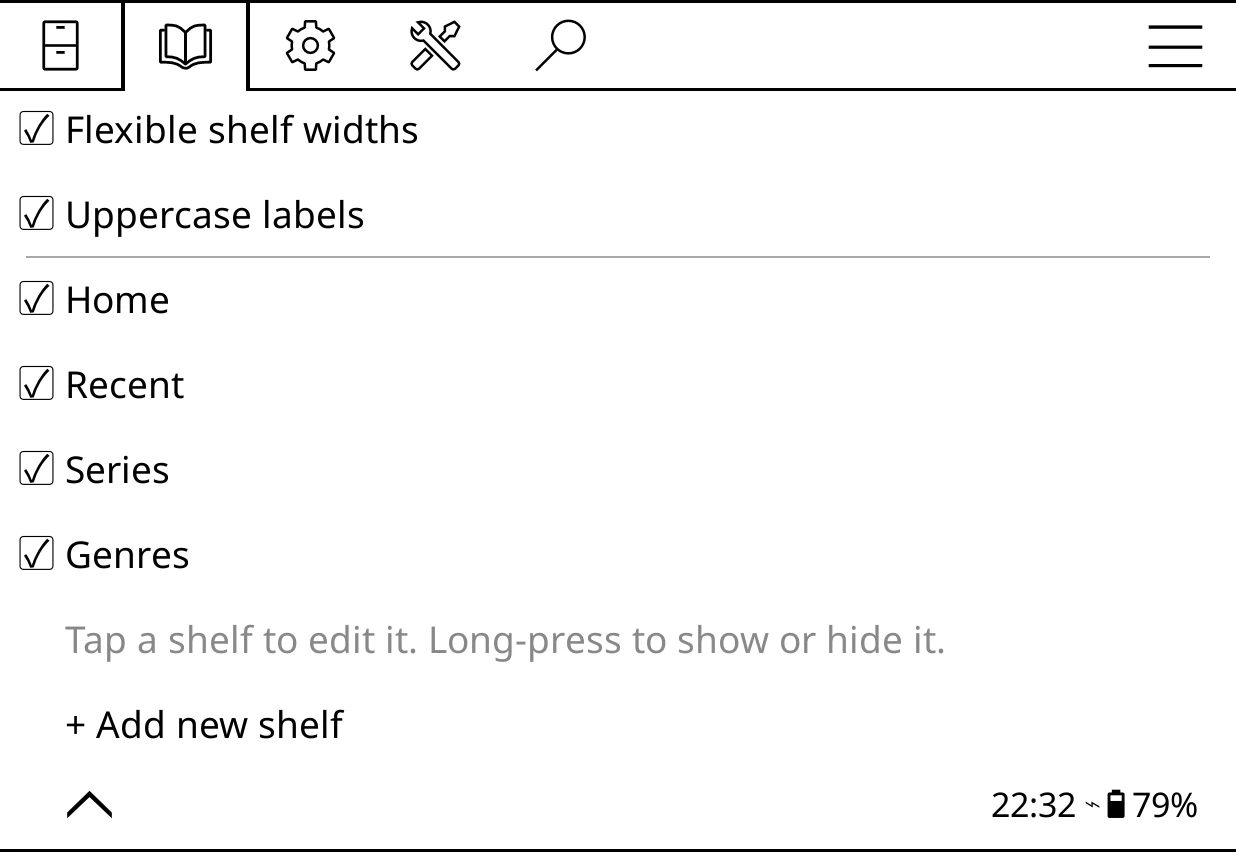
Bookshelf > Edit shelves… lists every shelf:
- Tap a shelf to open its editor, where Edit label renames it.
- Long-press a shelf to hide or show it. A hidden shelf keeps its settings.
Two switches at the top change the whole shelf menu:
- Flexible shelf widths: each tab as wide as its name, so icon-only tabs stay narrow.
- Uppercase labels: shelf names in capitals.
The size of the shelf menu's text is under Bookshelf > Settings > Text size > Shelf menu.
Shelves inside shelves
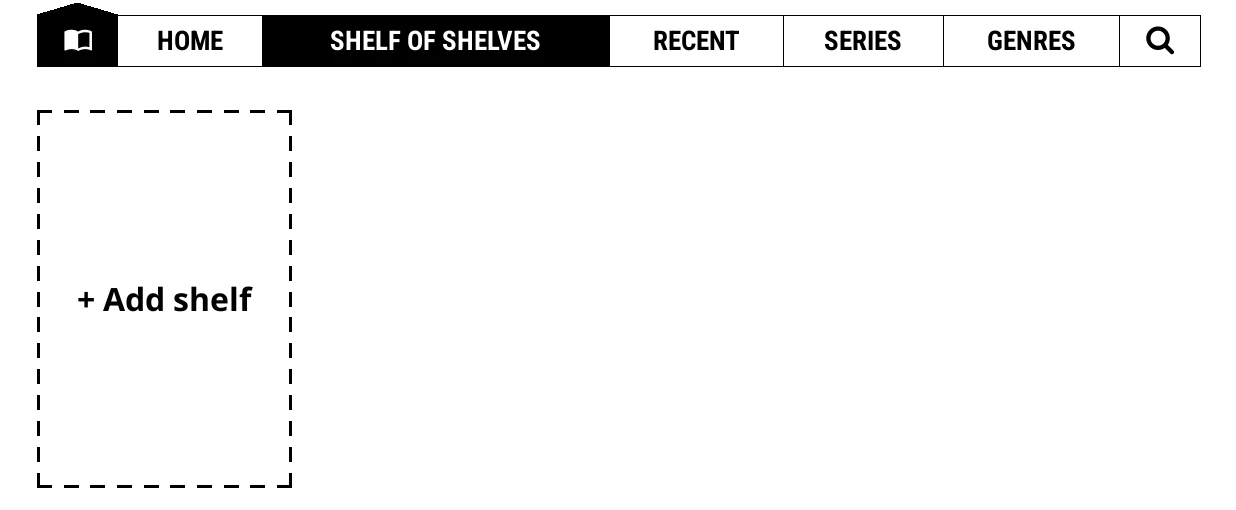
A Shelf of shelves is a shelf that holds other shelves, shown as tiles. Useful for keeping the shelf menu short: a "Reading" shelf holding To read, In progress and Finished, say.
- Add a shelf and choose Shelf of shelves as its source.
- Tap the + Add shelf tile to add a shelf inside it.
- Long-press a tile to edit that shelf. Each has every option a normal shelf has.
A shelf inside wears its parent's theme until you give it one of its own. Deleting a shelf of shelves deletes the shelves inside it.
Starting again
Bookshelf > Settings > Advanced > Reset shelf menu to defaults puts back the shipped shelves, after asking.