Wallpaper and colours
Both live in the Theme menu: open KOReader's menu, then Theme on the Bookshelf tab. Like everything there, they're part of the theme on screen.
Wallpaper
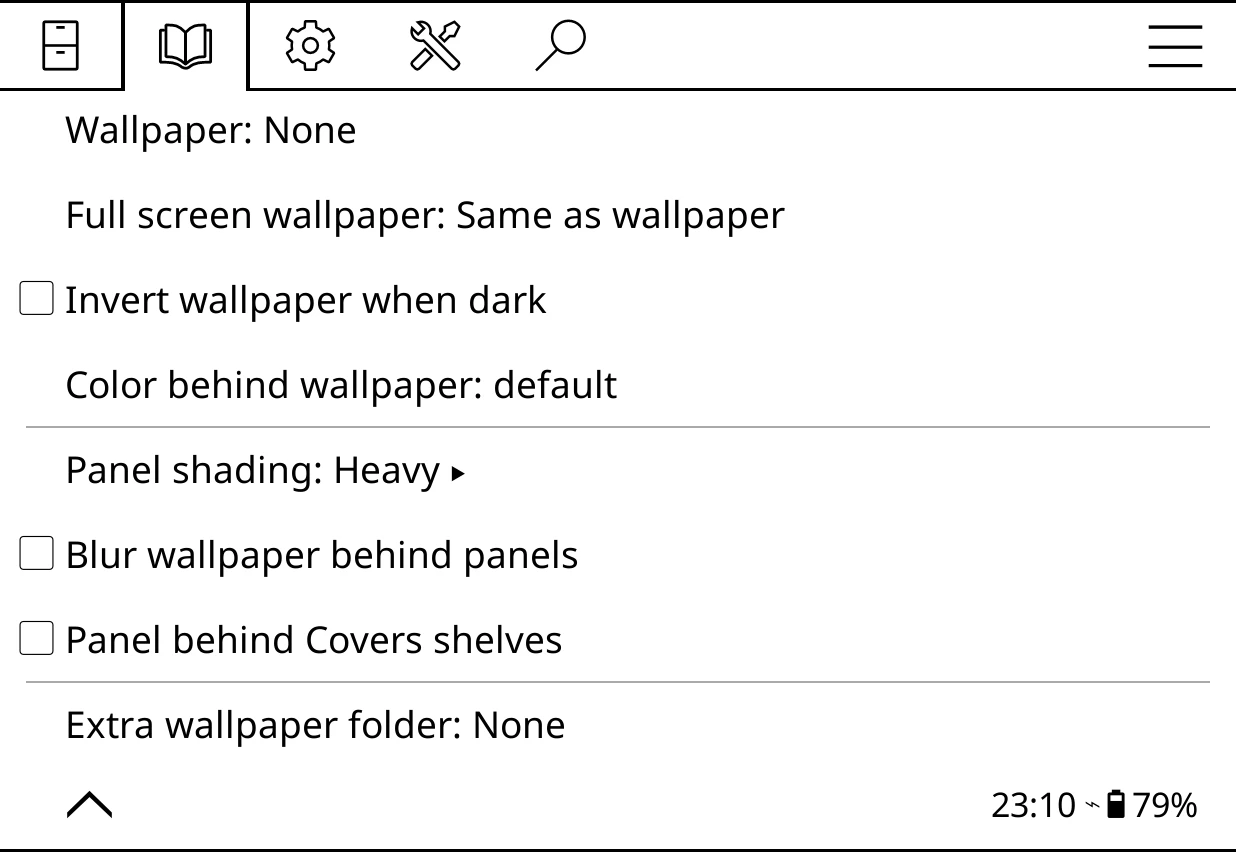
Theme > Wallpaper holds:
- Wallpaper
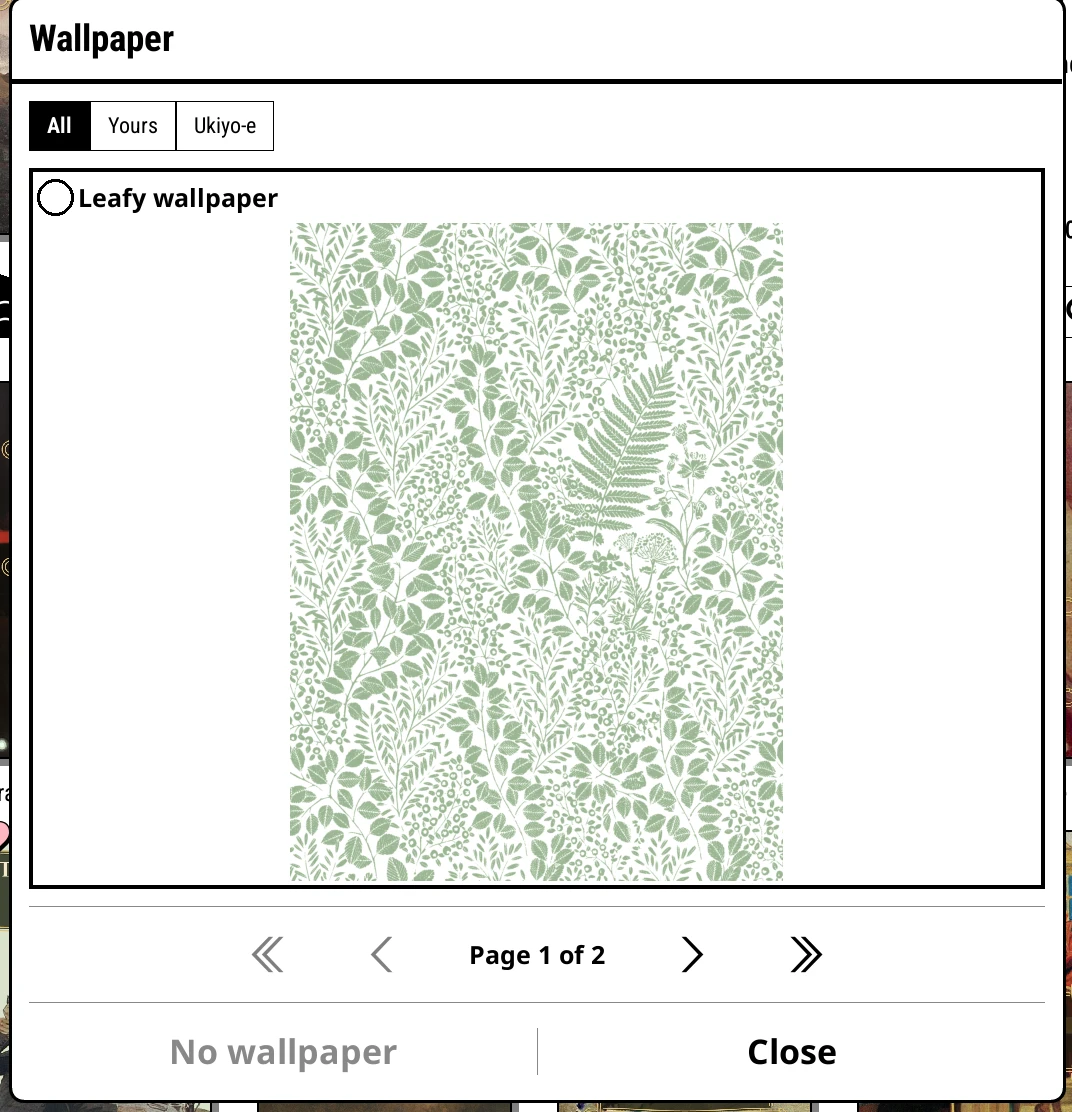
- A picture behind the whole shelf. The browser shows each one large, with tabs for All, Yours and each pack. No wallpaper turns it off. One comes with Bookshelf: Leafy wallpaper.
- Full screen wallpaper
- A different picture for full screen shelves, or Same as wallpaper. Full screen is wall-to-wall books, where a busy picture can be too much.
- Invert wallpaper when dark
- Show the picture as its negative on a dark shelf.
- Color behind wallpaper
- The page colour, with or without a picture.
- Panel shading
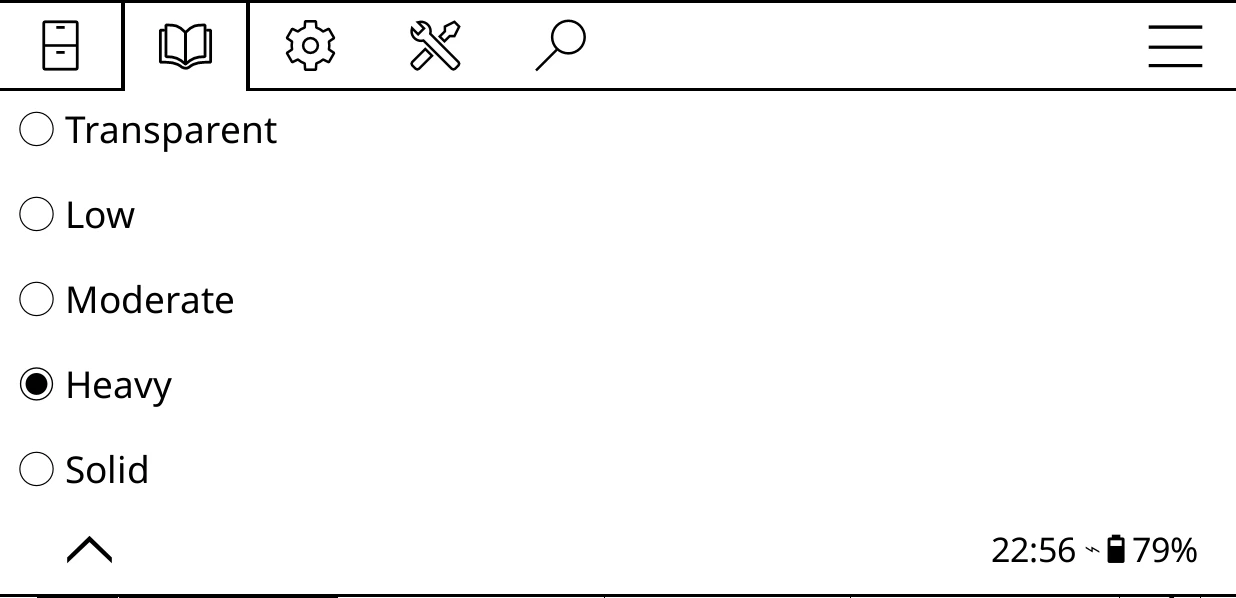
- How strongly the top panel and footer are shaded over the picture, so they stay readable: Transparent, Low, Moderate, Heavy or Solid.
- Blur wallpaper behind panels
- Frosted glass behind the panels.
- Panel behind Covers shelves
- One panel behind everything on a Covers shelf, instead of a strip under each title.
What the clip shows, step by step:
- Put a wallpaper behind your shelves
- Open the top menu > Theme
- Wallpaper, then Wallpaper again to pick one
- Tap a wallpaper to use it
- Close, then tap outside the menu
- Your own pictures go in settings/bookshelf/wallpapers
Your own pictures
Copy PNG or JPEG pictures into koreader/settings/bookshelf/wallpapers on your device and they appear under Yours. A portrait picture the size of your screen looks best.
If you keep pictures somewhere else already, Extra wallpaper folder at the bottom of the menu adds that folder too, without changing anything in it.
Colours
What the clip shows, step by step:
- Change Bookshelf's colours
- Top menu > Theme > Colors
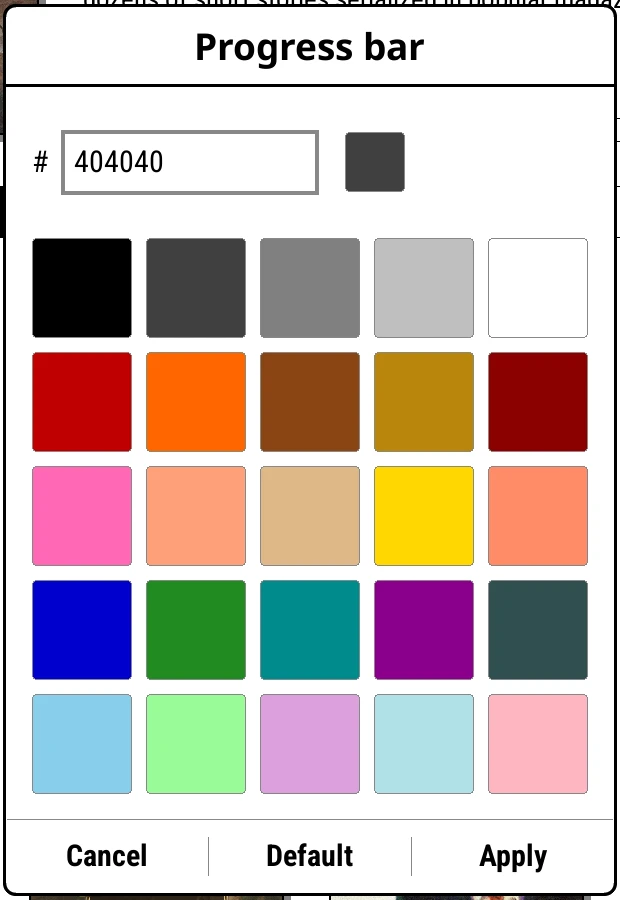
- Progress bar: pick a colour, then Apply
- Next page: Selected shelf background
- Tap outside the menu to see the result
- A green progress bar and a green selected tab
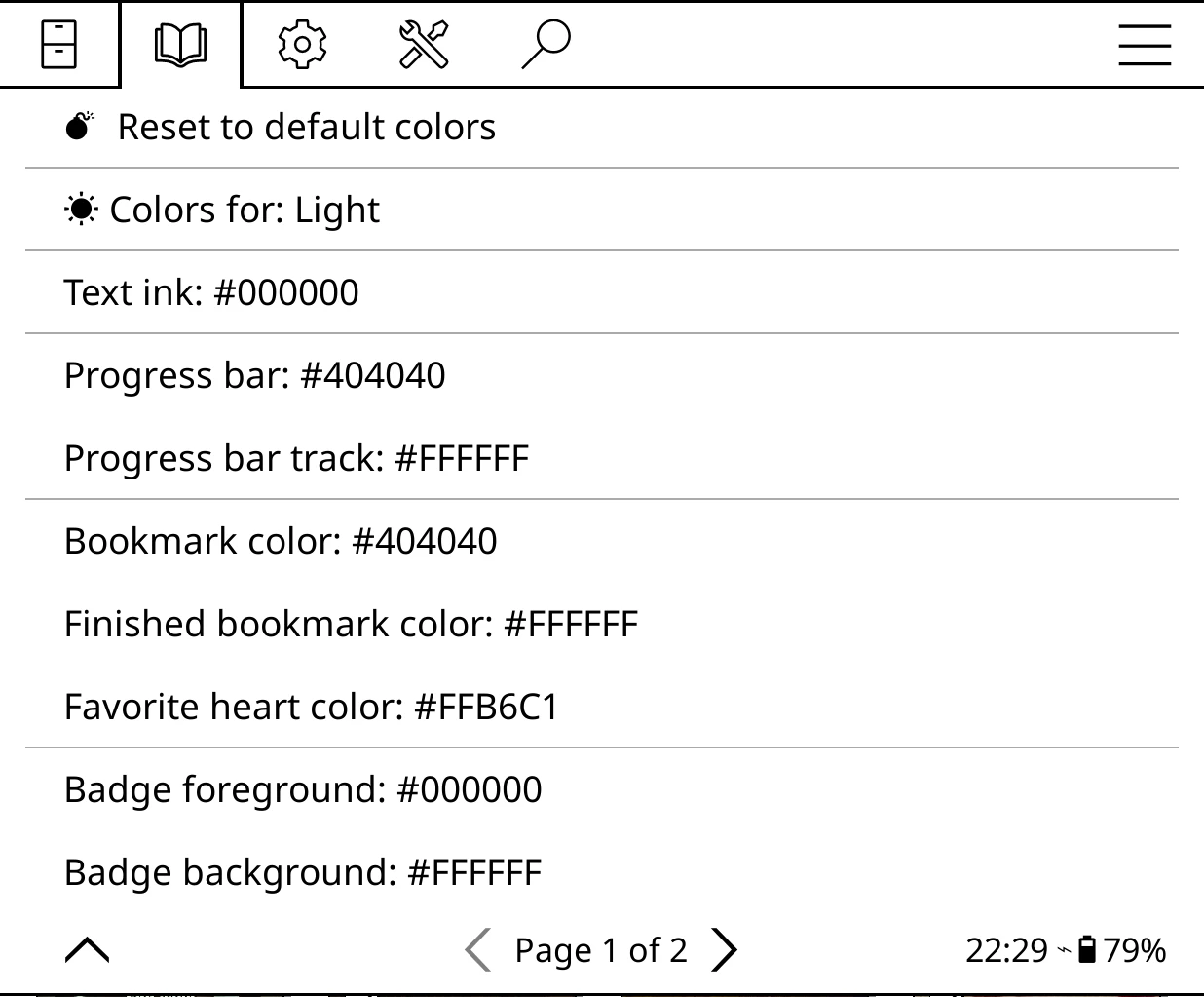
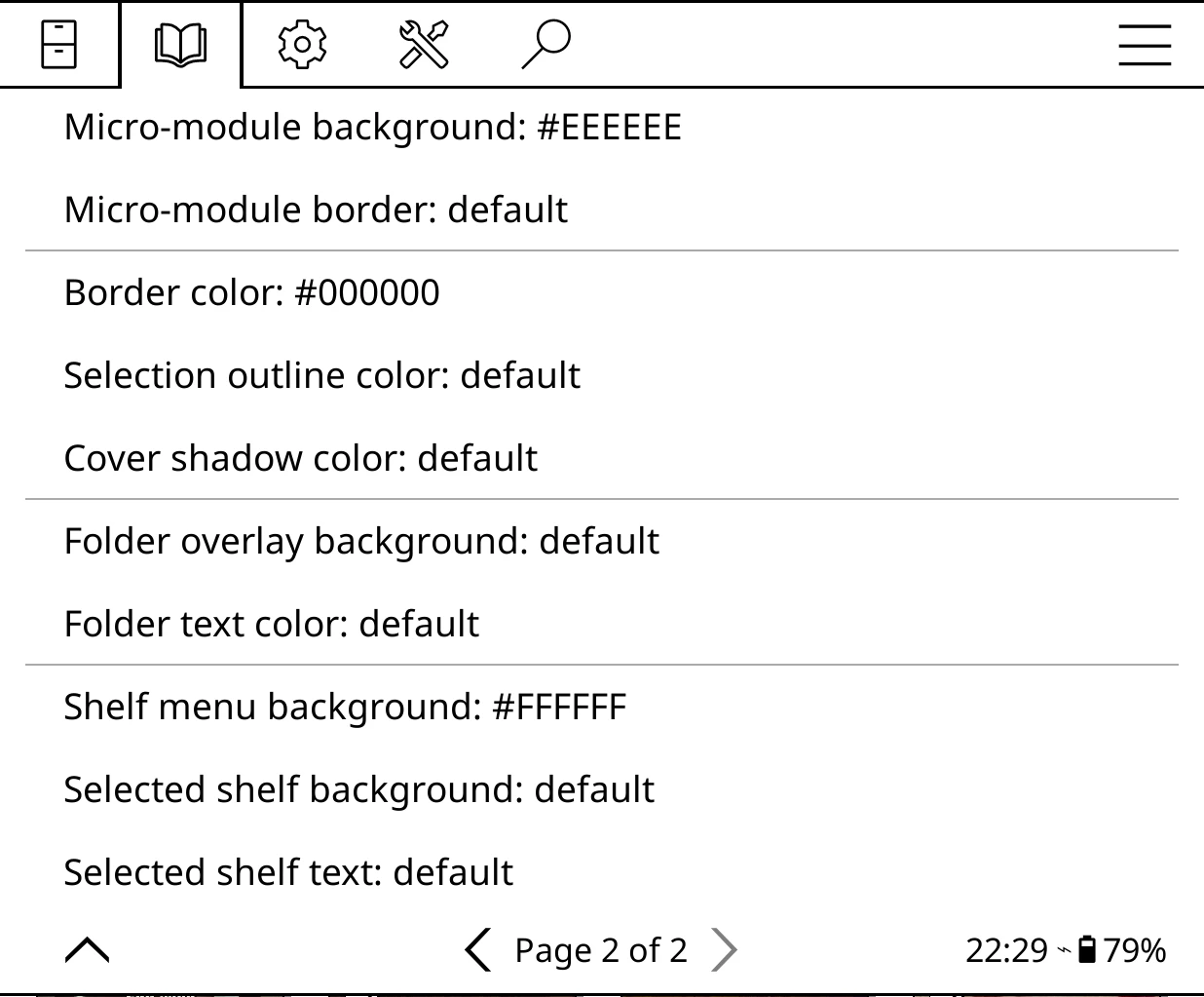
Theme > Colors has every colour on the shelf. Tap a row to pick: a palette and a hex box on a colour screen, or a "% black" nudge on black and white. Long-press a row to reset just that colour.
Bookshelf keeps separate colours for a light shelf and a dark shelf. Colors for: Light (or Dark) at the top shows which set you're editing. Tap it to switch.
Reset to default colors puts the whole palette back.
Every colour
| Colour | Is |
|---|---|
| Text ink | the shelf's own text |
| Progress bar, Progress bar track | the bar on covers you're reading |
| Bookmark color, Finished bookmark color | the marks on books you're reading and have finished |
| Favorite heart color (or star) | the favourite mark |
| Badge foreground, Badge background | the "#3" and "320 p" pills |
| Micro-module background, Micro-module border | the cards behind micro-modules |
| Border color | cover frames, badge edges, folder card edges |
| Selection outline color | the ring round the selected book |
| Cover shadow color | the shadow behind covers |
| Folder overlay background, Folder text color | the cardboard on folder tiles, and its label |
| Shelf menu background | the bar behind the shelf tabs, or Transparent |
| Selected shelf background, Selected shelf text | the tab you're on |
On colour e-ink, Bookshelf > Settings > Advanced > Performance tweaks > Color panel dithering keeps covers vivid when the shelf redraws. It's on by default.