Gestures
Everything you can do on the shelf with a finger, a gesture you set up in KOReader, or a key.
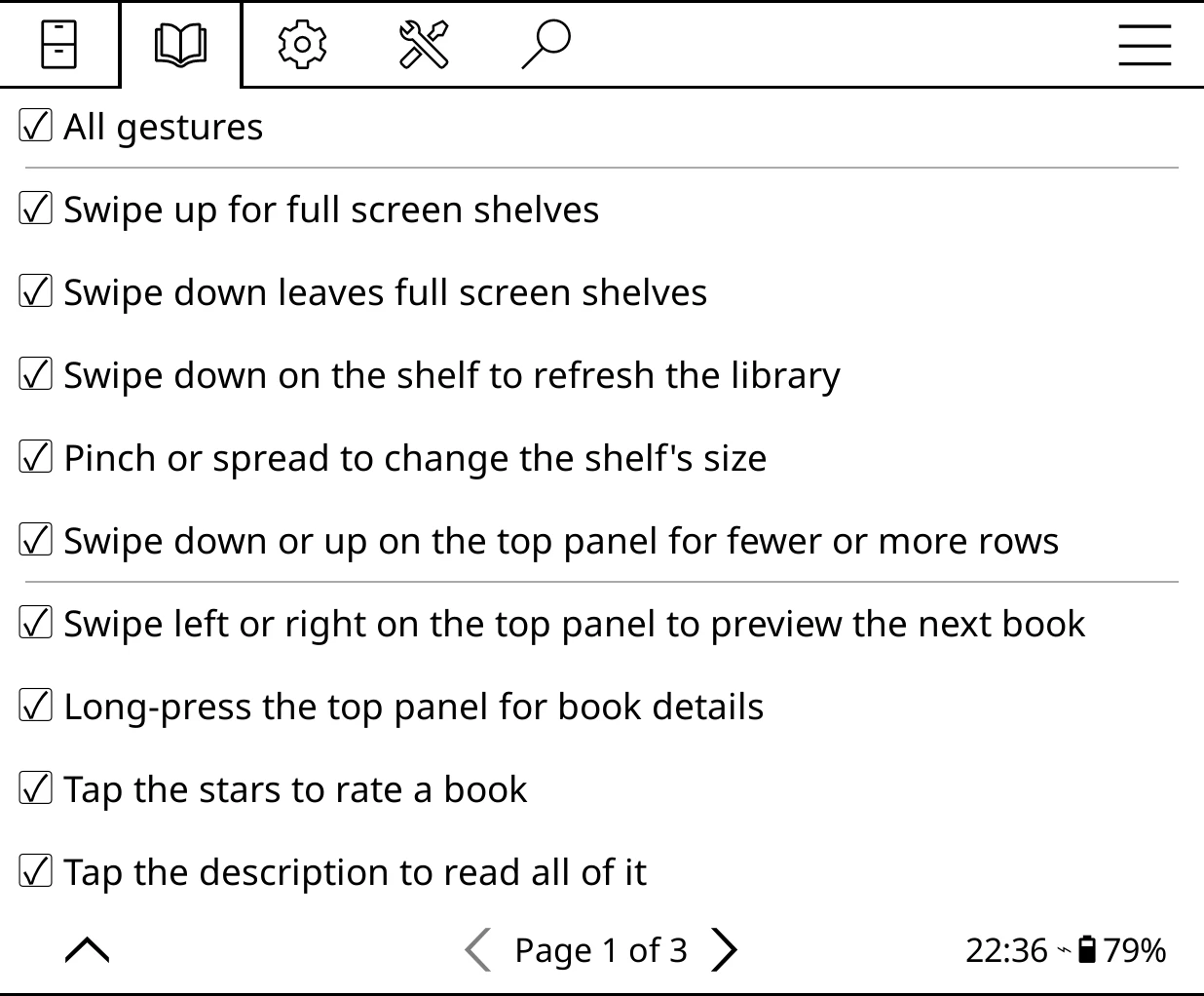
Most of Bookshelf's own gestures can be switched off one by one under Bookshelf > Settings > Behavior > Bookshelf gestures, with All gestures at the top to switch them all at once. They are all on to begin with. A gesture you switch off does nothing, so a KOReader gesture you have set up for the same place can take over. Tapping a book and swiping between pages can't be switched off.
KOReader's own edge gestures still work
Bookshelf leaves the top edge of the screen to KOReader's top menu, and ignores up and down swipes along the outer edges, so KOReader's edge swipes (for brightness or warmth, say) keep working. The footer's page buttons sit in the middle three quarters of the width, leaving the bottom corners free for KOReader's corner taps.
On the shelf
| Gesture | What it does | Switch |
|---|---|---|
| Tap a book | Shows it in the top panel. Tap it again to open it. | Always on |
| Tap a book on a full screen shelf | Opens it (see Tap a book in full screen shelves under Behavior) | Always on |
| Tap a spine | Lifts it off the shelf and shows it in the top panel. Tap it again to open it; tap empty space to put it back. | Always on |
| Tap a stack, folder or series box | Opens it | Always on |
| Tap a catalogue book you have already selected | Opens the download view | Always on |
| Double-tap a book | Opens it straight away (needs KOReader's double tap turned on) | Double-tap a book to open it |
| Long-press a book or spine | The book menu, on its Edit tab | Long-press a book for its details |
| Long-press a stack, folder or series box | Its menu: pin it as a shelf, select its books, set its image and more | Long-press a series, author or folder for its menu |
| Swipe left | Next page. On the last page, goes back up a level or on to the next shelf. | Always on |
| Swipe right | Previous page, back up a level, or the previous shelf | Always on |
| Swipe up | Full screen shelves: the top panel shrinks to a thin status strip | Swipe up for full screen shelves |
| Swipe down (full screen) | Brings the top panel back | Swipe down leaves full screen shelves |
| Swipe down | Refreshes the library (on a catalogue shelf, fetches the catalogue again) | Swipe down on the shelf to refresh the library |
| Pinch | Smaller: one more column of covers, or one more row on List and Spines | Pinch or spread to change the shelf's size |
| Spread | Bigger: the opposite of pinch | Pinch or spread to change the shelf's size |
Pinch and spread change how much fits on the shelf, never the style. On Covers this is shared by every shelf; on List and Spines it is that shelf's own row count.
With Swipe down leaves full screen shelves off, a swipe down in full screen refreshes the library instead. You can still bring the top panel back by tapping the status strip or the book icon at the start of the shelf menu.
Top panel
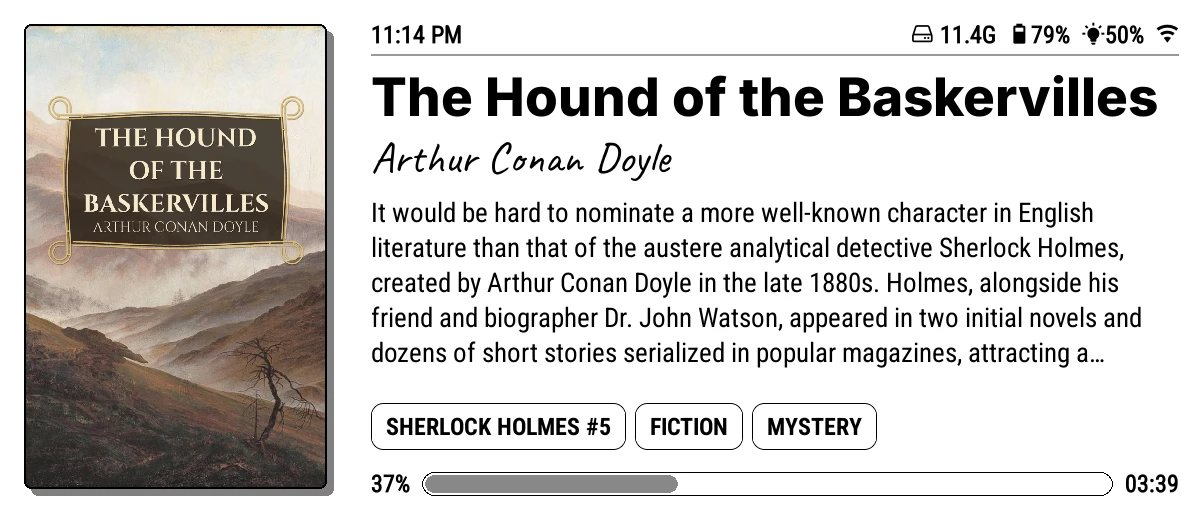
| Gesture | What it does | Switch |
|---|---|---|
| Tap the cover | Opens the book (two taps with Double tap to open books on) | Always on |
| Double-tap the cover | Opens the book | Double-tap a book to open it |
| Long-press | The book menu, on its Edit tab | Long-press the top panel for book details |
| Tap the description | Shows the whole description | Tap the description to read all of it |
| Tap a star | Sets or clears your rating (with the Rating section on) | Tap the stars to rate a book |
| Tap a tag pill | Goes to that author, series, genre, collection or folder. The +N pill opens the book menu's Tags tab. | Always on |
| Swipe left / right | Shows the next or previous book on the shelf. On the micro-module grid, turns its pages. | Swipe left or right on the top panel to preview the next book |
| Swipe down | A bigger top panel, one shelf row fewer | Swipe down or up on the top panel for fewer or more rows |
| Swipe up | Gives a shelf row back. With none to give back, goes full screen. | Swipe down or up on the top panel for fewer or more rows |
| Tap the status strip (full screen) | Brings the top panel back | Always on |
| Tap Stop in the status line | Stops a running page count scan or author photo search | Always on |
Shelf menu

The row of shelf buttons under the top panel.
| Gesture | What it does | Switch |
|---|---|---|
| Tap a shelf | Switches to it. Tapping the shelf you are on does nothing. | Always on |
| Long-press a shelf | Opens the shelf editor | Long-press a shelf button to edit the shelf |
| Swipe left / right | Shows more shelves when they don't all fit | Swipe the shelf buttons to see more of them |
| Tap the book icon | Shows the book you are reading in the top panel and leaves full screen | Always on |
| Tap the magnifier | Opens Search library | Always on |
| Tap the grid button | Swaps the top panel for the micro-module grid | Always on |
| Long-press the grid button | Reset modules to default or Remove micro-modules (re-enable in settings) | Long-press a shelf button to edit the shelf |
| Tap a breadcrumb | Goes back up to that level | Always on |
| Long-press Search results | Show search results as: Covers, List, Spines or Auto | Always on |
Footer

| Gesture | What it does | Switch |
|---|---|---|
| Tap a chevron | First, previous, next or last page | Always on |
| Long-press previous / next | Skips ten pages back or forward | Long-press the arrows to skip ten pages |
| Tap the page number | Go to a page, a letter, or search | Tap the page number to go to a page |
| Long-press the page number | Switches the shelf to the next style: Covers, List, Spines (catalogue shelves skip Spines). On search results, flips between Covers and List. | Long-press the page number to change the shelf style |
| Tap the start menu button | Opens the start menu | Always on |
| Tap the micro-modules button | Opens your micro-modules full screen | Always on |
Start menu, micro-modules and ornaments
| Gesture | What it does | Switch |
|---|---|---|
| Tap a start menu entry | Runs it, or opens the folder | Always on |
| Long-press a start menu entry | Edit it: rename, icon, move, show in, delete, add | Long-press a start menu entry to edit it |
| Tap a micro-module | Its own action (a new quote, open the calendar, and so on) | Tap a micro-module to use it |
| Long-press a micro-module | Edit it: settings, size, position, delete, add | Long-press a micro-module to edit it |
| Tap an ornament | Its tap action, if it has one (an action, or Zoom) | Tap an ornament to run its action |
| Long-press an ornament | Adjust it: place, size, height, mirror, swap and more | Long-press an ornament to adjust it |
Ornaments never react to touches in the footer area.
KOReader's gestures on the shelf
These belong to KOReader and keep working over the shelf:
- Tap or swipe down at the very top: KOReader's top menu.
- A short diagonal swipe: whatever KOReader has it set to (a full screen refresh by default).
- A long two-finger tap, or a long corner-to-corner swipe: a screenshot.
Gesture manager actions
You can set any of KOReader's own gestures (a corner tap, a two-finger swipe and so on) to run a Bookshelf action. In KOReader's top menu, go to Settings (the gear tab) > Taps and gestures > Gesture manager, pick a gesture, and look for the actions starting Bookshelf:. They work in the file browser and while reading.
| Action | What it does |
|---|---|
| Bookshelf: open or close | Closes the shelf if it is showing, otherwise opens it |
| Bookshelf: open | Shows the shelf (or, set to off, closes it) |
| Bookshelf: go to home screen | Shows the shelf at page 1 of the shelf you were on, out of any folder, stack or shelf of shelves |
| Bookshelf: refresh the library | Picks up new and changed books straight away, like the swipe down |
| Bookshelf: next shelf | Switches to the next shelf |
| Bookshelf: previous shelf | Switches to the previous shelf |
| Bookshelf: next page of shelves | Pages the shelf menu forward |
| Bookshelf: previous page of shelves | Pages the shelf menu back |
| Bookshelf: full screen shelves on or off | Hides or shows the top panel |
| Bookshelf: open start menu | Opens the start menu, even with its button turned off |
| Bookshelf: open micro-modules | Opens micro-modules full screen, even with the button turned off |
| Bookshelf: shuffle ornaments | Deals the ornaments on the shelf on screen in a new order |
| Bookshelf: toggle bulk selection mode | Starts or stops bulk selection |
| Bookshelf: toggle selection on focused book | Selects or deselects the focused book |
| Bookshelf: select all books in this shelf | Selects every book on the shelf |
| Bookshelf: add focused stack to selection | Adds the focused stack's books |
| Bookshelf: open bulk action menu | Opens Edit selected |
Tip
Bookshelf: go to home screen on a corner tap is a handy way back to the shelf from anywhere, including from inside a book.
Keys and D-pad
On devices without a touch screen, or with a keyboard, everything on the shelf can be reached with keys.
| Key | What it does |
|---|---|
| Arrow keys | Move the cursor. Focus moves between the shelf menu, the top panel, the shelf and the footer as you reach the edge of each. |
| Press (centre) | Acts on what has focus: opens a book, switches shelf, presses a footer button |
| ScreenKB + Press, Shift + Press or Sym + AA | The same as a long-press: the book menu on a book or the top panel, the shelf editor on a shelf, the group menu on a stack |
| Page forward / back | Turn the shelf's page, wherever the cursor is |
| Back | Go back up one level out of a folder or stack. On the base shelf it brings up KOReader's "Exit KOReader?" prompt, or does nothing if KOReader's Back in file browser is set to Go to parent folder. |
Bookshelf leaves the Menu key alone; it still opens KOReader's menu on devices that have one. In the top panel the cover is the only focus stop, so use the long-press keys to reach the rating, description and tags.
Back while reading
What Back does inside a book is KOReader's setting. To make it take you back to the shelf, set Navigation > Back in reader > Go to file browser in the reader's top menu.