Themes
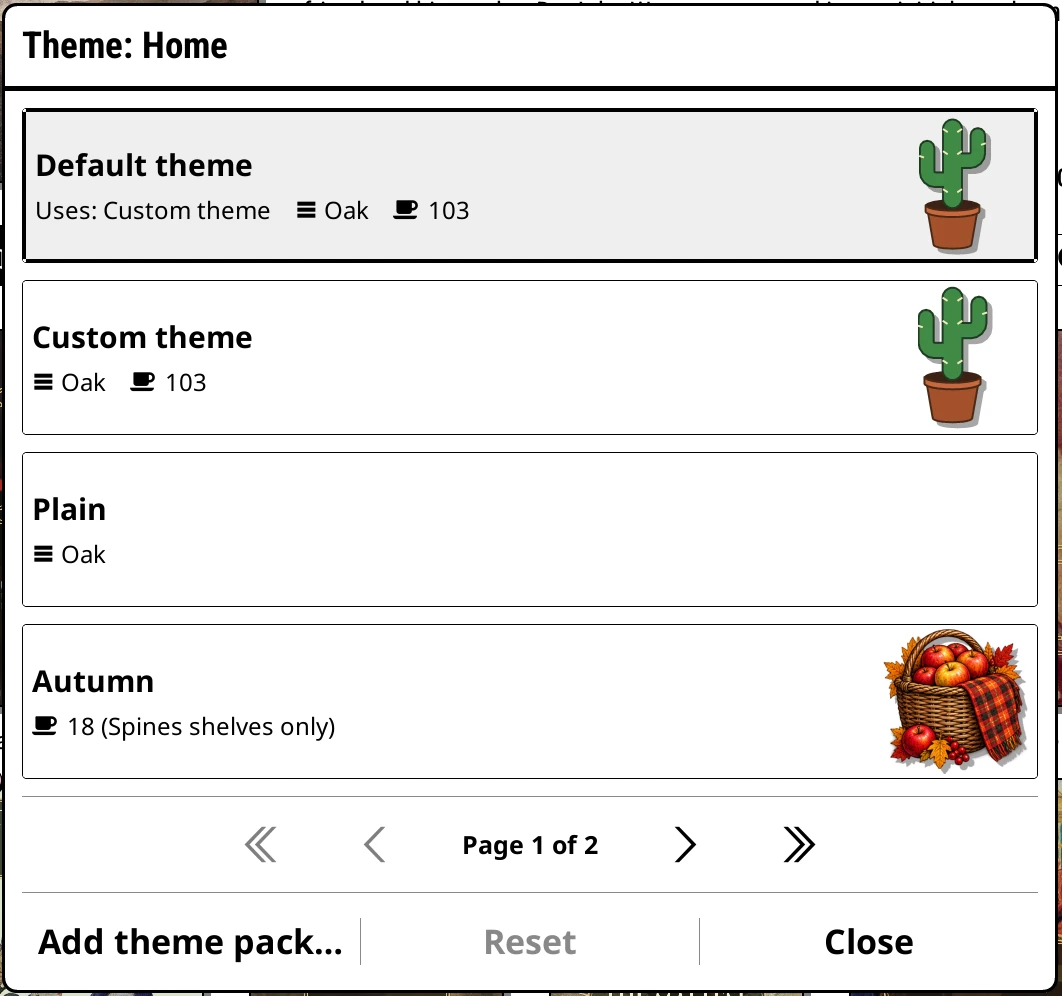
A theme is a look, worn all at once: a wallpaper, a plank for the spines, a set of colours, light or dark, how the panels are shaded, and which ornaments stand on the shelf.
There are three kinds:
- Custom theme
- Your own settings. Choosing another theme never changes it, so it's always there to come back to.
- Plain
- Built in: no wallpaper, the oak plank, the standard colours and no ornaments.
- Packs
- Every theme pack you've installed. A pack brings its own wallpaper, plank, colours and ornaments. Anything it doesn't bring comes from your Custom theme.
Choose a theme
Open KOReader's menu at the top of the screen. The Bookshelf tab has a row named after the theme on screen: Theme (Custom theme), say. In it:
- This shelf: the theme for the shelf you're on.
- Other shelves: a row for each of your other shelves. Choosing one switches to that shelf, so you see the change.
- Default theme: what every shelf without its own theme wears.
Each opens the Theme library: a card for each theme, with icons for what it brings. Tap a card and the shelf behind changes. The library stays open so you can compare. Close when you've decided.
You can also choose a shelf's theme from its editor: long-press the shelf's tab, Shelf style, then Theme.
What the clip shows, step by step:
- Home wears Macabre
- Series: top menu > Theme > This shelf
- Tap a theme: the shelf changes behind
- Genres wears Autumn
- Each shelf keeps its own theme
Edit a theme
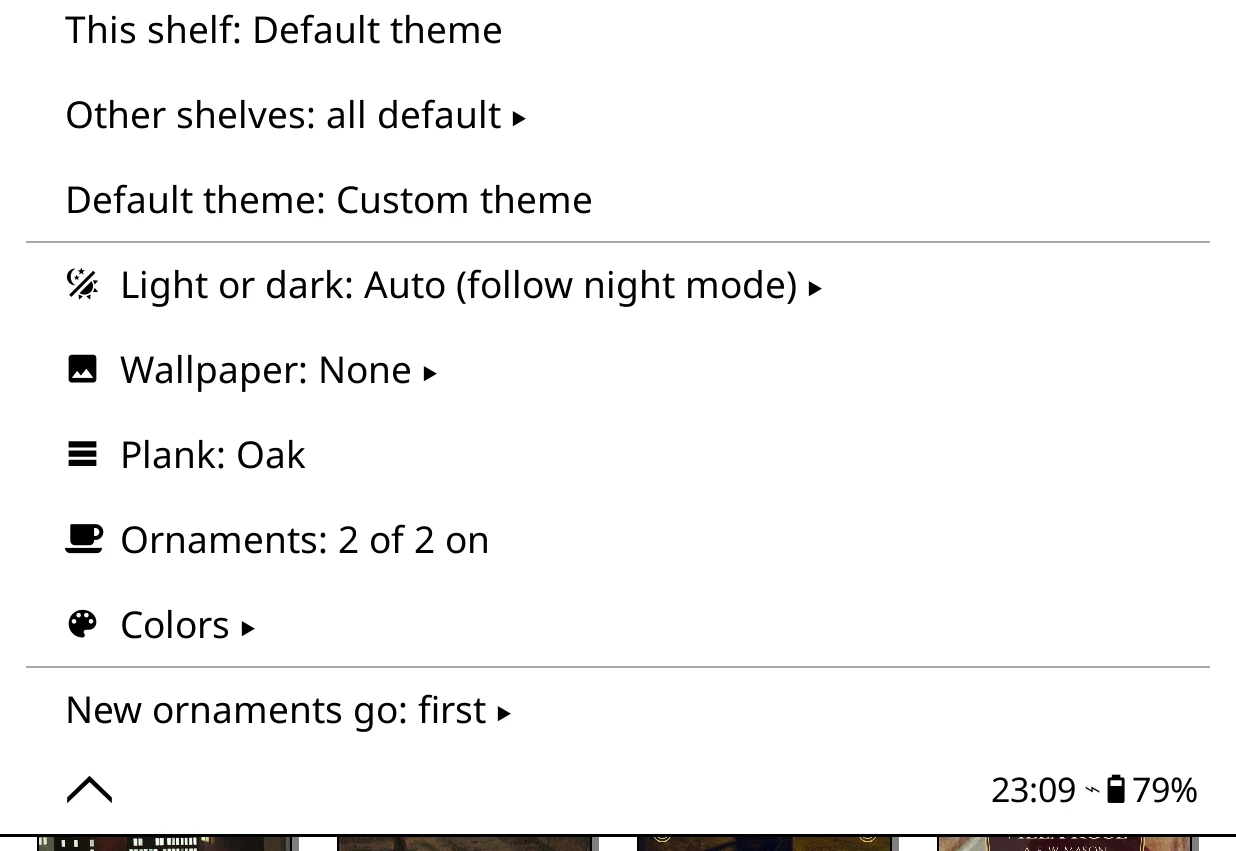
Everything else in the Theme menu edits the theme on screen, whichever it is:
| Row | What it does |
|---|---|
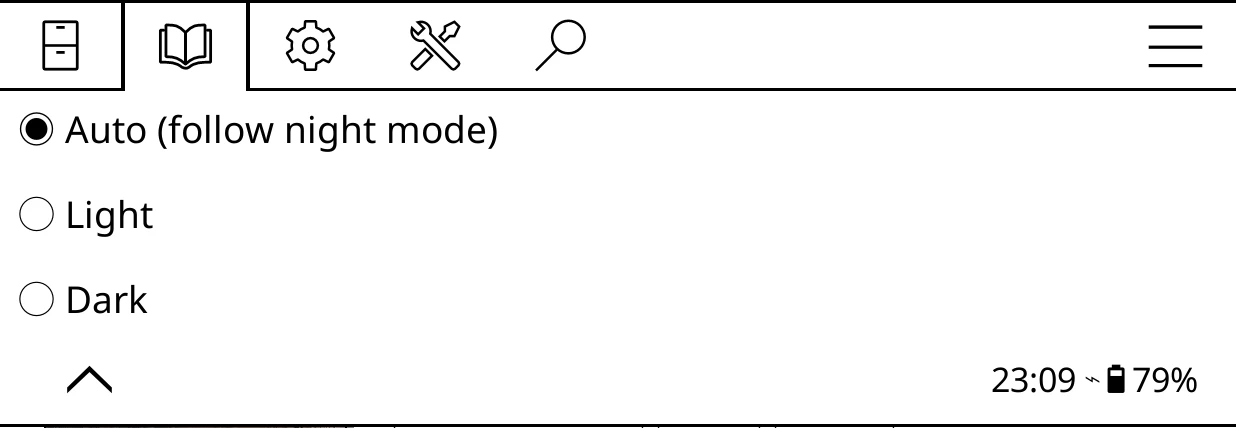
| Light or dark | Auto (follow night mode), Light or Dark. A dark shelf while you read in light mode, or the other way round. |
| Wallpaper | The picture behind the shelf, and the panels over it. See Wallpaper and colours. |
| Plank | The plank spines stand on: Oak, Plain color, or one from a pack. |
| Ornaments | Which ornaments this theme stands on the shelf. See Ornaments. |
| Colors | Every colour on the shelf. |
Your changes stay with that theme, on every shelf that wears it, and its card says Edited. To undo them, mark the theme in the Theme library and tap Reset, or long-press a pack's card and choose Reset to original.
What the clip shows, step by step:
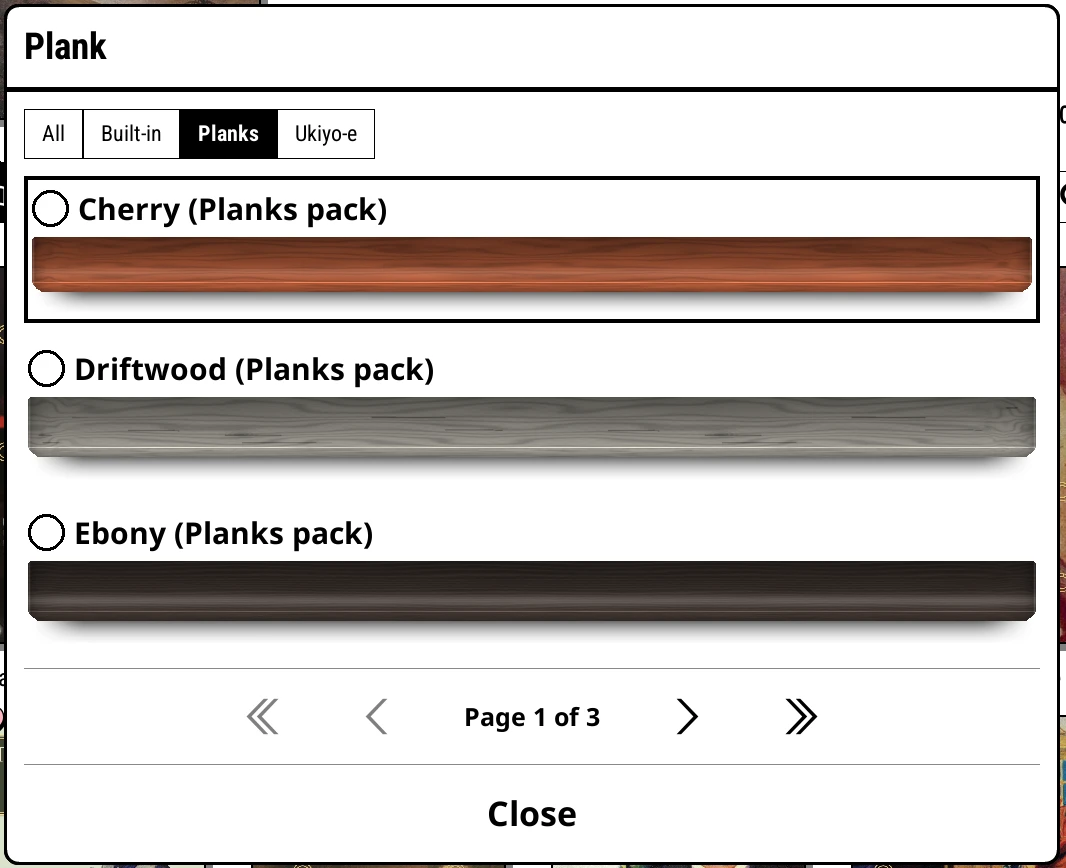
- Try the timbers from the Planks pack
- Planks show on Spines: long-press the page counter
- Open the top menu > Bookshelf > Theme > Plank
- Open the "Planks" tab
- Tap a timber: the shelf changes behind
- More on the next page
- Close to keep it
Planks
Theme > Plank opens the plank browser, each plank drawn as the shelf draws it. Oak is built in. Plain color tints a plain plank any colour you like. Packs add their own, with a tab each.
The Planks pack adds nine timbers, from pale Maple to near-black Ebony.
A theme per shelf
Any shelf can wear its own theme, and the others carry on with the default. A shelf inside a shelf of shelves wears its parent's theme until you give it one.
Night mode
Themes have light and dark colours. Light or dark: Auto follows KOReader's night mode. Pin a theme to Dark and it stays dark whatever KOReader is doing.