Theme packs
Ko-fi shop
Ready-made looks for your shelf
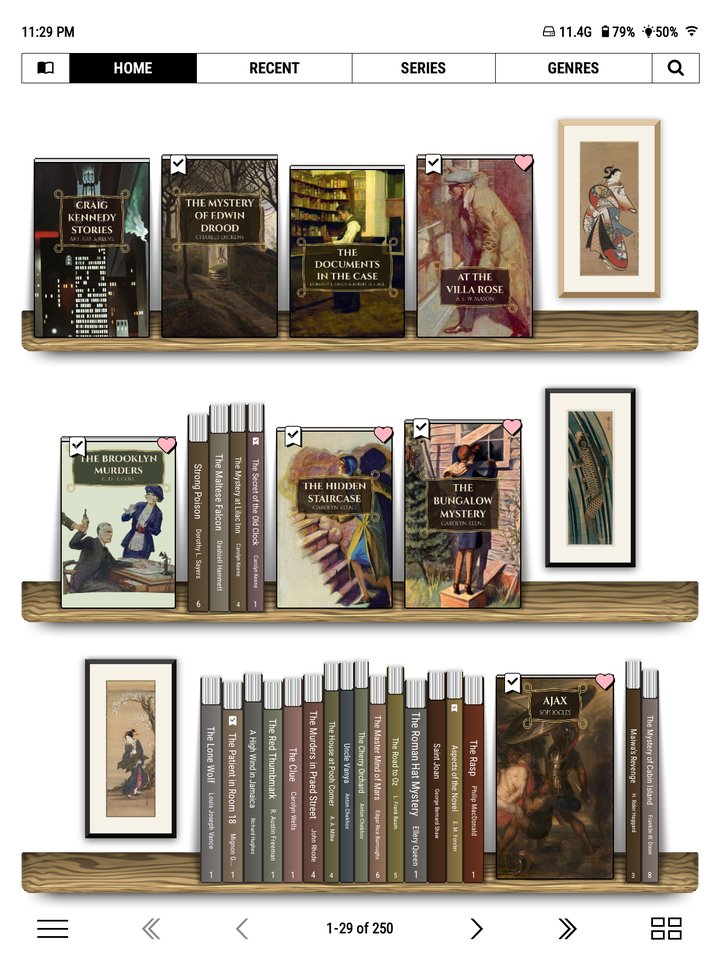
A theme pack is a whole theme in one folder: framed art and ornaments, a wallpaper, planks and colours, each drawn to sit right on the shelf and to look good on black and white screens as well as colour.
Packs are sold through the Ko-fi shop. Buying one is one way to support Bookshelf's development; you can also leave a tip.
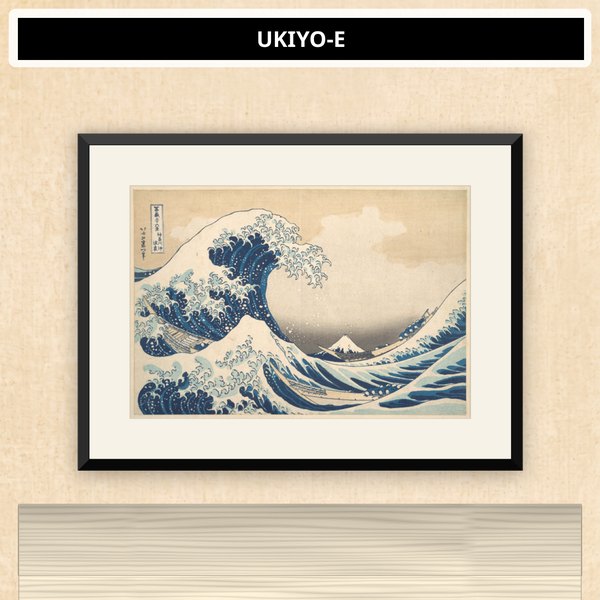
Ukiyo-e
Twenty-seven Japanese woodblock prints and paintings, framed and hung on the wall above your books: Hokusai's Great Wave, Hiroshige, Utamaro, Kuniyoshi, Harunobu, Yoshitoshi and more. Every print is public domain, from the Cleveland Museum of Art and The Metropolitan Museum of Art.
- Framed prints hang above the books on spine shelves.
- Tap a print to see it full screen, with its title, artist, date and museum.
- A Hinoki plank, pale cypress wood.
- A paper wallpaper behind covers, lists and spines alike.
What the clip shows, step by step:
- Dress your shelf in the Ukiyo-e theme pack
- Open the top menu > Bookshelf > Theme
- "This shelf" opens the Theme library
- Tap Ukiyo-e
- Close the library and the menu
- Your covers now sit on washi paper
- Long-press the page counter for Spines, where prints hang
- Tap a print to see it up close
- Tap again to go back
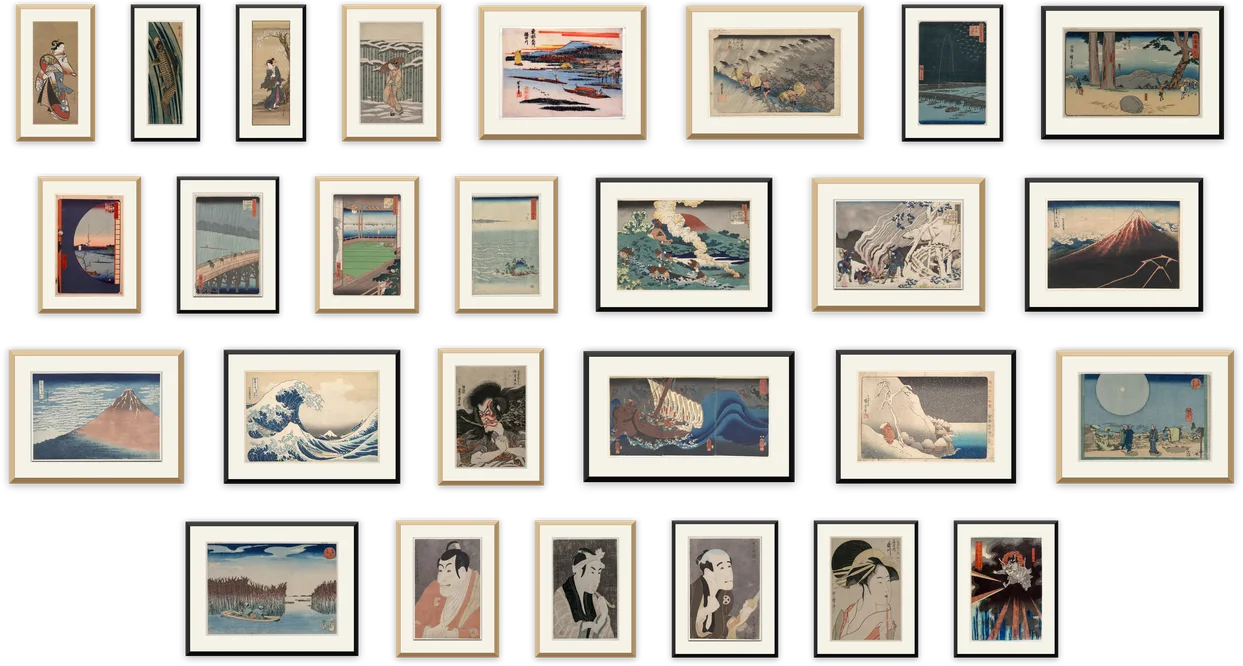
In the pack 27 framed prints, each with its museum notes · the Hinoki plank · a paper wallpaper · a light theme to match
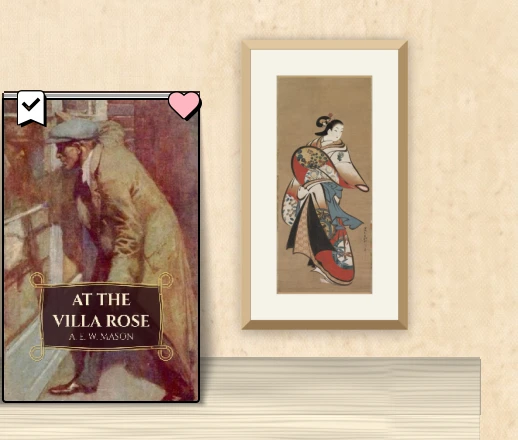

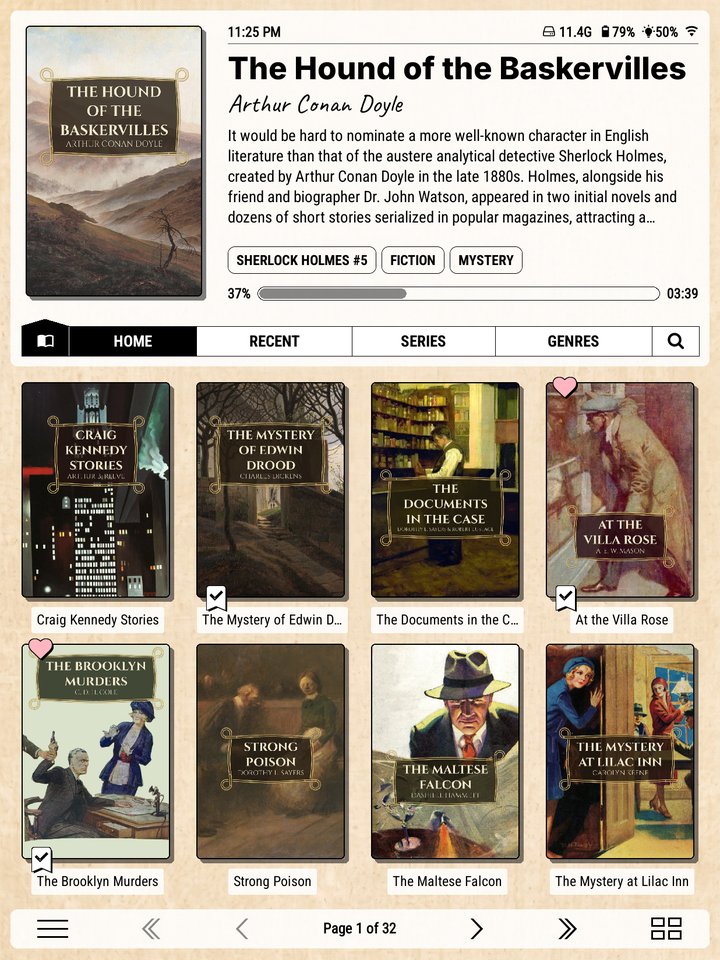
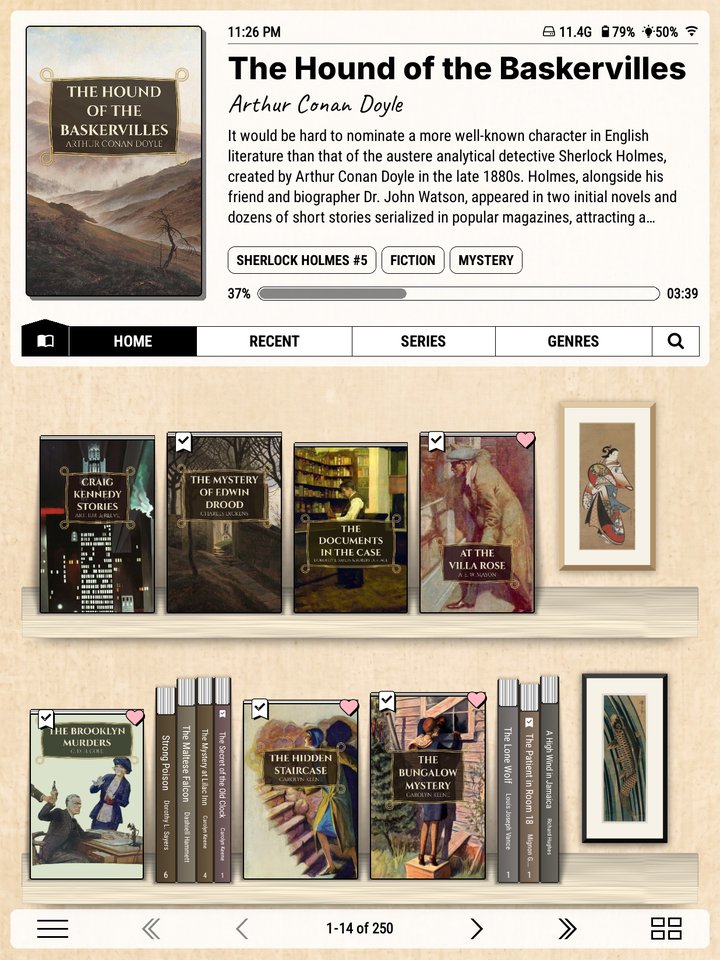
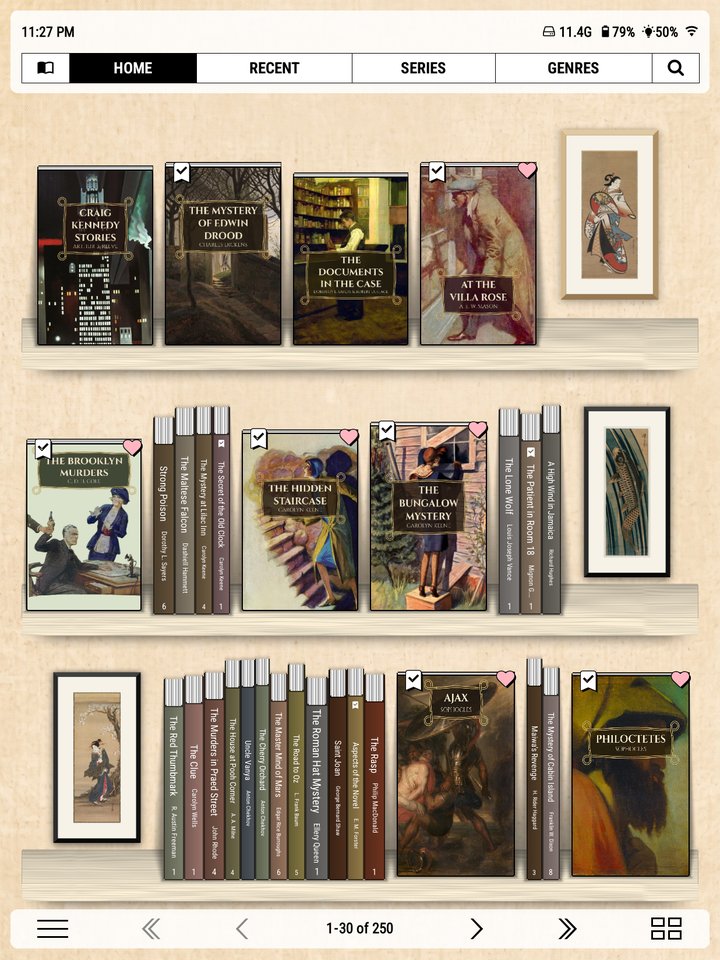
On colour and black and white screens
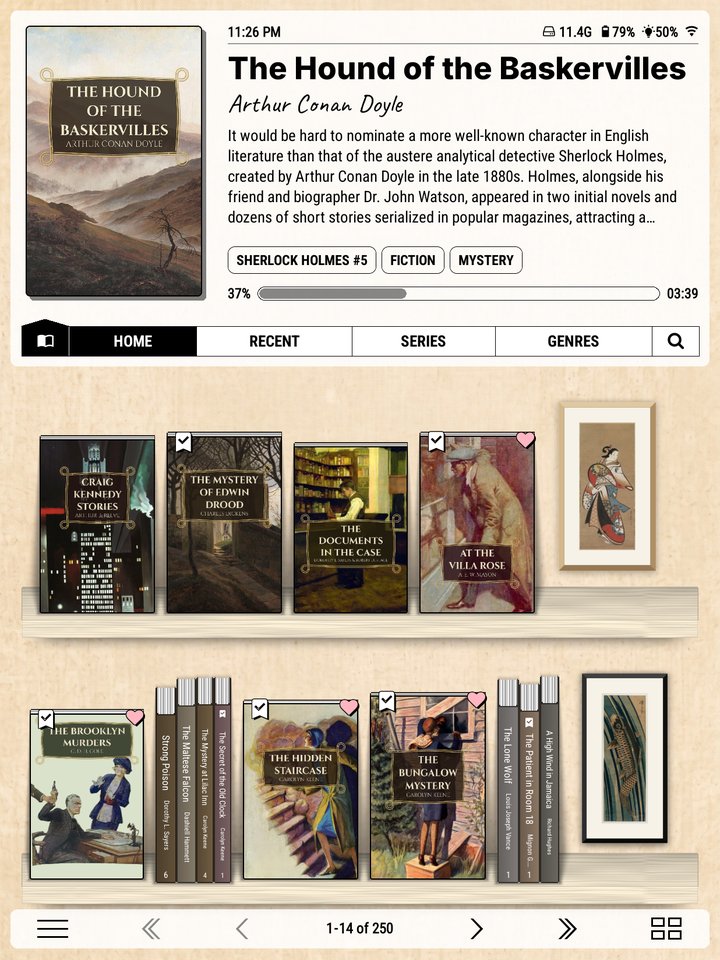
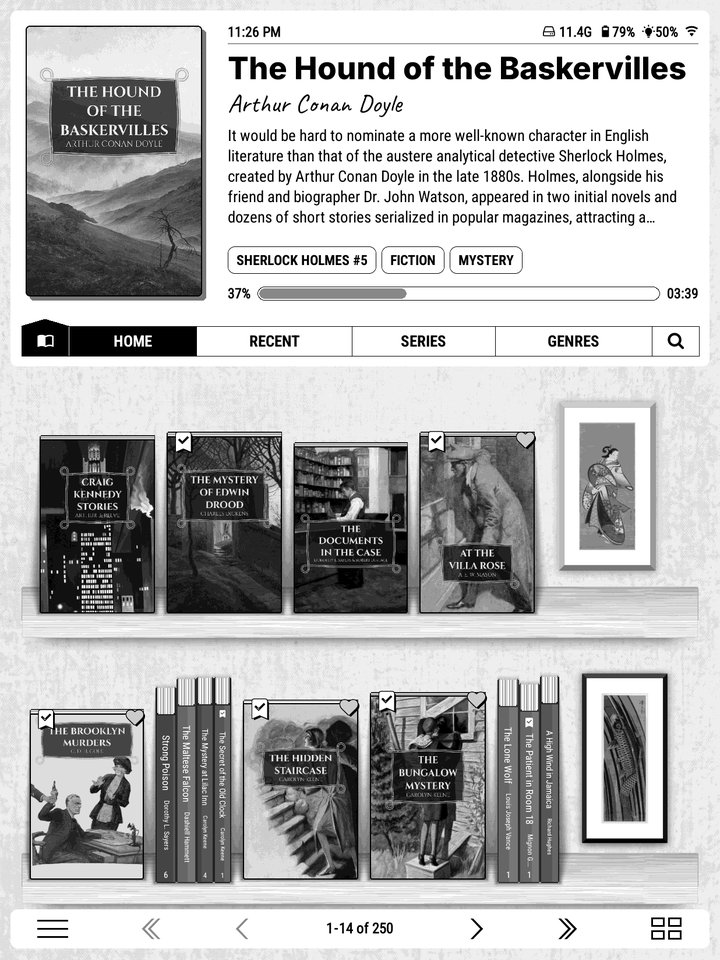
Every pack is drawn to work on both. The same Ukiyo-e shelf on a colour screen, and as a Kindle Paperwhite's sixteen greys show it:


Planks
What the clip shows, step by step:
- Try the timbers from the Planks pack
- Planks show on Spines: long-press the page counter
- Open the top menu > Bookshelf > Theme > Plank
- Open the "Planks" tab
- Tap a timber: the shelf changes behind
- More on the next page
- Close to keep it
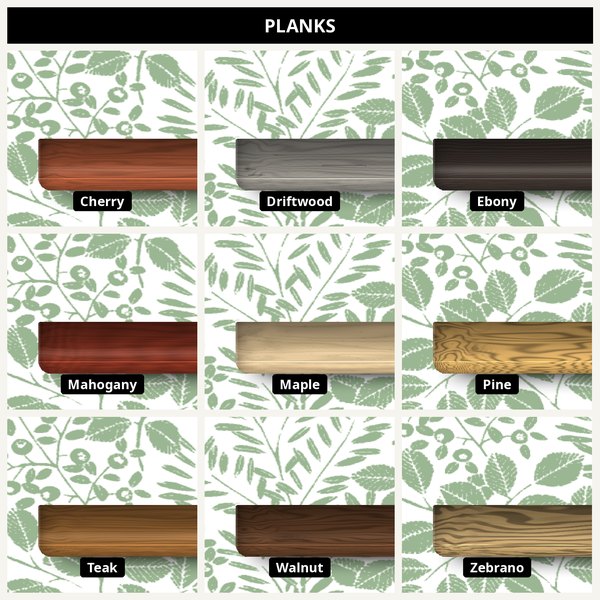
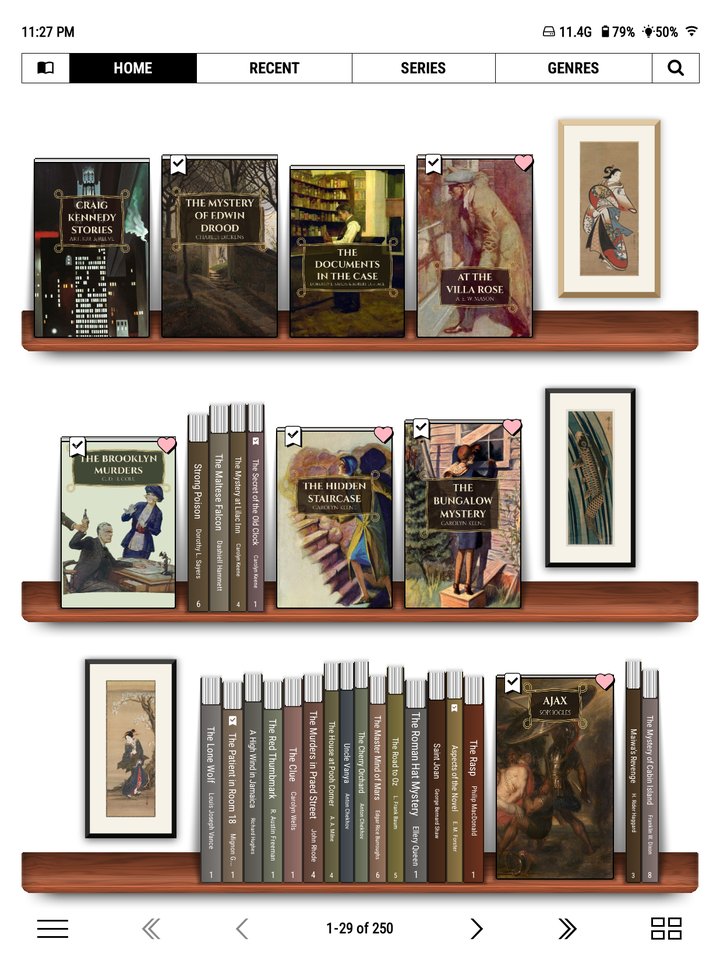
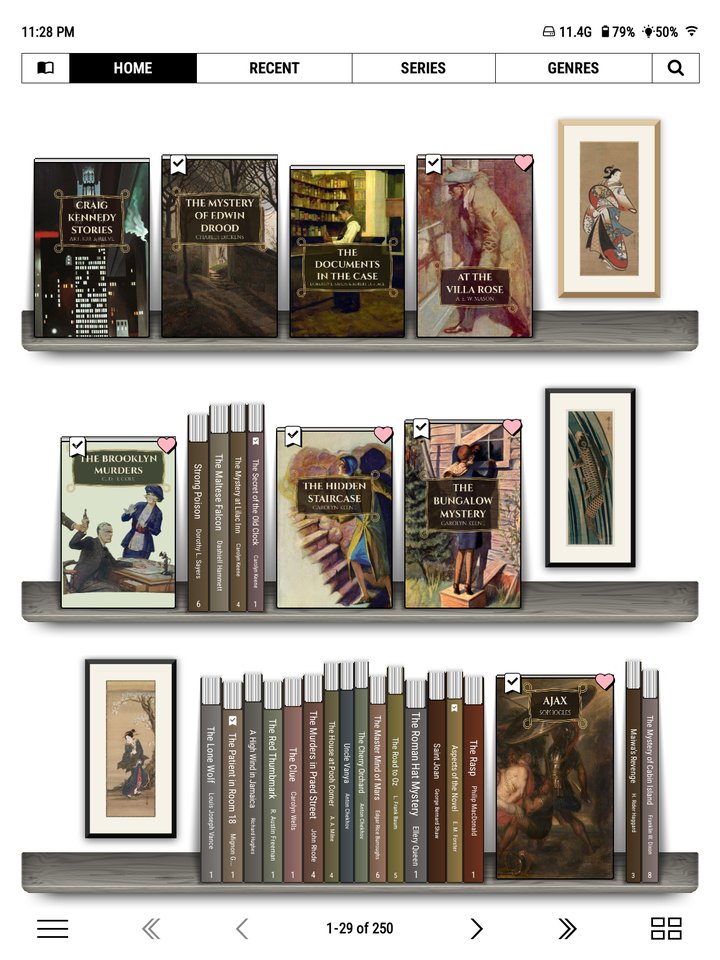
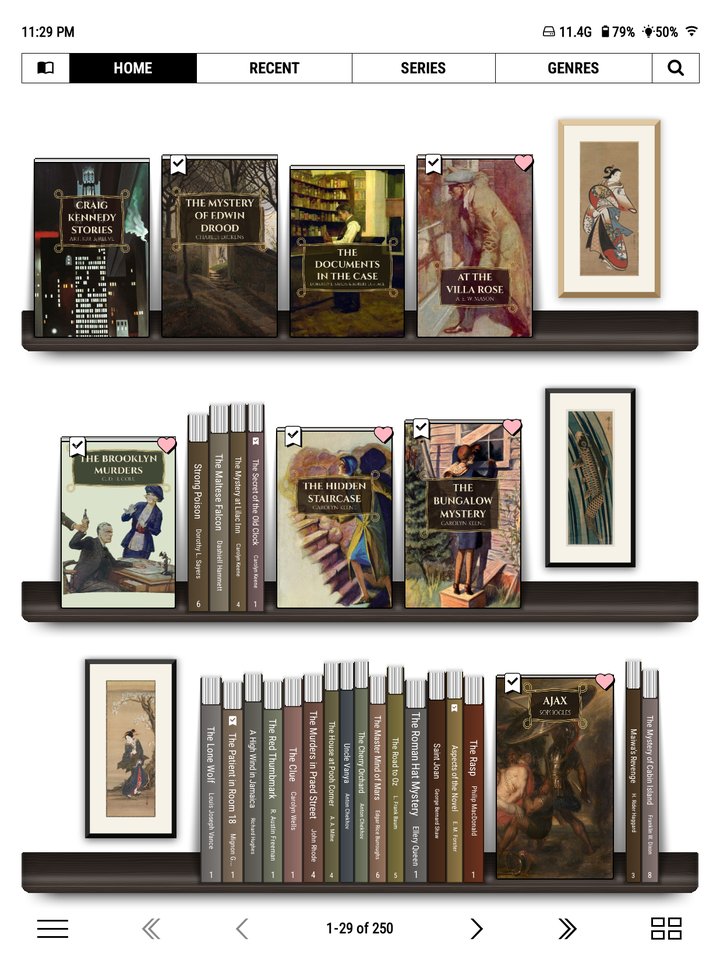
Nine new woods for your spine shelves, each with shaped ends and a lit top edge, drawn the way the shelf draws its own oak:
Cherry, Driftwood, Ebony, Mahogany, Maple, Pine, Teak, Walnut and Zebrano.
Choose one under Theme > Plank: the pack has its own tab, and the shelf changes as you tap. Each theme keeps its own plank, so every shelf can have a different wood.


In the pack nine planks, each with its own left and right ends
Installing a pack
- Download the pack's zip from Ko-fi and unzip it on your computer.
- Connect your e-reader and copy the pack's folder (
Ukiyo-e, say) intokoreader/settings/bookshelf/ornaments/on the device. On a Kobo that's inside.adds/koreader. - Eject, and open your shelf. The pack is a new card in the Theme library.
- Choose it for one shelf, or make it your Default theme.

Packs need Bookshelf 5.3 or later. Add theme pack… at the bottom of the Theme library shows the exact folder on your device.
Ornaments join your Custom theme too
Once a pack is installed, its ornaments are switched on in your Custom theme as well, so they may turn up on shelves that don't wear the pack. To keep them to the pack's own theme, open Theme > Ornaments on a Custom theme shelf, go to the pack's tab and tap Select none.
Make your own
A pack is just a folder. Put ornaments in it, and a theme folder with a wallpaper.png, planks or colours.json, and it becomes a theme with its own card. The README has the details for pack makers.