Install Bookshelf
Bookshelf is a plugin: an add-on that KOReader loads when it starts, the way a browser loads an extension. Installing it means copying one folder onto your e-reader.
You'll need KOReader on your device first. If it isn't there yet, start with Install KOReader.
1. Download
Get bookshelf.koplugin.zip from the latest release on GitHub. It's under Assets at the bottom of the release notes.
Use the release zip, not the green Code button
The release zip has the right folder name inside it. GitHub's Code > Download ZIP gives you a folder with the wrong name, which KOReader won't load.
2. Copy it to your device
Connect your e-reader to your computer with a USB cable, unzip the download, and copy the bookshelf.koplugin folder into KOReader's plugins folder. Where that is depends on your device:
koreader/plugins/, in the koreader folder at the top of the Kindle's drive, next to documents.
.adds/koreader/plugins/. The .adds folder is hidden: on a Mac press Cmd+Shift+. in Finder, on Windows tick View > Hidden items.
applications/koreader/plugins/
koreader/plugins/ in your device's internal storage.
Linux: ~/.config/koreader/plugins/. macOS: ~/Library/Application Support/koreader/plugins/.
When you're done, the folder should look like this, with main.lua one level down and not two:
koreader/
└── plugins/
    └── bookshelf.koplugin/
        ├── _meta.lua
        ├── main.lua
        └── ...
Then eject the device safely.
3. Restart KOReader
Plugins load when KOReader starts, so if it was already running, close it and open it again:
- Tap the top edge of the screen to open KOReader's menu.
- Tap the last tab, the one with three lines, and choose Exit.
- Open KOReader again, the same way you did before.
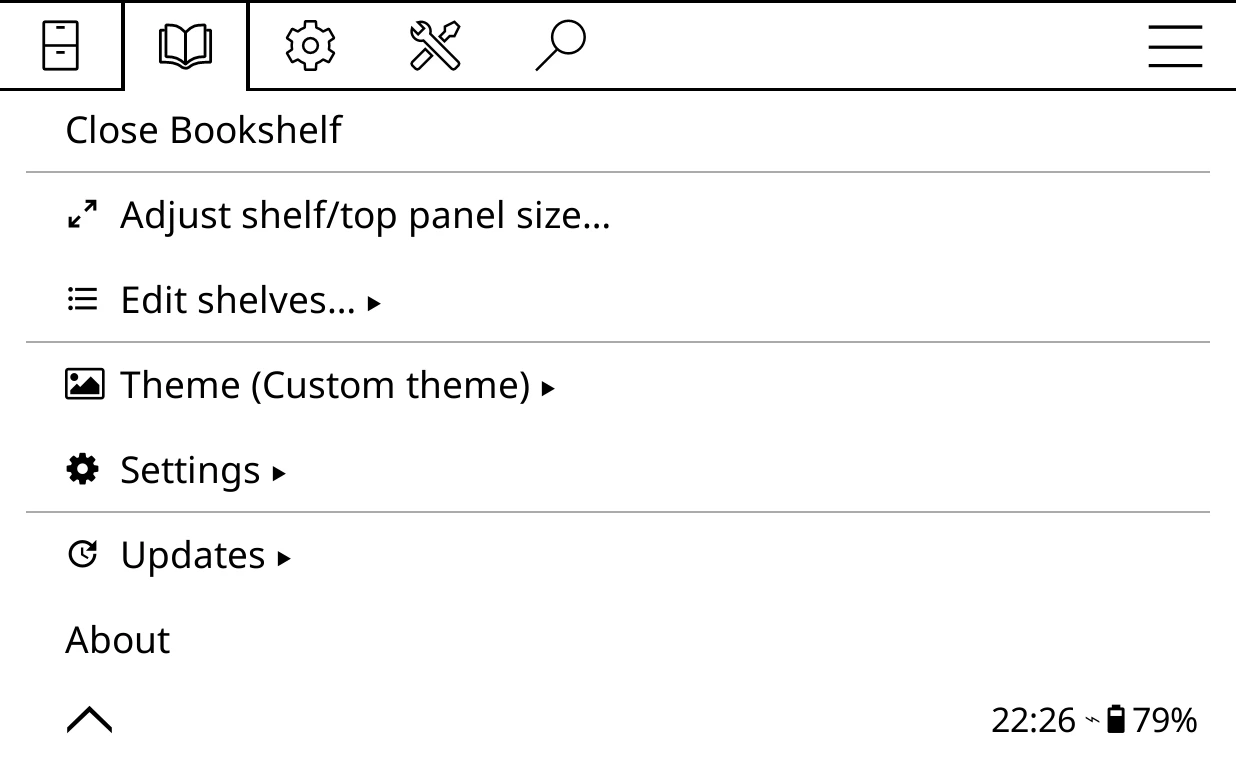
KOReader opens on its usual file browser. Tap the top of the screen: the menu now has a Bookshelf tab, with an open-book icon, second from the left. Its first row, Open Bookshelf, puts your shelf on screen.
4. Make it your home screen
To have Bookshelf open every time KOReader starts, set Start with to Bookshelf. It takes ten seconds: see Open on startup.
If it doesn't appear
No Bookshelf tab in the menu
- Check the folder is called exactly
bookshelf.kopluginand thatmain.luais directly inside it. - Check your KOReader version under Help > Version. Older than v2025.08 shows a single line asking you to update KOReader, rather than the full plugin.
A notice about Cover browser
Bookshelf needs KOReader's Cover browser plugin, which supplies covers and book details. It's on in a normal KOReader, but some other plugins ask you to turn it off. Turn it back on in KOReader's menu: the wrench tab, then More tools > Plugin management, then restart.
The shelf is empty
Bookshelf shows the books in KOReader's home folder. See Your home folder.
Updating later
You don't need to repeat these steps for new versions. Bookshelf can update itself from inside KOReader: see Updating.