Series, authors and genres
Grouped shelves show one stack per series, author, genre, collection, format, rating or language. Tap a stack to open it. These come from each book's own metadata, or from Calibre's if you use Calibre metadata.
Series
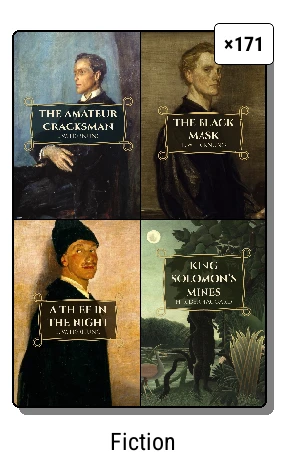
The Series shelf shows each series as a Collage of its covers, most recently read first. Open a series and its books are in order.
Elsewhere, the #3 badge on a cover says where a book sits in its series. Choose when it shows under Bookshelf > Settings > Cover display > Show series #: Always, Within series folder or Never.
Series boxes
On a spines shelf, turn on Shelf style > Series boxes and each series stands as an open slipcase holding its books, with the first cover on the front as a sticker and a count of how many you've read, like "2 / 8". Tap a box to open the series, its books face out in order.
A series with only one book on the shelf stays an ordinary book.
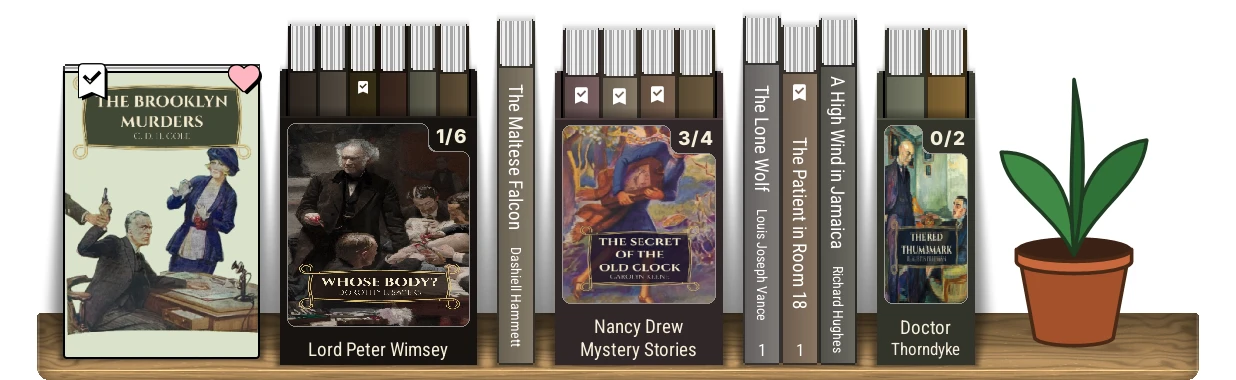
What the clip shows, step by step:
- The Series shelf stacks each series into one card
- The badge counts its books. Tap a card to open it
- Its books in reading order, numbered
- The breadcrumb takes you back to all series
Authors
Add an Authors shelf for a stack per author, or Specific author… for one author's books.
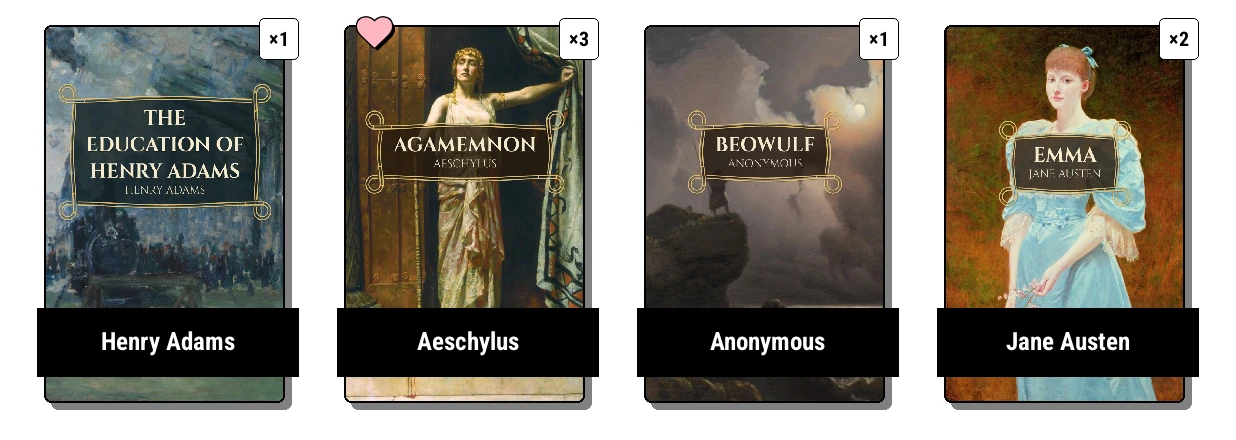
The same author two ways? Some books store "Osman, Richard", others "Richard Osman". Bookshelf > Settings > Library & search > Author name formatting sets First Last or Last, First for every book, and merges the variants either way. Surname sorting understands particles, so de Maupassant sorts under M.
Author photos
Bookshelf > Settings > Library & search > Find author images online… looks up a photo for each author without one, from Open Library, or Wikipedia when Open Library has none. Progress shows in the top panel's status line, with Stop. Nothing is downloaded until you ask.
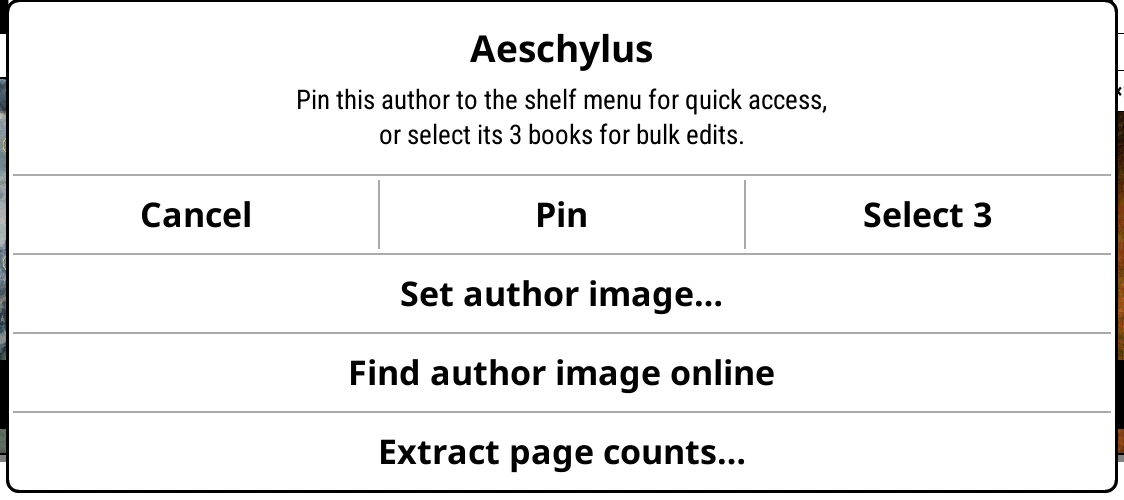
For one author, long-press their stack and choose Find author image online. A wrong person? Long-press again for Clear author image.
Genres
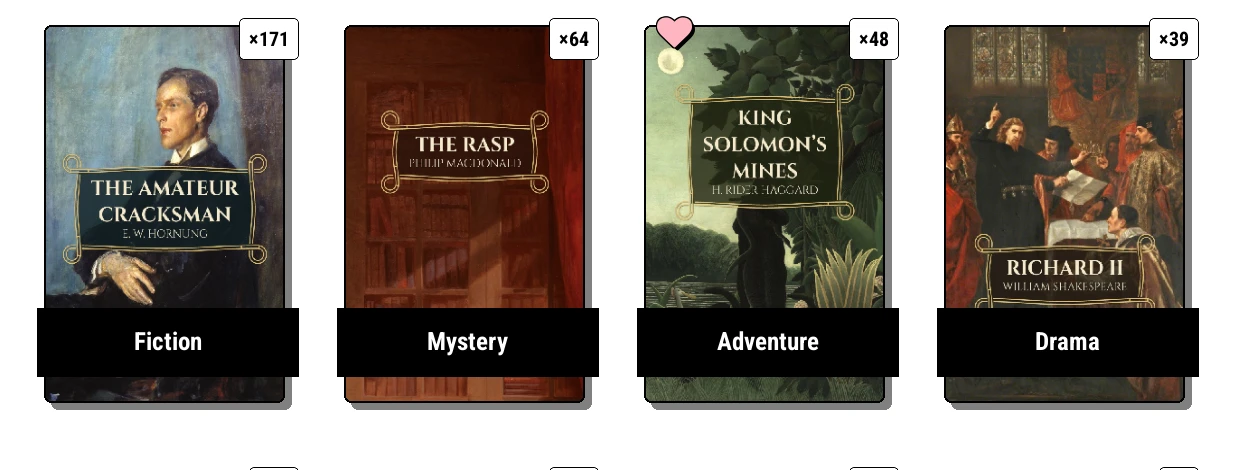
The Genres shelf shows the biggest genres first. Genres come from the book's own tags (or Calibre's tags, or Hardcover's genres for linked books).
To change a book's genres, long-press it, open the Tags tab and tap Edit in the Genres section. You can add a new tag there too. Long-press a genre pill to Rename it, or Pin to shelf menu to make it a shelf. These edits are for that one book, and aren't sent back to Calibre.
Hide single-book series and genres, under Settings > Library & search, tidies grouped shelves in a library where lots of books have a genre of their own.
Pictures for stacks
Any series, author, genre or collection stack can have a picture of your own. Long-press it and choose Set … image…, or drop images into the image library: see Folders.
How stacks look
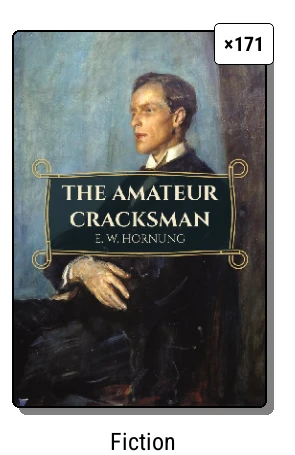
Stacks follow the shelf's Folder tiles style on a covers shelf (Shelf style > Folder tiles): Divider card, Ribbon, Book stack, Collage, Text or None. A count badge on each stack says how many books it holds; change it under Settings > Cover display > Stack count badge.