The top panel
The top panel is the card above the shelf. It shows the book you're reading, or the book you've just tapped: cover, title, author, blurb, tags and progress, with a status line across the top.
Its size
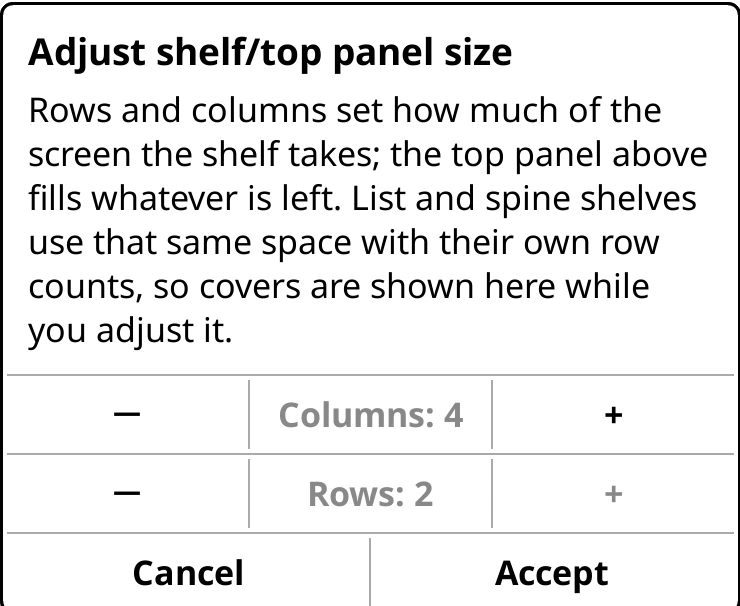
The shelf takes the rows and columns it needs, and the top panel fills what's left. So you size the top panel by sizing the shelf:
- Pinch or spread the shelf.
- Swipe on the top panel (below).
- Bookshelf > Adjust shelf/top panel size… sets Columns and Rows exactly, with the shelf changing behind as you go. Accept keeps it.
To hide it, swipe up on the shelf for full screen. A thin status line stays at the top; tap it, or swipe down, for the panel again.
What the clip shows, step by step:
- Make the top panel bigger, smaller or hide it
- Top menu > Adjust shelf/top panel size…
- More columns: smaller covers, a taller top panel
- More rows: more books, a shorter panel
- Accept keeps it, Cancel puts it back
- Swipe up on the shelf to hide the top panel
- Swipe down to bring it back
- Pinch or spread on the shelf to resize it too
Swipe down on the top panel for a bigger panel, with one shelf row fewer: a larger cover and more of the blurb. Swipe up on the panel to give the row back.
Start the swipe on the panel itself rather than at the very top of the screen. A swipe down from the top edge opens KOReader's menu instead.
What the clip shows, step by step:
- Swipe on the top panel to resize it
- Swipe down on the panel: a bigger panel, one row fewer
- Swipe up on the panel to give the row back
What it shows
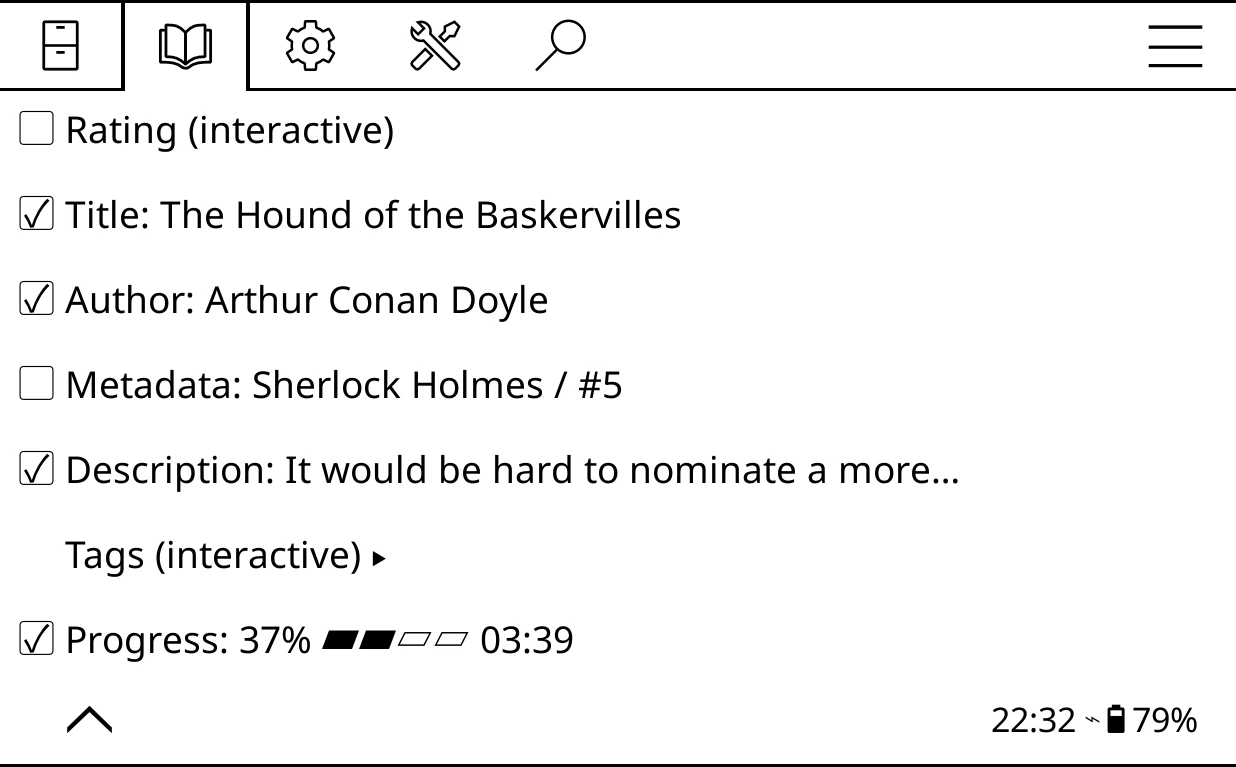
Bookshelf > Settings > Edit top panel content lists its sections:
| Section | Shows |
|---|---|
| Rating (interactive) | Five stars you can tap to rate the book. Off at first. |
| Title | |
| Author | In handwriting, at first. |
| Metadata | A free line. Off at first, since the series is already a tag. |
| Description | The blurb. Tap it on the panel to read it all. |
| Tags (interactive) | Pills for the series and genres. Tap one to open that shelf. |
| Progress | Percentage, a bar, and the time left. |
If you upgraded from an older version and never changed the panel, it keeps the older layout instead: Metadata on, Tags off and a plain author line. Reset top panel content to defaults (below) switches to the layout above.
Tap a section to edit it. Long-press it to hide or show it. The Status line across the very top has its own row above, and works the same way.

Edit a line
What the clip shows, step by step:
- Change what the top panel shows
- Top menu > Settings > Edit top panel content
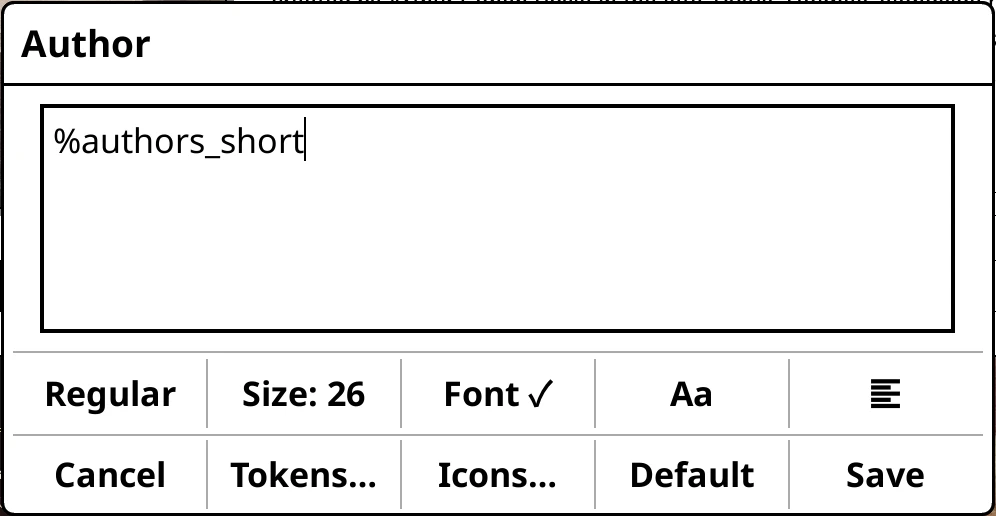
- Tap a line to edit it: Author
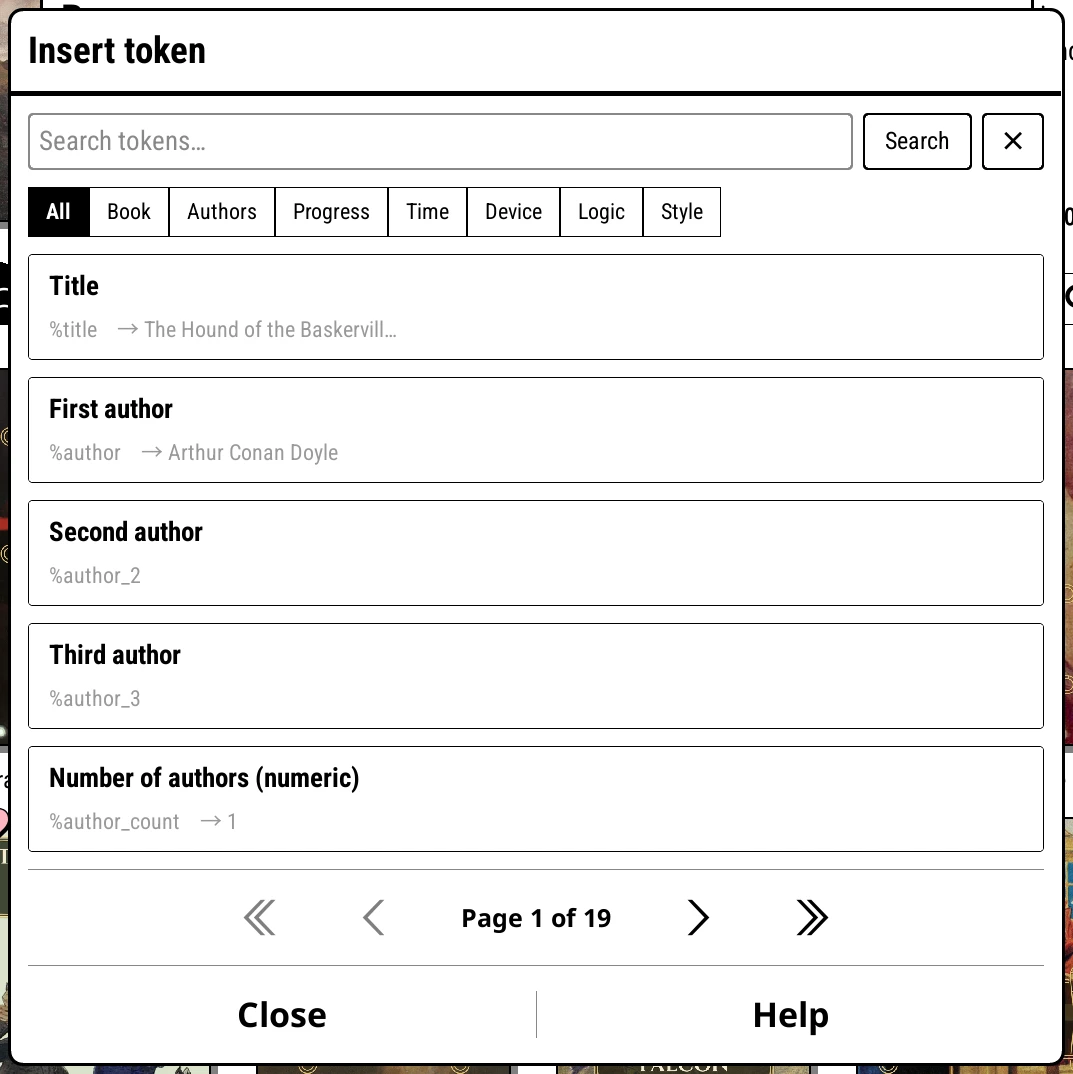
- Tokens… lists what a line can show, with a preview
- Add the genres after the author
- Save, then tap outside the menu
- The author line now shows the genres too
Tapping a section opens the line editor. The panel behind updates as you type.
- The text box holds the line. Words starting with
%are tokens, replaced with the book's details:%title,%authors,%book_pct. - Regular steps through Bold, Italic and Bold italic.
- Size and Font…, each font shown in its own typeface.
- Aa for capitals, and the alignment button.
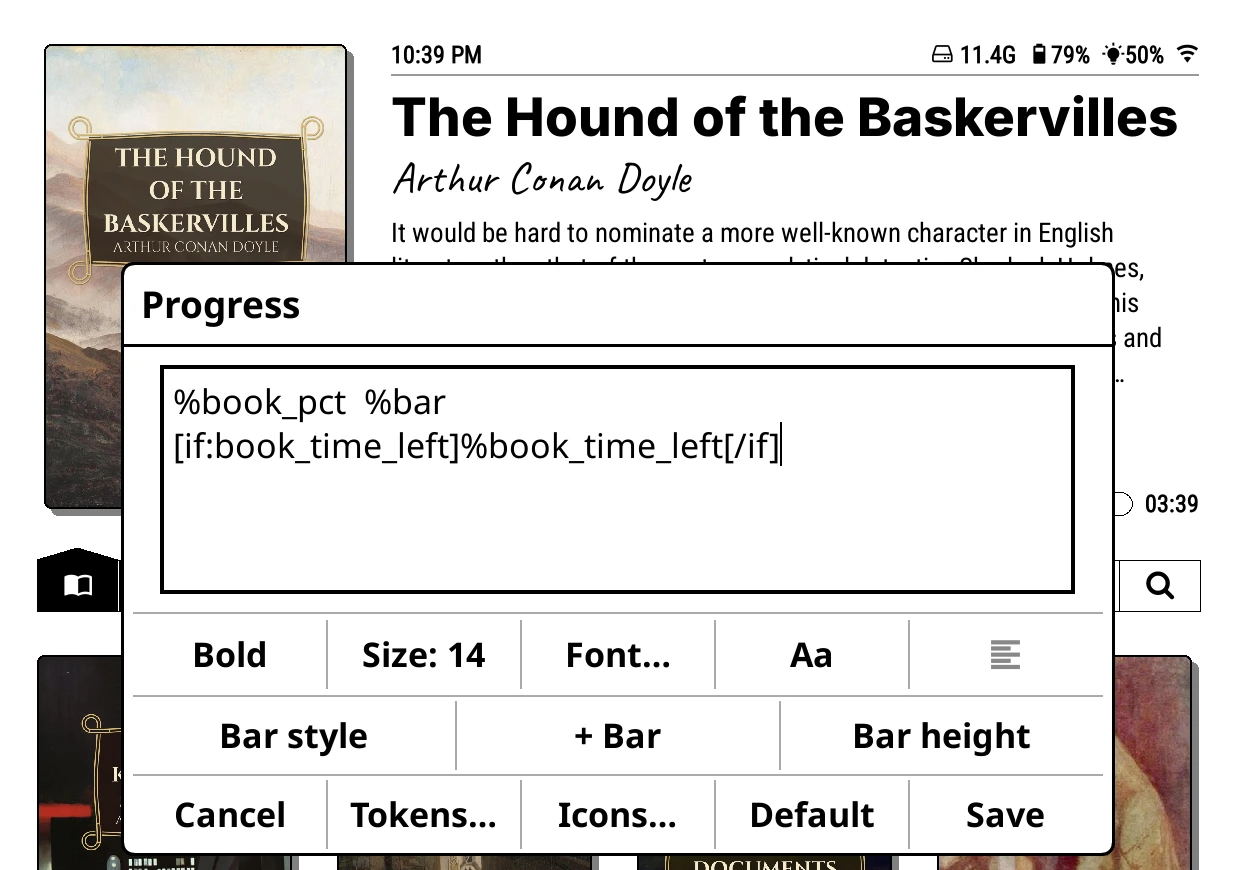
- On Progress: Bar style (Bordered, Solid, Rounded, Metro, Wave, Pacman), + Bar and Bar height.
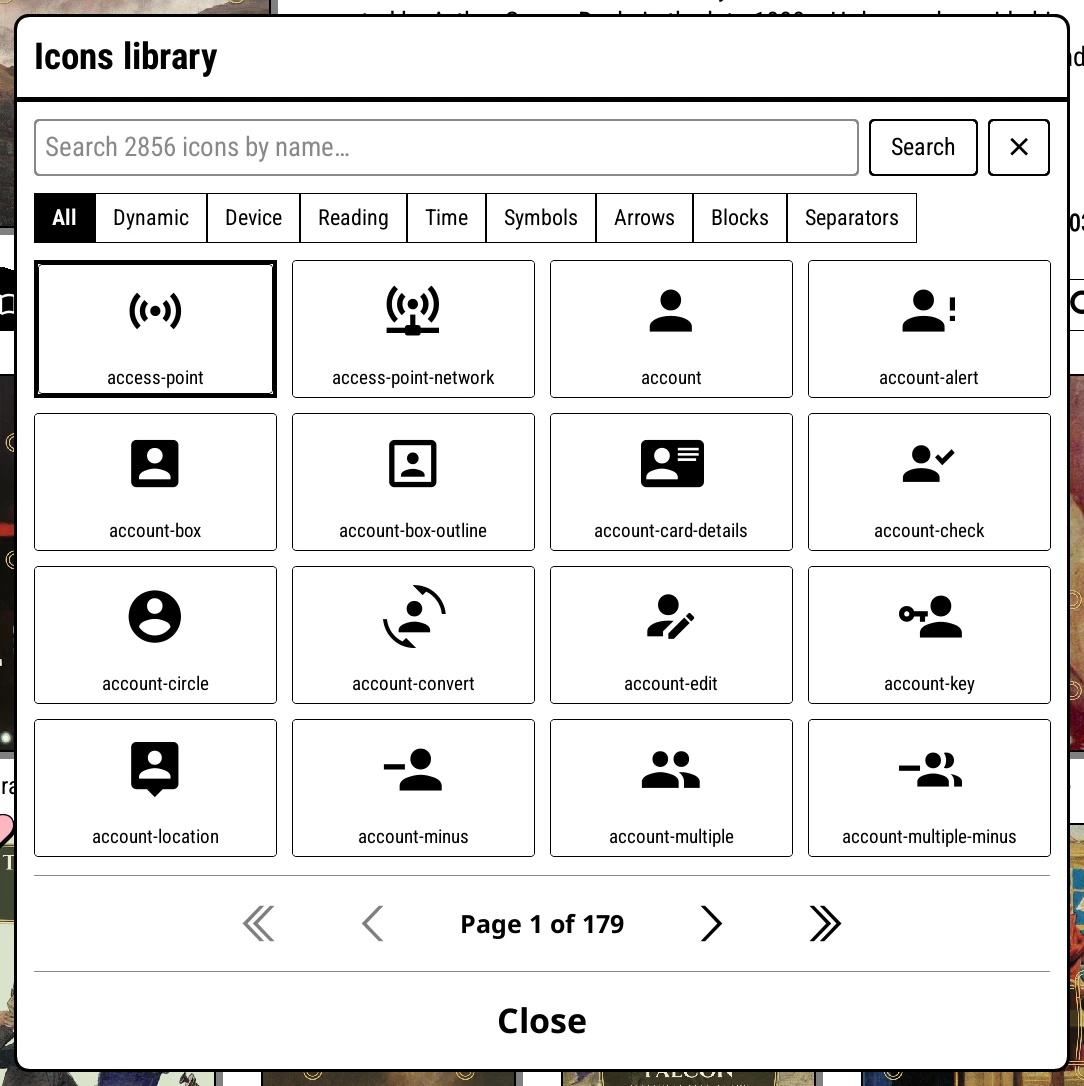
- Tokens… and Icons… insert a token or a glyph.
- Save, or Cancel to leave it as it was.
Some ideas
| Line | Try |
|---|---|
| Metadata | %series_name #%series_num, shown only for books in a series: [if:series]%series_name #%series_num[/if] |
| Progress | %book_pct %bar %book_time_left |
| Status line | %time_12h %spacer %batt_icon%batt |
The tokens page has every token and how conditions work.
The Tags section
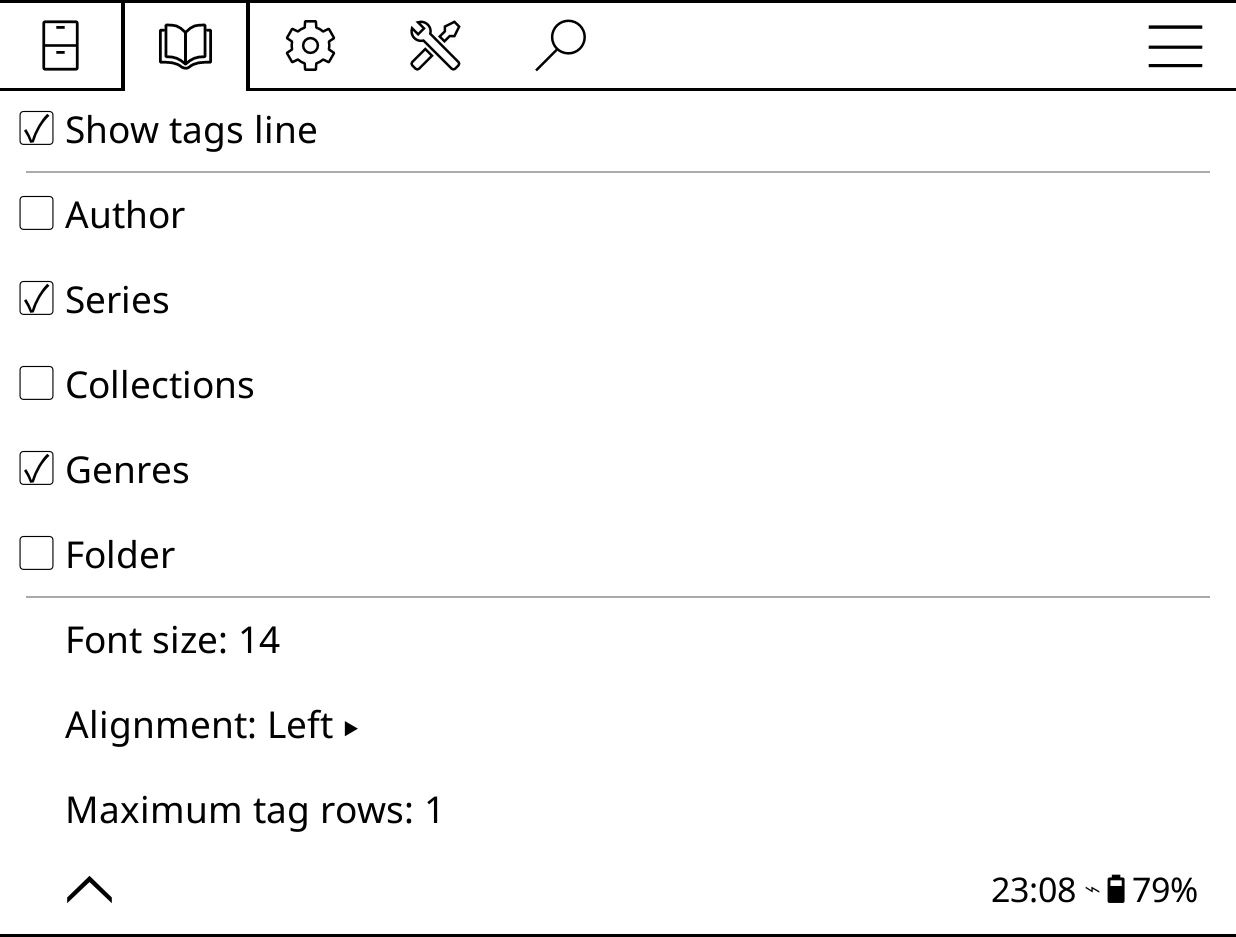
Tags isn't a line of text, so it opens its own settings: Show tags line, which kinds of pill to show (Author, Series, Collections, Genres, Folder), Font size, Alignment and Maximum tag rows. Extra pills fold into a +N pill.
Text size and starting over
- Bookshelf > Settings > Text size > Top panel scales the whole panel.
- Bookshelf > Settings > Advanced > Reset top panel content to defaults puts back the look a fresh install has.
The same line while reading
Bookshelf > Settings > Advanced > While reading > Show status line draws the top panel's status line across the top of the reader too, so it's the same on the shelf and in a book.