Collections and tags
Bookshelf uses KOReader's own collections. A collection you make in Bookshelf appears in KOReader's collections menu, and the other way round. Favorites is a collection too, always there.
Put a book in a collection
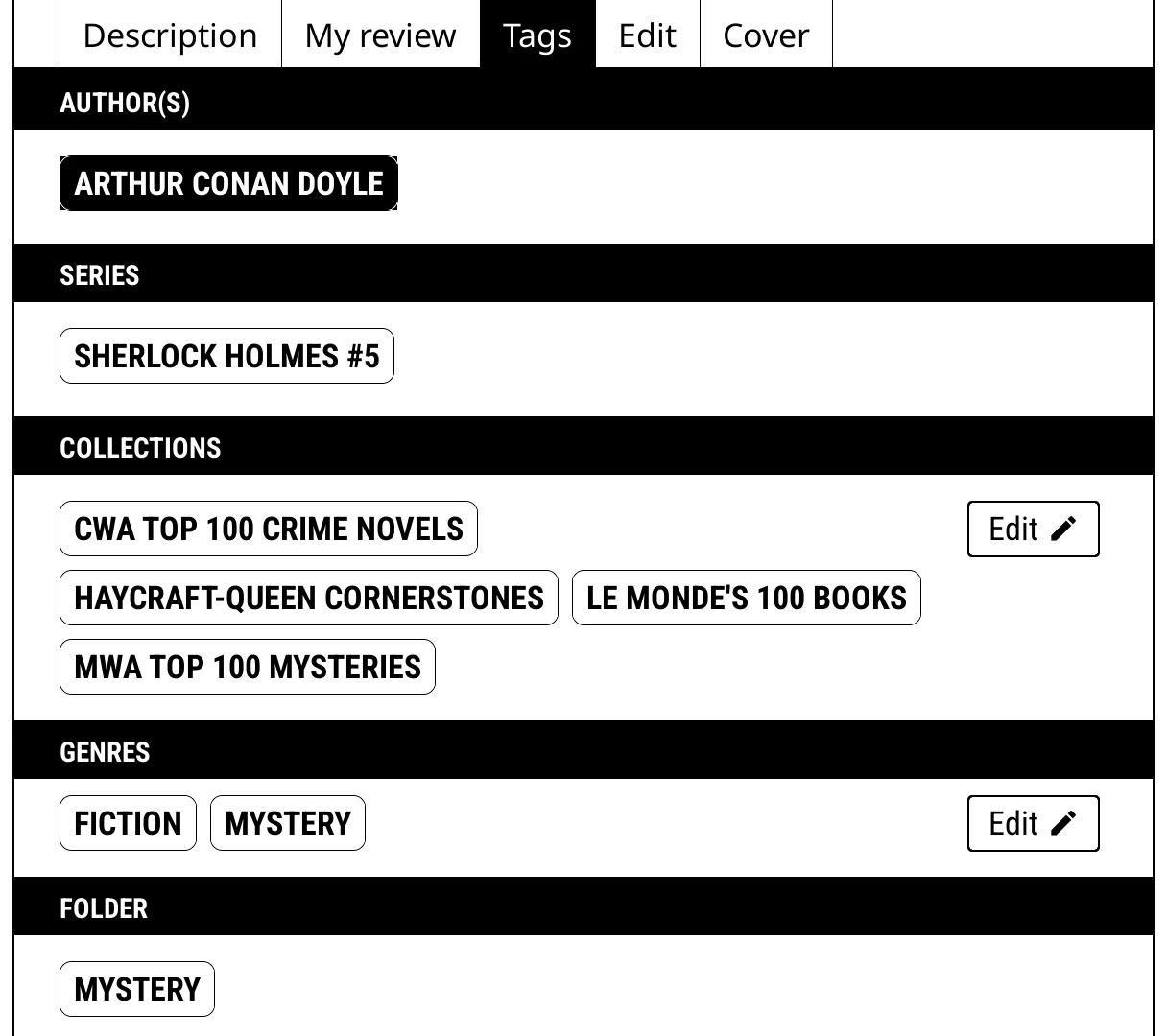
- Long-press the book.
- Open the Tags tab.
- Tap Edit in the Collections section.
- Tick the collections, and save.
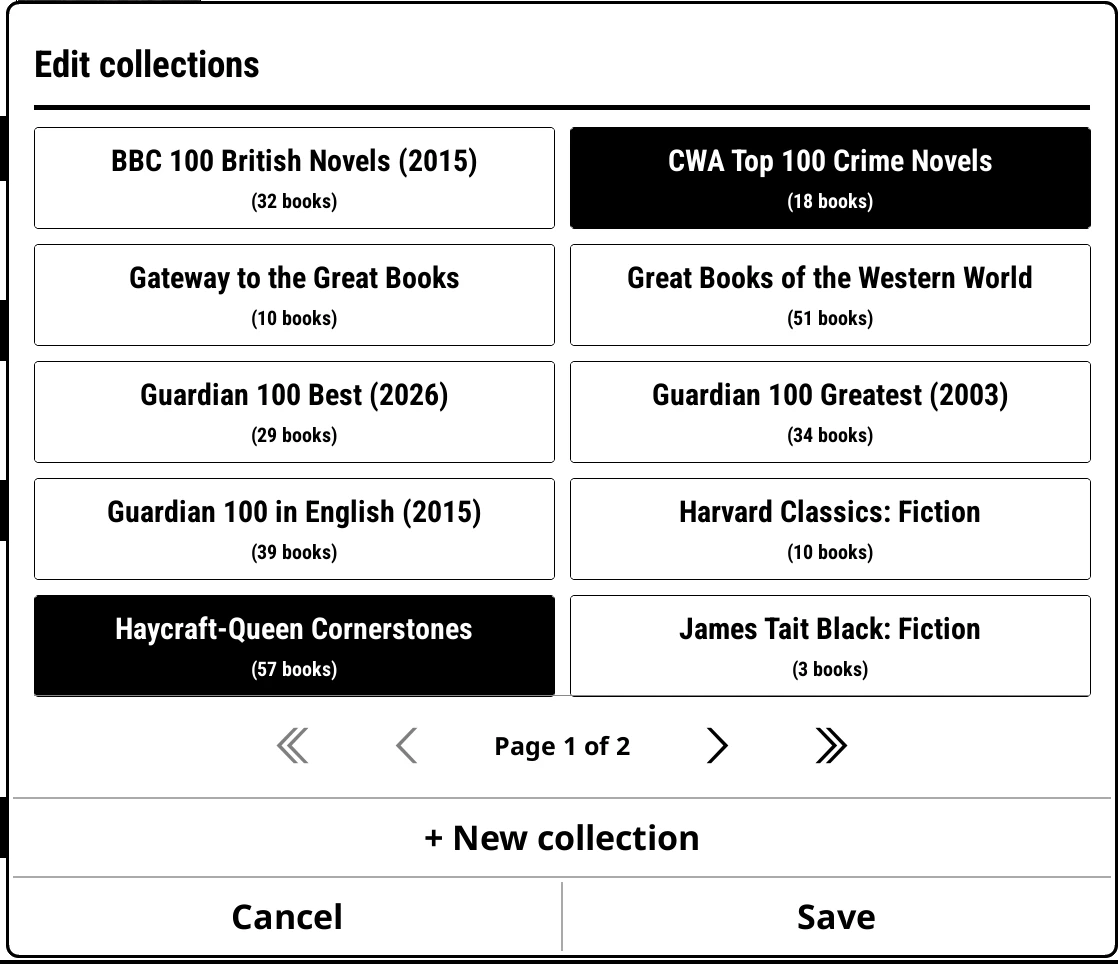
For lots of books at once, select them and use Collections… in Edit selected.
Manage collections
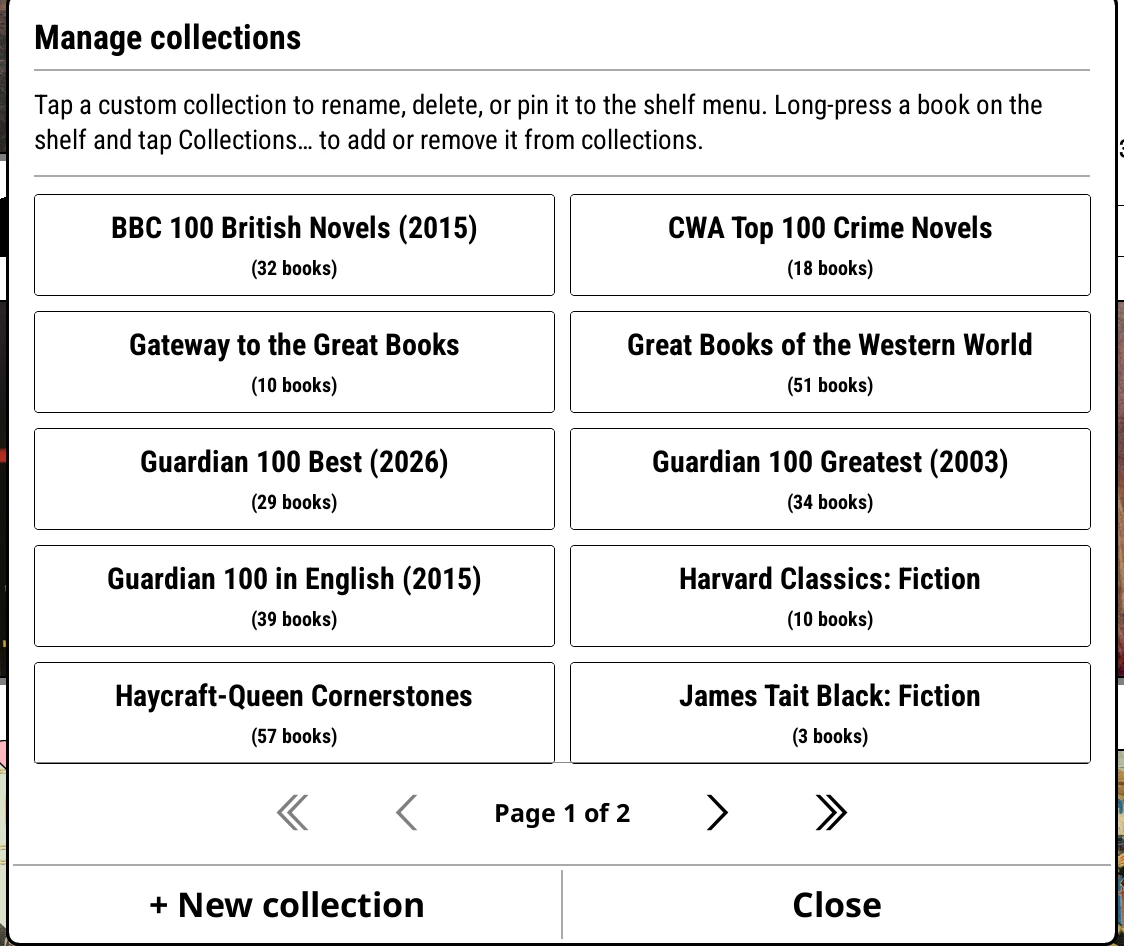
Bookshelf > Settings > Library & search > Manage collections… lists them all:
- + New collection makes one.
- Tap a collection for Rename, Pin to shelf menu and Delete.
Collections as shelves
- Pin one: Manage collections… > Pin to shelf menu, or long-press a collection's stack and choose Pin.
- A Collections shelf shows every collection as a stack.
- A Specific collection… shelf can keep the collection's own order: sort by Collection order, and rearrange it with Edit collection order.
- Any shelf can be filtered by collection.
- Spines can stand a collection's books face out: Shelf style > Face out > In a collection.
A To read pile that stands out
Make a collection called To read. On your Home shelf, set Face out to In a collection and choose To read. Your pile stands cover-forward among the spines.
Tags and genres
A book's genres are its tags. Change them in the Tags tab, under Genres > Edit: tick, untick or add a New tag. Long-press a genre pill to Rename or Delete it for that book, or Pin to shelf menu to make it a shelf.
Genre edits made here belong to that one book on this device. They don't change the book file, and they aren't sent back to Calibre: if you manage tags in Calibre, edit them there.