Ornaments
Ornaments stand on the spines shelf among your books: a potted plant, a cactus, a framed print, a bat hanging from the shelf above. Bookshelf comes with two, and theme packs bring many more.




How often
Each shelf sets its own: long-press its tab, Shelf style, then tap Ornaments to step through None, Rarely, Often and Always. Home ships with Always.
Where they go varies from shelf to shelf so every page doesn't look the same, but stays put each time you come back.
Which ones
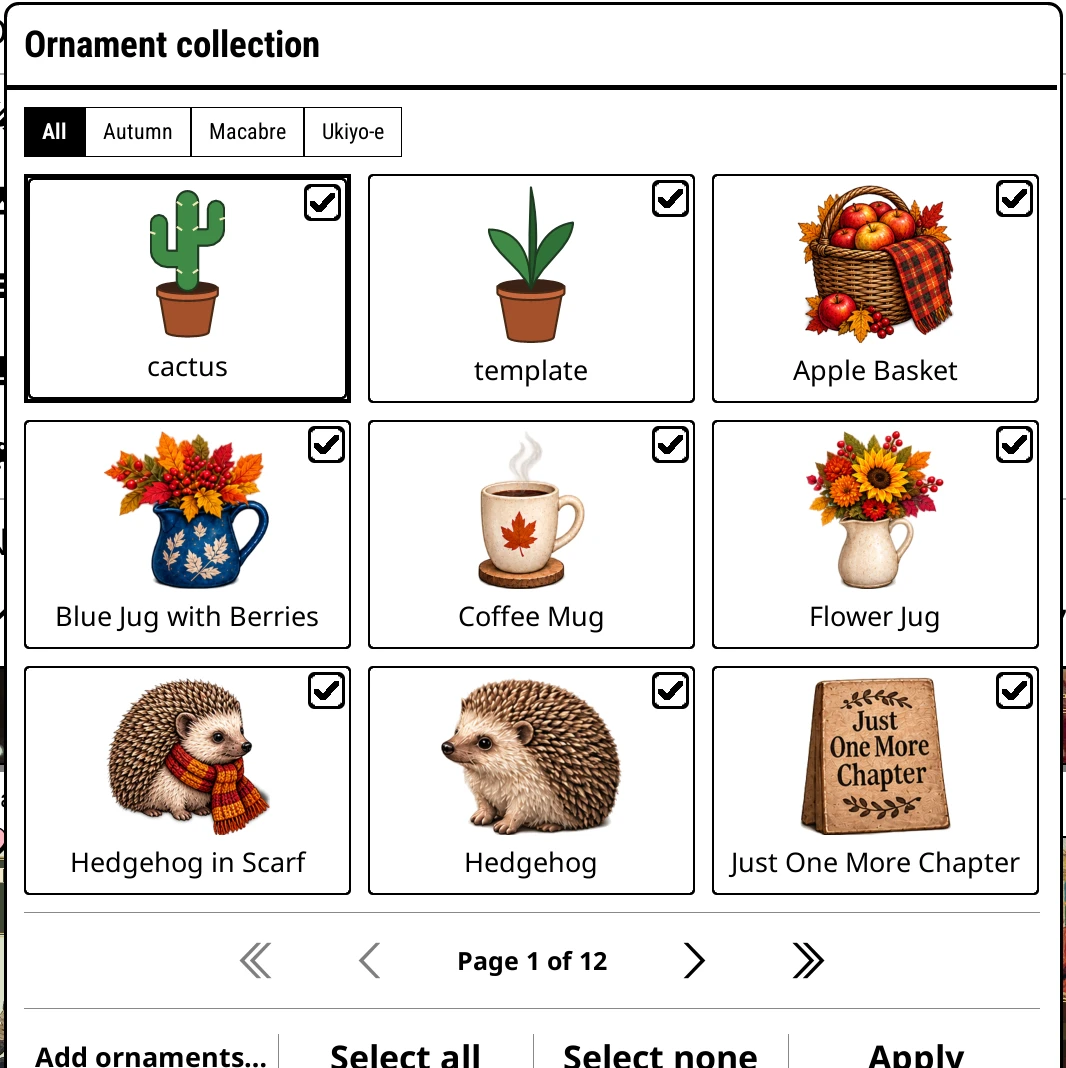
Theme > Ornaments opens the Ornament collection: everything installed, with a tab for All and one for each pack.
- Tap an ornament to switch it off or on, for the theme on screen.
- Long-press one to switch it, or delete the file.
- Select all and Select none do a whole tab. Apply when done.
Which ornaments a shelf uses depends on its theme: Custom theme uses every one you've switched on, a pack uses its own, and Plain uses none.
What the clip shows, step by step:
- Ornaments stand between books on Spines shelves
- Long-press the page counter: List, then Spines
- Top menu > Theme > Ornaments picks which ones
- Select none, then Select all on the Ukiyo-e tab
- Apply, and the shelf shows that set
- Long-press an ornament to adjust it
- Place moves it along the shelf
- Switch off takes it off the shelf
- Tap Done to close
- Your shelf, your ornaments
Adjust one on the shelf
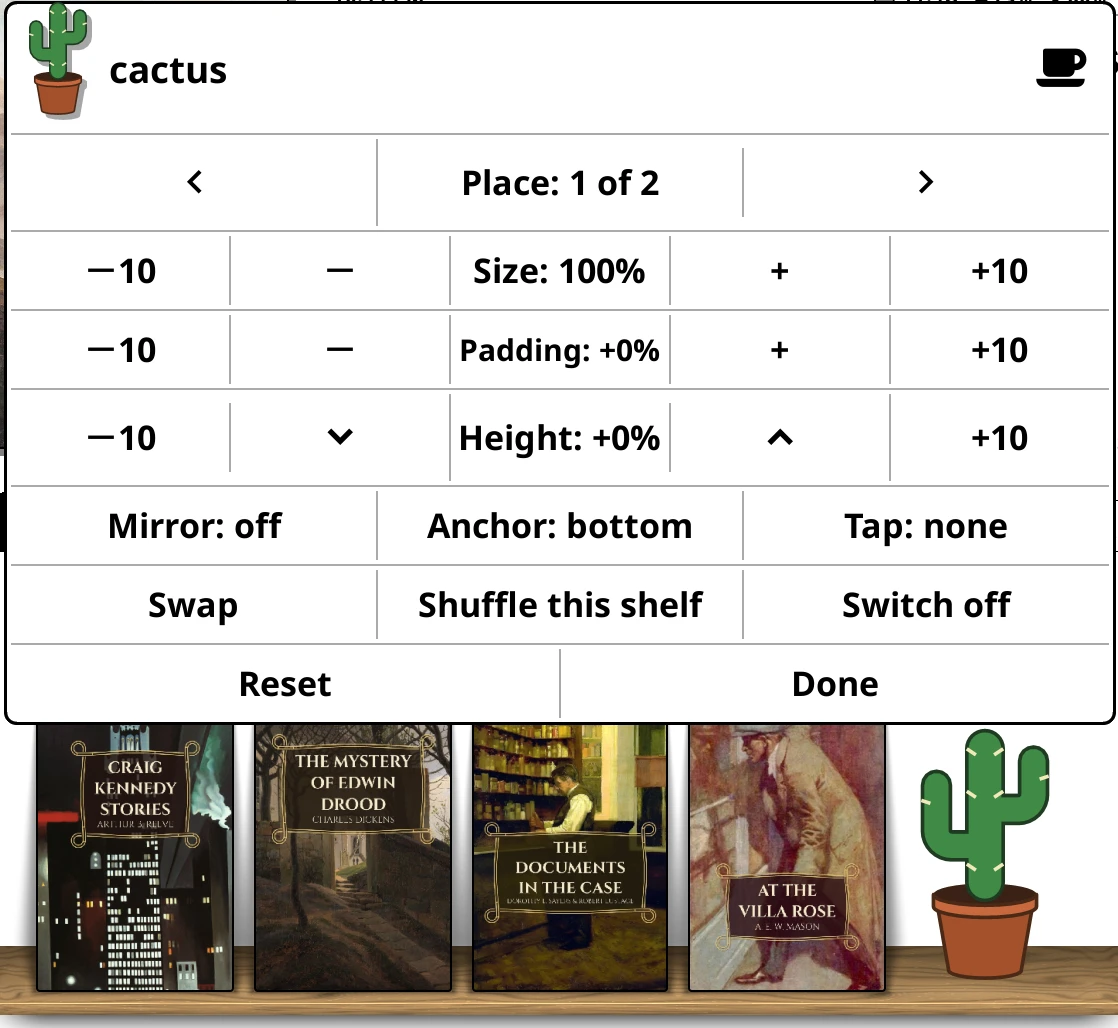
Long-press an ornament on the shelf. The shelf redraws behind the dialog as you go:
| Control | Does |
|---|---|
| Place | Move it along this shelf's order. |
| Size | Up to the whole row. |
| Padding | Space either side. Below zero tucks it behind the books. |
| Height | Raise or lower it. |
| Mirror | off, always, or alternate each time it comes round. |
| Anchor | bottom stands it on its shelf; top hangs it from the shelf above. |
| Tap | What tapping it does: nothing, Zoom to show it full screen, or any action. |
| Swap | Choose a different ornament for this spot. |
| Shuffle this shelf | A new order for this shelf. |
| Switch off | Stop using it. |
Your changes follow the ornament onto every shelf.
Make your own
Drop PNG or SVG files into koreader/settings/bookshelf/ornaments on your device. New ones turn up within a few seconds while the shelf is open, at the front so you see them.
- PNG: the bottom edge of the picture is the plank. Transparent space above makes it stand smaller.
- SVG: the bottom of the viewBox is the plank. Bold, solid shapes work best.
template.svgin that folder is the potted plant, with notes inside on how to draw one.
A folder of ornaments inside ornaments becomes a pack, with its own tab and its own card in the Theme library. Add a theme folder with a wallpaper.png and it becomes a full theme. The details are in the README.