Open on startup
KOReader decides what to show when it starts: the file browser, the last book you read, and so on. Bookshelf adds itself to that list.
- Tap the top edge of the screen to open KOReader's menu.
- Tap the first tab, the filing-cabinet icon.
- Tap the last row, Start with.
- Choose bookshelf.
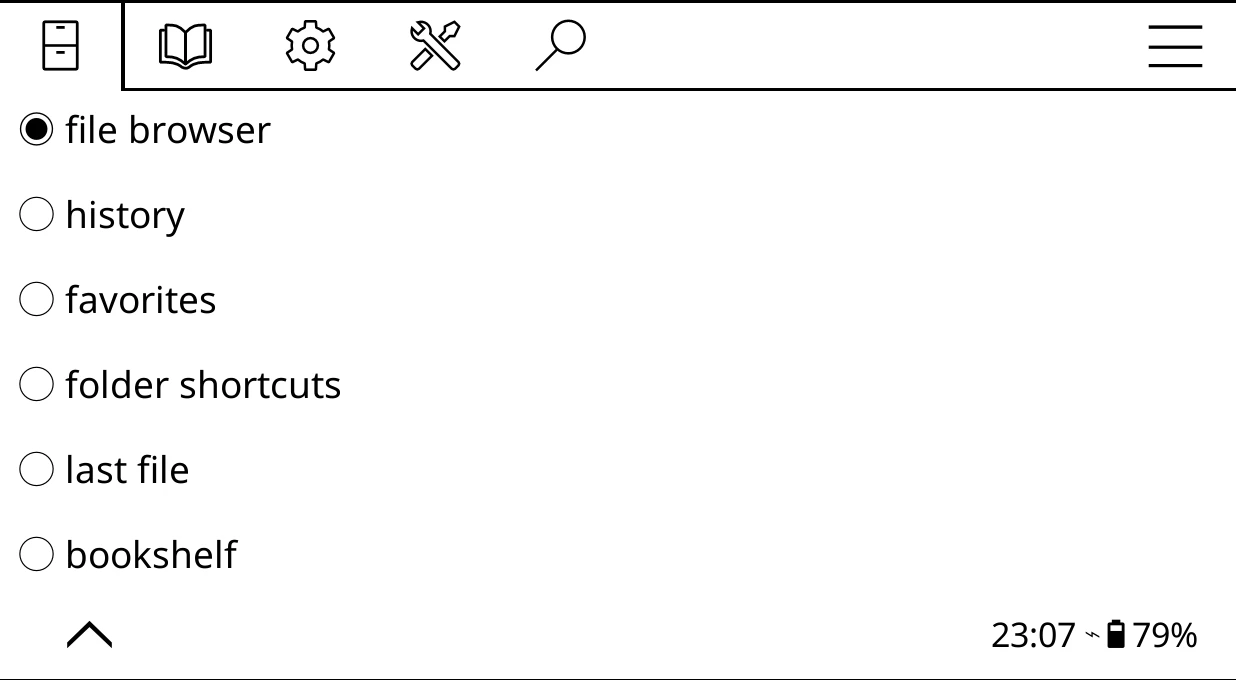
The menu closes and your shelf opens. From now on KOReader starts on it.
What the clip shows, step by step:
- Out of the box, KOReader starts in its file browser
- To open Bookshelf at start-up, tap the top of the screen
- Open the first tab, the file browser settings
- Tap "Start with"
- Choose "bookshelf"
- Bookshelf opens now, and every time KOReader starts
Can't find Start with?
Start with is only in the menu while you're on the shelf or KOReader's file browser, not while a book is open. Close the book first, then open the menu.
Getting back to the shelf
- From a book, use KOReader's usual way back to the file browser: the folder icon in the reader's top menu, or a gesture you've set for it. You land back on your shelf, straight away.
- From KOReader's file browser, open the menu and choose Bookshelf > Open Bookshelf.
- From anywhere, you can give it a gesture. In KOReader's menu, under the gear tab, Taps and gestures > Gesture manager has an action called Bookshelf: go to home screen. Set it on a corner tap, say.
Turning it off
Choose a different Start with option, such as file browser. Bookshelf closes at once and KOReader starts as it used to.