Sources, filters and sorting
A shelf is three choices: a source (where its books come from), filters (which to leave out) and a sort (what order). All three are in the shelf editor: long-press a shelf's tab.
Sources
Tap Source / grouping in the shelf editor.
Books
| Source | Shows |
|---|---|
| Recently read | Books you've opened, most recent first: your KOReader history. |
| Latest added | Files on the device, newest file date first. |
| ★ Favorites | Your favourites. |
| Home (folders) | Your home folder as folders, with books spread across sections. |
| Home (flattened) | Every book under your home folder, no folders. |
| Specific folder… | One folder and its sub-folders. Browse device… reaches folders outside home. |
| Flattened folder… | Every book under one folder and its sub-folders, with no folder tiles. |
What the clip shows, step by step:
- Change what a shelf holds: its source and filters
- Long-press the tab to open the shelf's editor
- Tap Source / grouping to change where its books come from
- Choose "Specific genre…", then Mystery
- Tap Filters to narrow it down
- STATUS: "Unread" keeps only books not yet started
- Close the filters, then the editor
- Home now holds only the mysteries you have not started
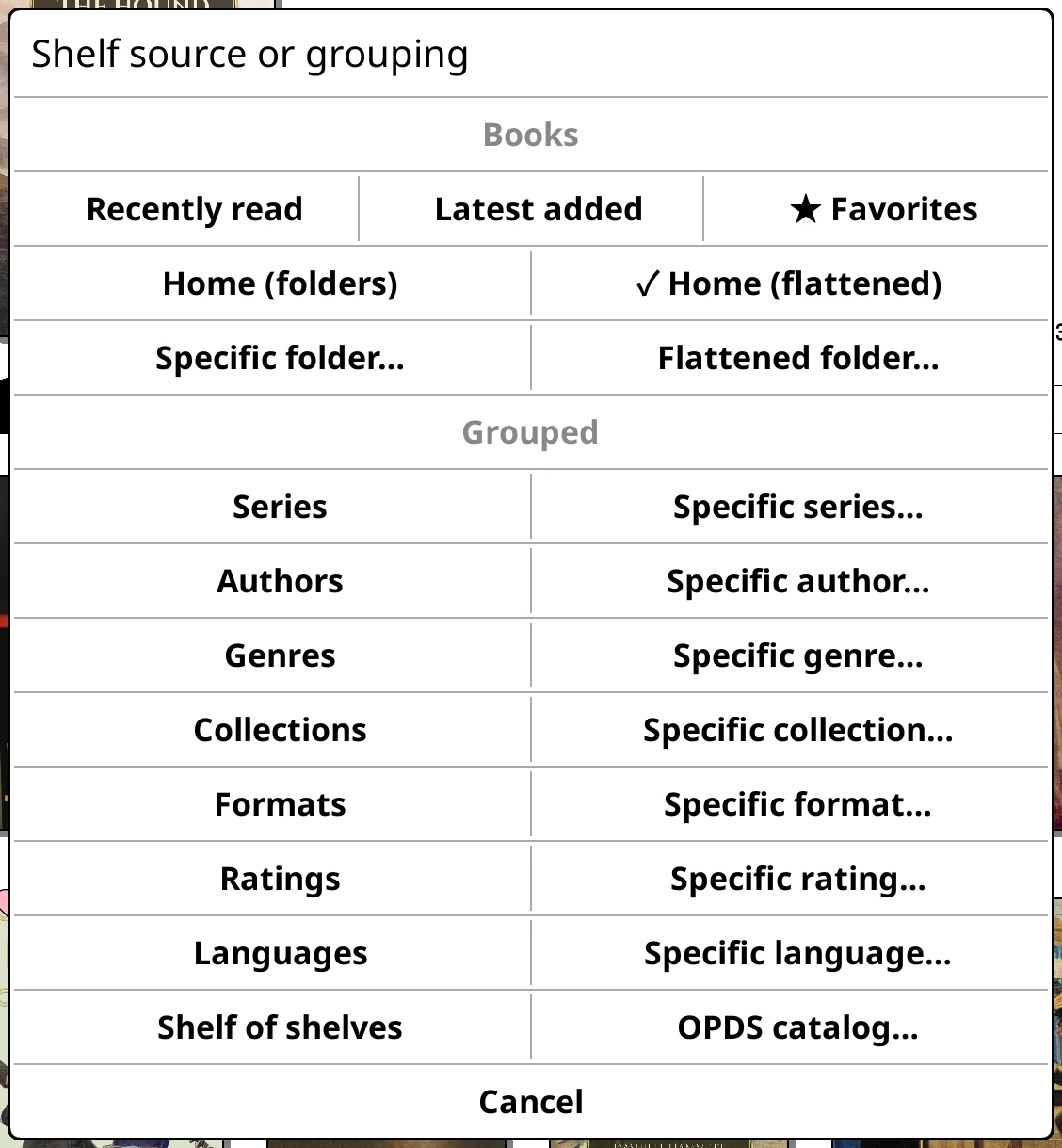
Grouped: a stack per series, author and so on. Tap a stack to open it.
| Source | And its "Specific…" version |
|---|---|
| Series | Specific series…: one series, in order |
| Authors | Specific author… |
| Genres | Specific genre… |
| Collections | Specific collection… |
| Formats | Specific format…: EPUB, PDF, CBZ… |
| Ratings | Specific rating…, including Unrated |
| Languages | Specific language… |
And three more:
- Shelf of shelves: a shelf holding other shelves. See Shelves.
- OPDS catalog…: an online catalogue.
- Kindle Virtual Library or Kobo library: your store library, on devices with the right plugin. See Other libraries.
Picking a source gives the shelf a sensible sort for it, which you can change.
Searching a long list
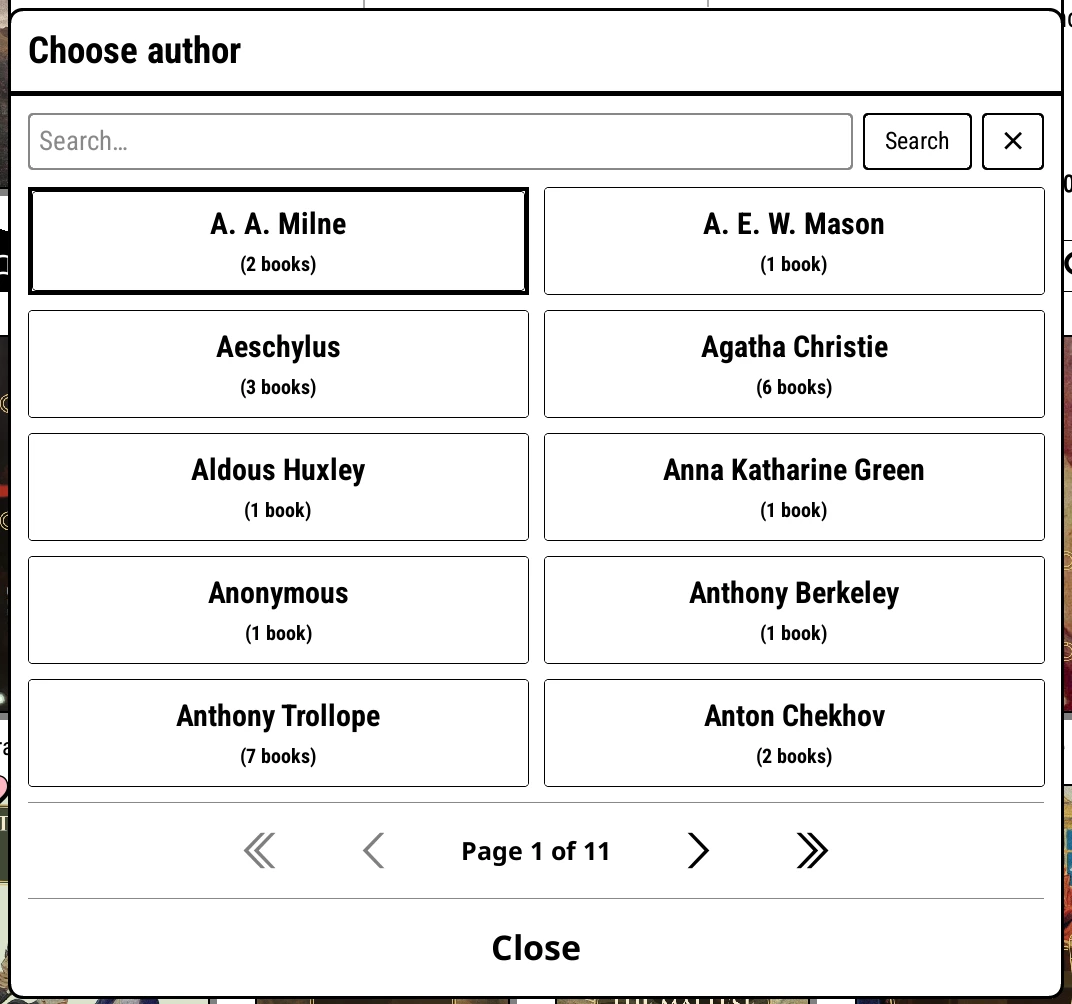
The Specific… pickers have a Search… box. Start typing an author's name rather than paging through hundreds.
Filters
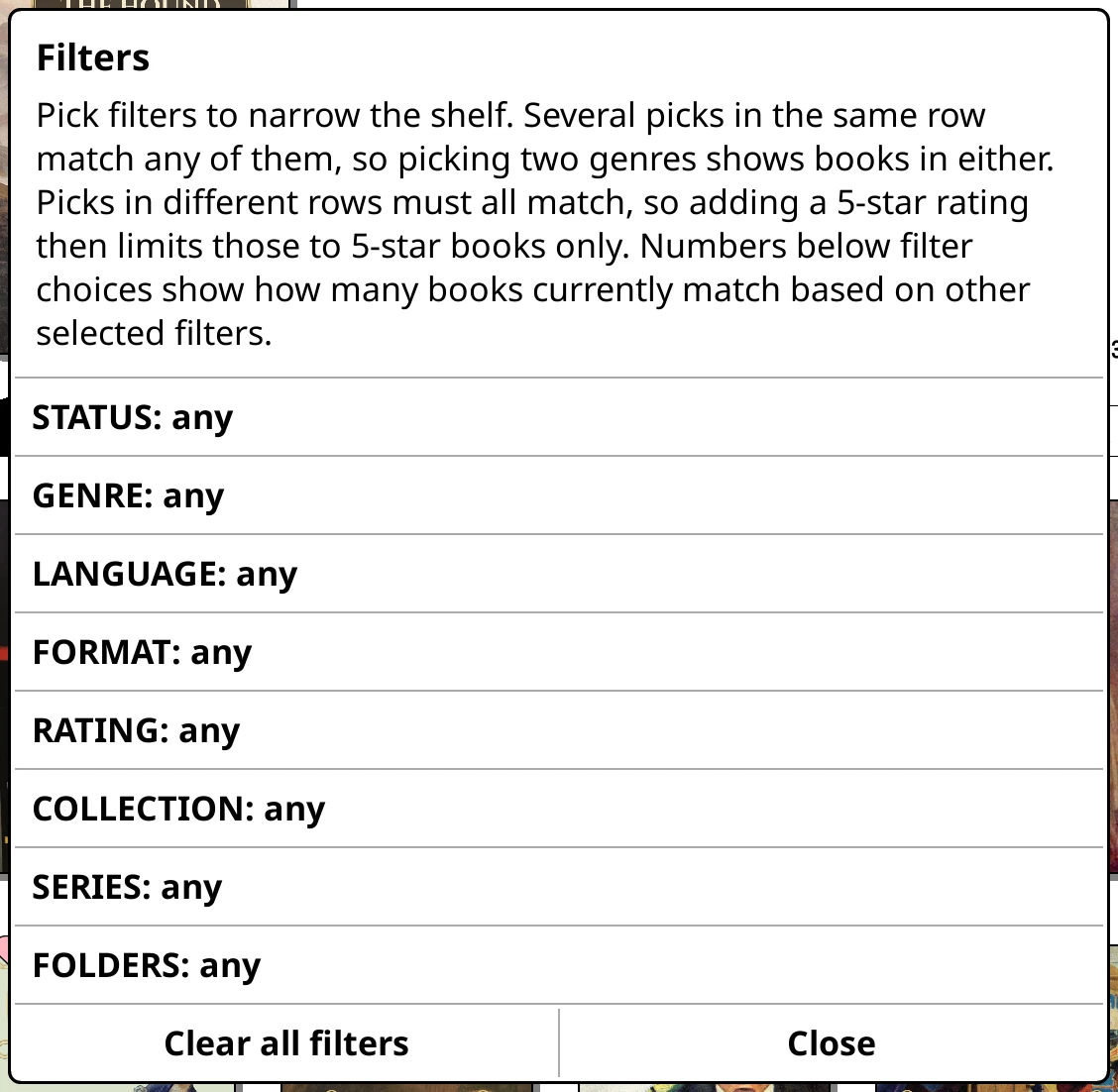
Tap Filters in the shelf editor. Each filter narrows the shelf:
| Filter | Keeps |
|---|---|
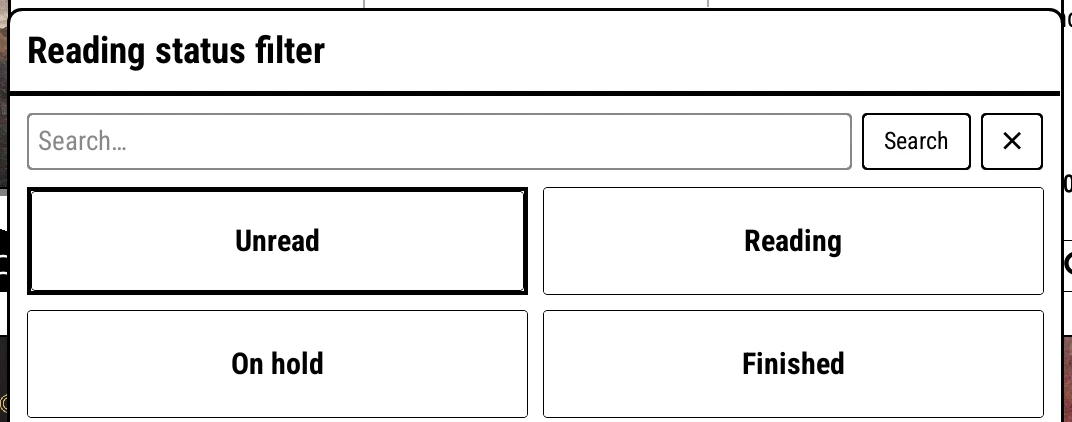
| Status | Unread, Reading, On hold, Finished |
| Genre | the genres you tick |
| Language | the languages you tick |
| Format | the formats you tick |
| Rating | 5 stars to 1 star, or Unrated |
| Collection | books in the collections you tick |
| Series | Only standalone books, Only books in series, or both |
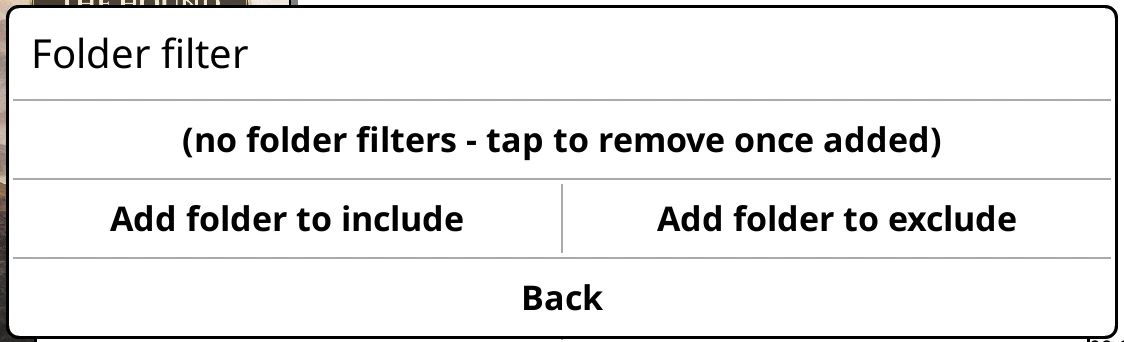
| Folders | folders to include and to exclude, sub-folders and all |
Filters only ever narrow a shelf: they keep what matches and drop the rest. (Folders are the exception, with both include and exclude lists.) To leave something out, tick everything else: "not finished" is Unread, Reading and On hold.
Within one filter, a book needs to match any of your ticks. Across filters, it needs to match all of them. So Status: Unread with Genre: Mystery, Horror gives unread books that are mysteries or horror.
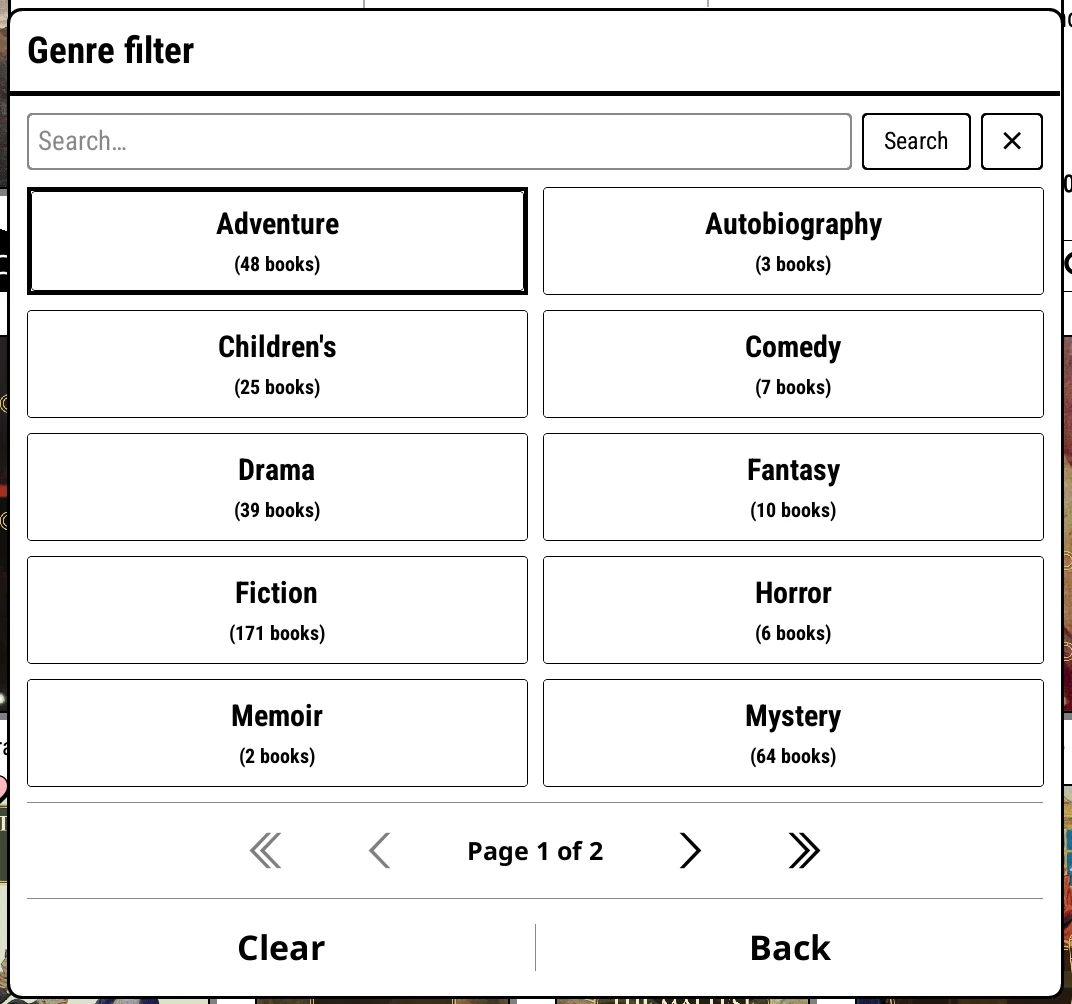
In the longer pickers (genre, language, format, collection) each choice shows how many books it would leave, given your other filters, so you can see a filter's effect before you tick it. Clear all filters starts again.
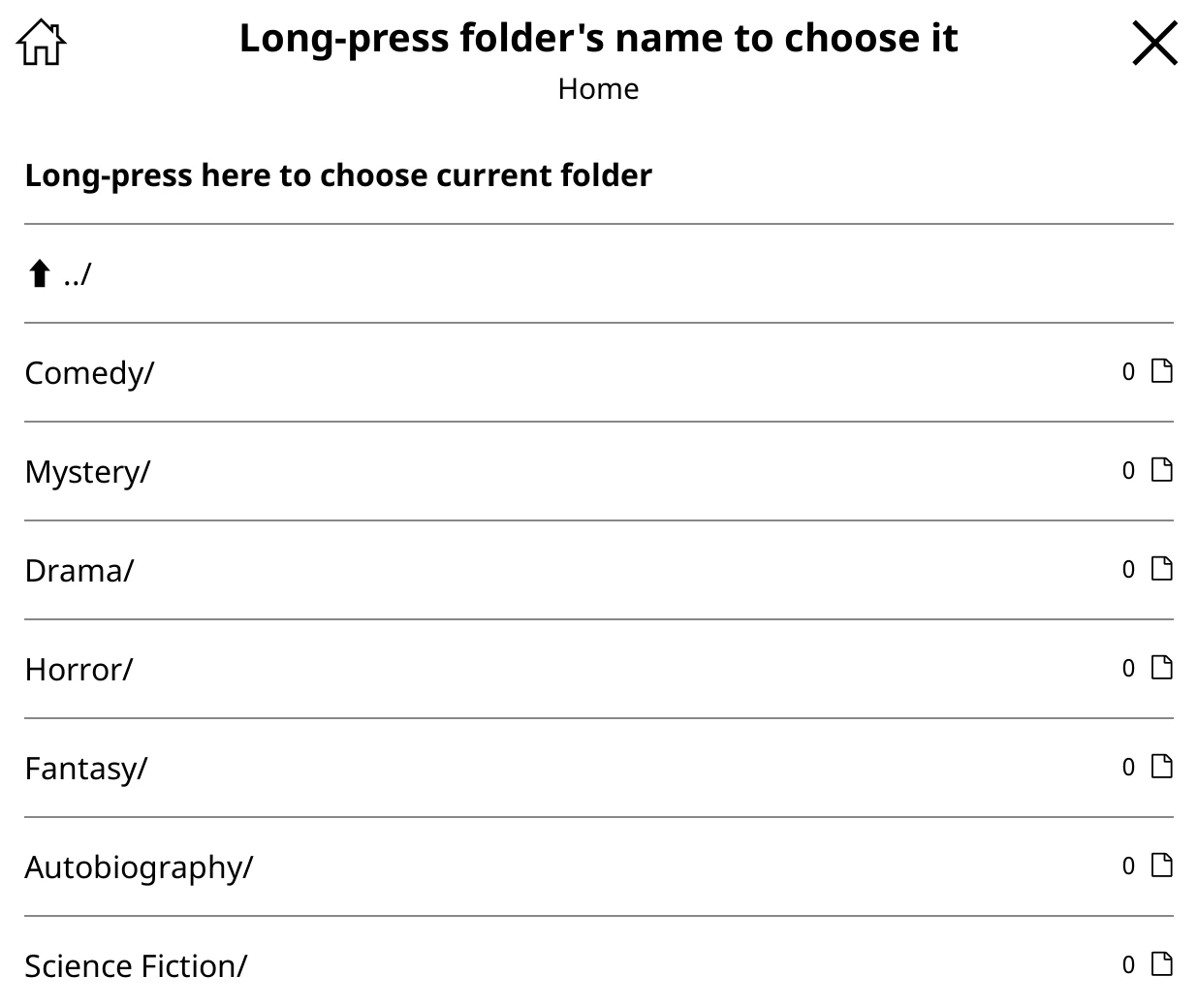
Folders has its own dialog: add folders to include or exclude, then pick each one in the folder browser (long-press a folder's name to choose it).
Sorting
What the clip shows, step by step:
- Change the order books stand in on a shelf
- Long-press the tab to open the shelf's editor
- Home sorts newest first. Tap 1: Added to change it
- Sort by author's surname
- Sort 2 breaks ties: Series + # keeps series in order
- Tap Close to see the result
- Authors A to Z, each series in order
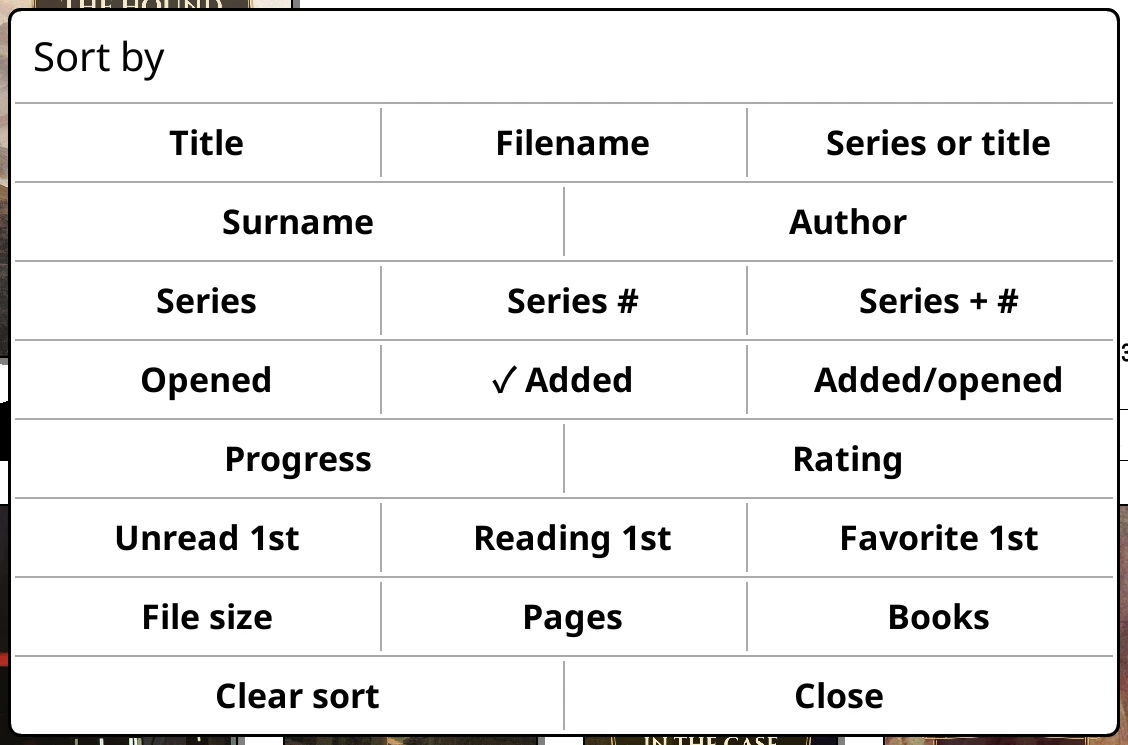
The three sort buttons in the shelf editor are three levels of sort. Each shows its key, such as 1: Added, or Sort 2: (none) while unused: by surname, then series, then number in series, for instance.
- Tap a level to pick its key.
- Tap the same key again to reverse it. A ↑ shows a level running the other way from usual.
- Clear sort removes a level.
On a grouped shelf, level 1 sorts the groups (by Name, Surname, Book count, Most recently read…) and levels 2 and 3 sort the books inside each group.
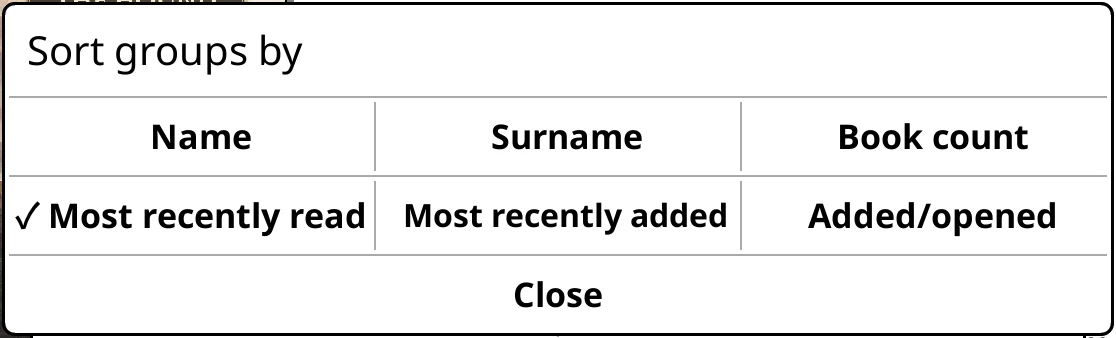
Every sort key
| Key | Order |
|---|---|
| Title | A to Z |
| Filename | A to Z |
| Series or title | the series name, or the title for standalone books |
| Surname | author's surname, A to Z |
| Author | author's first name, A to Z |
| Series | series name, A to Z |
| Series # | number in series |
| Series + # | series name, then number |
| Opened | last opened, newest first |
| Added | date added, newest first |
| Added/opened | whichever is more recent |
| Progress | most read first |
| Rating | highest first |
| Unread 1st, Reading 1st, Favorite 1st | that group first |
| File size | |
| Pages | needs page counts |
| Books | on grouped shelves, the biggest groups first |
On a Specific collection… shelf there's also Collection order, the order you arranged the collection in KOReader, and Edit collection order to rearrange it.
Two settings affect every sort, under Bookshelf > Settings > Library & search: Ignore The, A, An when sorting (on by default) and Sort Chinese text by pinyin. With Calibre metadata on, Surname uses Calibre's author sort and title sorting uses Calibre's title sort.
Added means the file's date
Added, Added/opened and the Latest added source use each file's date on the device. Calibre gives a book a new date whenever it sends it again, so after a full resync everything counts as just added. For a reading pile that stays put, a collection is more dependable.
There's no 'date finished'
Bookshelf can filter by Finished but can't sort by when you finished, or show "read this year". A collection per year works well (add books as you finish them, and pin it as a shelf), and the Reading goals micro-module counts books finished by month and year.