Search
Tap the magnifier at the end of the shelf menu, type, and tap Search.
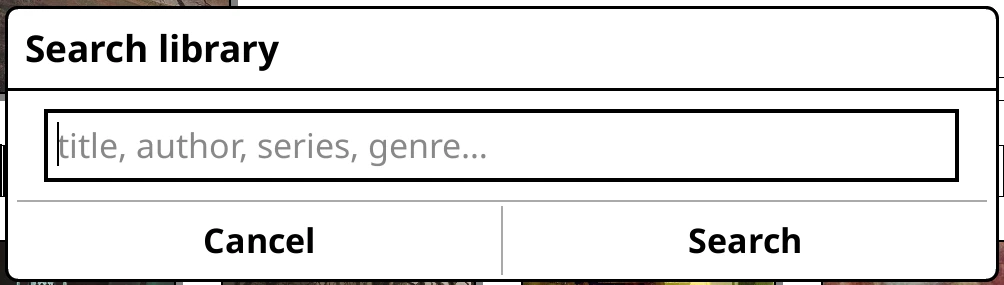
Search looks across titles, authors, series, genres and file names at once and groups the results. Tap a series or author in the results to open it.
The shelf menu shows Back, then Search results, then what you searched for:

- Back returns you to where you were.
- Tap your search to change it.
- Long-press Search results to show results as Covers, List, Spines or Auto.
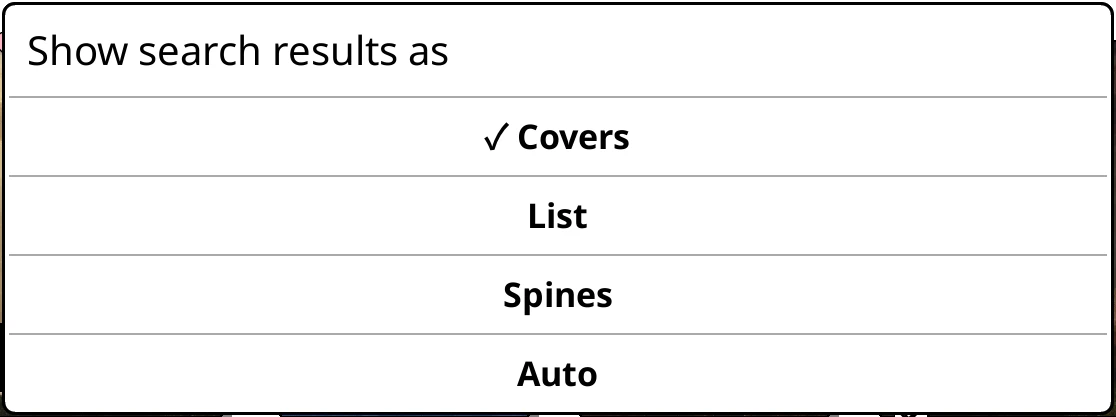
What the clip shows, step by step:
- Search your whole library from the shelf menu
- Tap the magnifier at the end of the shelf menu
- Type an author, title or series
- Tap Search
- Every match, ready to open
Fine-tuning
Two switches under Bookshelf > Settings > Library & search:
- Include folder names in search results
- Off by default. Folders usually mirror your authors or series, so matching them just repeats results. Turn it on if you find books by folder.
- Include genres and tags in search results
- On by default. If a common tag crowds out the book you meant, turn it off and search matches only titles, authors and series.
Other ways to find a book
- Tap the page counter and type a letter to jump to it on the shelf.
- On an online catalogue shelf, the magnifier searches the catalogue itself, with Search my library alongside.